Jackdesk Store: Admin Manual
The Store is where your organisation is set up: your WhatsApp number and mailboxes, your staff and what each may do, how chats are shared out, and your plan and bills.
I want to…
Finding your way in the Store
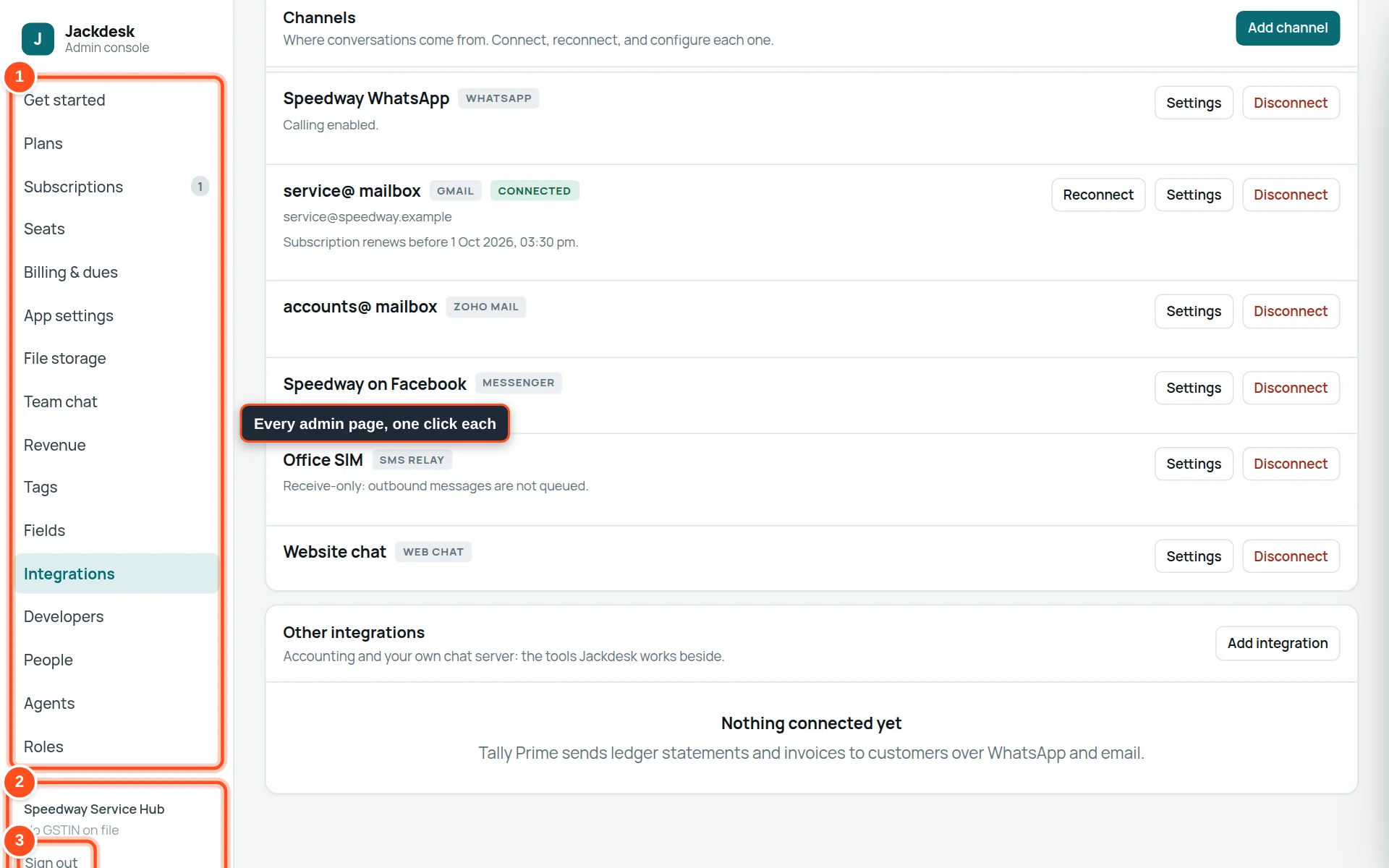
- 1The menu: one page for each part of your set-up.
- 2Your organisation’s name, and your GSTIN once given.
- 3Sign out.
| Menu item | What it is for |
|---|---|
| Get started | Four steps from signing up to your team answering customers. Shown first until done. |
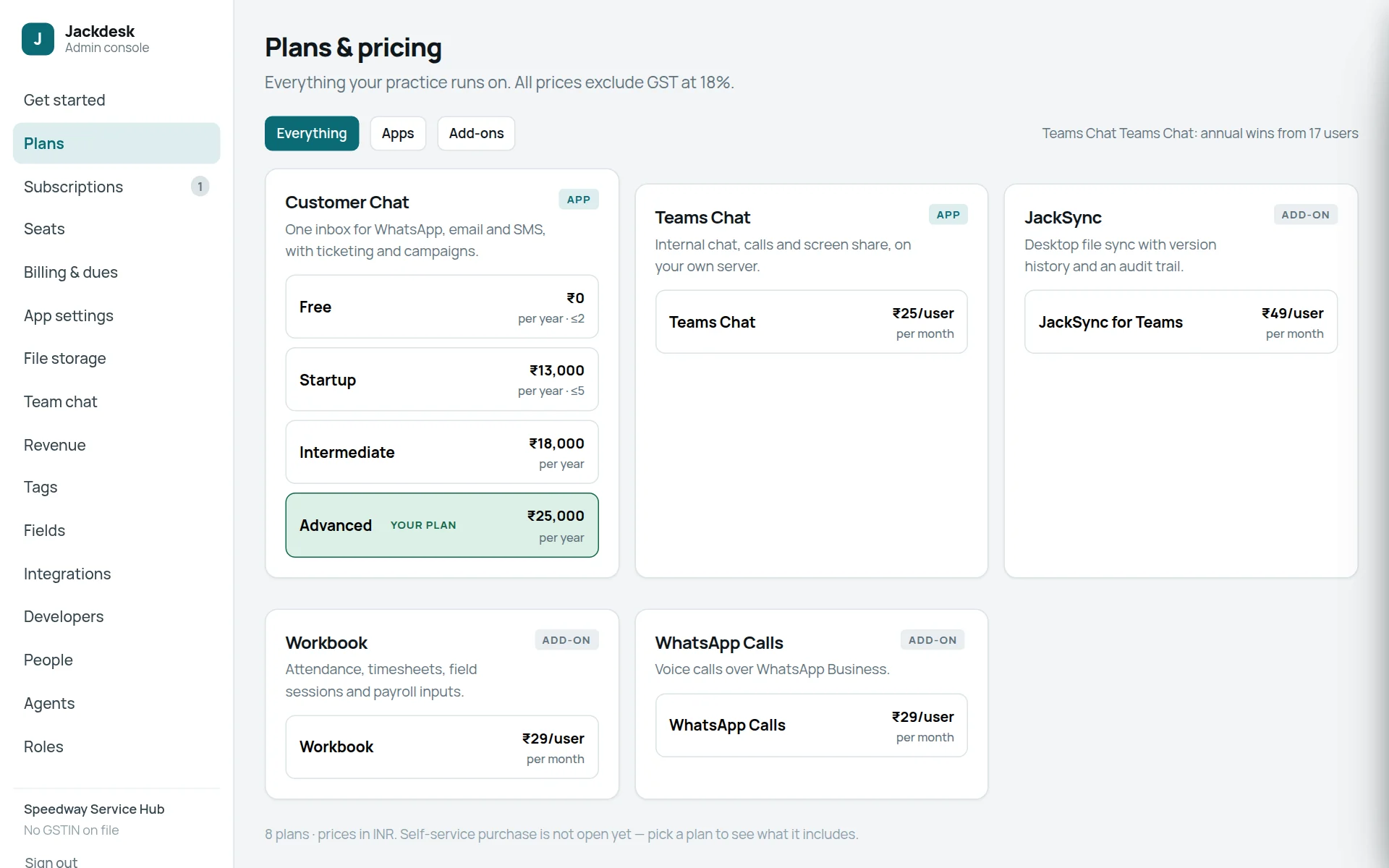
| Plans | What each plan includes and costs. |
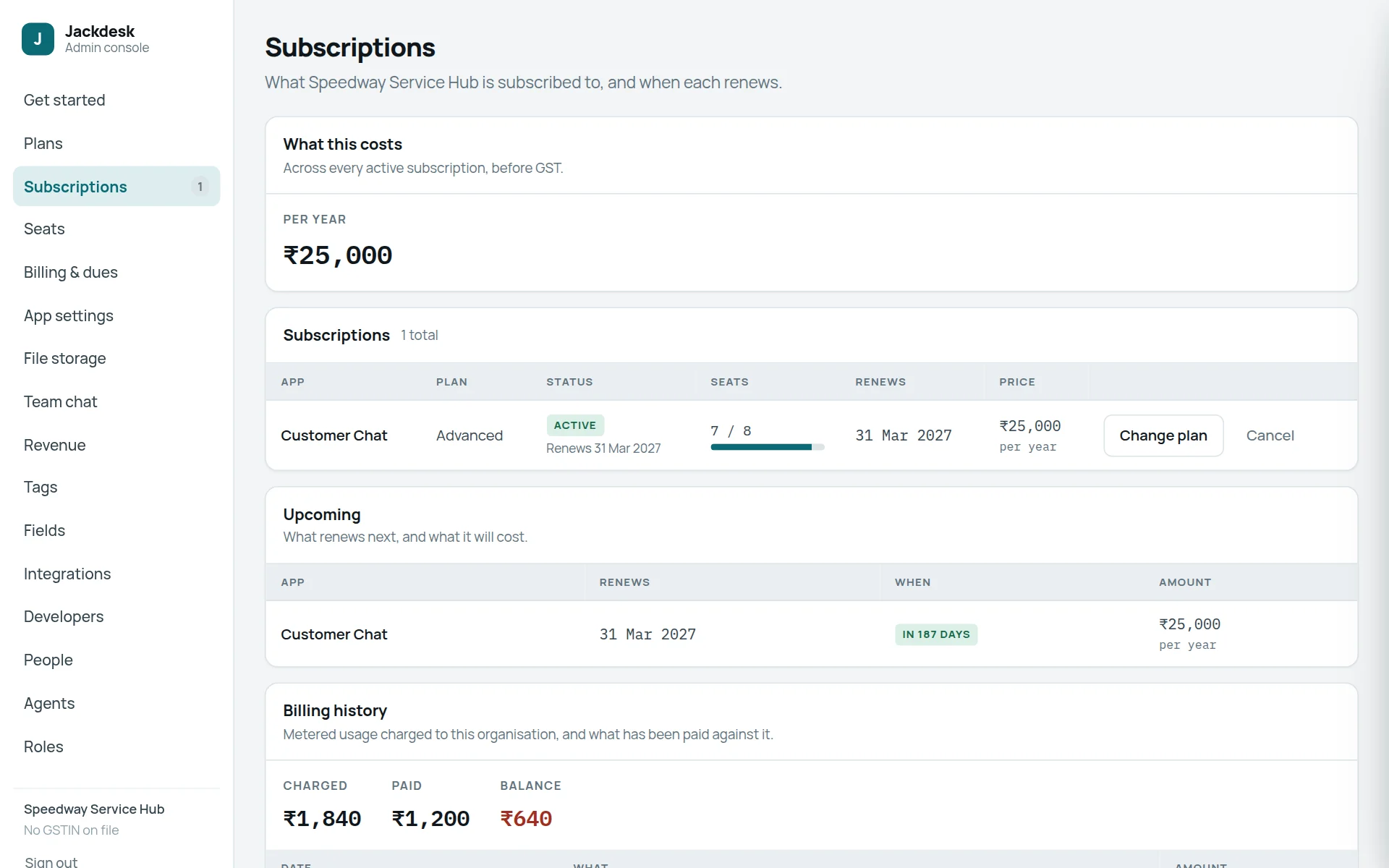
| Subscriptions | What you pay for, and when it renews. |
| Seats | Which people use each paid app. |
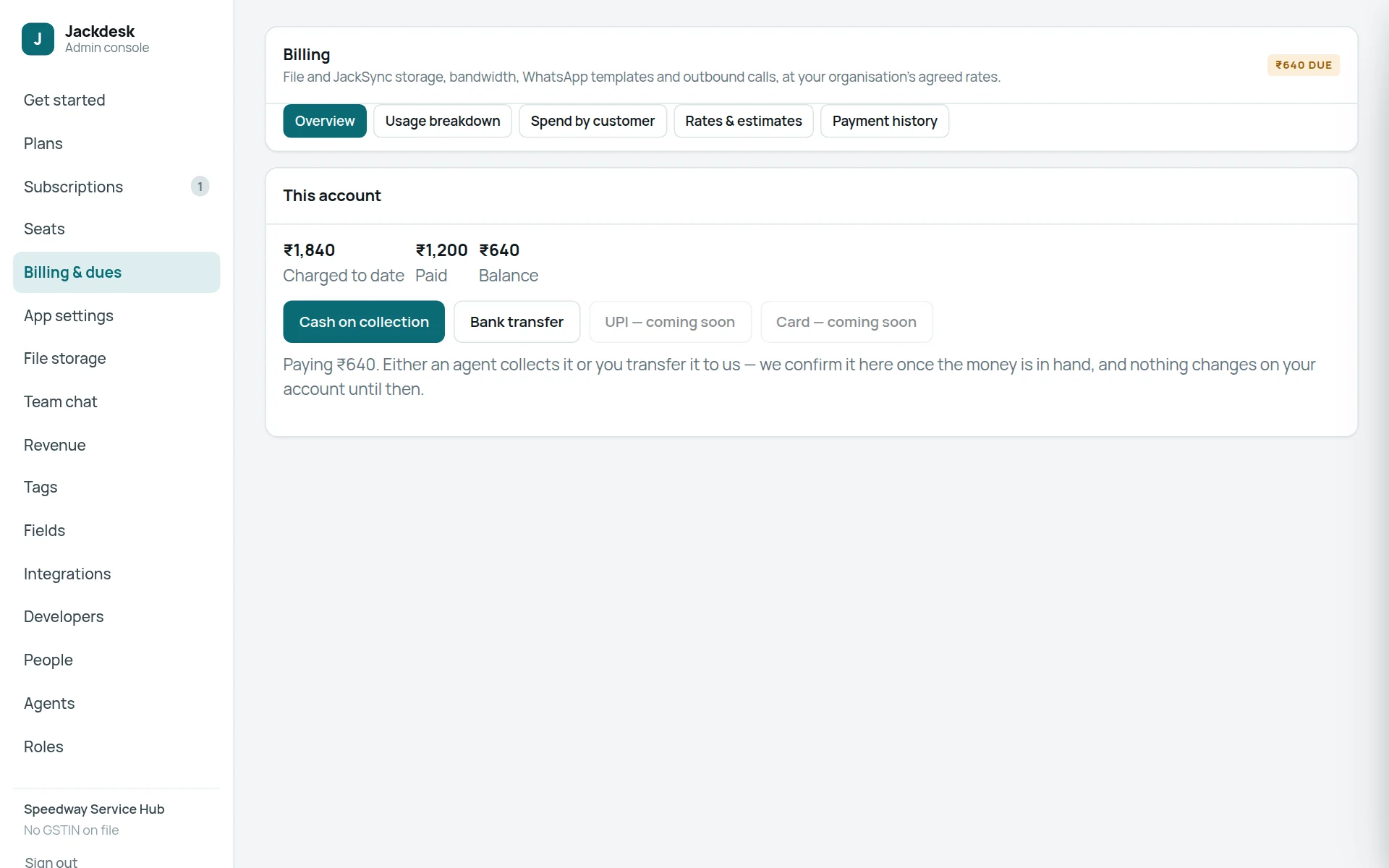
| Billing & dues | Usage charges (such as WhatsApp marketing messages) and payments. |
| App settings | How the Jackdesk desk (its card is called Customer Chat), Workbook and other apps behave for everyone. |
| File storage | Where your chat files are kept. |
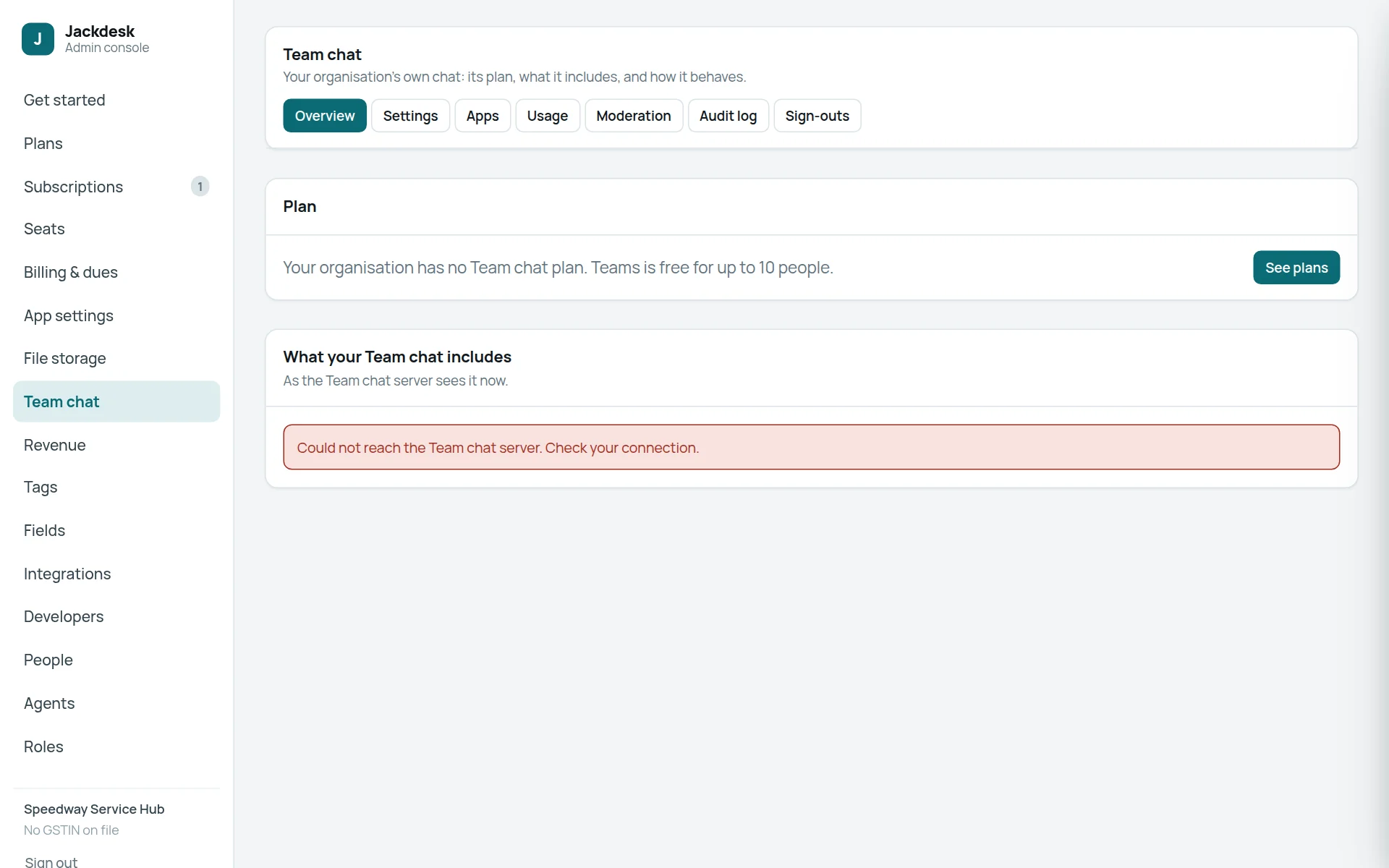
| Team chat | Team chat’s plan and settings. |
| Revenue | Lead rules and marketing rules (who may be sent offers). |
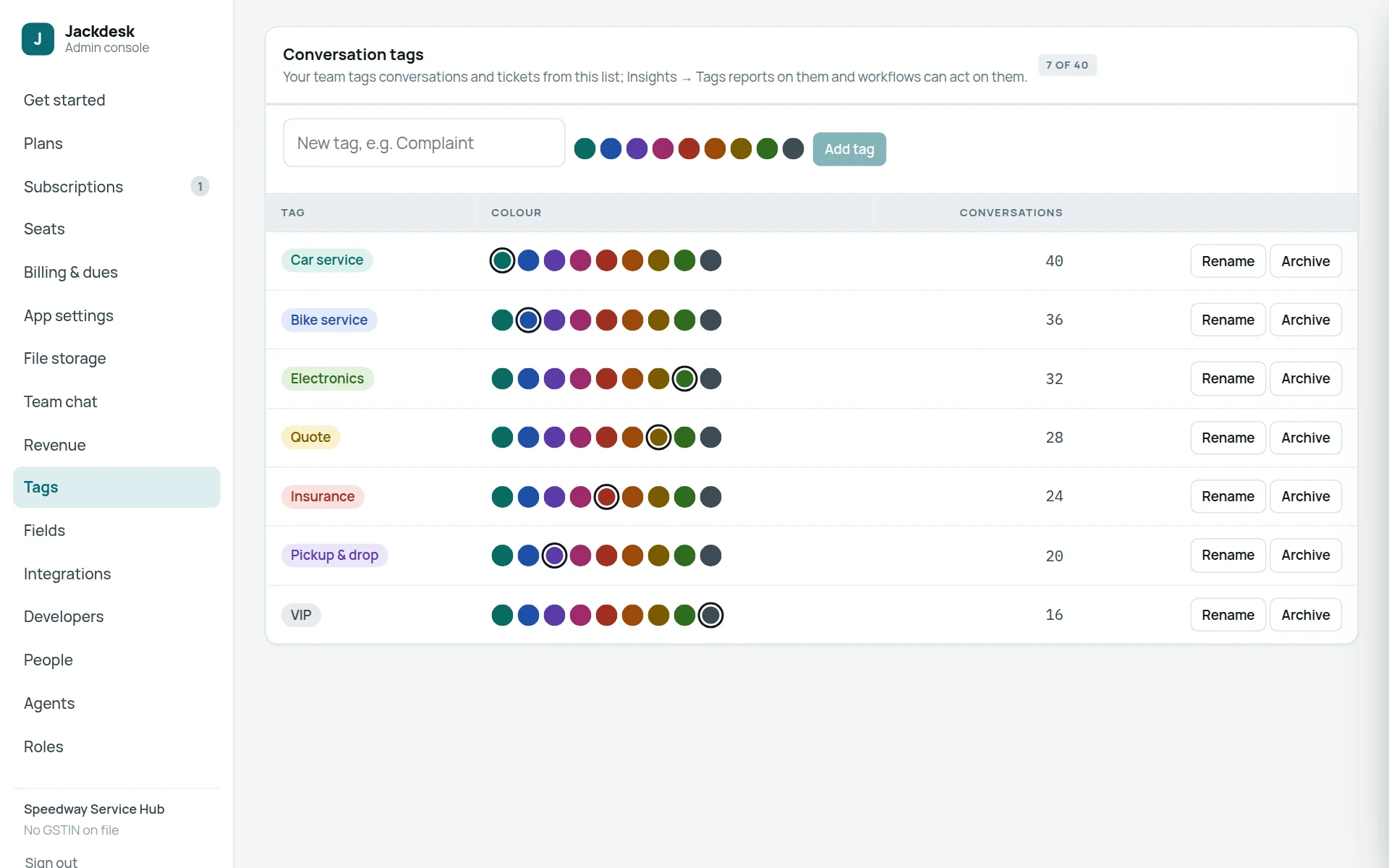
| Tags | The list of tags your team can put on chats. |
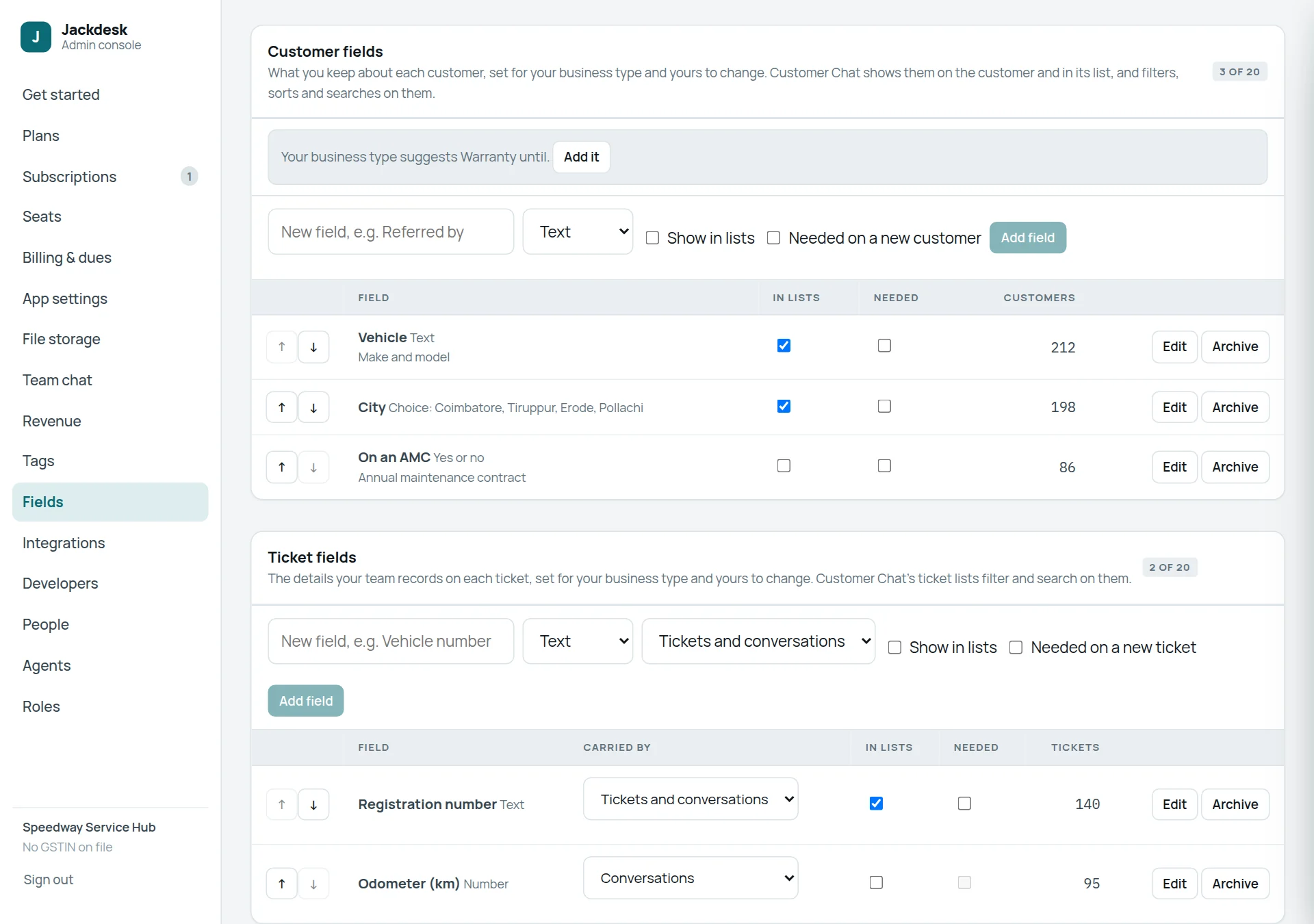
| Fields | Your own boxes on customers and tickets (for example “Vehicle”). |
| Integrations | Your channels: WhatsApp, mailboxes, SMS, website chat, Facebook, Instagram; and Tally. |
| Developers | Keys for your other software to talk to Jackdesk. |
| People | Your staff, departments and who reports to whom. |
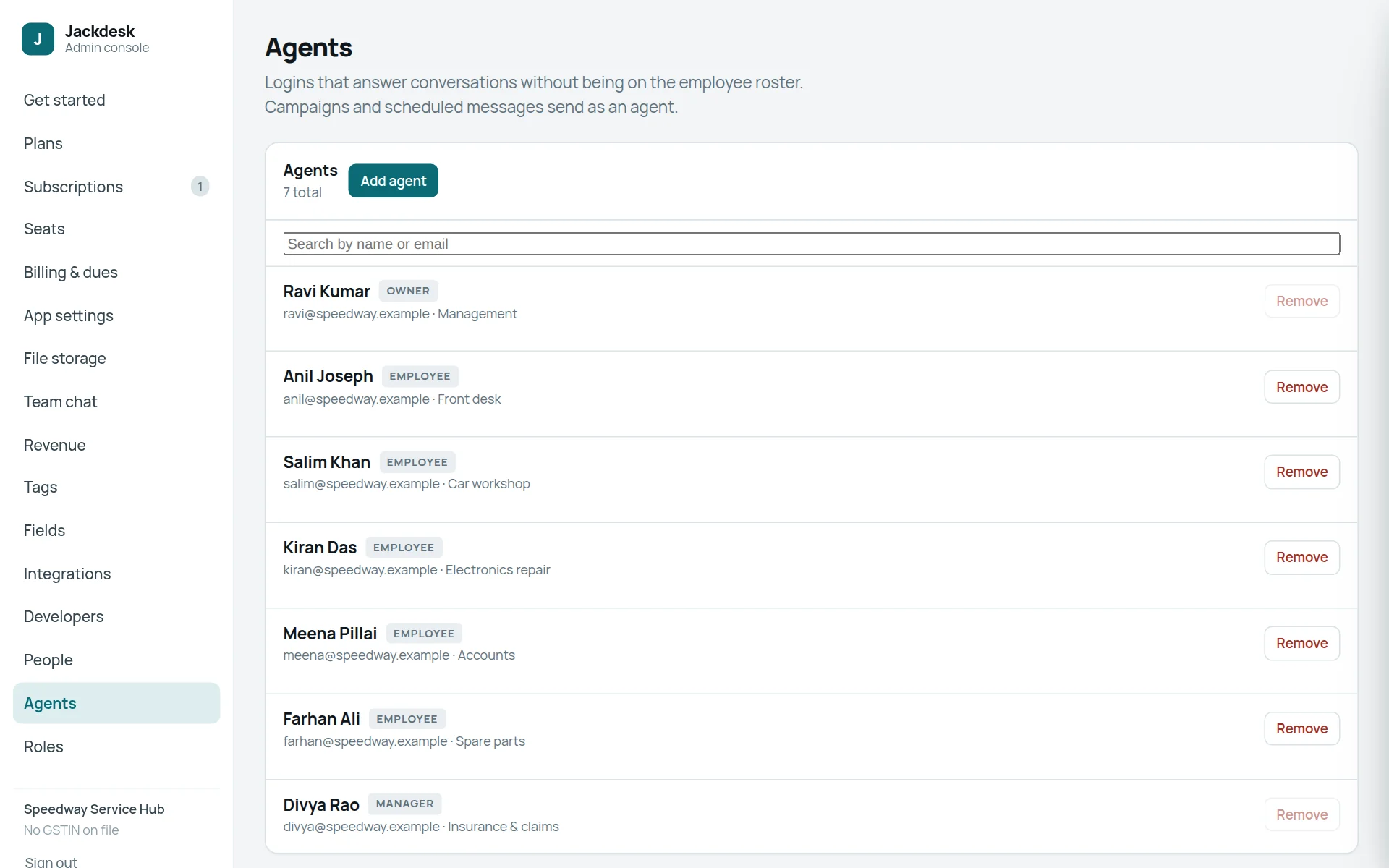
| Agents | Logins that answer chats without being an employee (campaigns send as one). |
| Roles | What each role may do and see. |
Get started: the first four steps
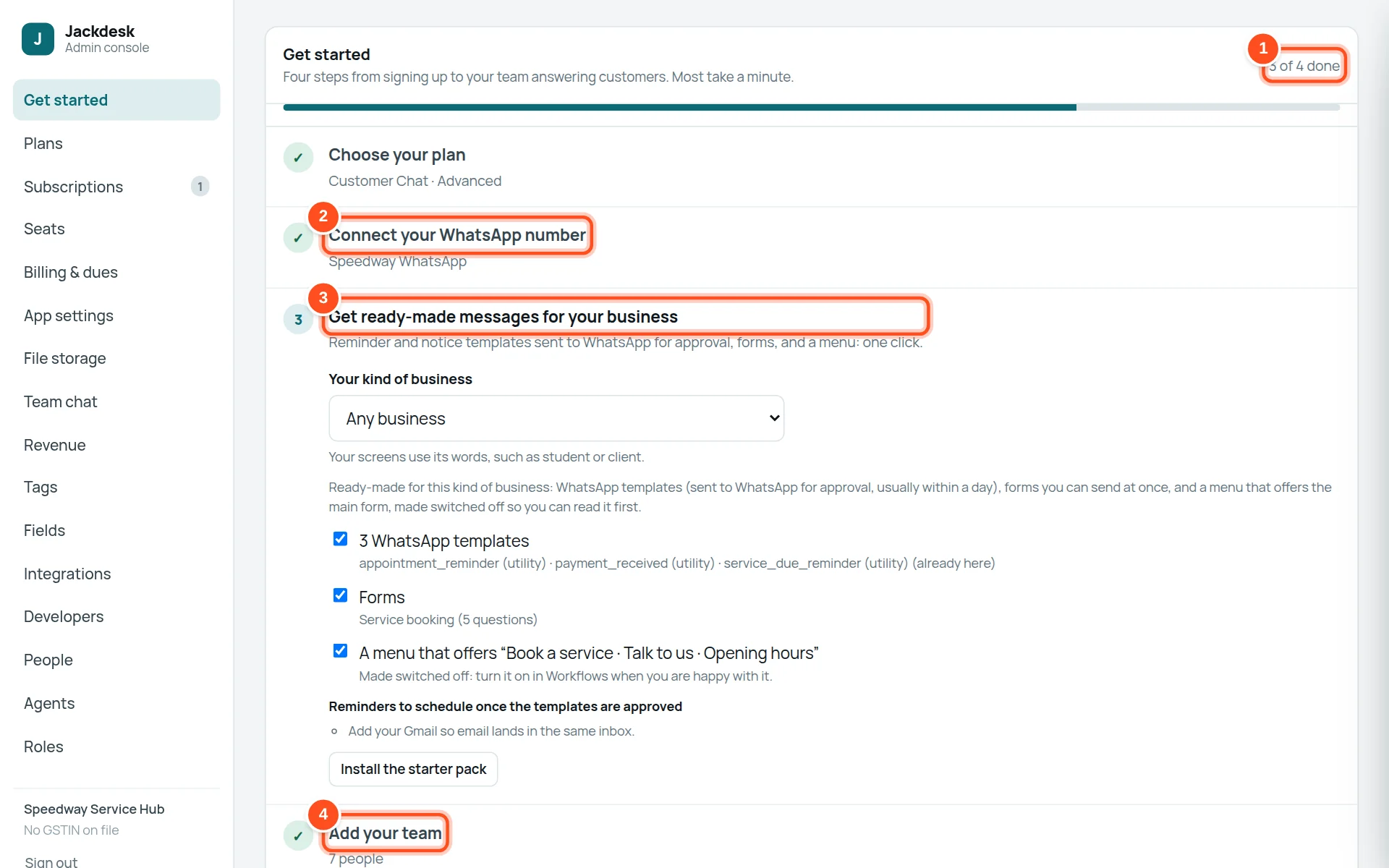
- 1How many of the four steps are done.
- 2Connect your WhatsApp number — see Channels.
- 3Ready-made messages for your business — pick your kind of business; Jackdesk sends useful templates to WhatsApp for approval and makes a booking form and a menu (switched off until you turn it on).
- 4Add your team — see People.
Channels: WhatsApp, email, SMS and website chat
A channel is a place customers reach you. Each one you connect lands in the same Client Chat inbox.
Who can do this The owner, or a role with “Manage the organisation”.
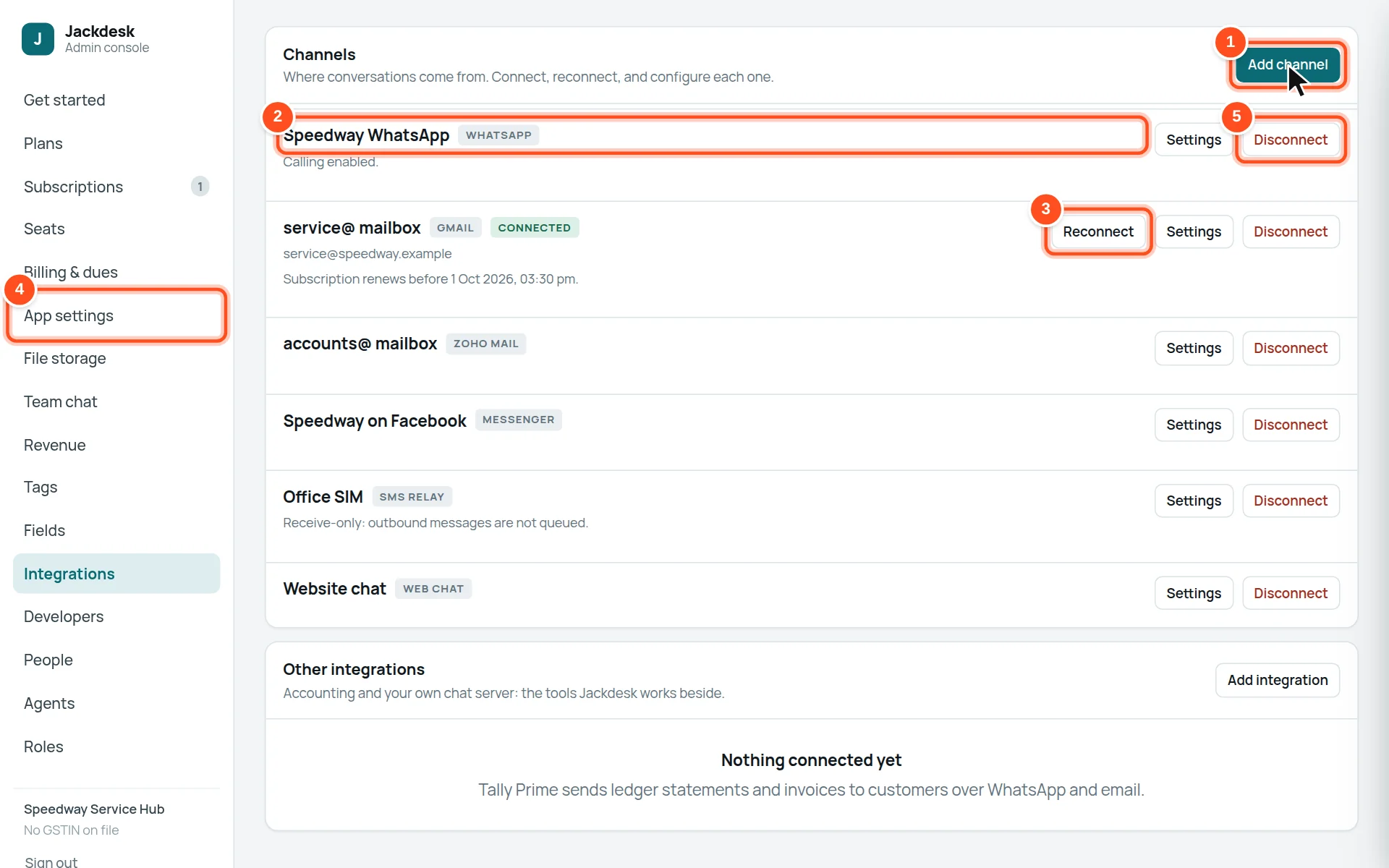
- 1Add channel.
- 2Each connected channel, with its name and kind.
- 3Reconnect — sign in to a mailbox again (for example after a password change).
- 4Settings — change its name or details.
- 5Disconnect — stop it. Messages to it stop arriving in Jackdesk.
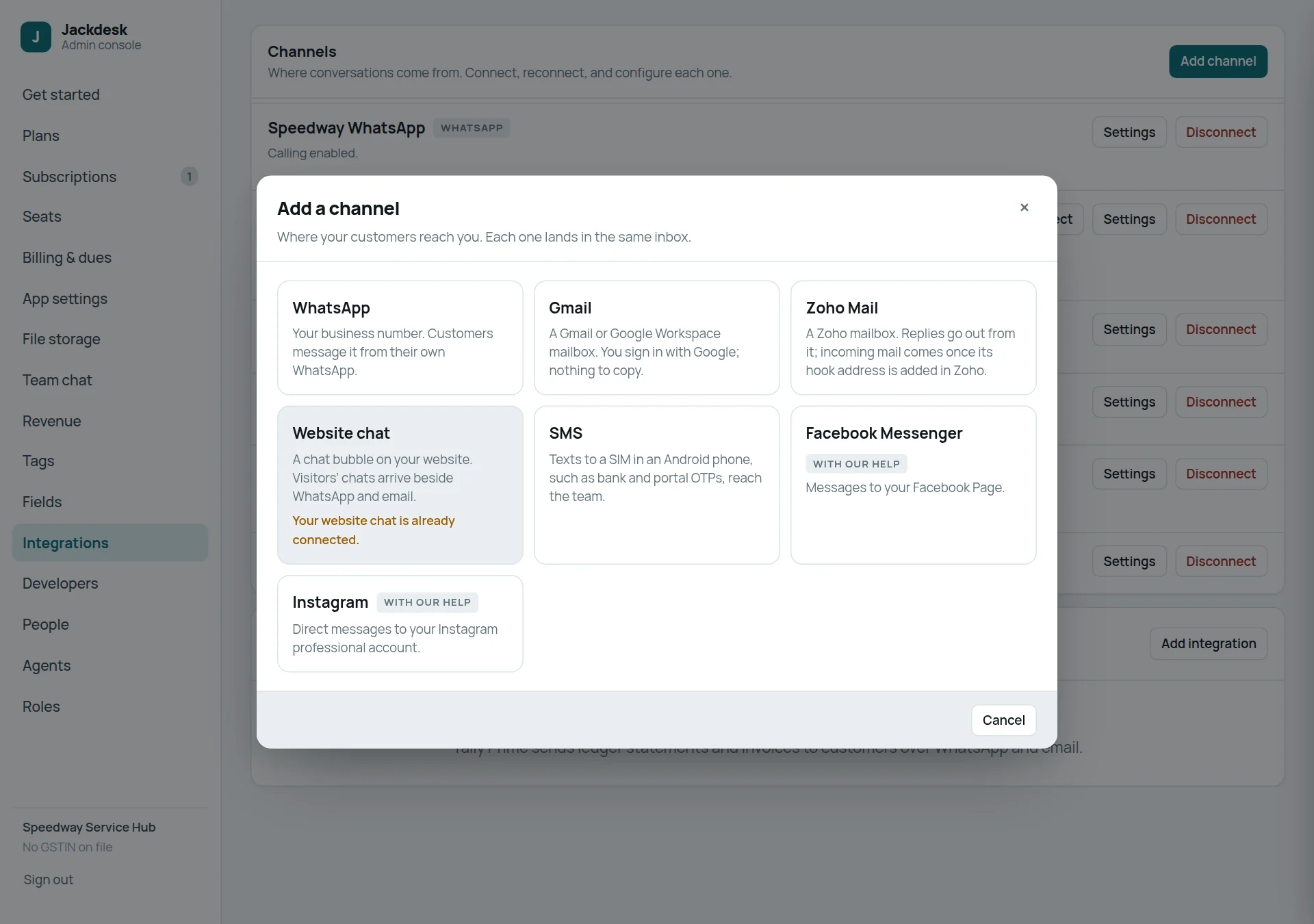
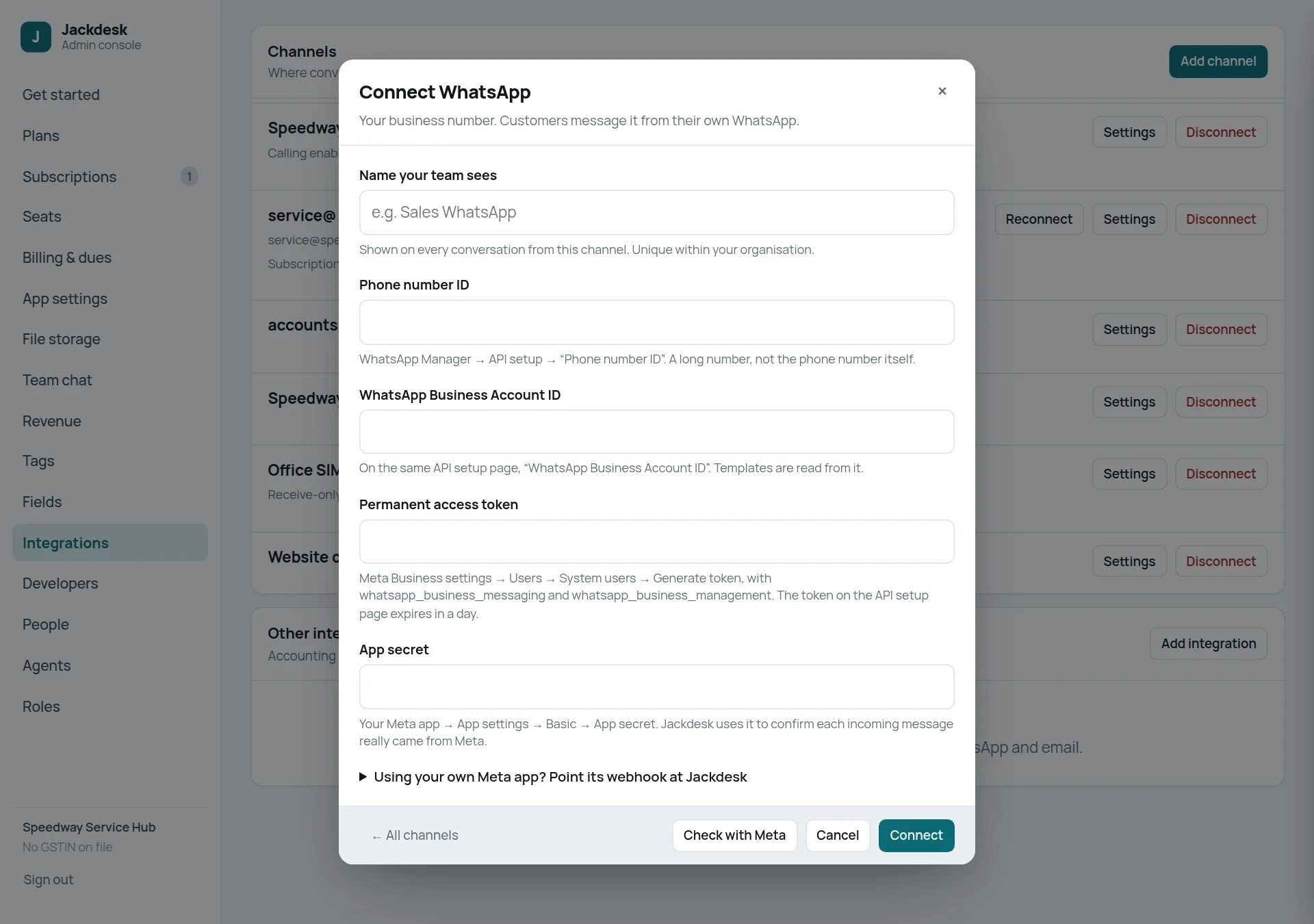
- Name your team sees, for example “Sales WhatsApp”.
- From Meta’s WhatsApp Manager → API setup, copy the Phone number ID and the WhatsApp Business Account ID.
- Paste a Permanent access token (Meta Business settings → System users → Generate token). Not the one-day token on the API setup page.
- Paste the App secret (your Meta app → App settings → Basic).
- Press Check with Meta: it should say Meta accepts these details. Then Connect.
Gmail and Zoho Mail
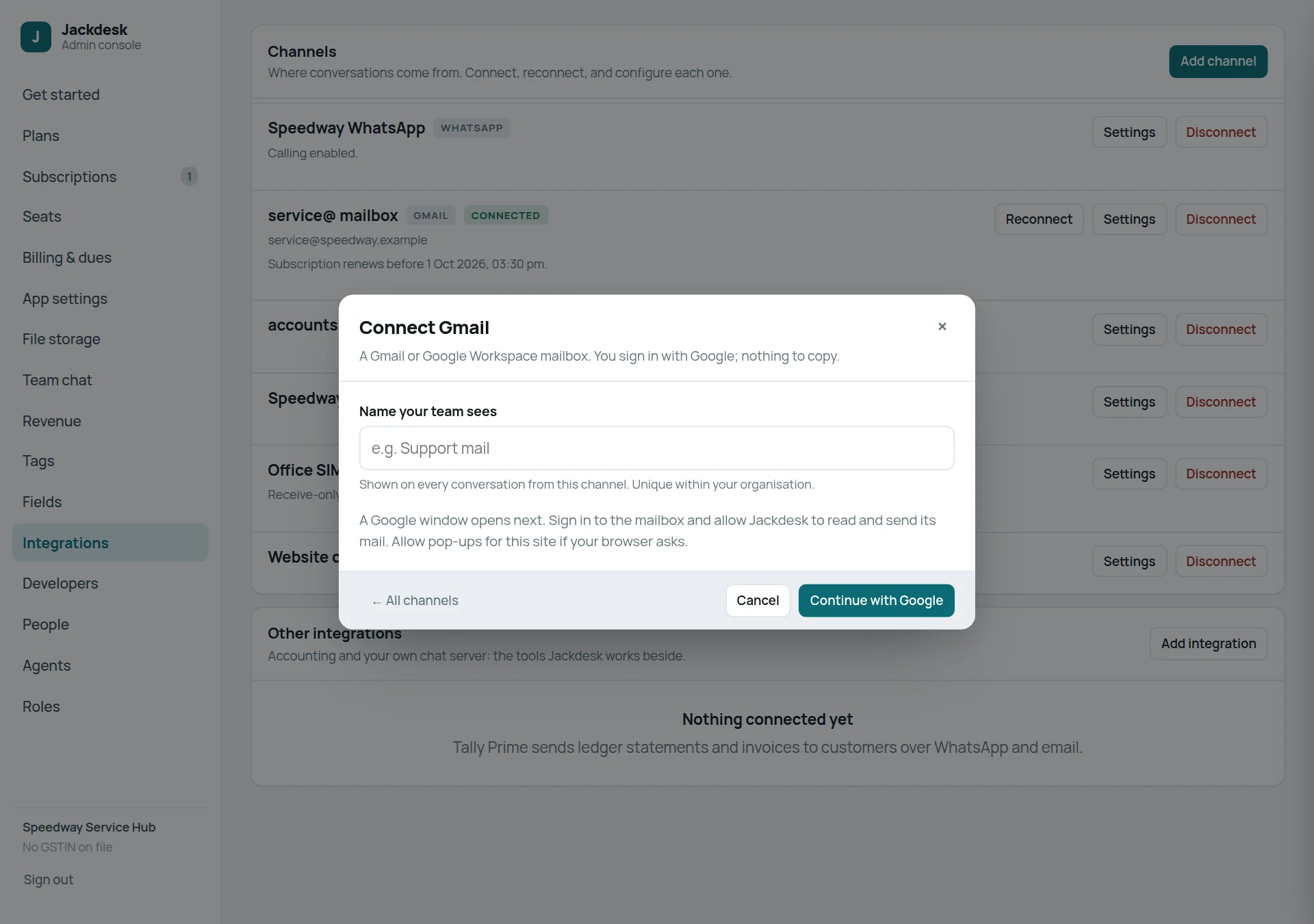
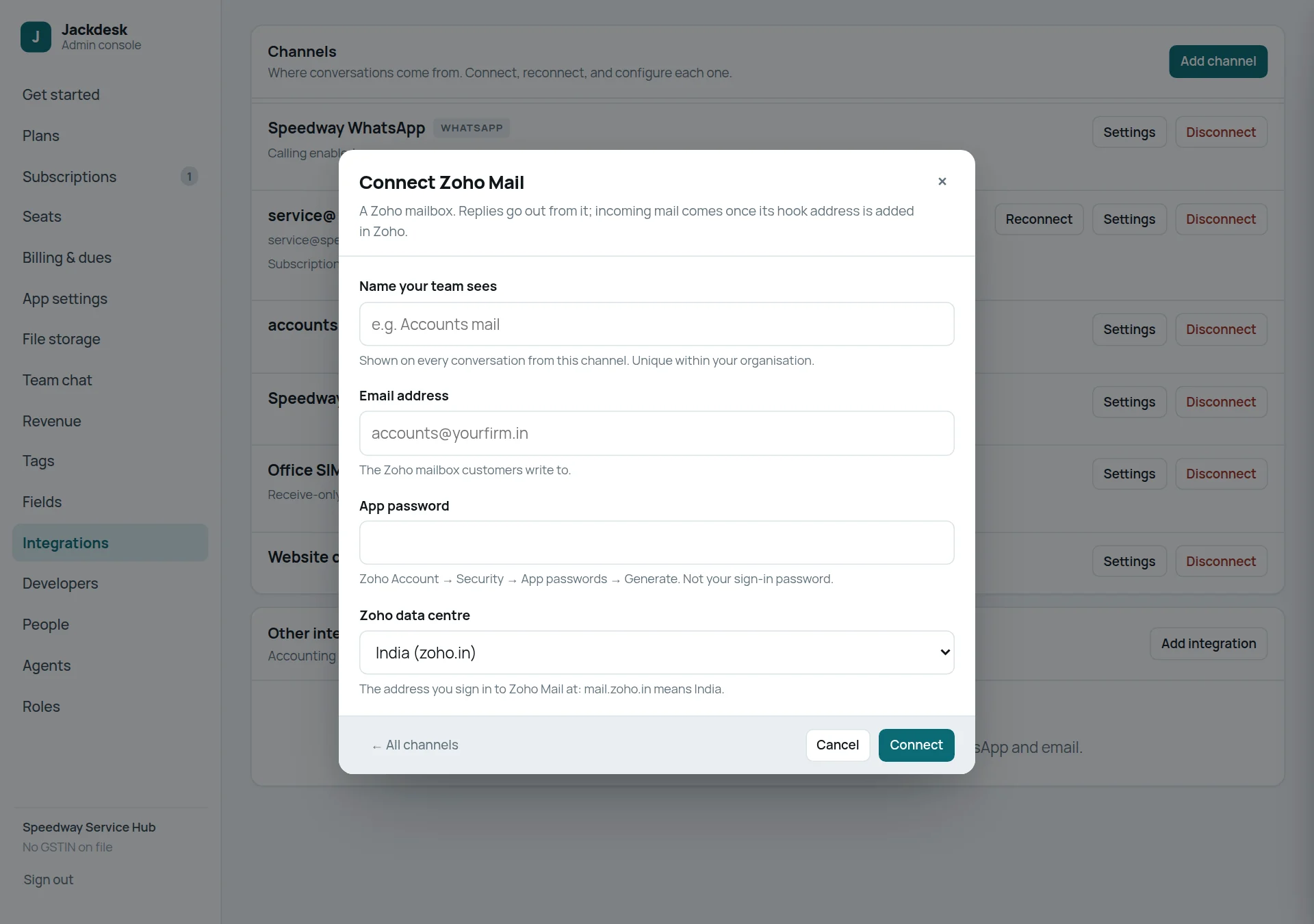
SMS from an office SIM
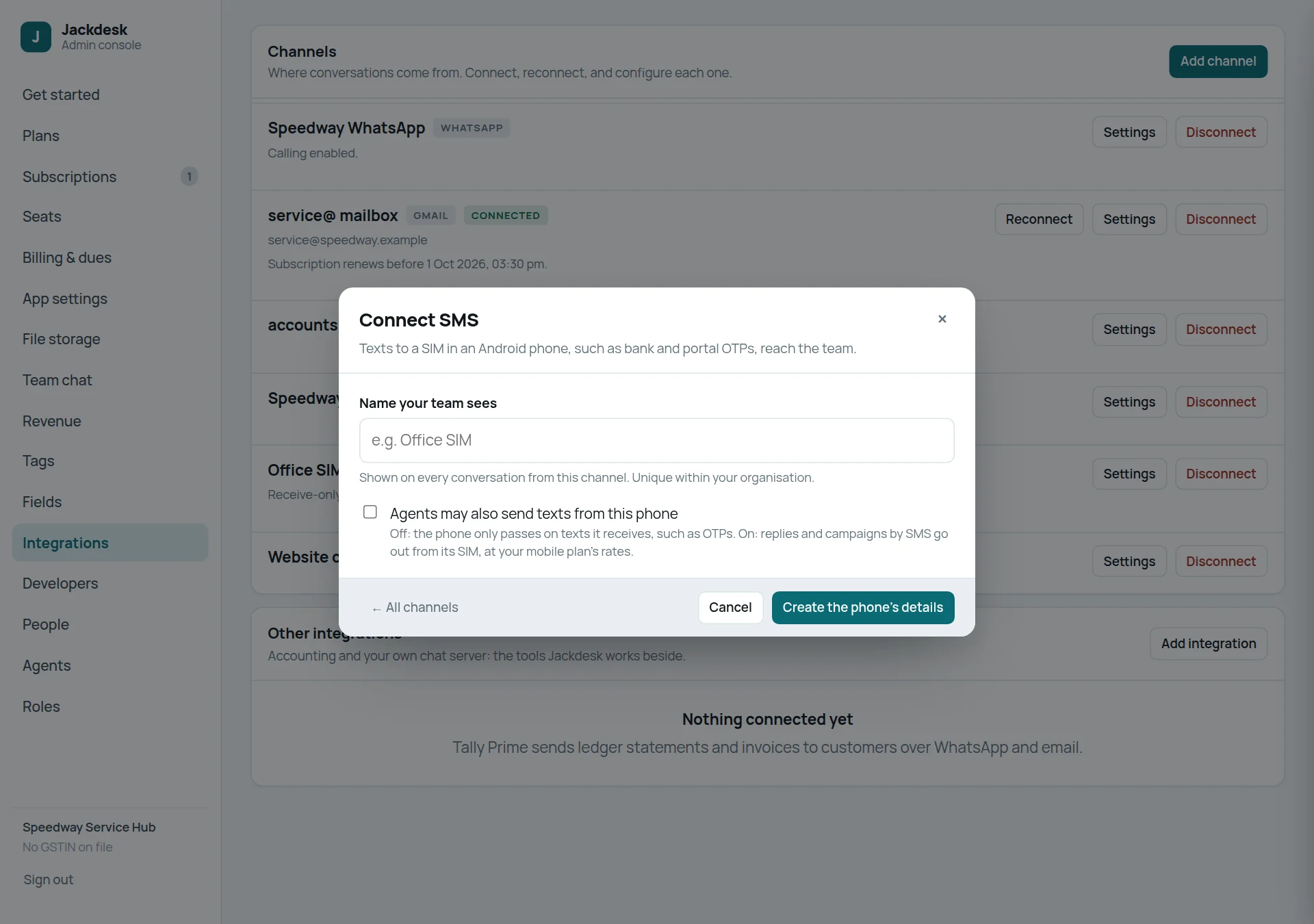
- Give it a name, for example “Office SIM”.
- Leave Agents may also send texts from this phone off if the SIM only receives OTPs. On: replies and SMS campaigns go out from that SIM at your mobile plan’s rates.
- Press Create the phone’s details. Jackdesk shows a Server, a Device ID and an API token.
- On the Android phone that holds the SIM, install the Jackdesk SMS Relay app (ask Jackdesk support for it), enter the three values, save, and allow the permissions it asks for. Texts arrive within a minute.
Website chat, Facebook and Instagram
Website chat: one per organisation. Jackdesk support sends you a short code to paste into your website. Facebook Messenger and Instagram: your page or account must be linked to Jackdesk’s Meta app; Jackdesk support does this with you.
People: your staff and departments
Who can do this The owner, or a role allowed to “Add and remove team members”.
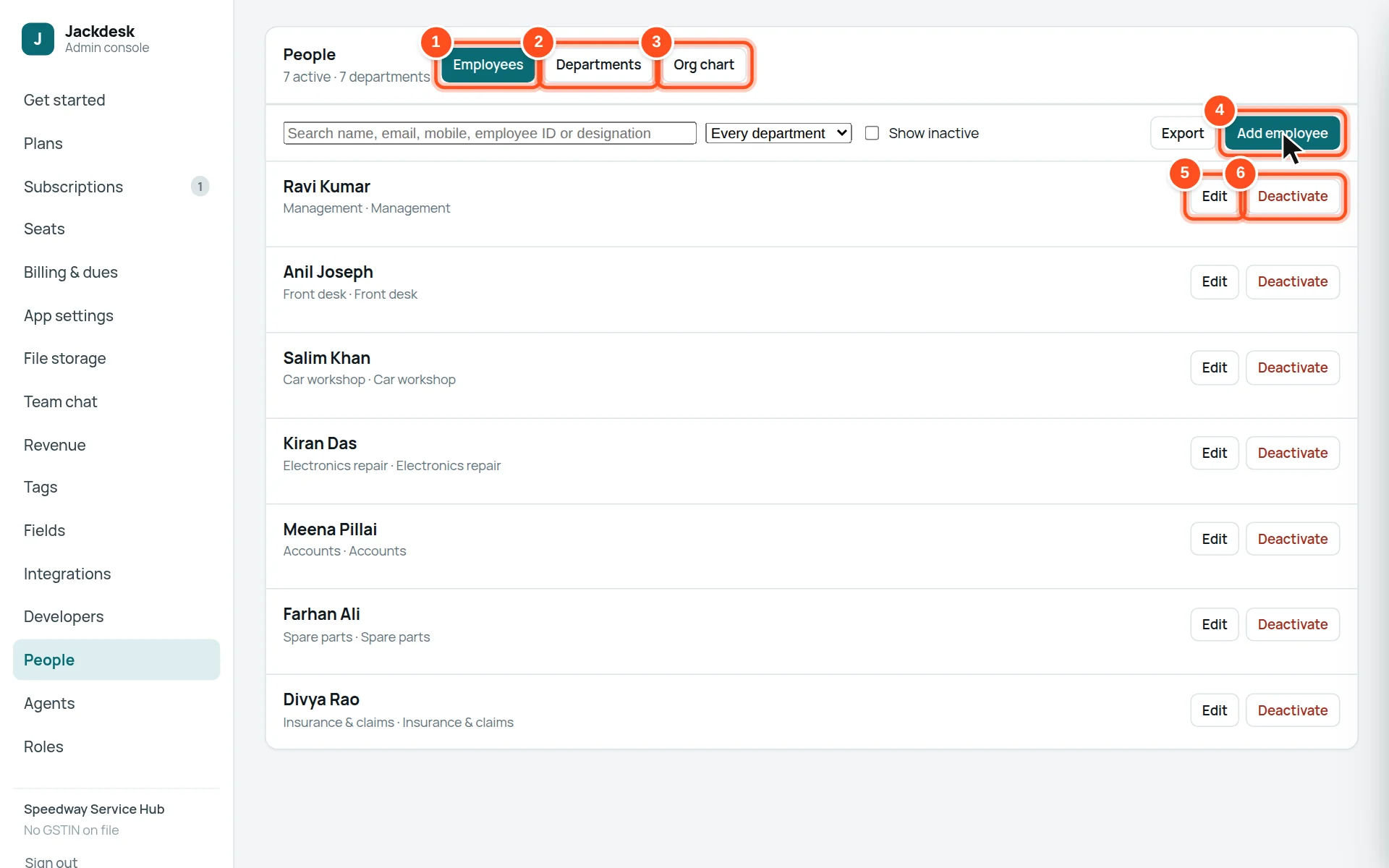
- 1Employees — everyone on your staff list.
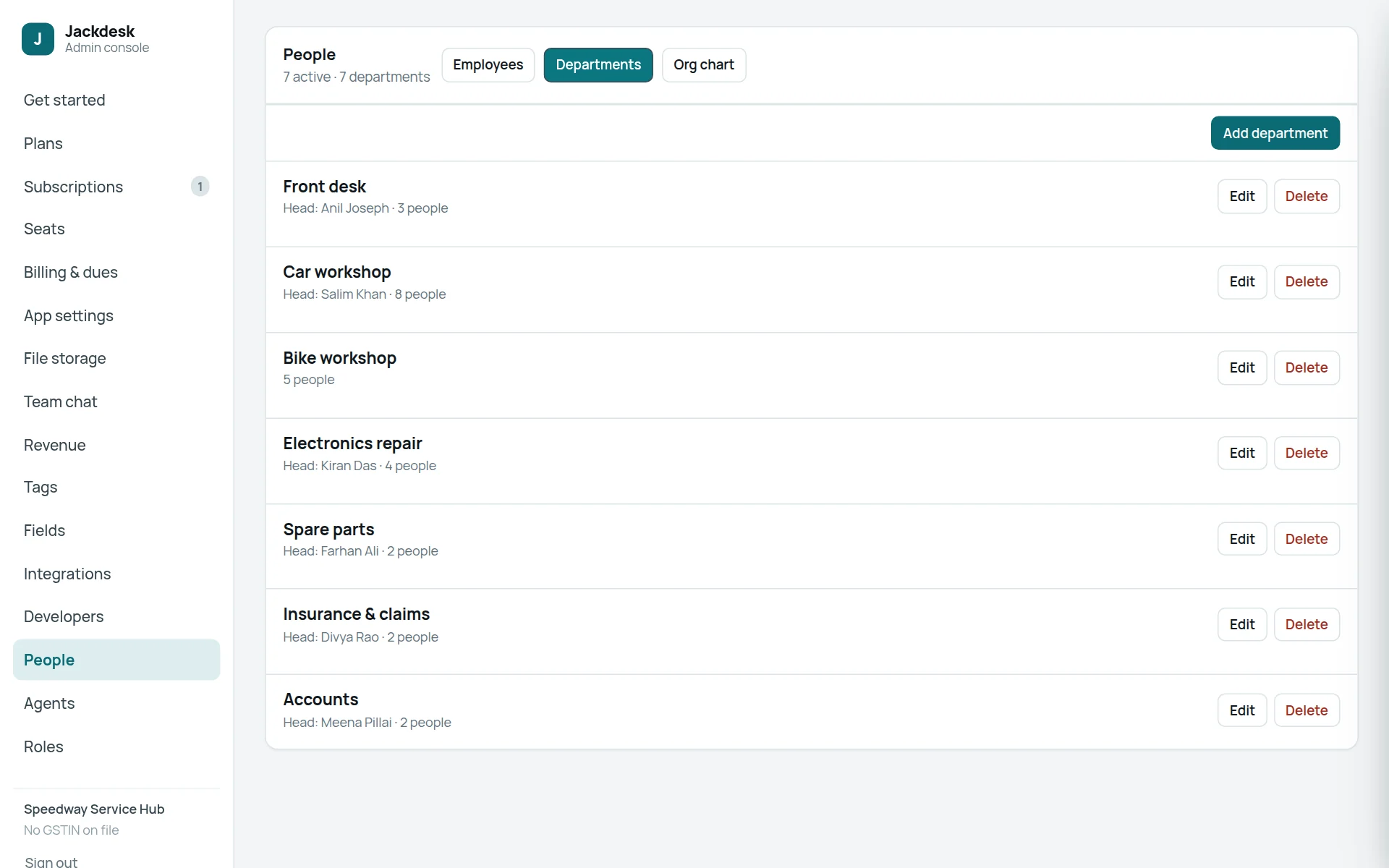
- 2Departments — Front desk, Workshop, Accounts…
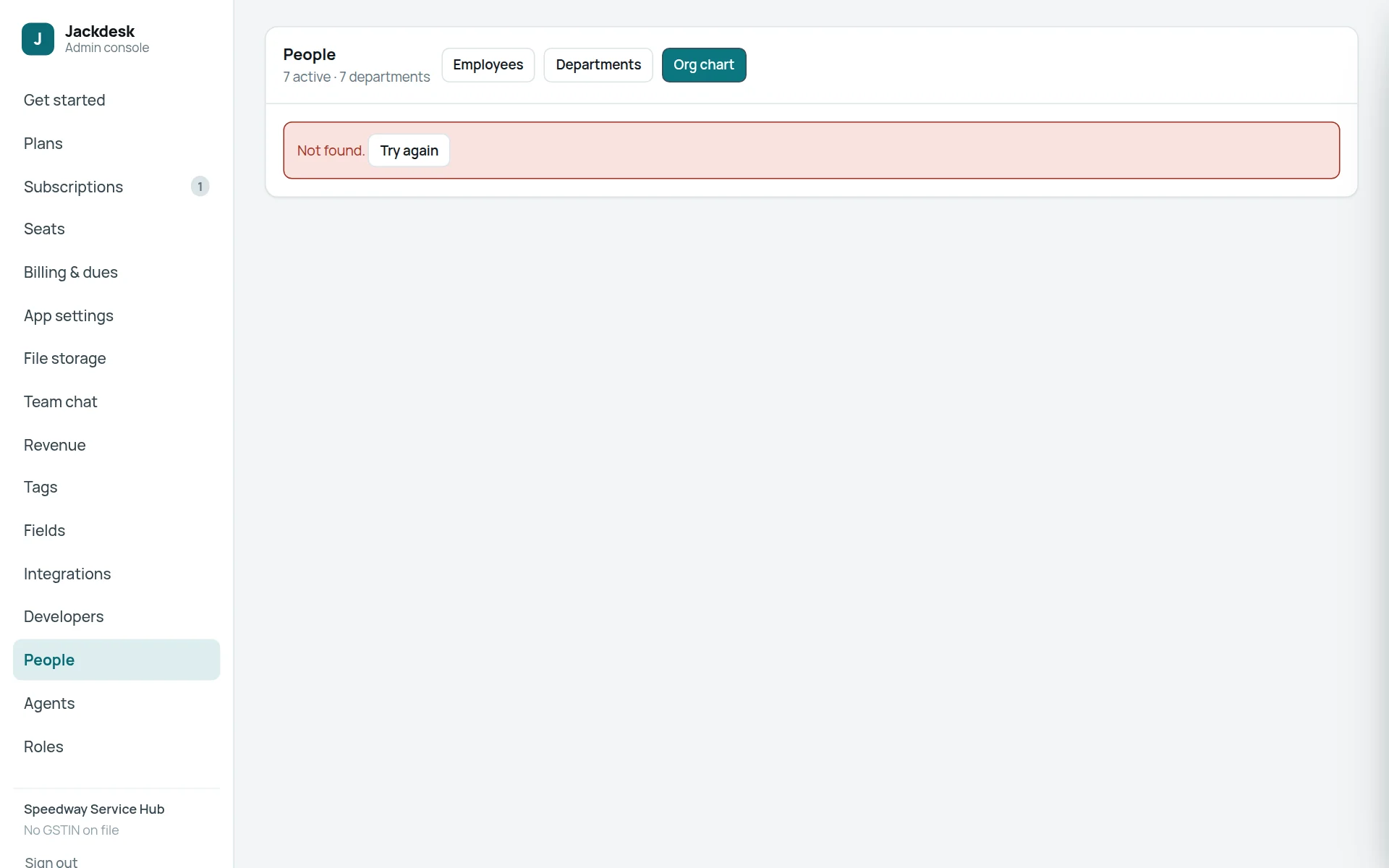
- 3Org chart — who reports to whom.
- 4Add employee.
- 5Edit a person.
- 6Deactivate someone who left.
Add a staff member
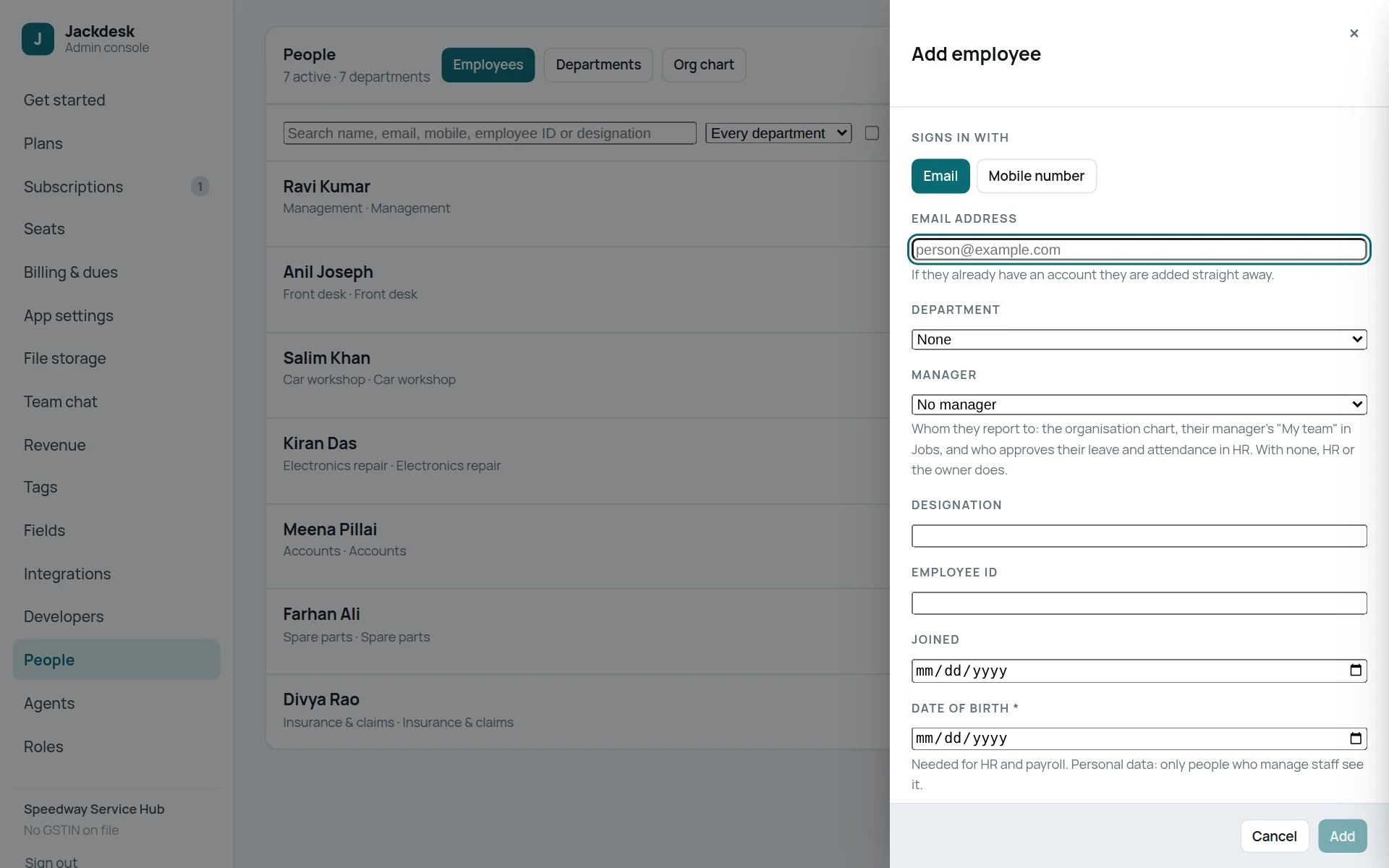
- Choose how they sign in: Email address or Mobile number (their code comes to that email or WhatsApp).
- Type their Name as colleagues know them.
- Pick their Department and Manager. The manager approves their requests and gets their escalations.
- Fill the rest if you keep it here (designation, employee ID, joining date).
- Press the button at the bottom to add and invite them. Then give them a role (see Roles) and, where your plan counts seats, a seat (see Seats).
Roles: what each person may do and see
Who can do this The owner, or a role allowed to “Manage roles and permissions”.
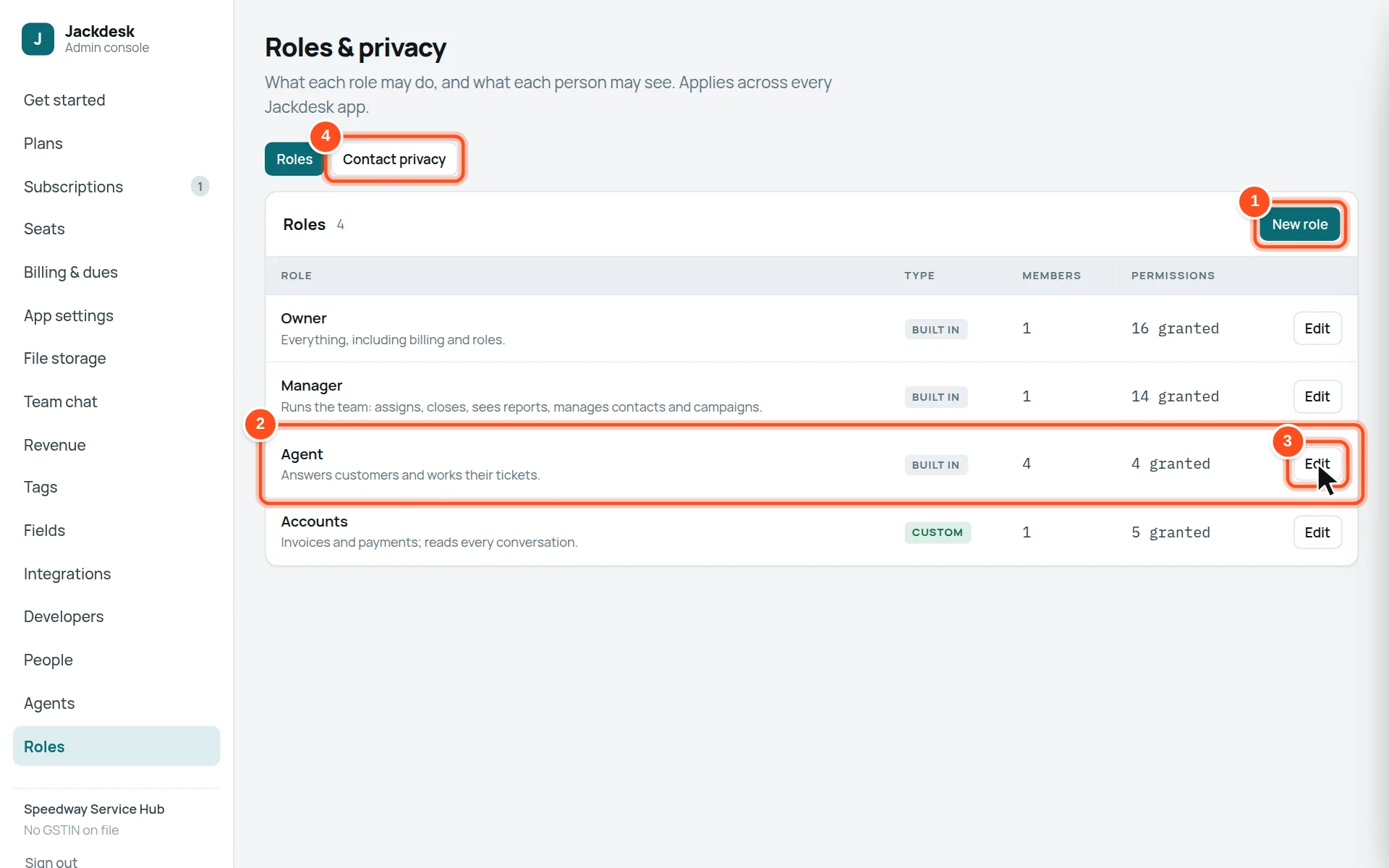
- 1New role — for example “Accounts”.
- 2Each role, its members and how many permissions it grants.
- 3Edit — tick what the role may do, and add people to it.
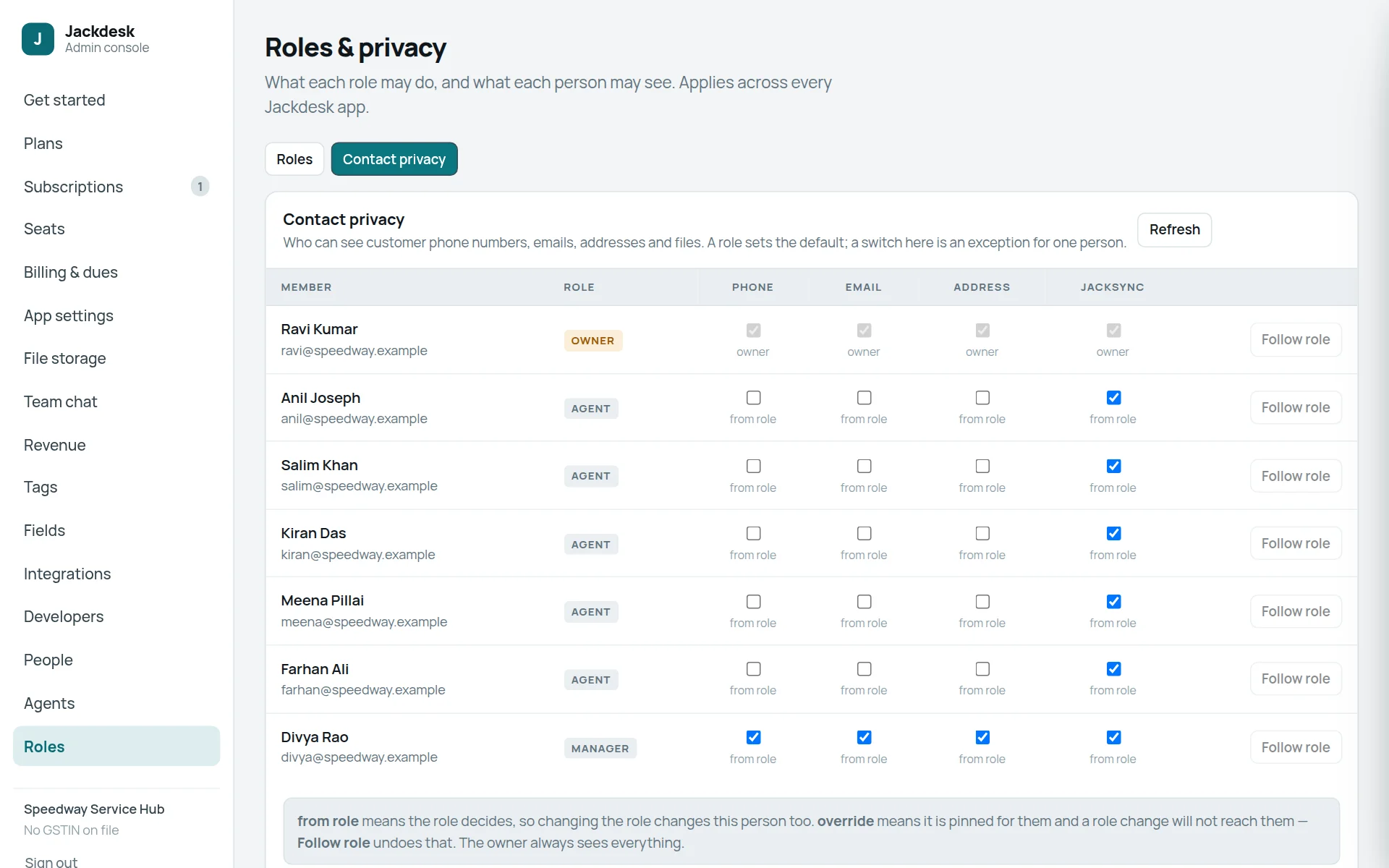
- 4Contact privacy — hide customers’ phone numbers or emails from some people.
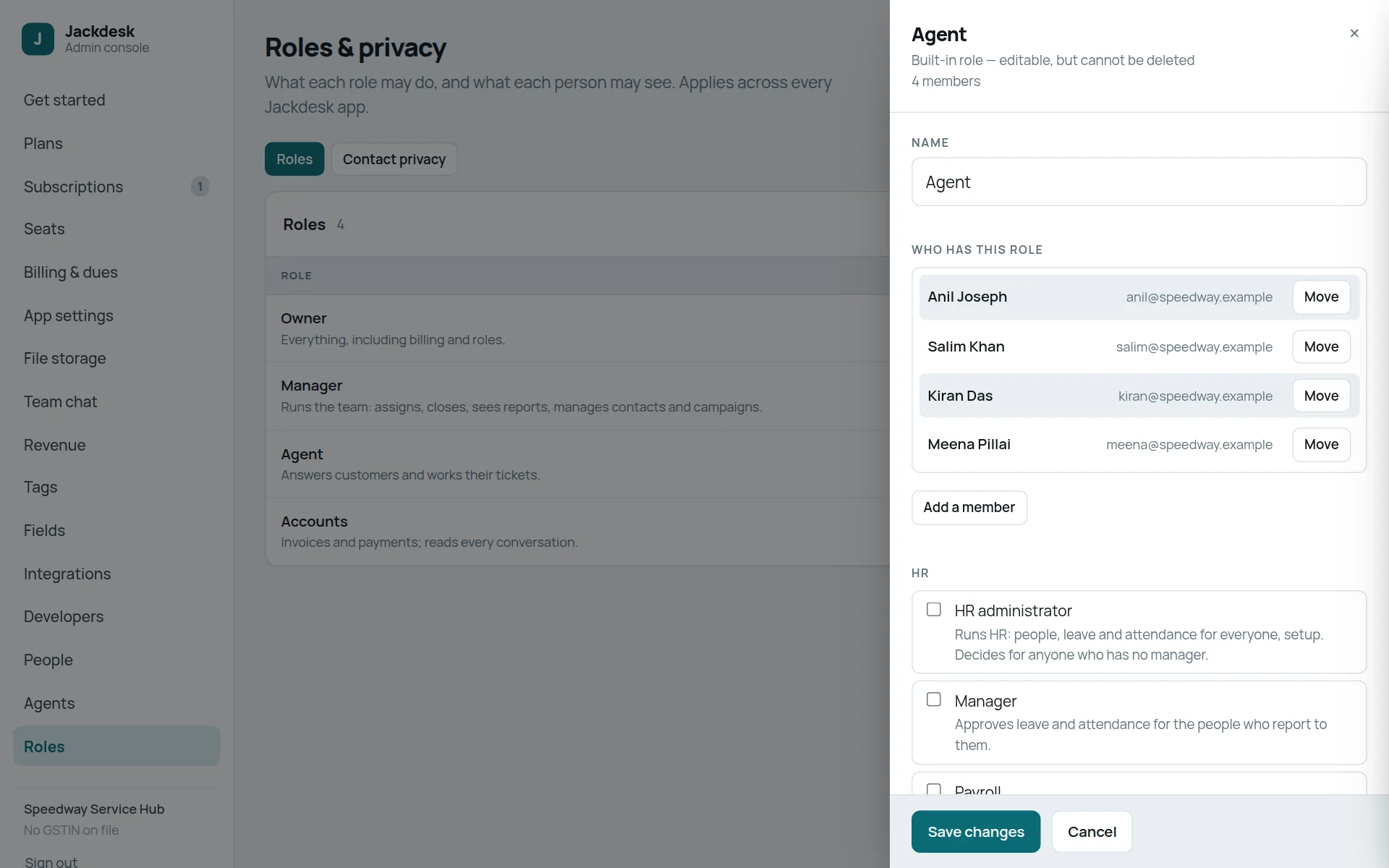
- Who has this role lists its people. Add a member puts a person in this role; Move sends a member to another role.
- Below, tick what the role may do, in groups: HR, Administration, Conversations, Contacts and campaigns, What shows on the web and the phone, Whole-firm figures in Insights, Apps.
- Press Save changes.
| Role (as set up for most businesses) | Usually allowed |
|---|---|
| Owner | Everything, including billing, plans and roles. |
| Manager | Assign and close chats, see reports, manage contacts, campaigns and tags. |
| Agent | Reply to customers and work their own chats and tickets. |
Agents and seats
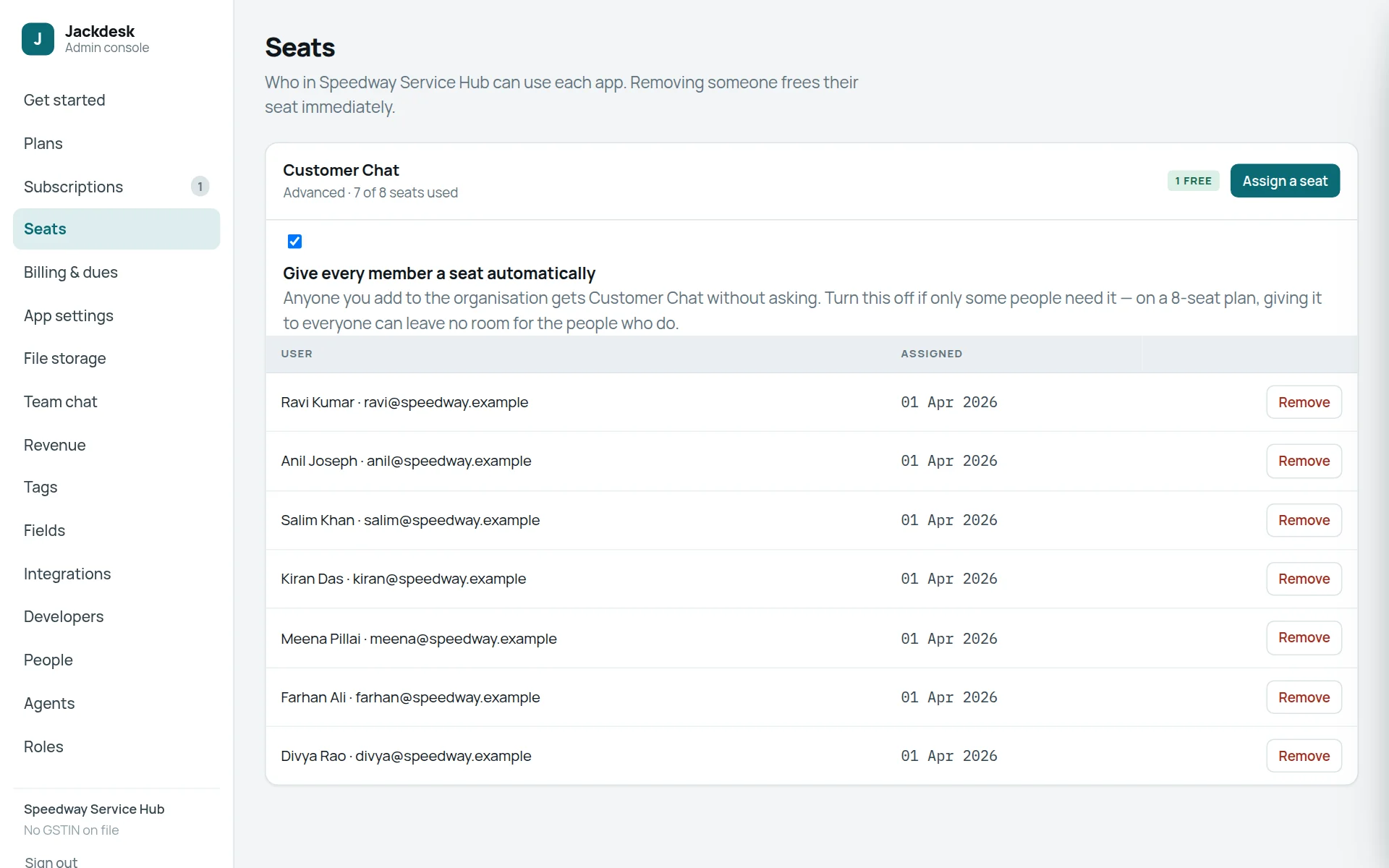
App settings: how Jackdesk works for everyone
App settings → Customer Chat. Each part below changes the desk for the whole team. Press Save changes at the bottom when done.
Who can do this The owner only can save these.
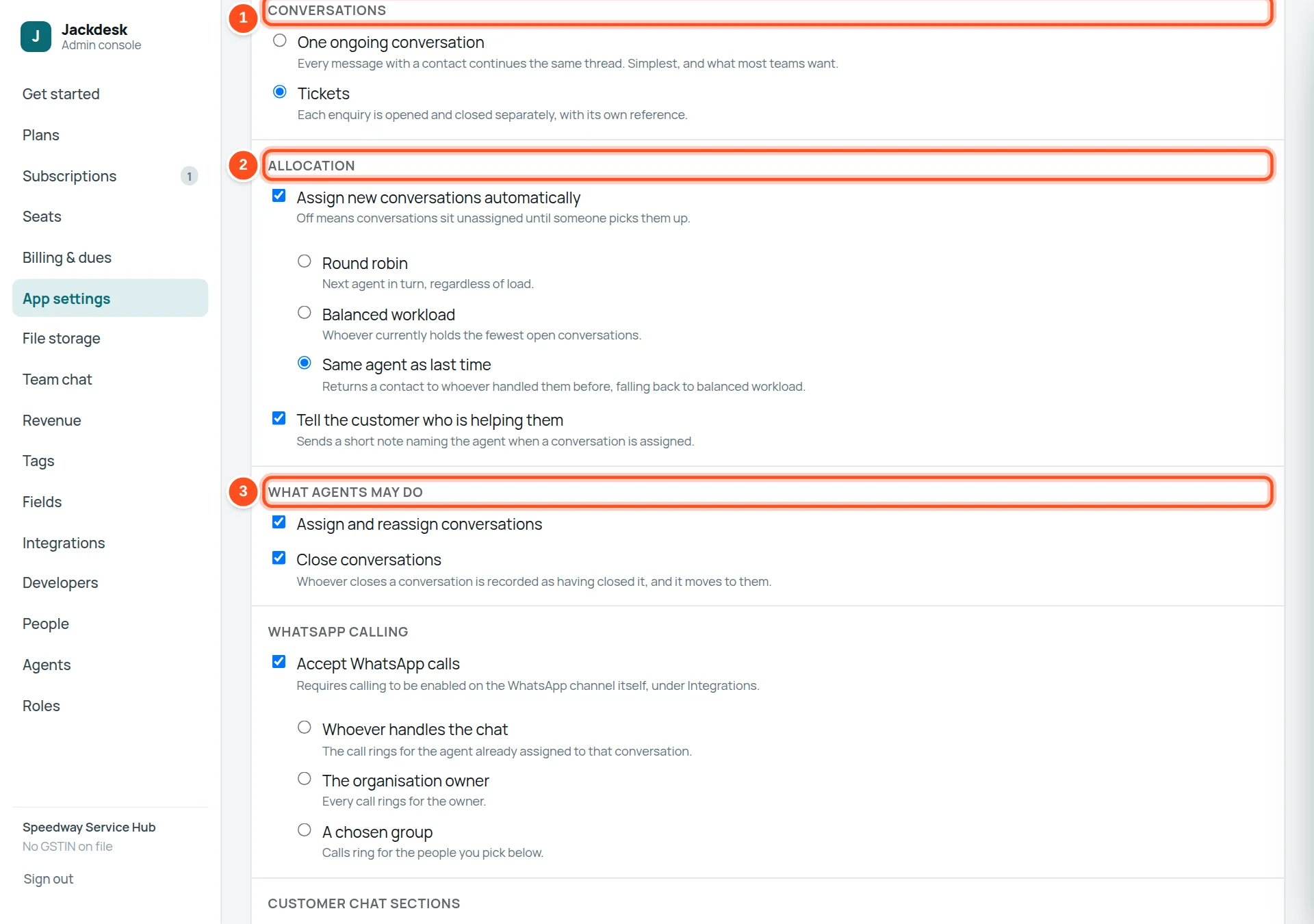
- 1Conversations: One ongoing conversation (every message with a contact continues one thread — simplest) or Tickets (each enquiry opened and closed separately, with its own number).
- 2Allocation: Assign new conversations automatically — Round robin (next person in turn), Balanced workload (whoever has the fewest open chats) or Same agent as last time. Tell the customer who is helping them sends a short note with the agent’s name.
- 3What agents may do: whether agents may assign and reassign, and close conversations.
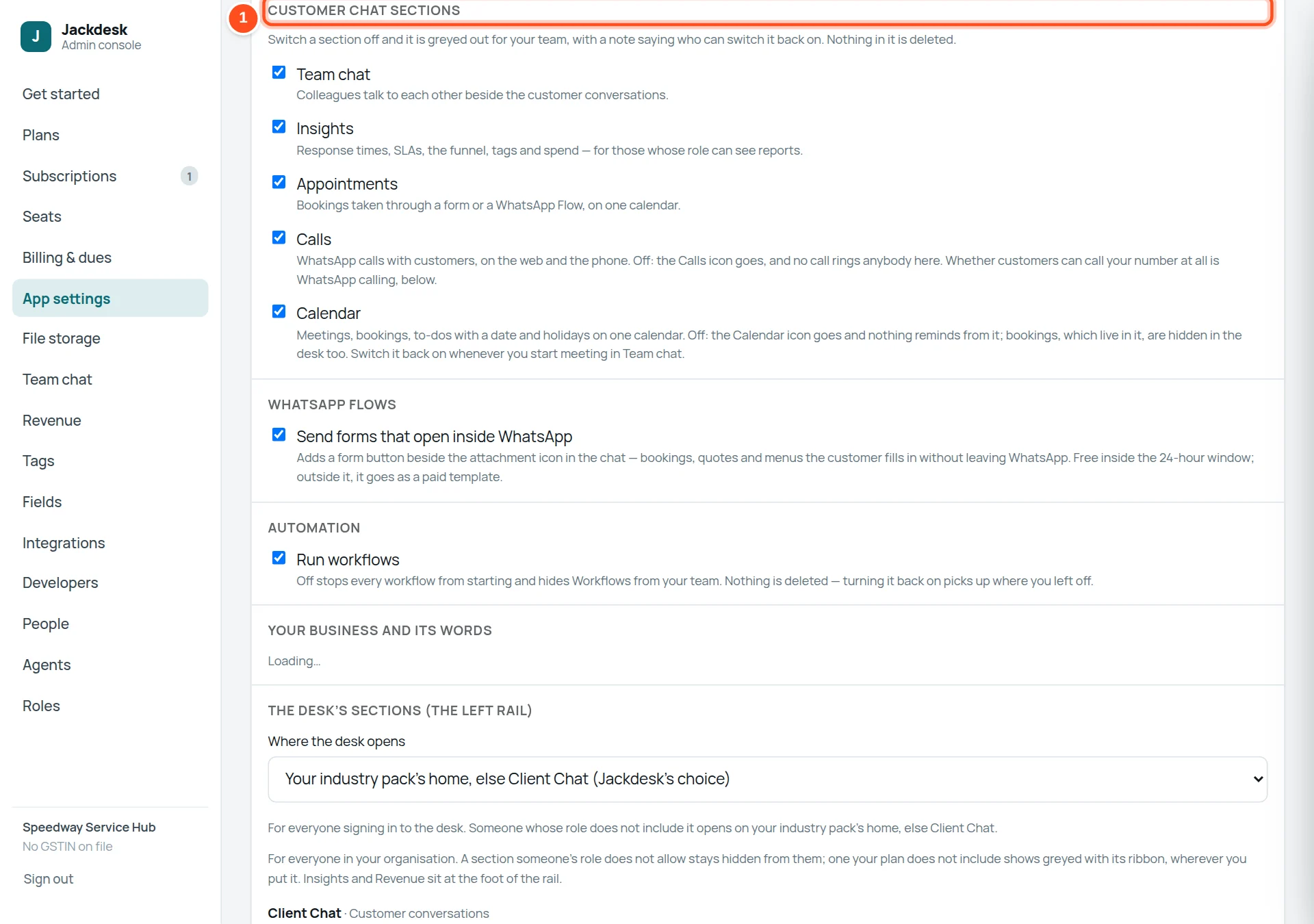
- 1Untick a section to hide it from everyone. Nothing in it is deleted.
Further down the same page:
| Part | What it sets |
|---|---|
| WhatsApp calling | Accept WhatsApp calls, and who they ring: whoever handles the chat, the owner, or a chosen group. Calling must also be on for the WhatsApp channel (Integrations). |
| WhatsApp Flows | Forms that open inside WhatsApp (bookings, quotes, menus). |
| Automation | Run workflows. Off stops every workflow; nothing is deleted. |
| SLAs — what counts as late | How quickly a lead, a quote or a service request must be answered before it shows as late in Insights. |
| The sales & service funnel | The funnel stages your team uses. |
| Your business and its words | Your kind of business, so screens say “patient”, “student” or “client” instead of “customer”. |
| The phone’s tabs, by role | The tabs at the foot of the Jackdesk phone app, per role. |
| Starter pack | Ready-made templates, a booking form and a menu for your kind of business. |
The desk’s sections (the left rail)
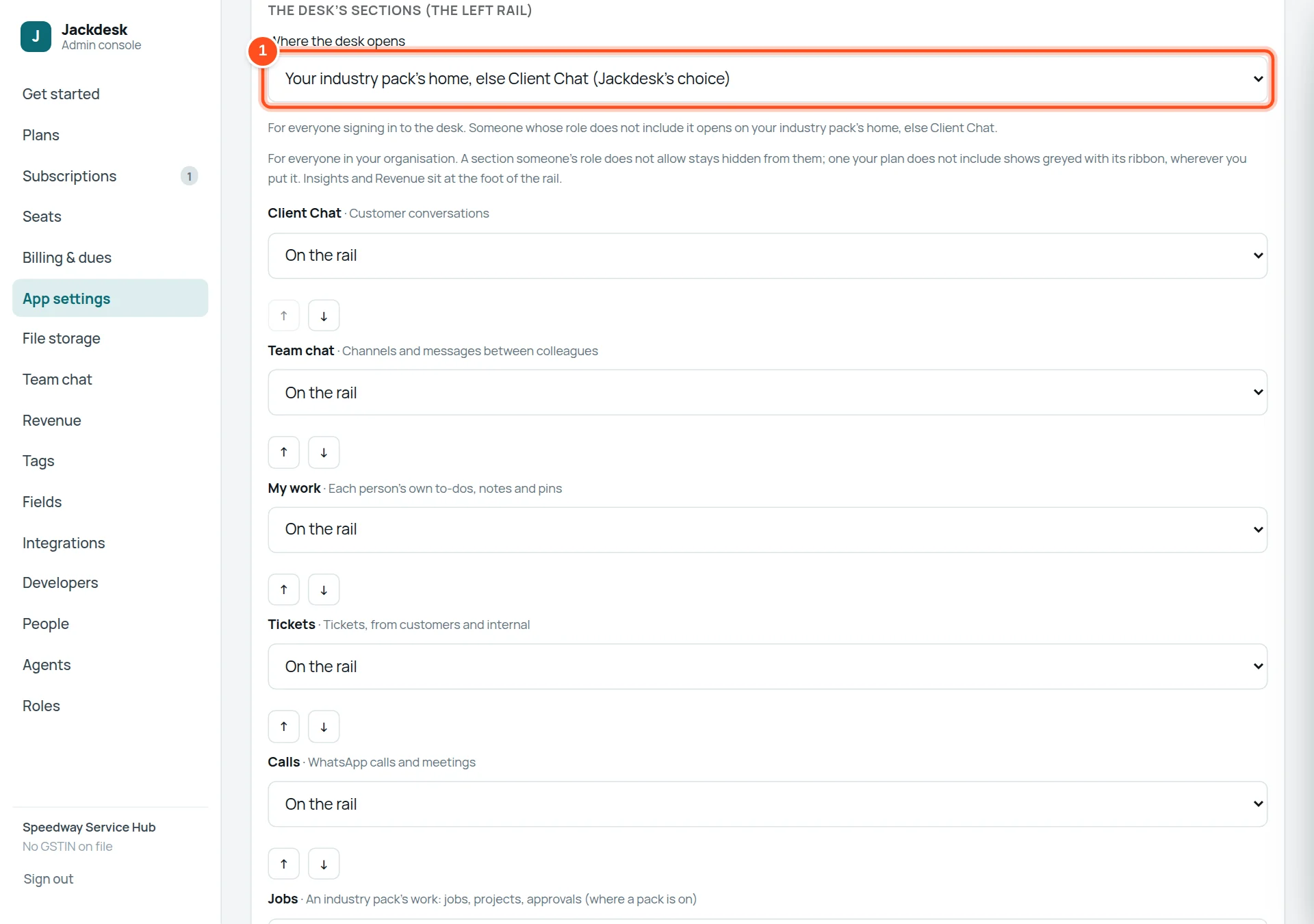
- 1Where the desk opens — the screen everyone sees first after signing in.
- 2For each section: On the rail, under More (…), or hidden. The arrows move it up or down.
Your daily summary, and mailbox alerts
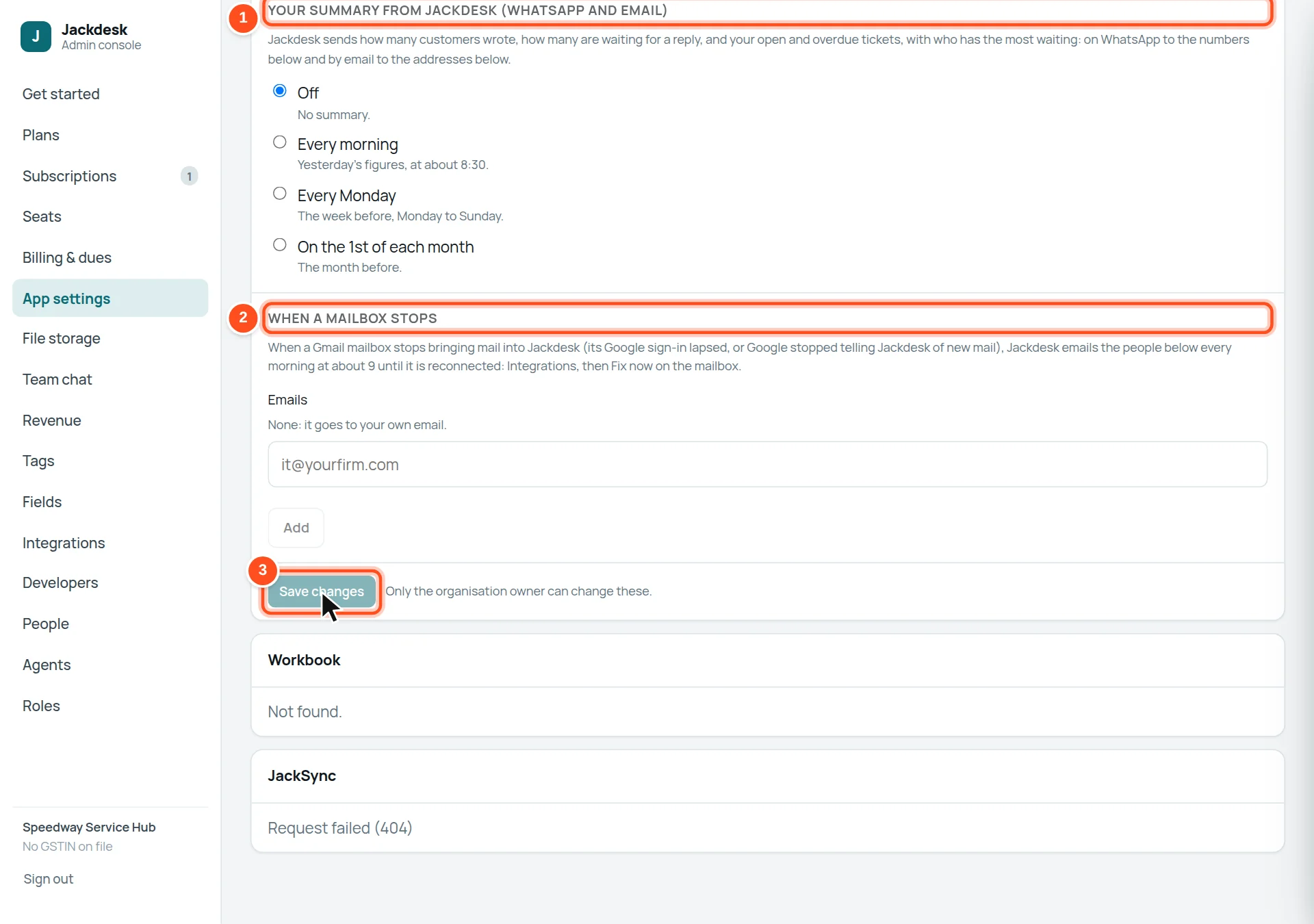
- 1Your summary from Jackdesk: how many customers wrote, how many wait for a reply, open and overdue tickets, sent on WhatsApp and email — every morning, every Monday, or monthly.
- 2When a mailbox stops: who is emailed when a Gmail mailbox stops bringing mail in (the owner if nobody is added).
- 3Press Save changes. Nothing changes until you do.
Tags and your own fields
Plans, subscriptions and bills
File storage, Team chat, Revenue and Developers
When something goes wrong
Staff say email stopped coming in
Integrations → the mailbox → Reconnect, and sign in again. In the desk, Alerts shows when a mailbox has stopped. Set who is emailed under App settings → When a mailbox stops.
WhatsApp messages stopped coming or going
The access token may have changed or expired. Integrations → WhatsApp → Settings → Check with Meta. If Meta refuses the details, contact the Jackdesk admin.
Office SIM texts stopped
Check the phone: switched on, connected to the internet, the Jackdesk SMS Relay app still installed and allowed to run.
A new staff member cannot sign in
Check the email or mobile number on their People record, and that they are not deactivated. Then ask them to sign in with exactly that email or number.
Someone cannot see a section (Campaigns, Insights…)
Their role does not allow it (Roles → Edit), or the section is switched off or hidden (App settings).
I changed a setting and things look wrong
Put the setting back the way you noted it. If you did not note it, contact the Jackdesk admin at ${SUPPORT} with the time you changed it.