Jackdesk Store: Fleet Settings Manual
Every Fleet setting in the Store, one by one: who does what in Fleet, how your vendors’ mails and SMS are read, AI reading, your own message rules, paid vehicle lookups, GPS feeds, Fleet’s rules, and which account in your books each kind of money goes to.
I want to…
Where the Fleet settings are
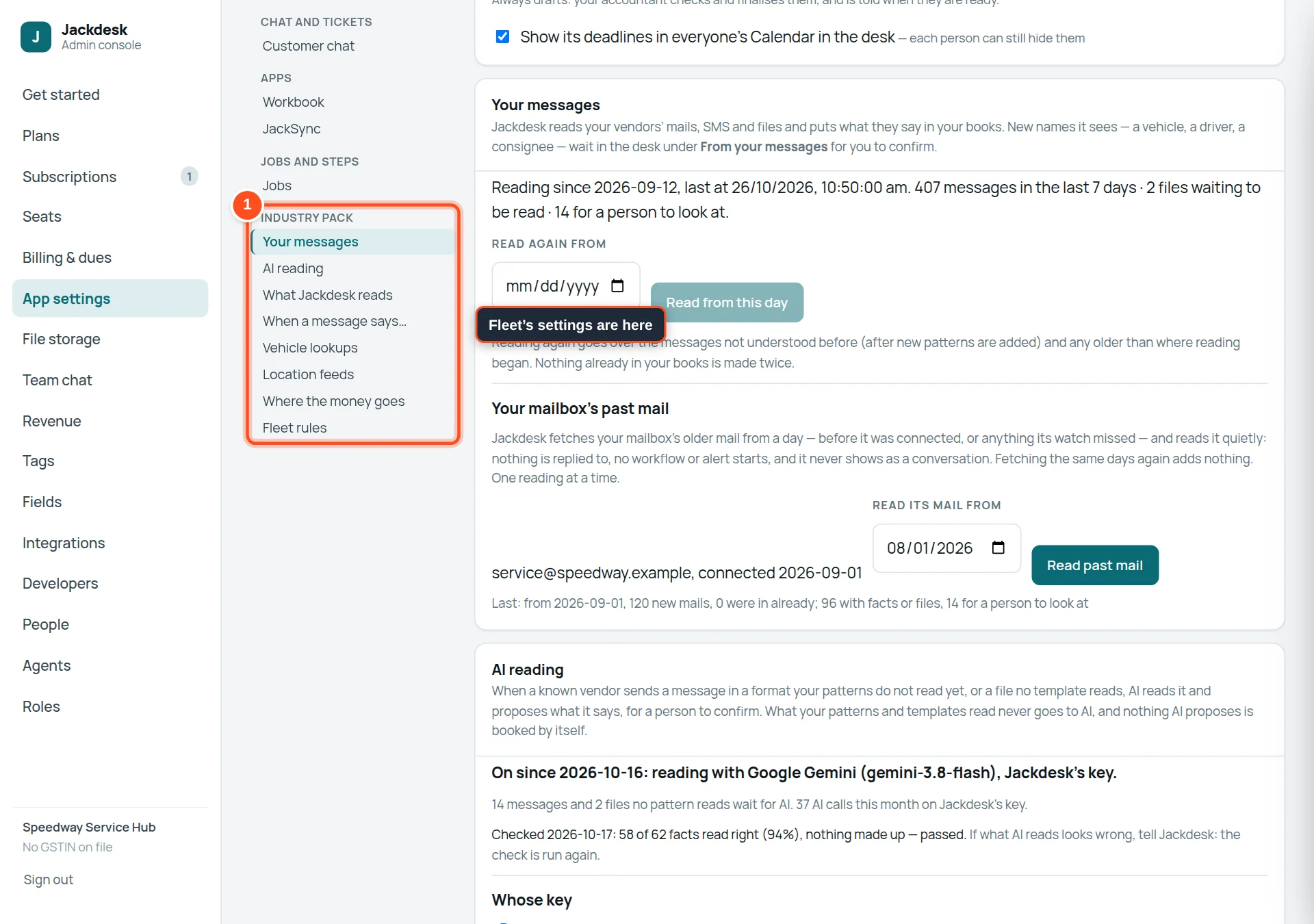
- 1The Industry pack group holds Fleet’s settings: Your messages, AI reading, What Jackdesk reads, When a message says…, Vehicle lookups, Location feeds, Where the money goes, Fleet rules.
Fleet roles: who does what
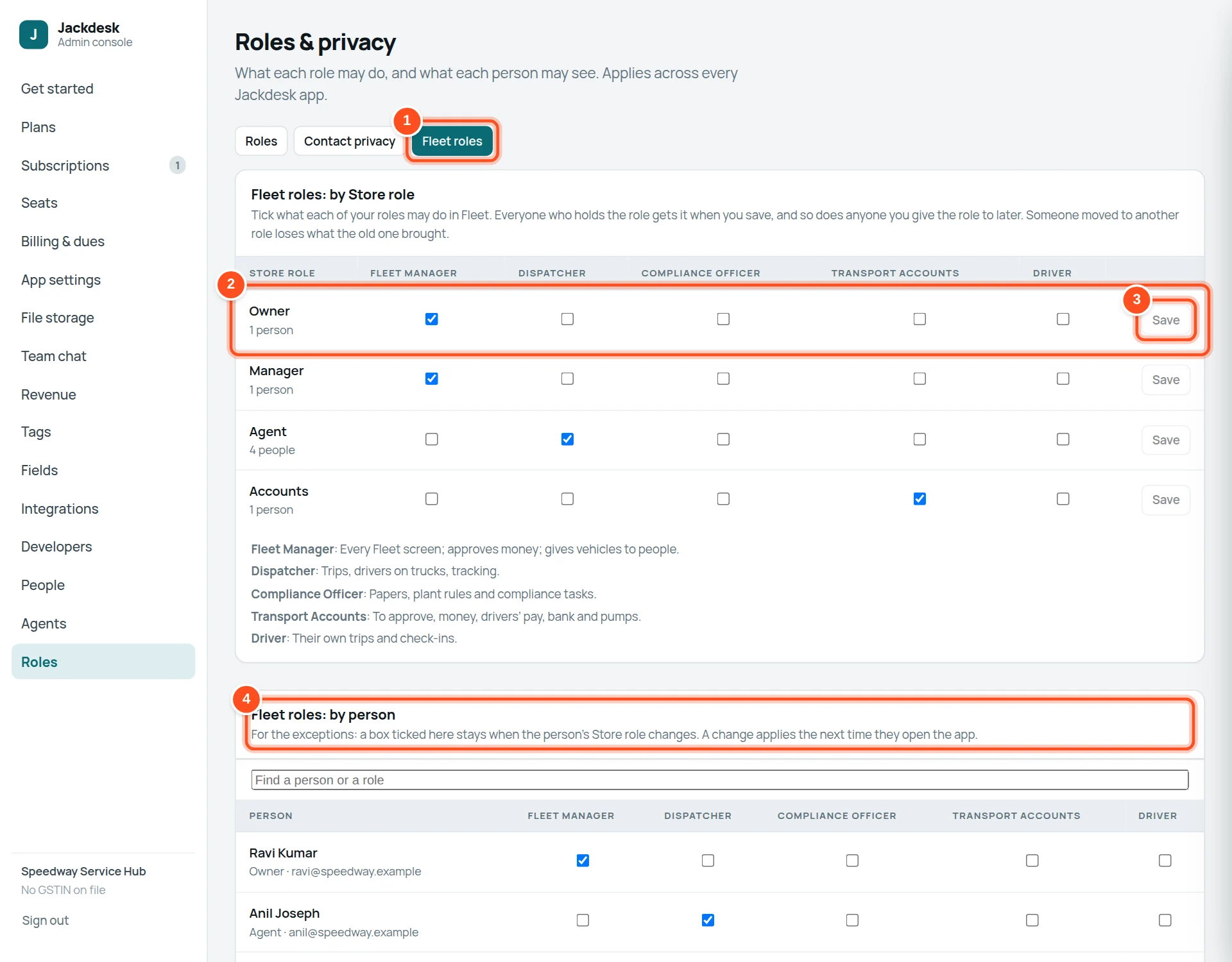
- 1The Fleet roles tab.
- 2By Store role: tick what each of your Store roles may do in Fleet — Fleet Manager, Dispatcher, Compliance Officer, Transport Accounts, Driver.
- 3Save on that row. Everyone holding the Store role gets it.
- 4By person: exceptions for one person. A box ticked here stays even when their Store role changes.
| Fleet role | Sees and does |
|---|---|
| Fleet Manager | Every Fleet screen; approves money; gives vehicles to people. |
| Dispatcher | Trips, drivers on trucks, tracking. |
| Compliance Officer | Papers, plant rules and compliance tasks. |
| Transport Accounts | To approve, money, drivers’ pay, bank and credit pumps. |
| Driver | Their own trips and check-ins. |
Your messages
Jackdesk reads your vendors’ mails, SMS and files and turns them into fills, tolls, trips and alerts.
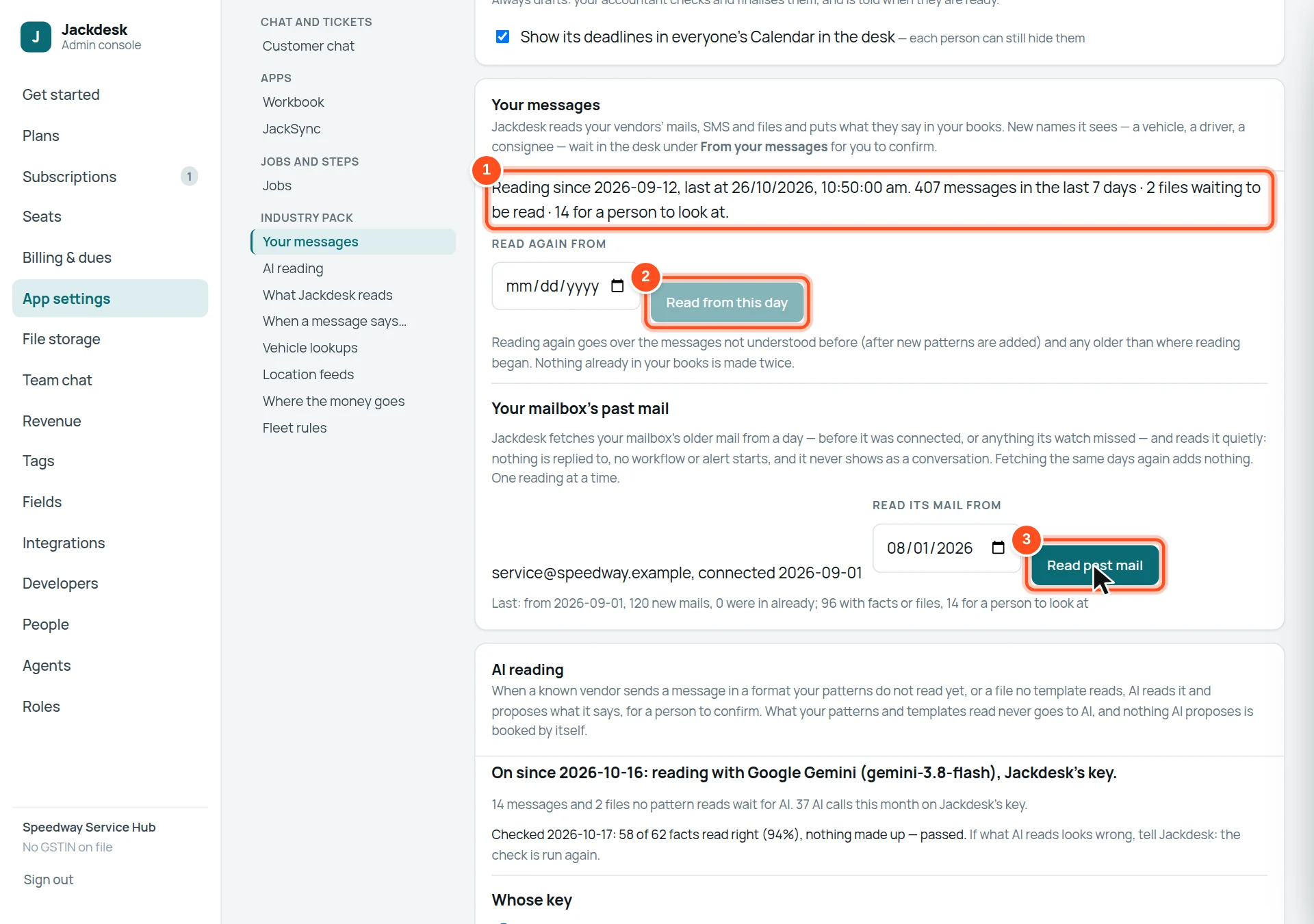
- 1Since when it reads, when it last read, how many messages in 7 days, files waiting, and how many wait for a person (To confirm in Fleet).
- 2Read again from a day — goes over messages not understood before (after a new pattern) and older ones. Nothing already in your books is made twice.
- 3Your mailbox’s past mail — pick a day and press Read past mail: older mail is read quietly (no replies, no workflows, never shows as a conversation). One reading at a time.
AI reading
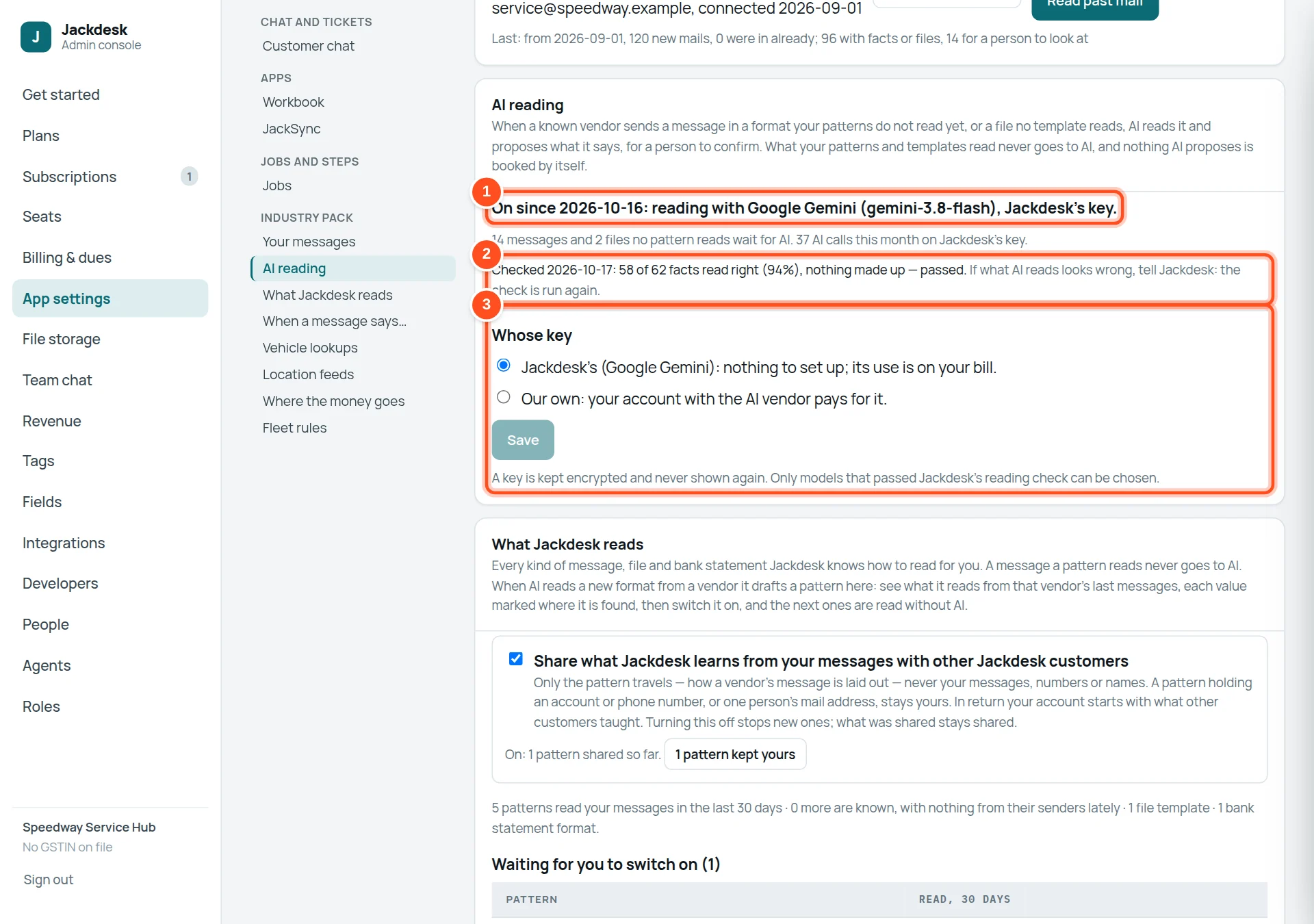
- 1Whether AI is on, since when, which model, and whose key. Jackdesk switches it on once your messages pass its reading check.
- 2The check: how many values AI read right on your own messages, and that it made nothing up.
- 3Whose key: Jackdesk’s (nothing to set up; its use is on your bill) or your own account with the AI vendor.
What Jackdesk reads
Every kind of message, file and bank statement Jackdesk knows how to read for you, and the senders it does not know yet.
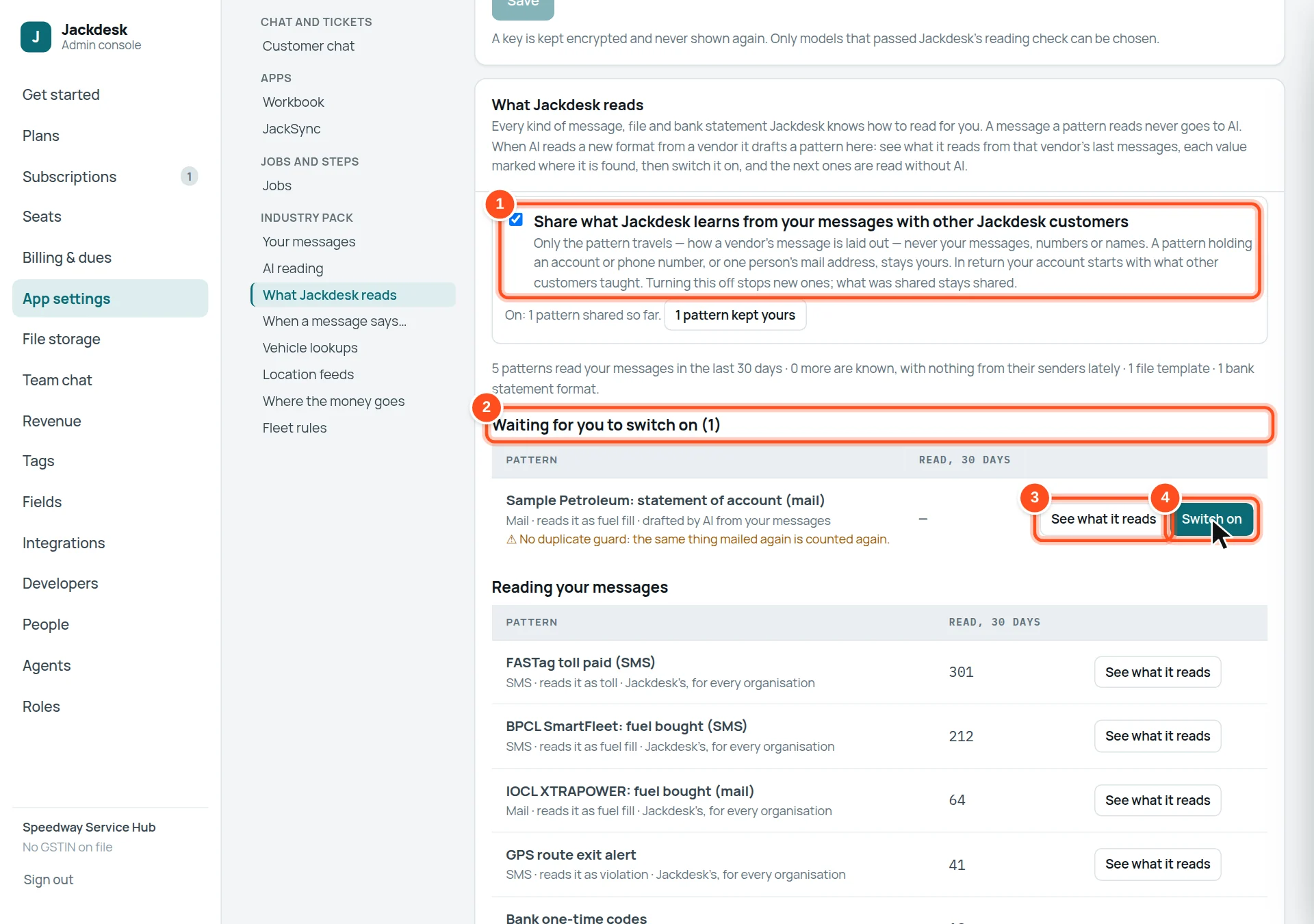
- 1Share what Jackdesk learns with other customers: only the layout of a vendor’s message travels — never your messages, numbers or names. In return you start with what others taught.
- 2Waiting for you to switch on: patterns drafted from your messages (often by AI).
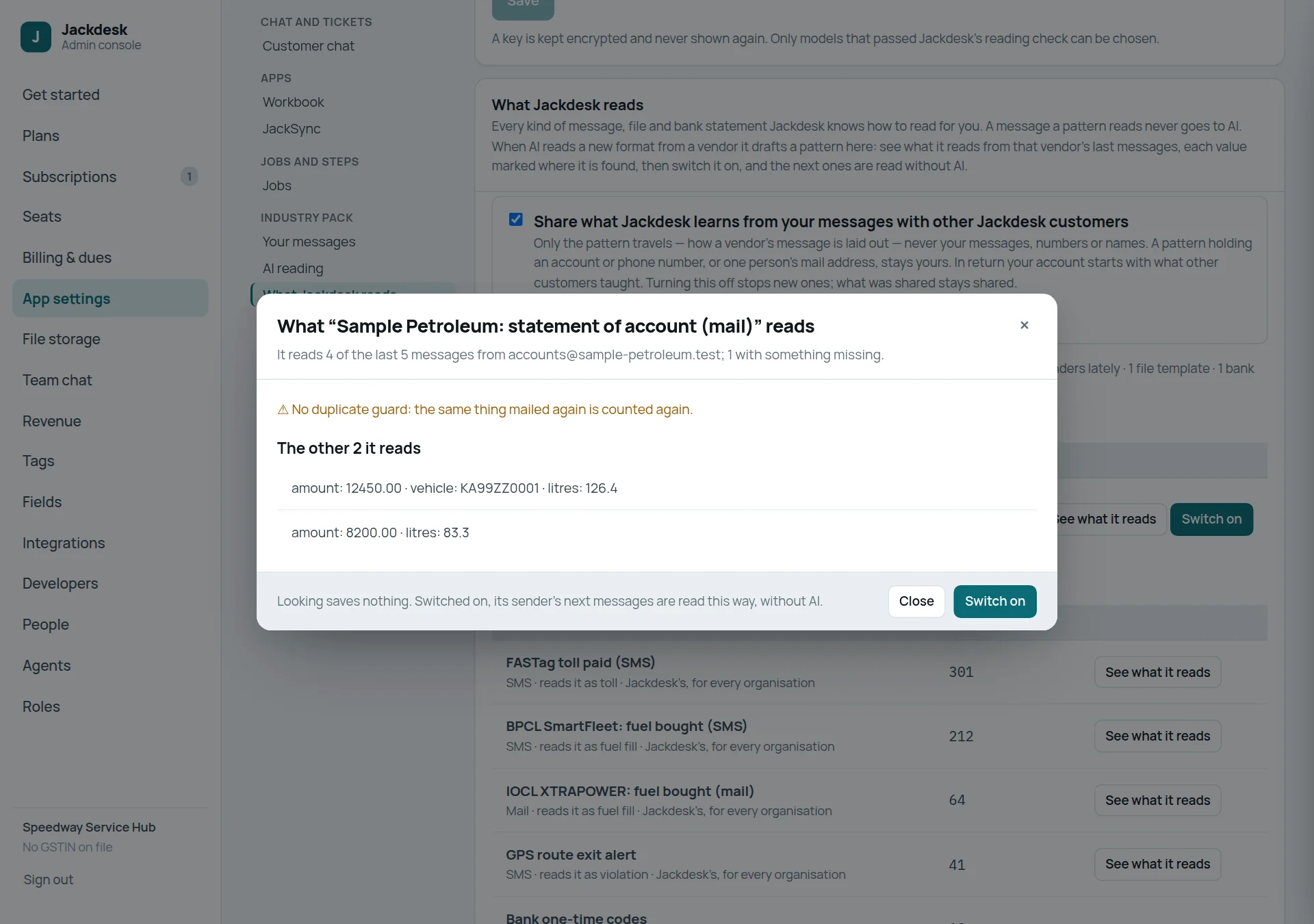
- 3See what it reads: how it reads that sender’s last messages, value by value.
- 4Switch on: from now, those messages are read without AI.
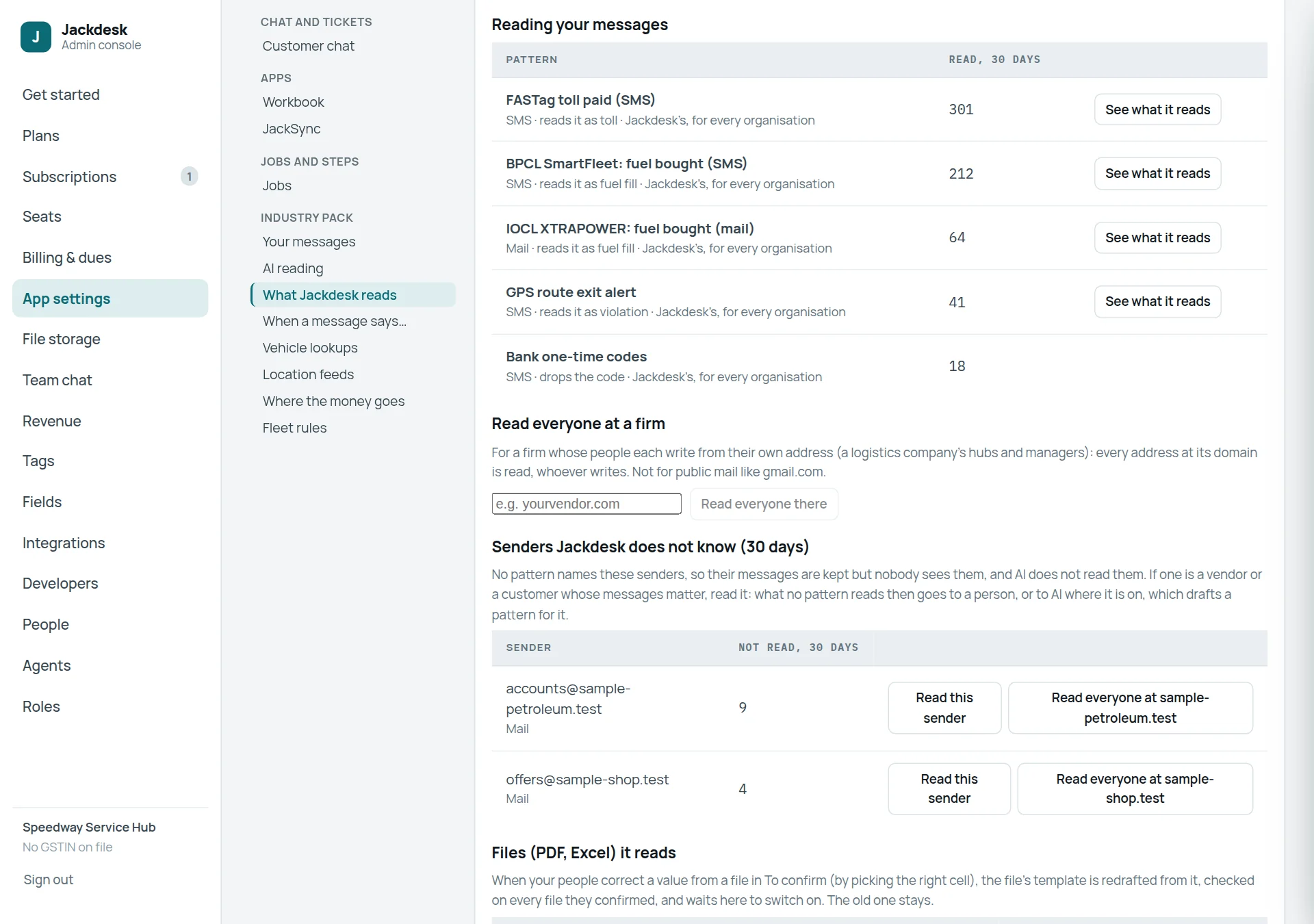
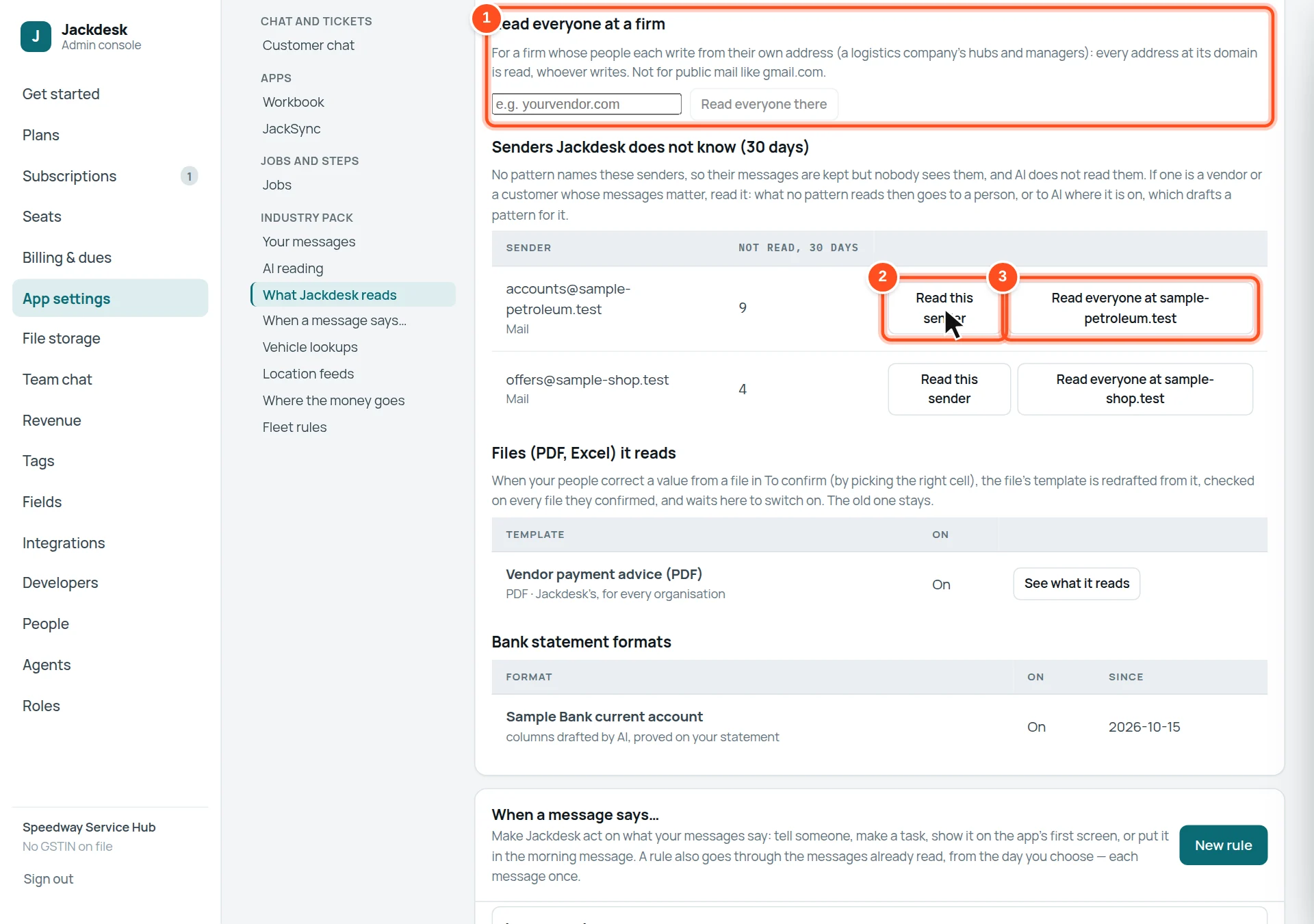
- 1Read everyone at a firm: for a firm whose people each write from their own address, every address at its domain is read (never public mail like gmail.com).
- 2Read this sender: their messages go to a person, or to AI where it is on, which drafts a pattern.
- 3Read everyone at their domain.
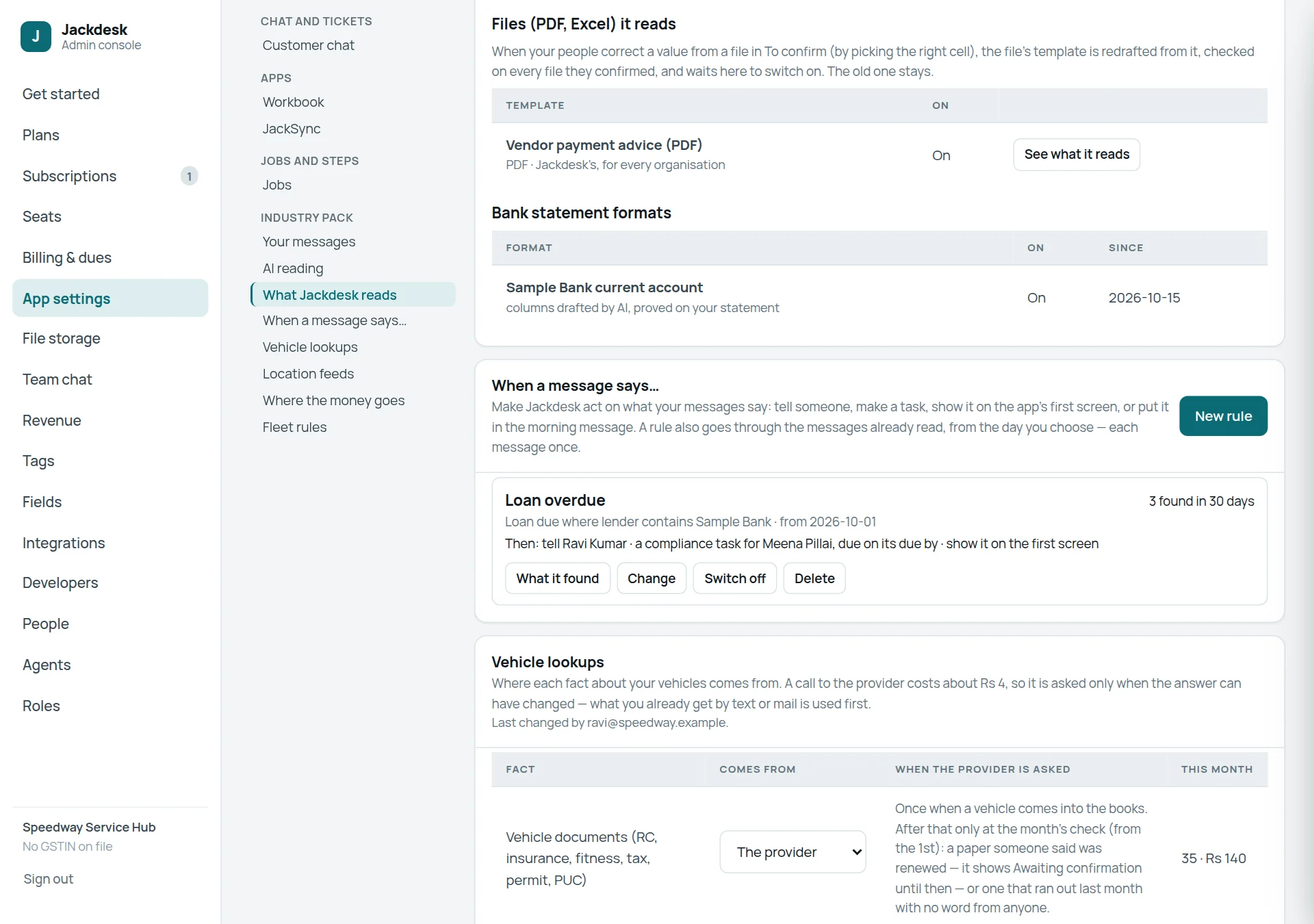
When a message says… (your own rules)
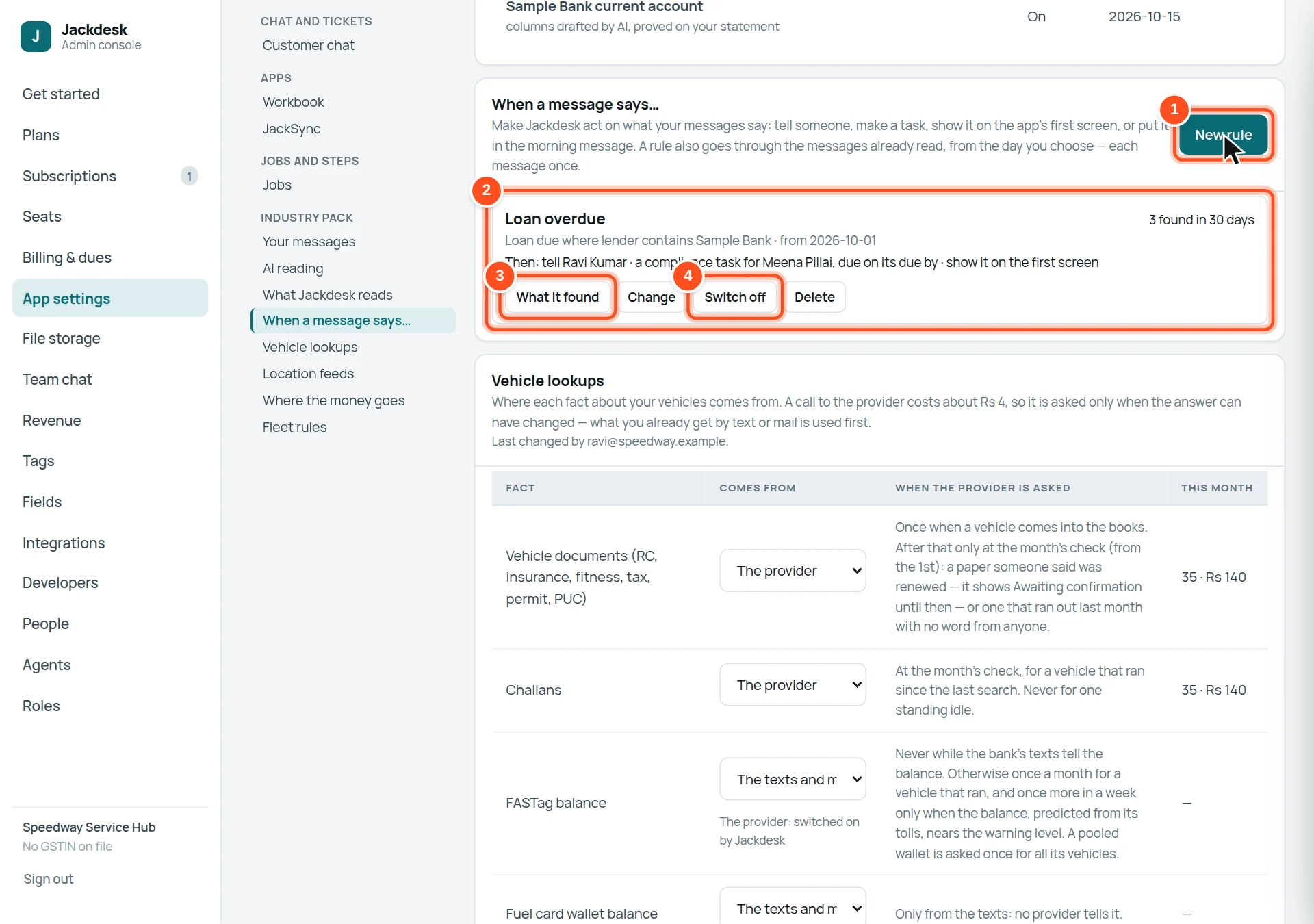
- 1New rule.
- 2A rule: what it watches for, from which day, and what it does.
- 3What it found: each message it acted on and what was done.
- 4Switch off (or Change, Delete).
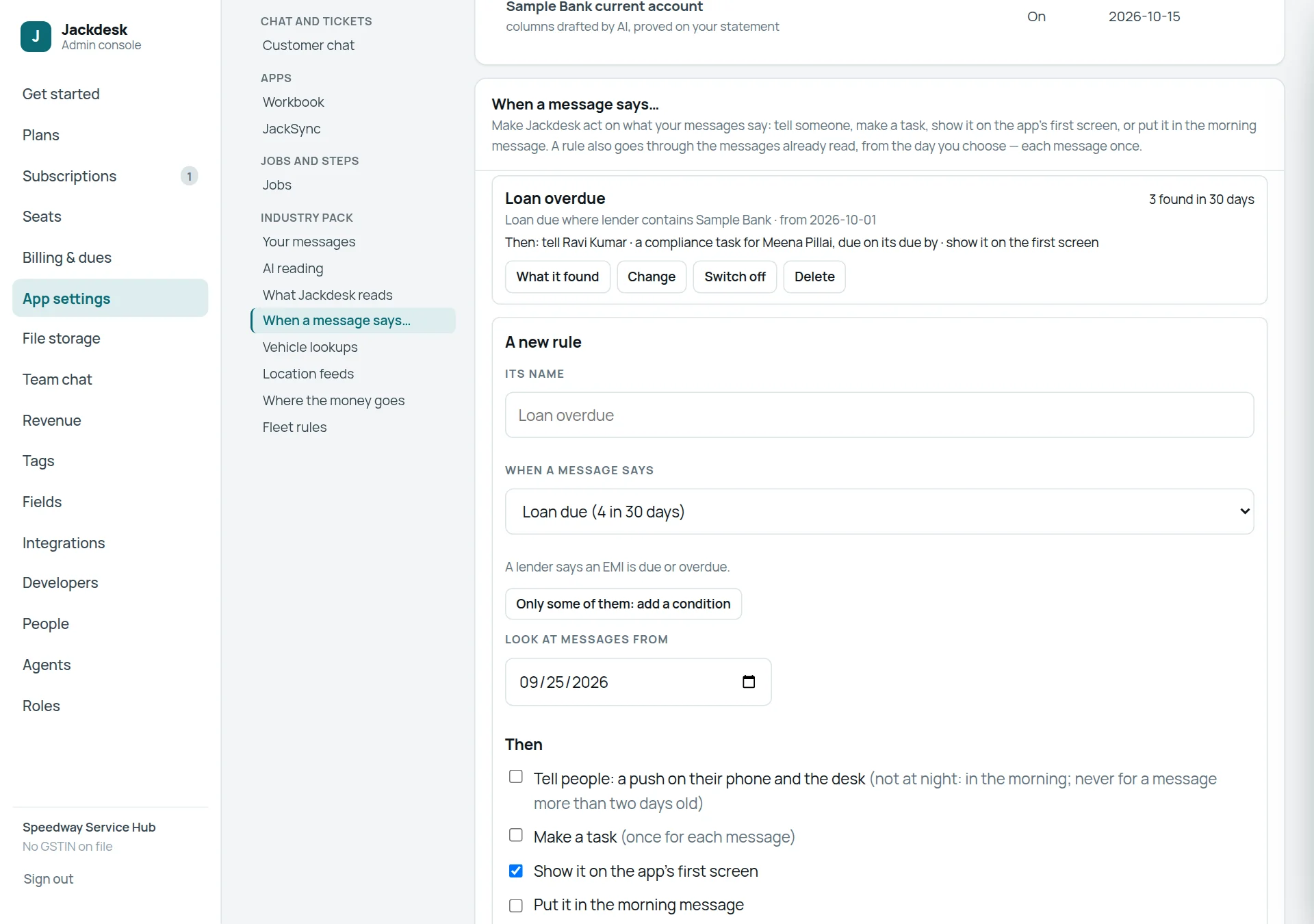
- Its name — what you will see on the Cockpit and in alerts, for example “Loan overdue”.
- When a message says — the kind: loan due, fuel fill, violation… (with how many came in 30 days).
- Only some of them (optional): up to five conditions — a field contains, is, is more than, is less than, is given, is not given.
- Look at messages from a day: it also goes through what was already read since then, each message once.
- Then: tell people (a push; not at night; never for a message over two days old), make a task, show it on the first screen, put it in the morning message.
- Try it, then make the rule. Within five minutes it goes through the messages from its day.
Vehicle lookups (paid)
Where each fact about your vehicles comes from. A call to the provider costs about ₹4, so it is asked only when the answer can have changed.
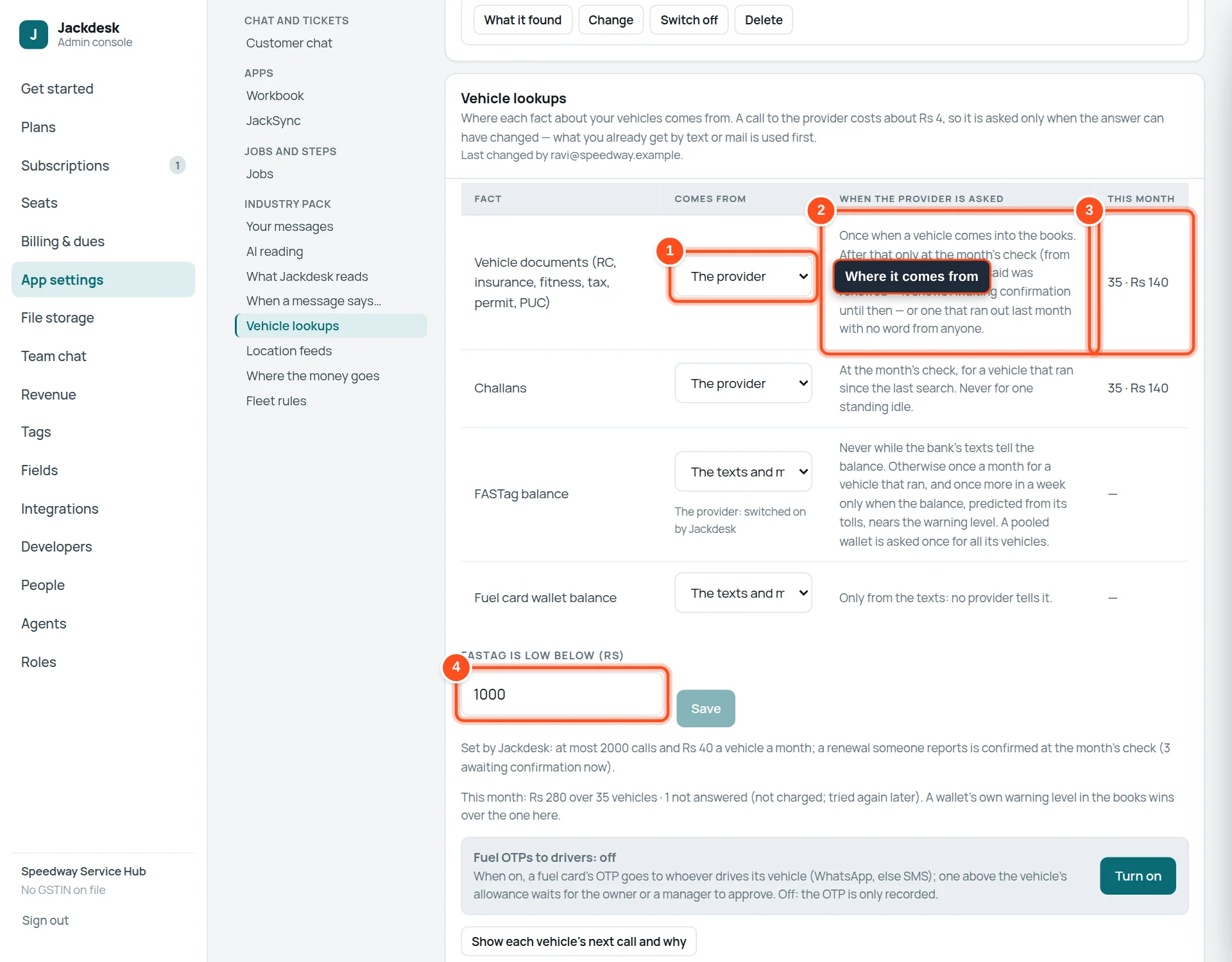
- 1Comes from: the provider (paid), the texts and mails you already get (free), both, or off — for papers, challans, FASTag balance and fuel wallet balance.
- 2When the provider is asked: for papers, once when a vehicle joins, then only at the month’s check; for challans, monthly for vehicles that ran.
- 3This month: how many calls and what they cost.
- 4FASTag is low below (₹): the warning level for FASTag wallets.
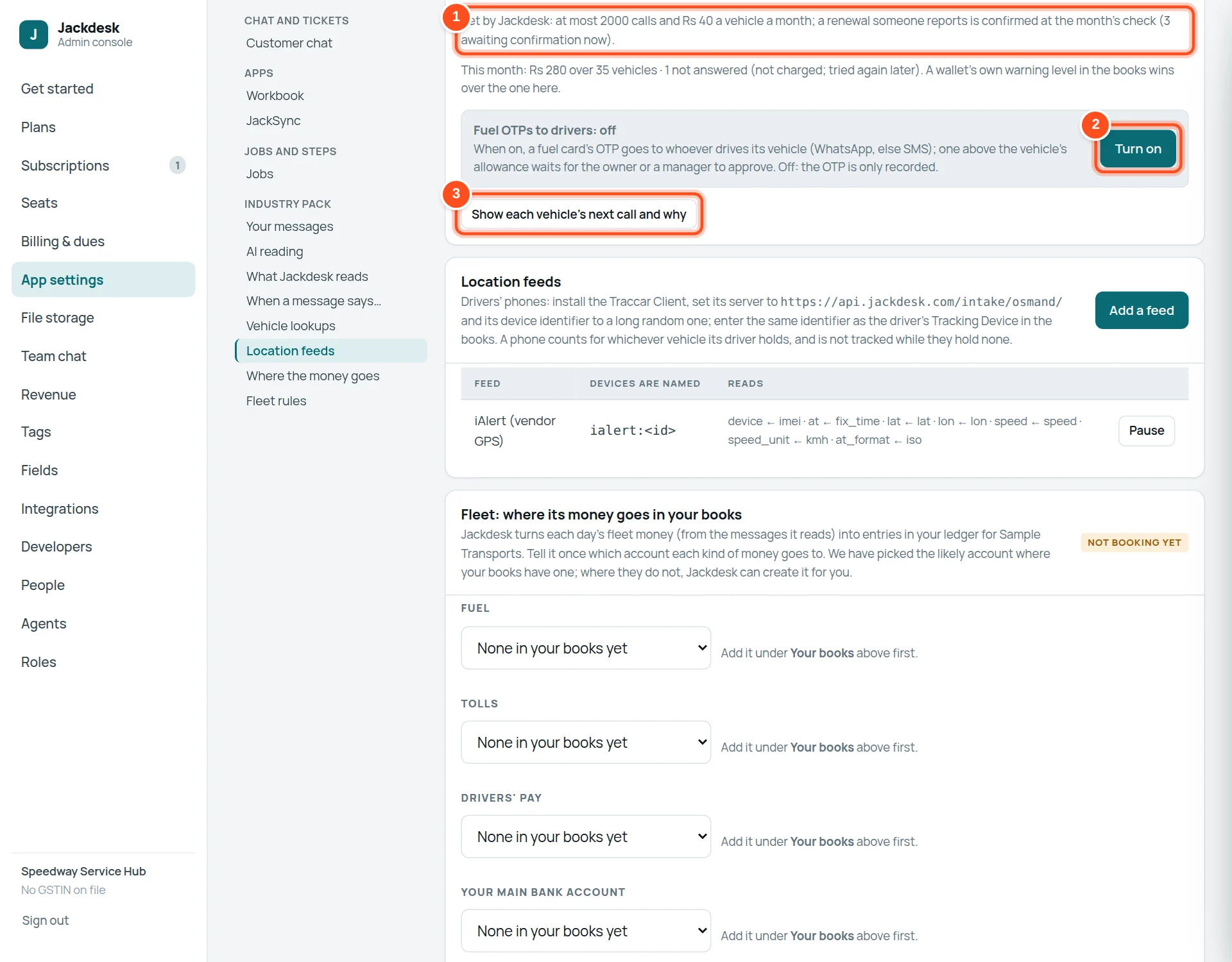
- 1Limits set by Jackdesk: most calls and rupees per vehicle a month; renewals awaiting confirmation.
- 2Fuel OTPs to drivers: when on, a fuel card’s OTP goes to whoever drives that vehicle (WhatsApp, else SMS); one above the vehicle’s allowance waits for the owner or a manager.
- 3Show each vehicle’s next call and why.
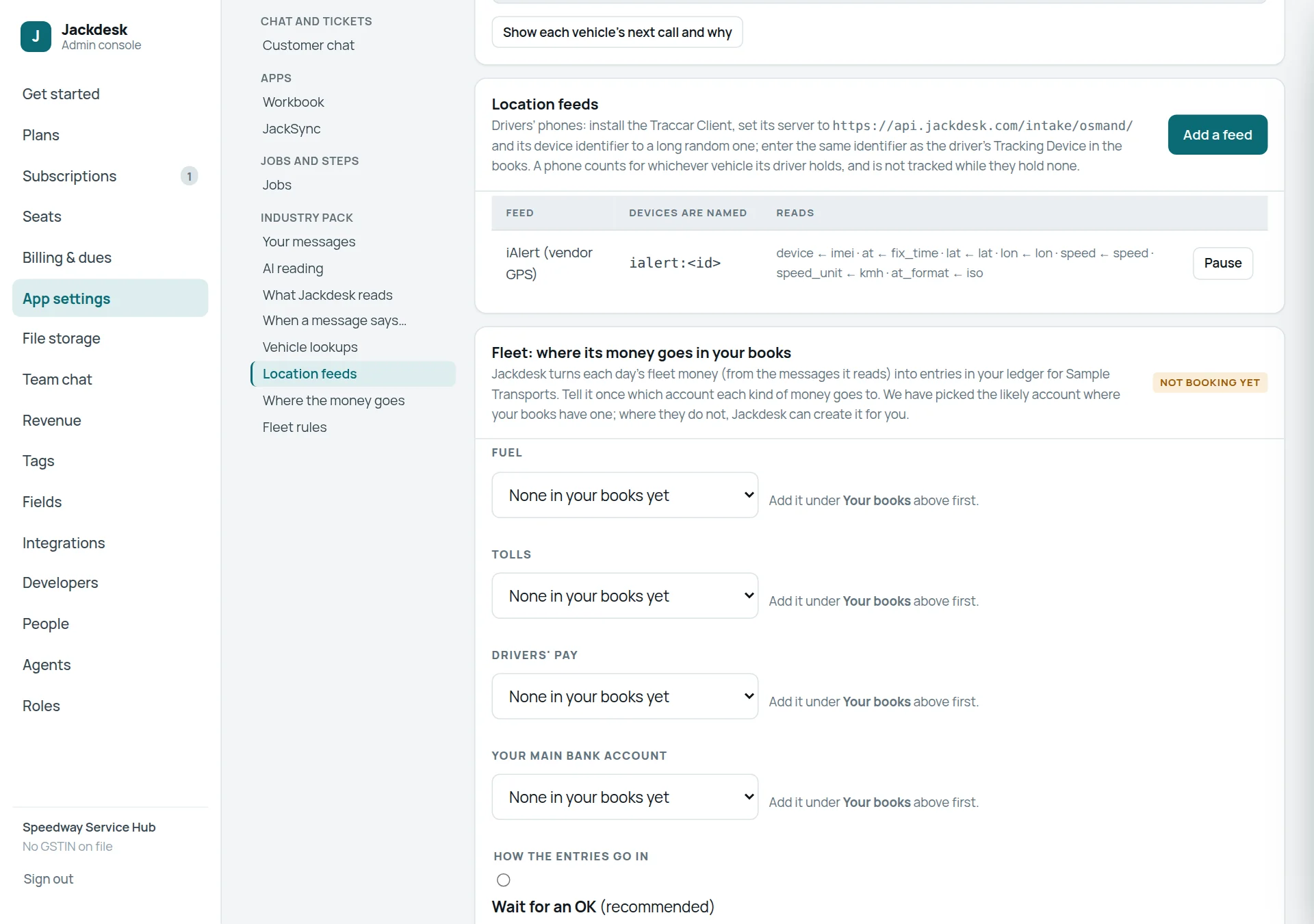
Location feeds
Fleet rules
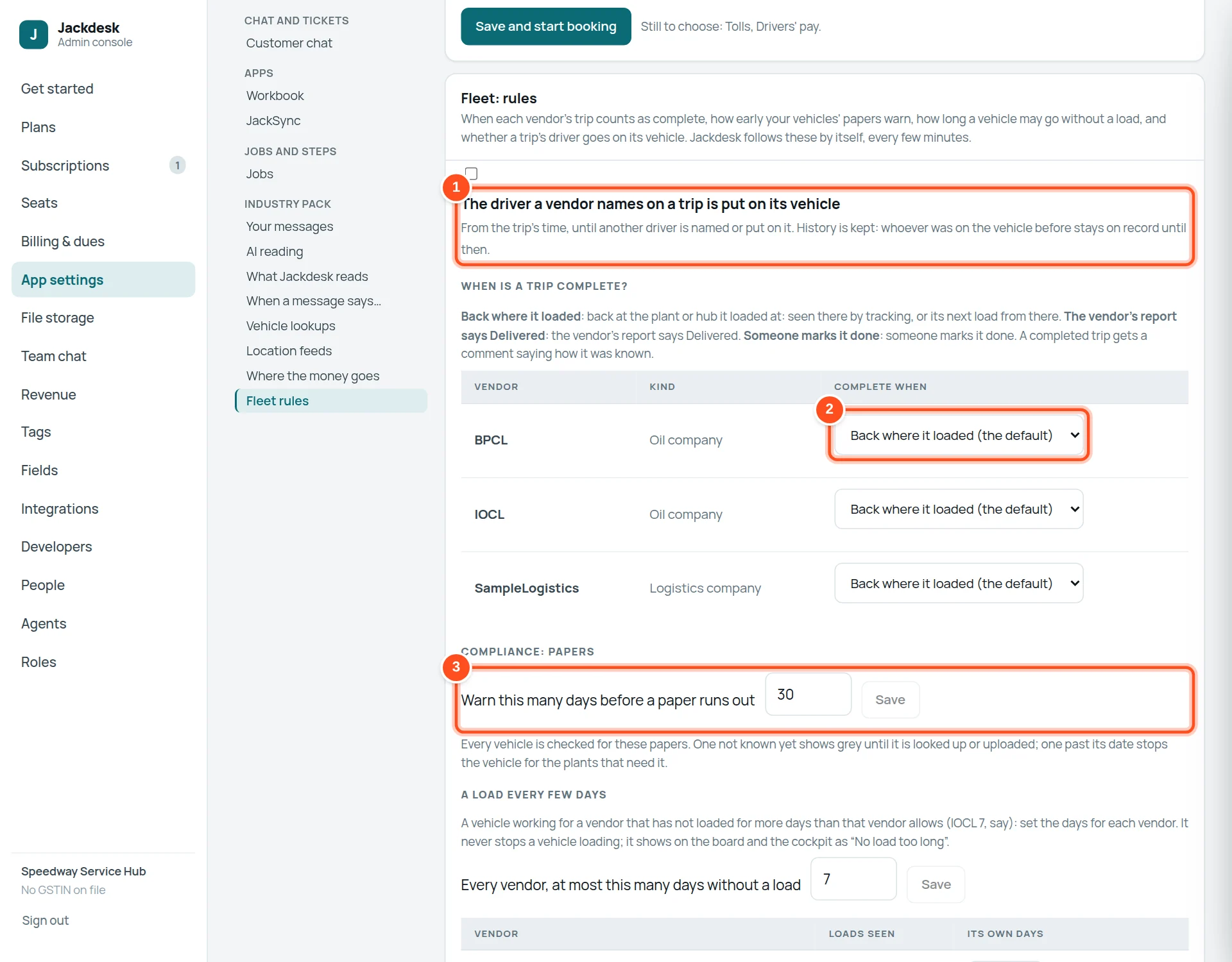
- 1The driver a vendor names on a trip is put on its vehicle, from the trip’s time, until another driver is named.
- 2When is a trip complete? For each vendor: back where it loaded (the default), the vendor’s report says Delivered, or someone marks it done.
- 3Warn this many days before a paper runs out (30 by default).
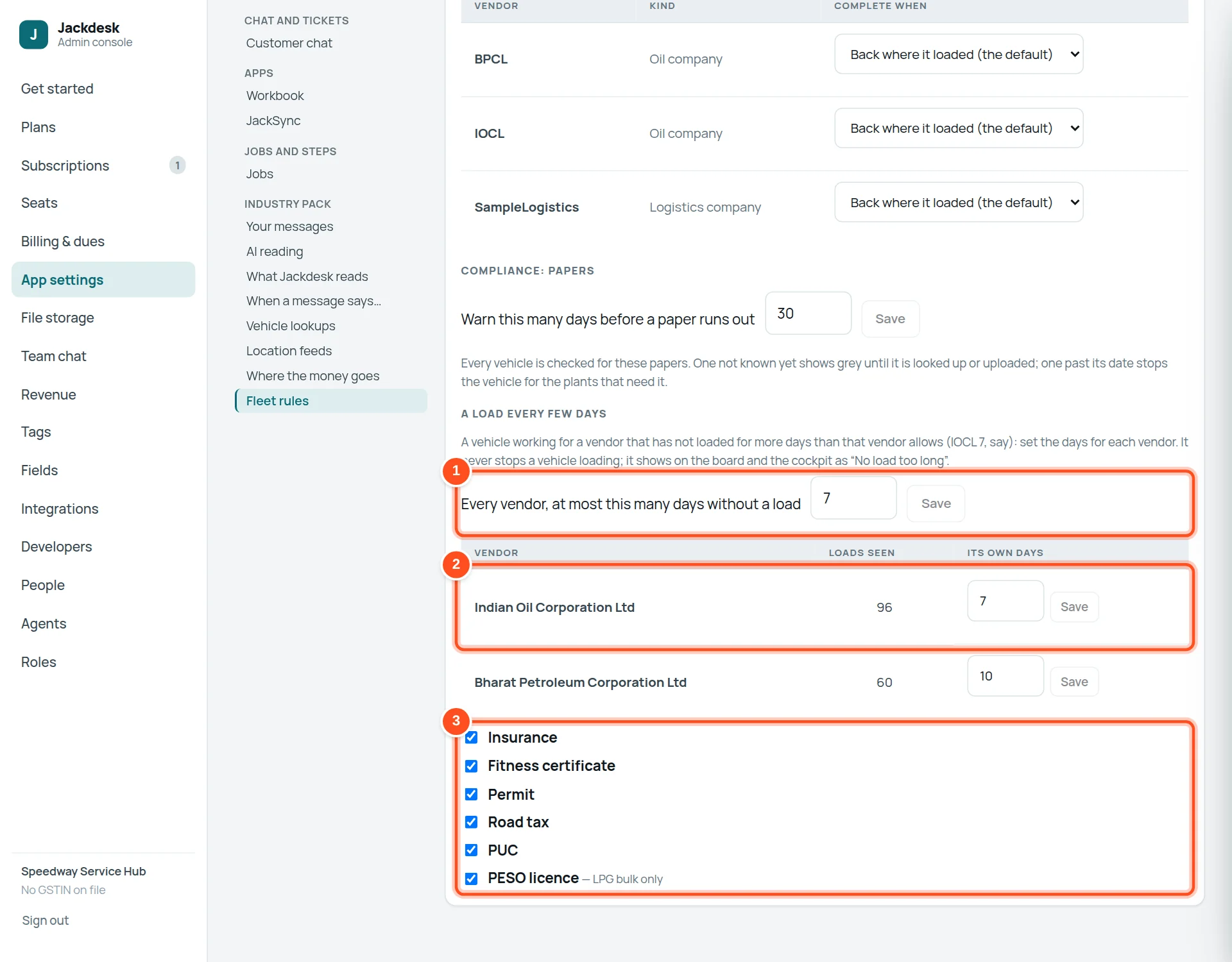
- 1At most this many days without a load, for every vendor.
- 2A vendor’s own number of days (for example 7 for one oil company, 10 for another).
- 3Which papers every vehicle is checked for: insurance, fitness, permit, road tax, PUC, and a PESO licence for LPG bulk.
Where the money goes
Jackdesk turns each day’s fleet money into entries in your books. Tell it once which account each kind of money goes to.
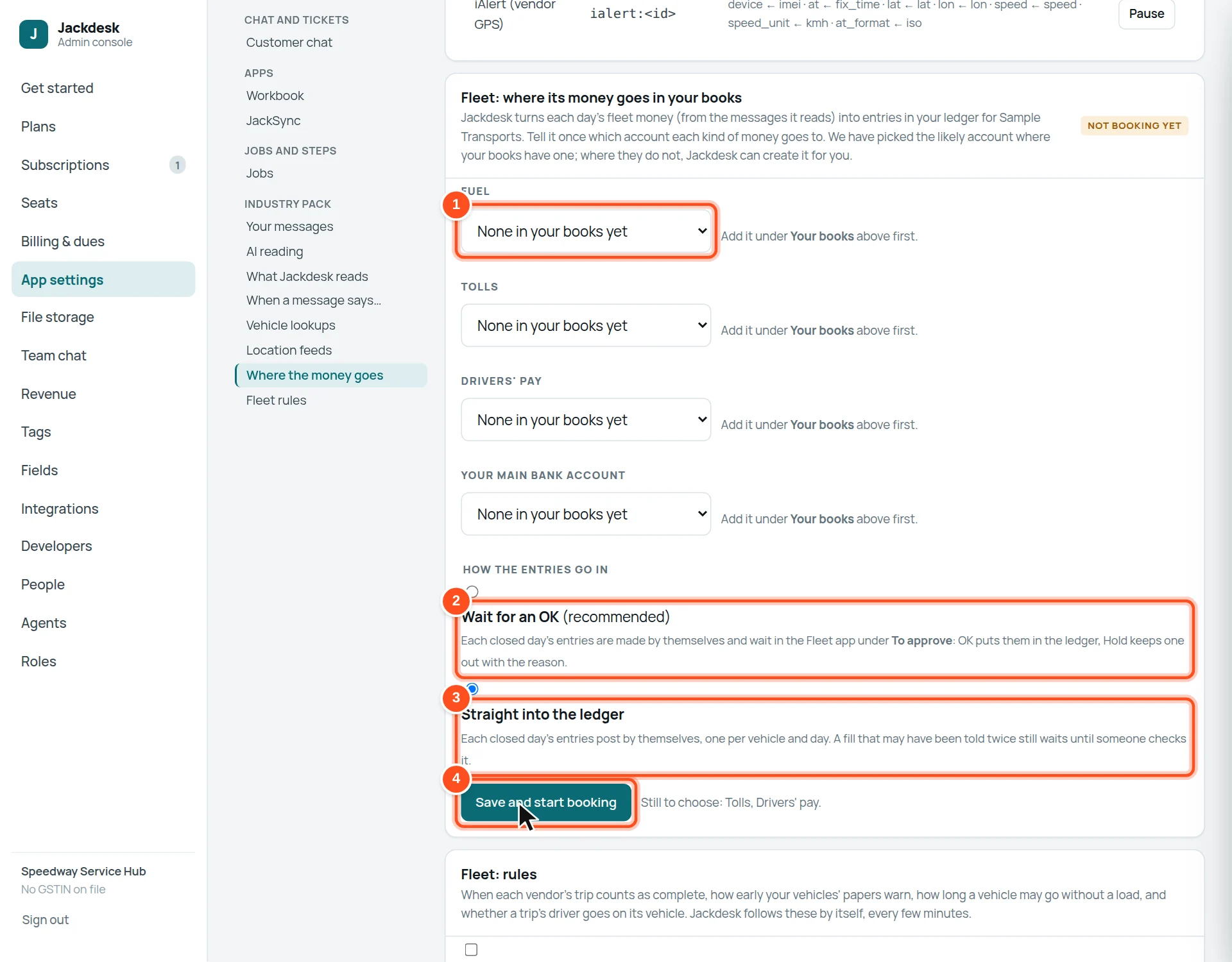
- 1The account in your books for each kind of money: fuel, tolls, drivers’ pay, your main bank account, and more. Jackdesk picks the likely one; where your books have none, it can create it.
- 2Wait for an OK (recommended): each day’s entries wait in Fleet → To approve until someone says OK.
- 3Straight into the ledger: entries post by themselves, one per vehicle and day.
- 4Save and start booking. It says which accounts are still to choose.
When something looks wrong
A vendor’s messages are not being read
What Jackdesk reads → Senders Jackdesk does not know → Read this sender (or Read everyone at their domain). If they need a pattern, tell the Jackdesk admin.
Many values wait in To confirm
A pattern may be waiting to switch on (What Jackdesk reads → Waiting for you to switch on → See what it reads). Confirming three in a row in Fleet drafts a pattern.
Lookup charges are higher than expected
Vehicle lookups → This month, and Show each vehicle’s next call and why. Set facts your texts already give to “The texts and mails you already get”.
Nothing reaches To approve
An account is not chosen yet: Where the money goes says which.
Staff cannot see Fleet
Roles → Fleet roles: give their Store role (or them) a Fleet role.
I am not sure what a setting does
Leave it as it is and write to the Jackdesk admin at jackdesk.admin@gmail.com with a screenshot. Most of these were set with you when Fleet started.