Jackdesk Fleet · for owners, managers and accounts
Jackdesk Fleet: Admin Manual
Approving money into the books, money found and cash ahead, drivers’ pay, bank and pump statements, new names from the messages, records and rules, giving vehicles to people, and the Fleet settings in the Store.
Read the Jackdesk Fleet User Manual first. Money screens show only to the owner, managers and accounts roles. Updated 26 October 2026.
Red cards first each morning; OK or Hold what waits; performance weekly.
Dispatcher
Trips, Tracking, Drivers
Running late, at risk, no driver; deliveries; drivers on trucks; trips by hand.
Compliance Officer
Compliance, Tasks
Renewals, plant rules, compliance tasks with photos.
Transport Accounts
To approve, Money, Drivers’ pay, Bank, Credit pumps
Pass entries; GST held back; EMIs, fines, services, pay.
Give each staff member a Fleet role in the Store: Roles & privacy → Fleet roles, by their Store role or by person.
2
To approve: money into the books
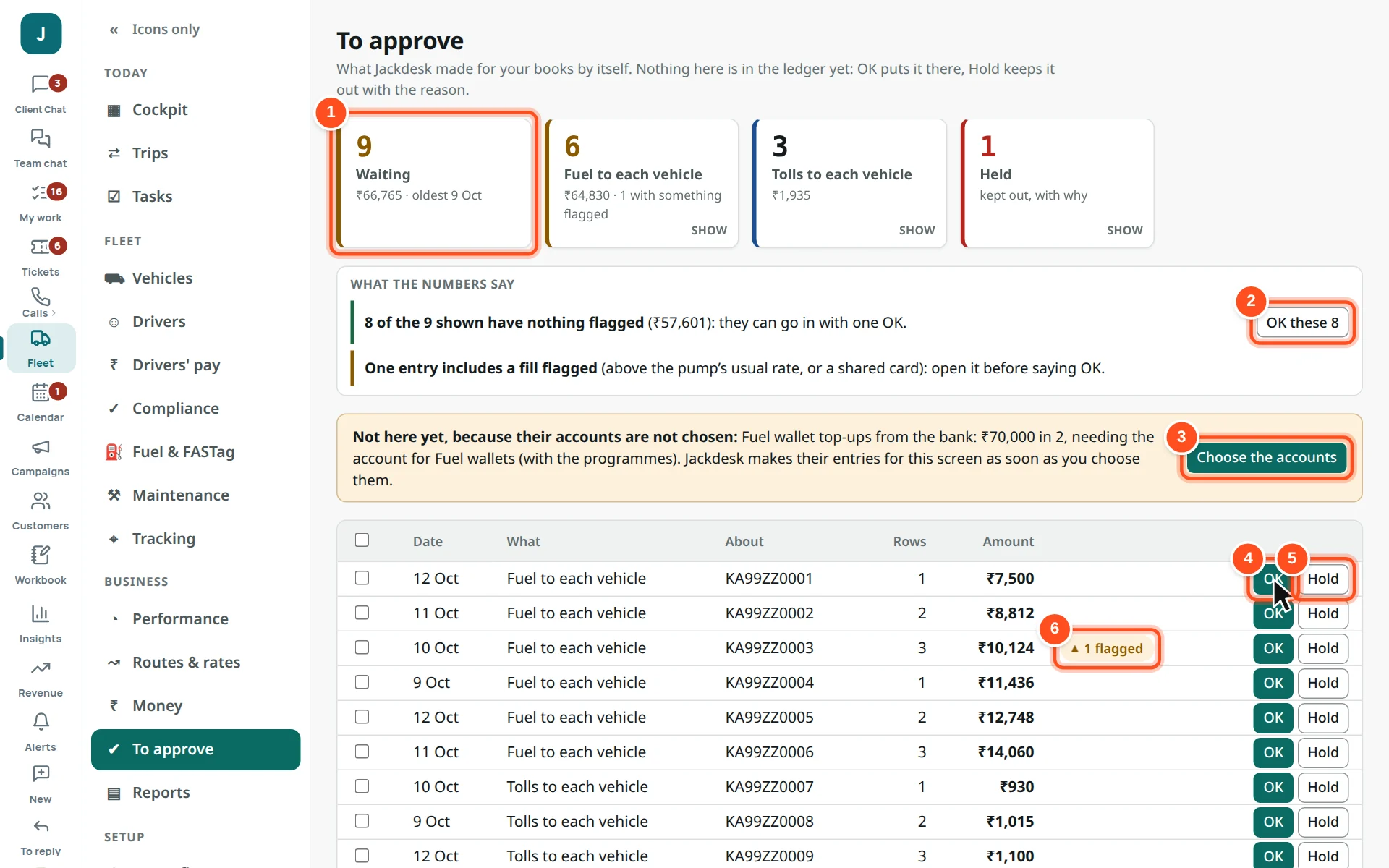
Jackdesk prepares the accounts entries by itself (fuel to each vehicle, tolls, services, pay…). Nothing is in the ledger until someone says OK.
Who can do this Accounts, the owner and managers with the money roles.
Fleet → To approve.
1What waits: how many, how much, the oldest.
2OK these 8 — pass all the ones with nothing flagged in one press.
3Choose the accounts — some money is not here yet because its account in the books is not chosen.
4OK — into the books.
5Hold — keep it out, with the reason. Put back to wait later.
6Flagged — above the pump’s usual rate, or a shared card: open it before saying OK.
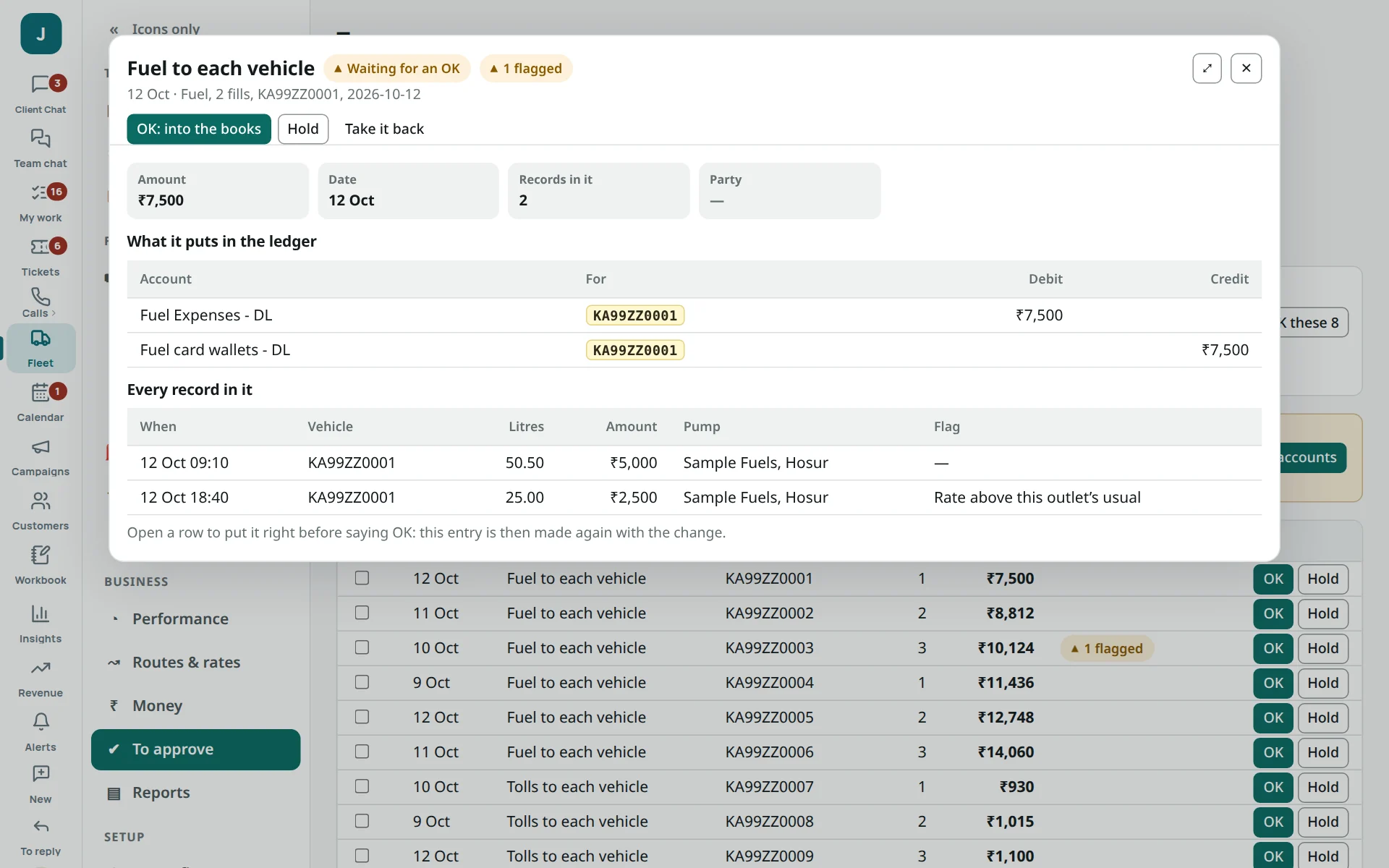
An entry opened: its lines and every record in it (each fill, toll or payment opens over it). Next › moves to the next one.3
Money found and cash ahead
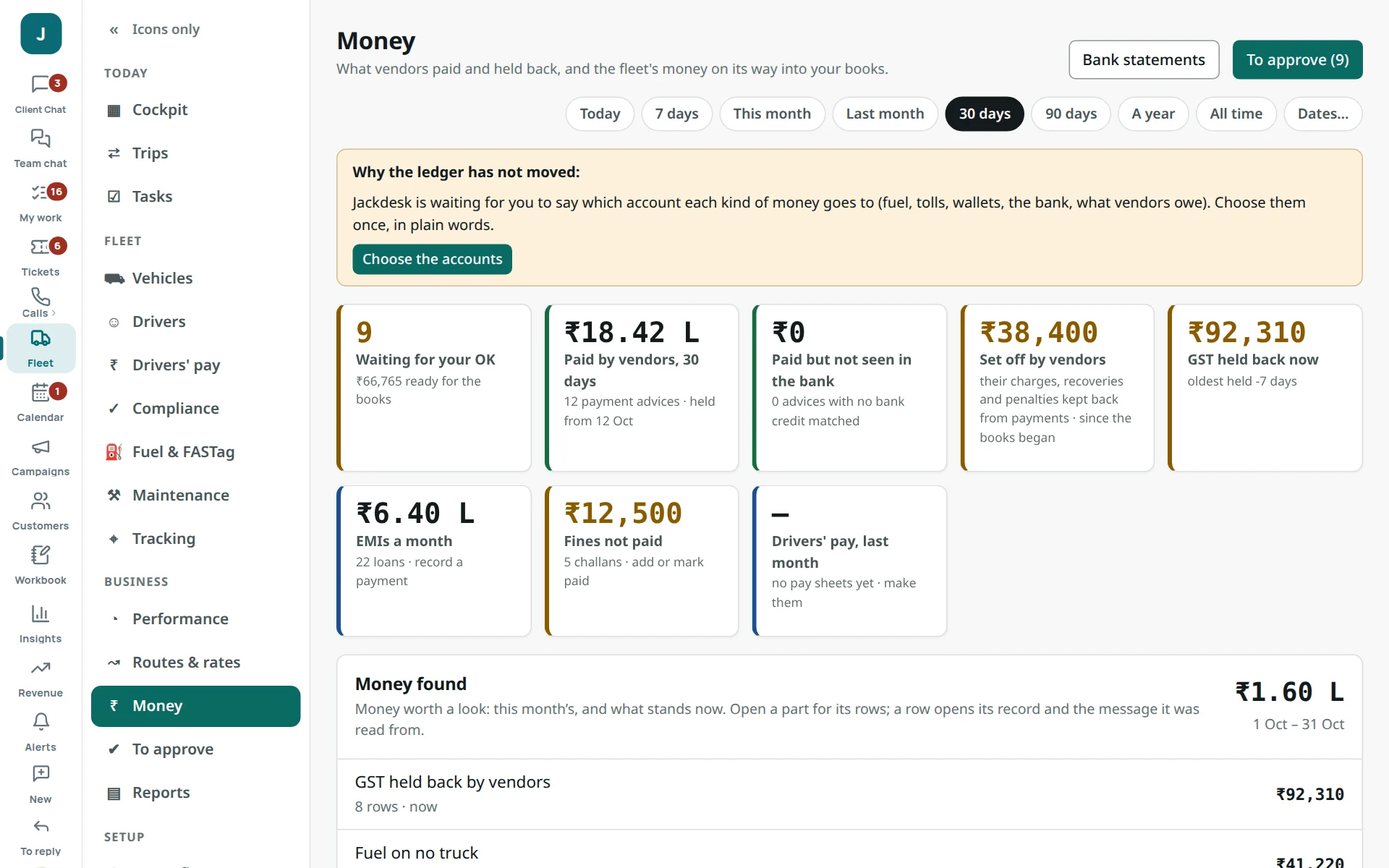
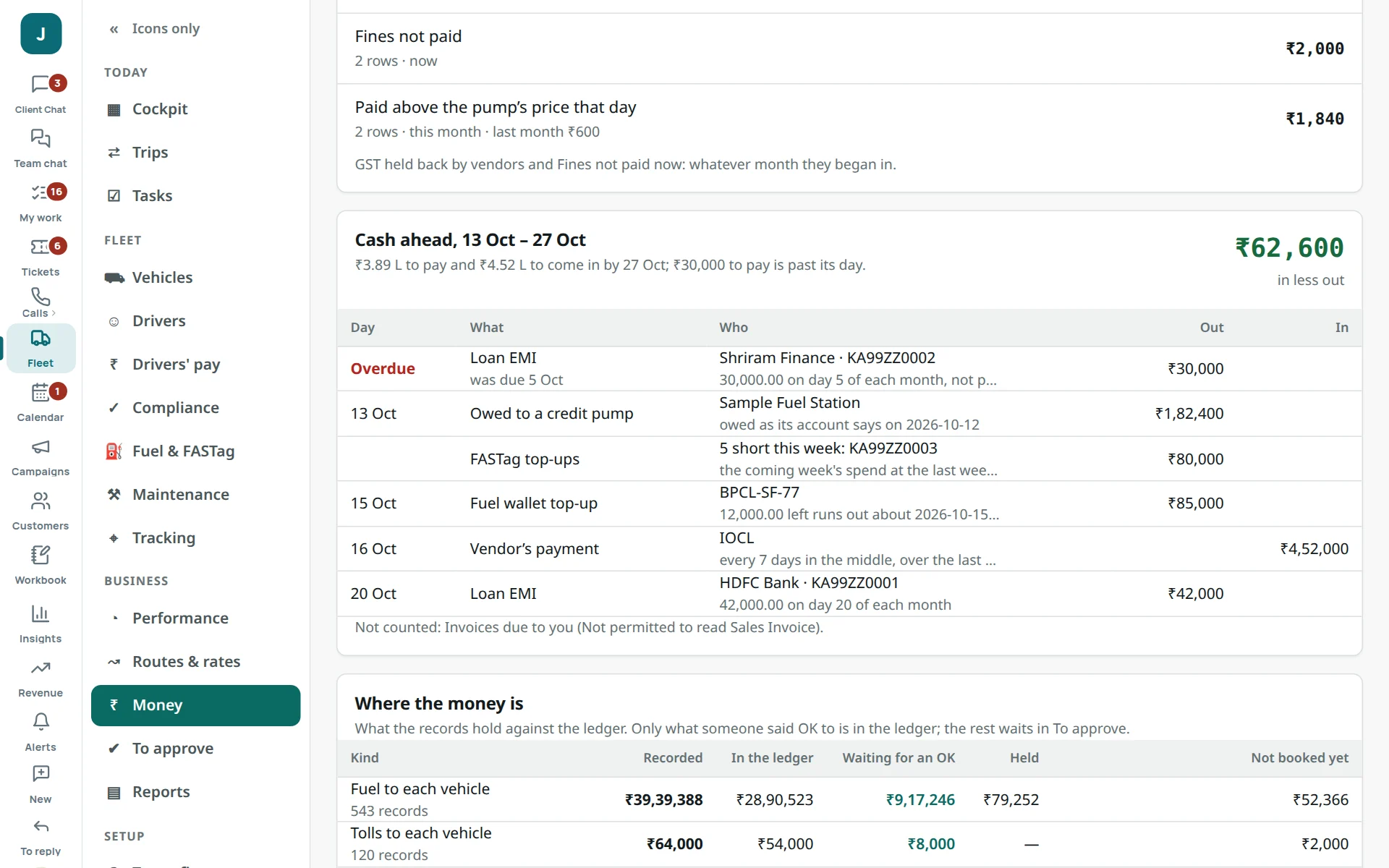
Fleet → Money. Money found: this month’s leaks in parts — GST held back, fuel on no truck, fills told twice, vendors’ deductions, fines not paid, paid above the pump’s price. Open a part for its rows.Cash ahead: the next 14 days line by line — EMIs, fuel wallets running dry, FASTags short, what credit pumps are owed — against vendors’ payments expected.4
Drivers’ pay
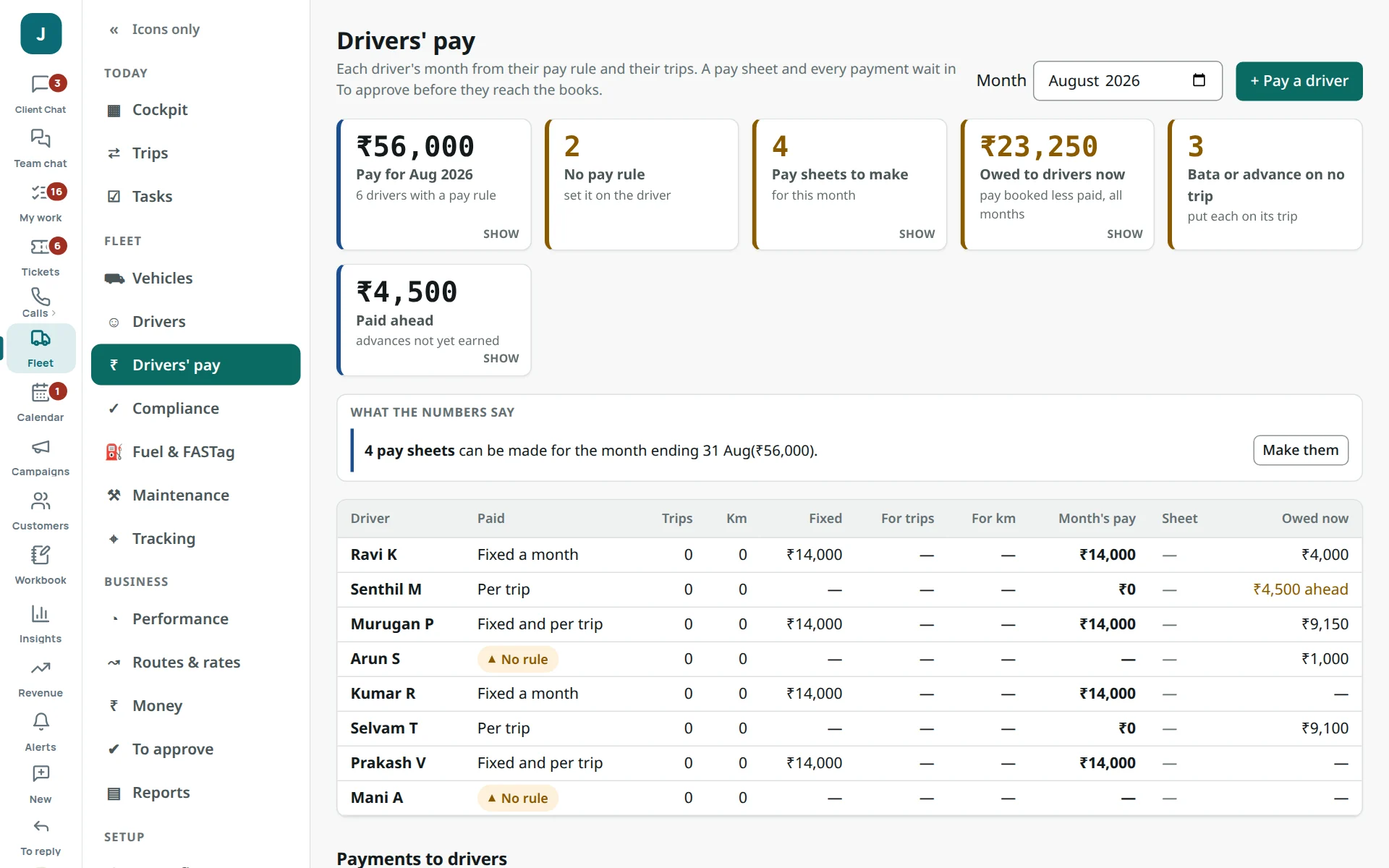
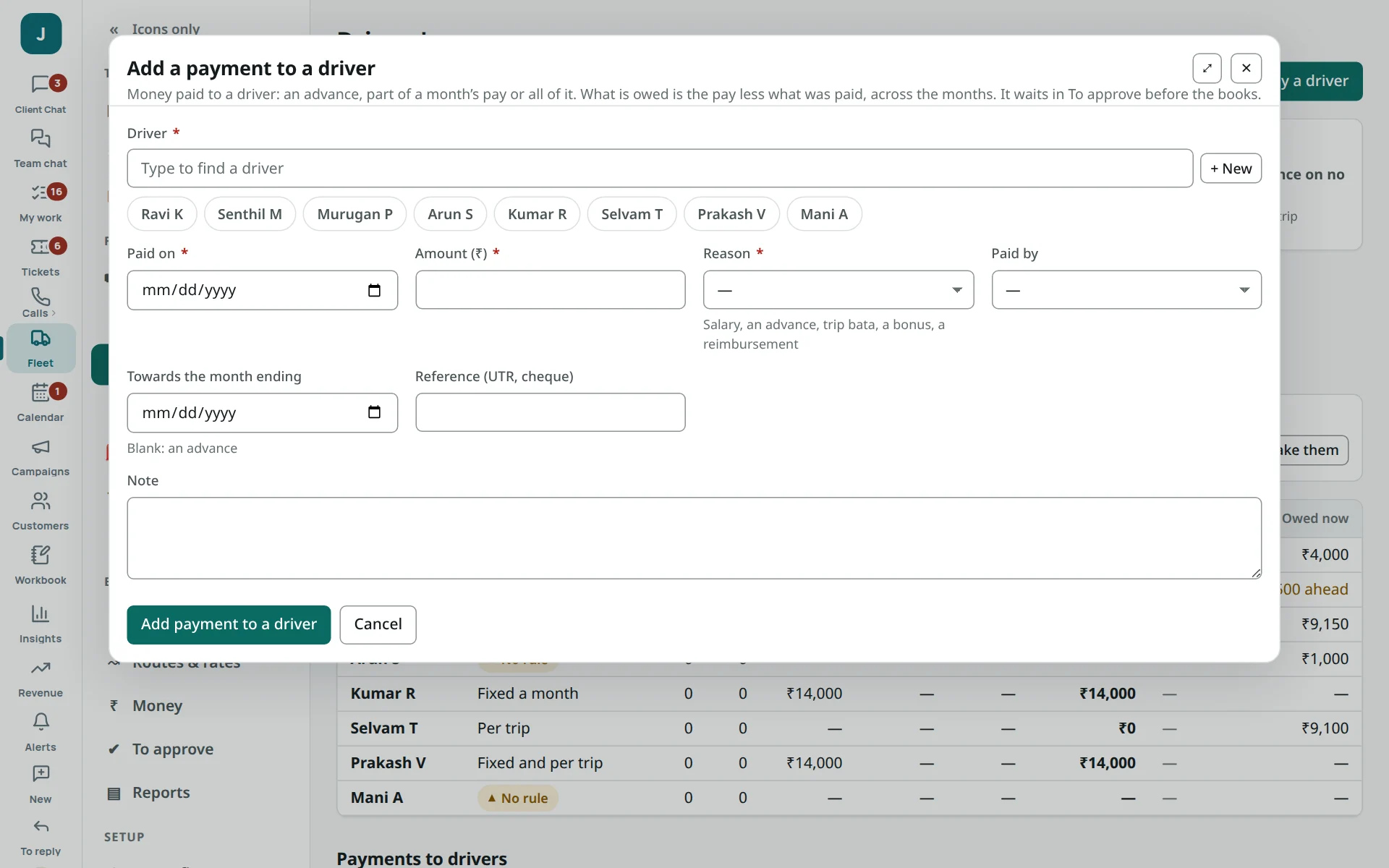
Fleet → Drivers’ pay: what each driver is owed now, paid ahead, and bata or advances on no trip.+ Pay a driver: driver, date, amount, reason, paid by (bank, UPI, cash), the month it is for, and for bata or an advance, the trip.
Set each driver’s pay rule once: open the driver → Edit → Paid (fixed a month, per trip, both, or per km).
At month’s end: Drivers’ pay → the month → Make them. Each pay sheet waits in To approve.
Record each payment with + Pay a driver. Every payment needs its reason.
5
Bank statements
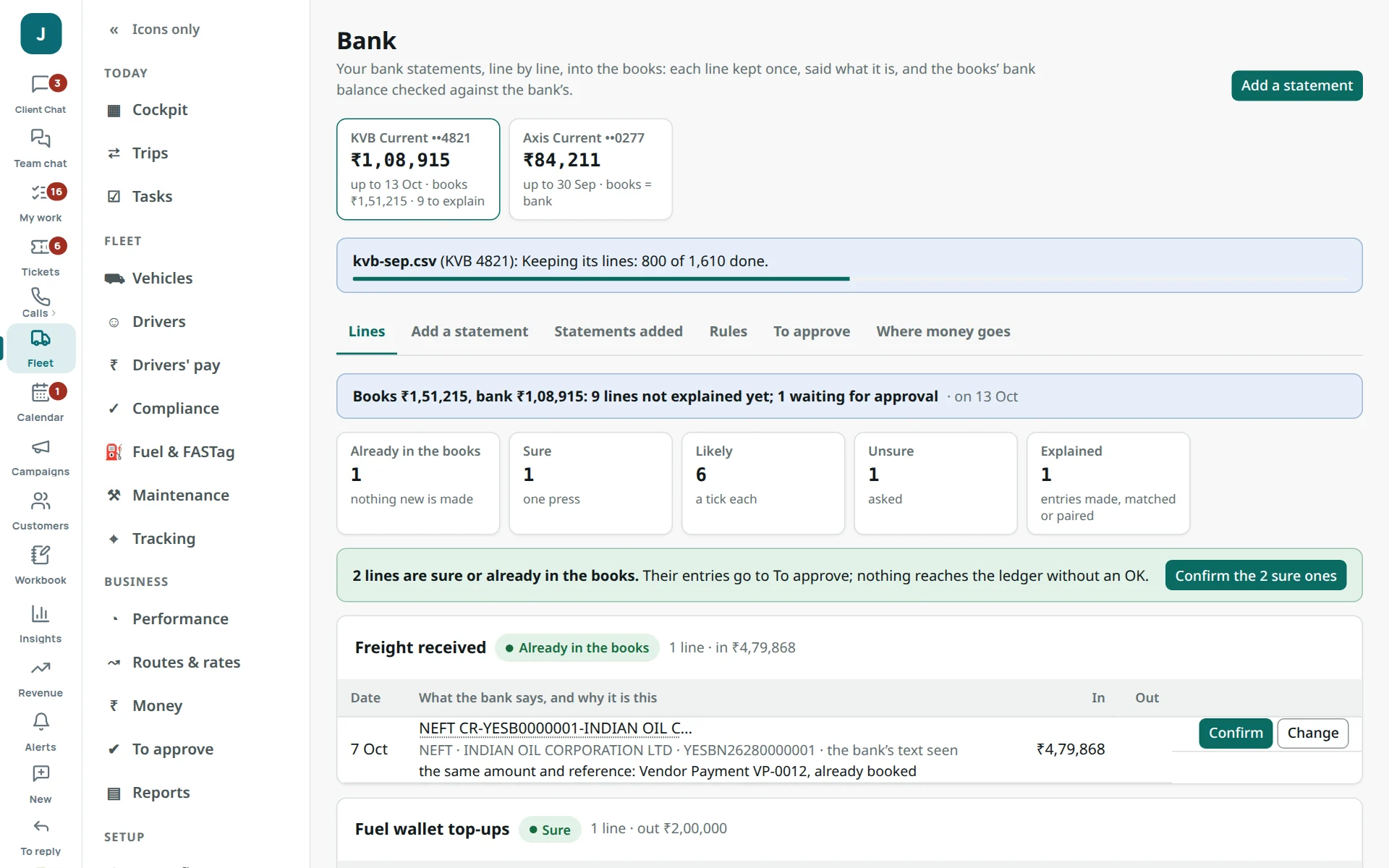
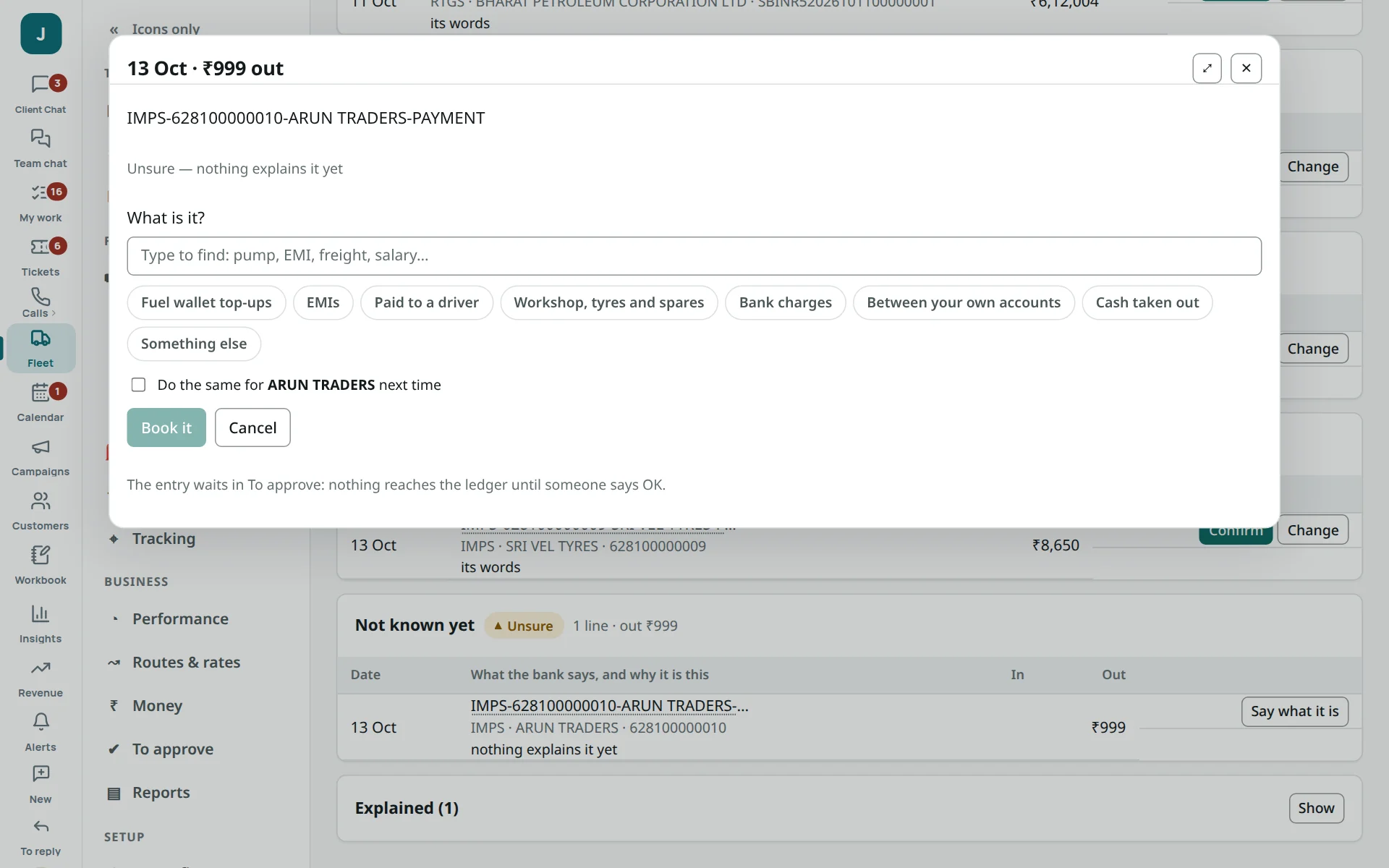
Fleet → Bank: your statement line by line — already in the books, sure, likely, unsure.Say what it is: for an unsure line, choose the kind (a vendor’s payment, charges, a transfer…) and tick “Do the same next time” to make it a rule.
Add a statement: the Excel or CSV from net banking. It must add up by its running balance before it is kept.
Confirm the sure lines in one press; explain the unsure ones.
The entries wait in To approve. Once passed, the books’ bank balance equals the bank’s.
6
Credit pumps
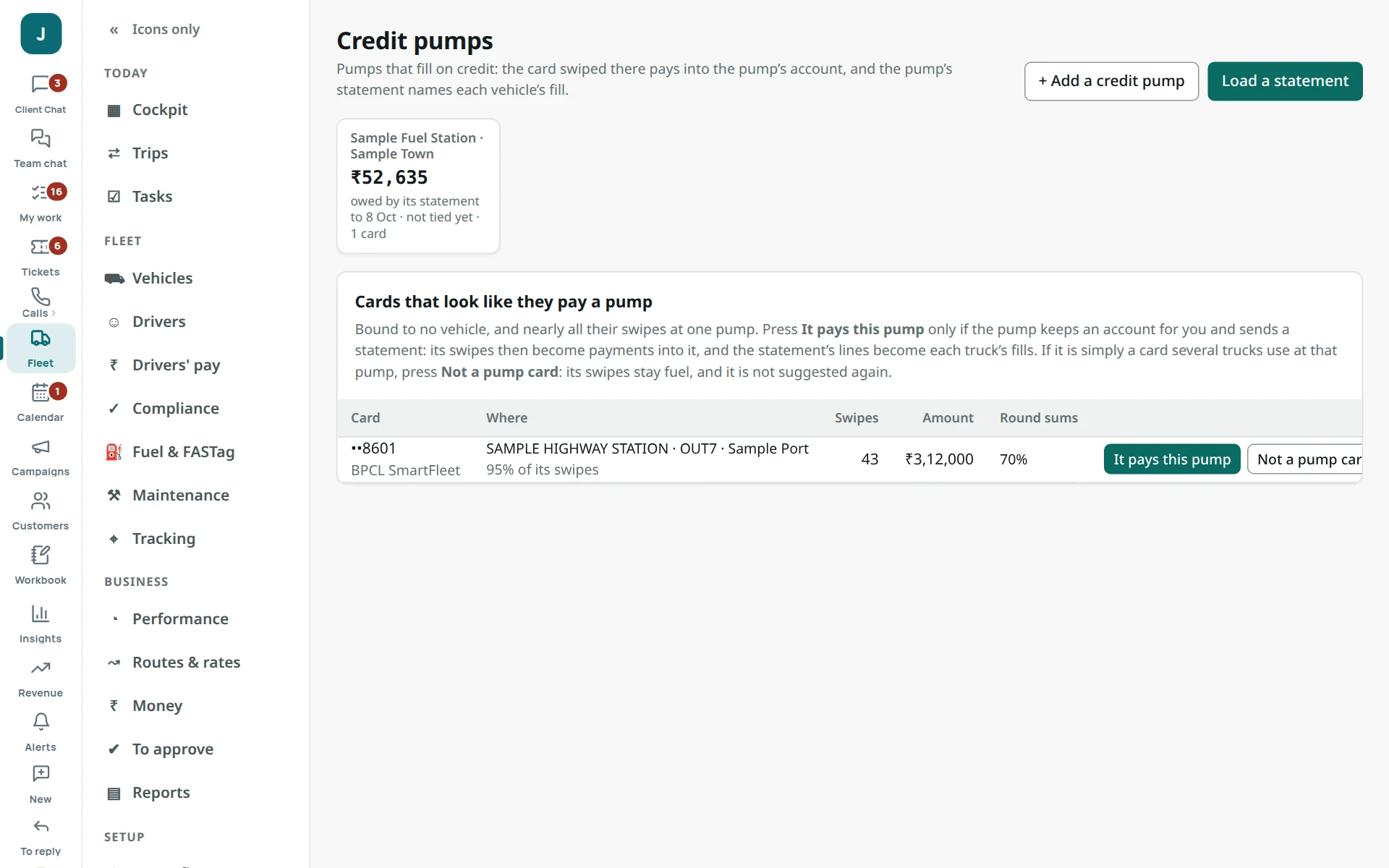
Fleet → Credit pumps: pumps that fill on credit. The card swiped there is a payment into the pump’s account; the pump’s statement names each truck’s fill.
Under the cards that look like they pay a pump, press It pays this pump — only if the pump keeps an account for you and sends a statement.
Load a statement: the PDF, Excel, CSV or photos of its pages.
Check each line is on the right truck, then Keep it. Each fill goes on its truck once.
7
To confirm: what the messages could not decide
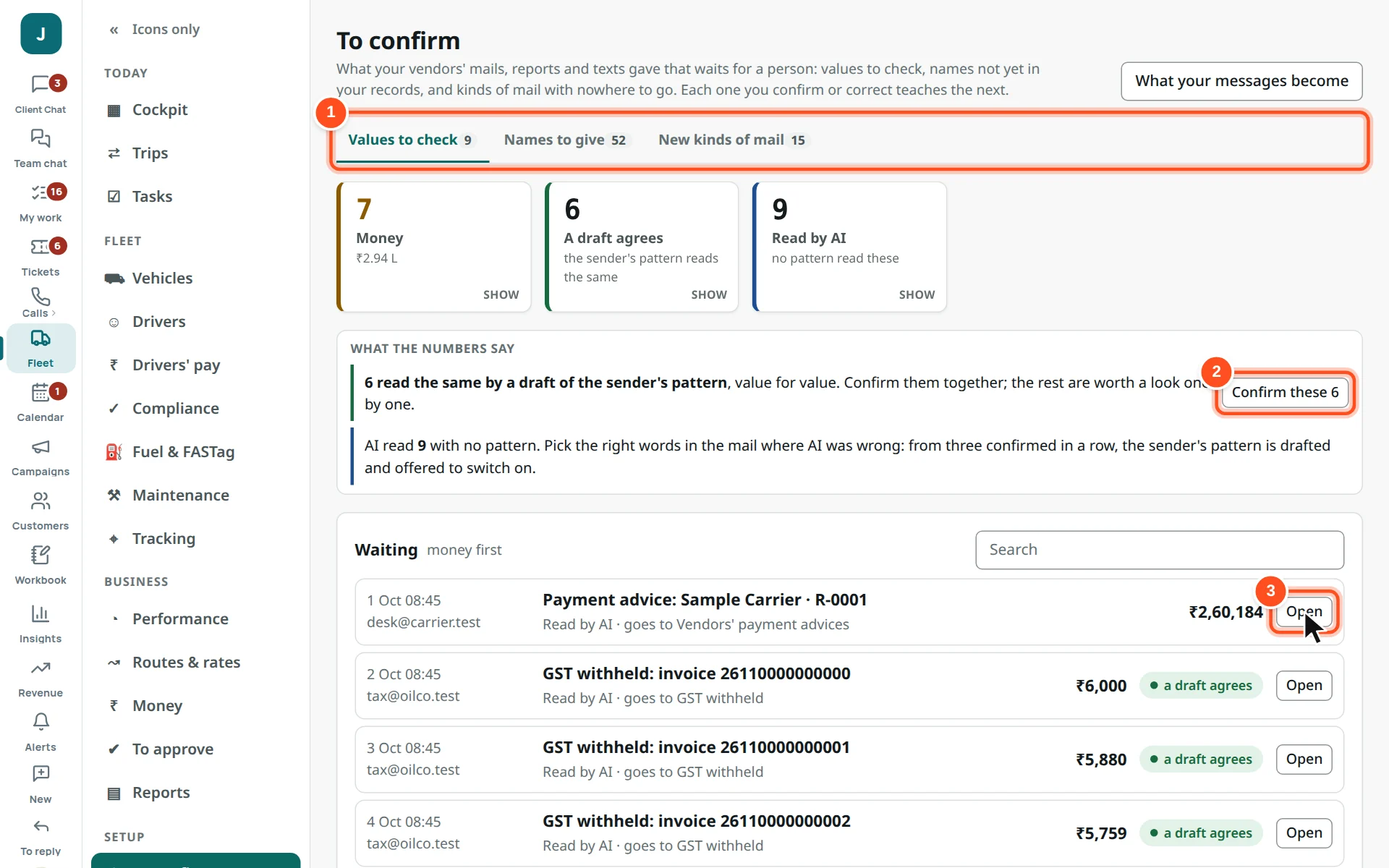
Fleet → To confirm.
1Tabs: Values to check, Names to give (a new truck, plant or card seen in the messages), New kinds of mail.
2Confirm these — values a sender’s pattern read the same way, together.
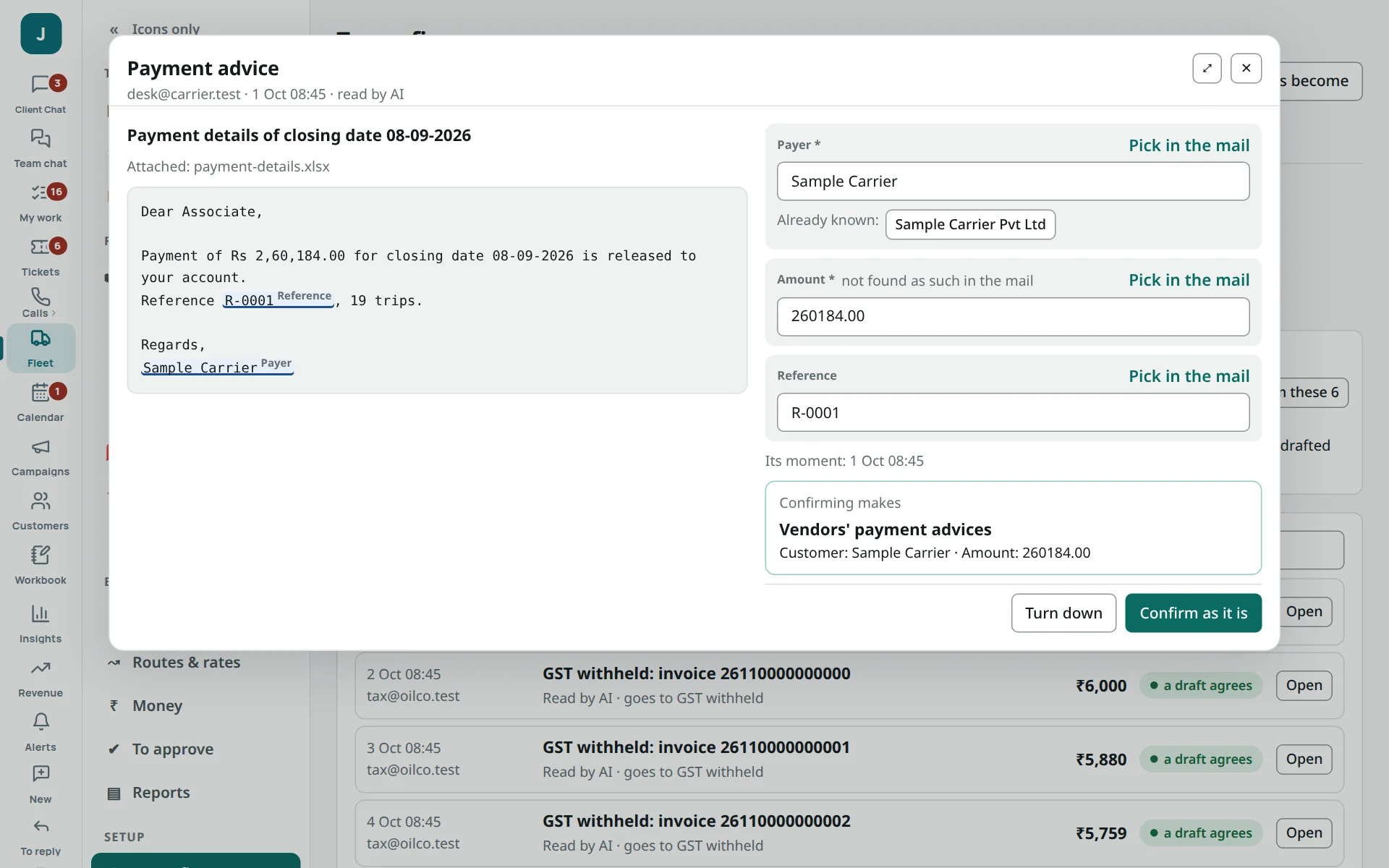
3Open one to check it beside its mail.
A value beside its mail: correct a wrong figure by picking the right words in the mail; confirm. Each correction teaches the next one.8
Records, routes and rules
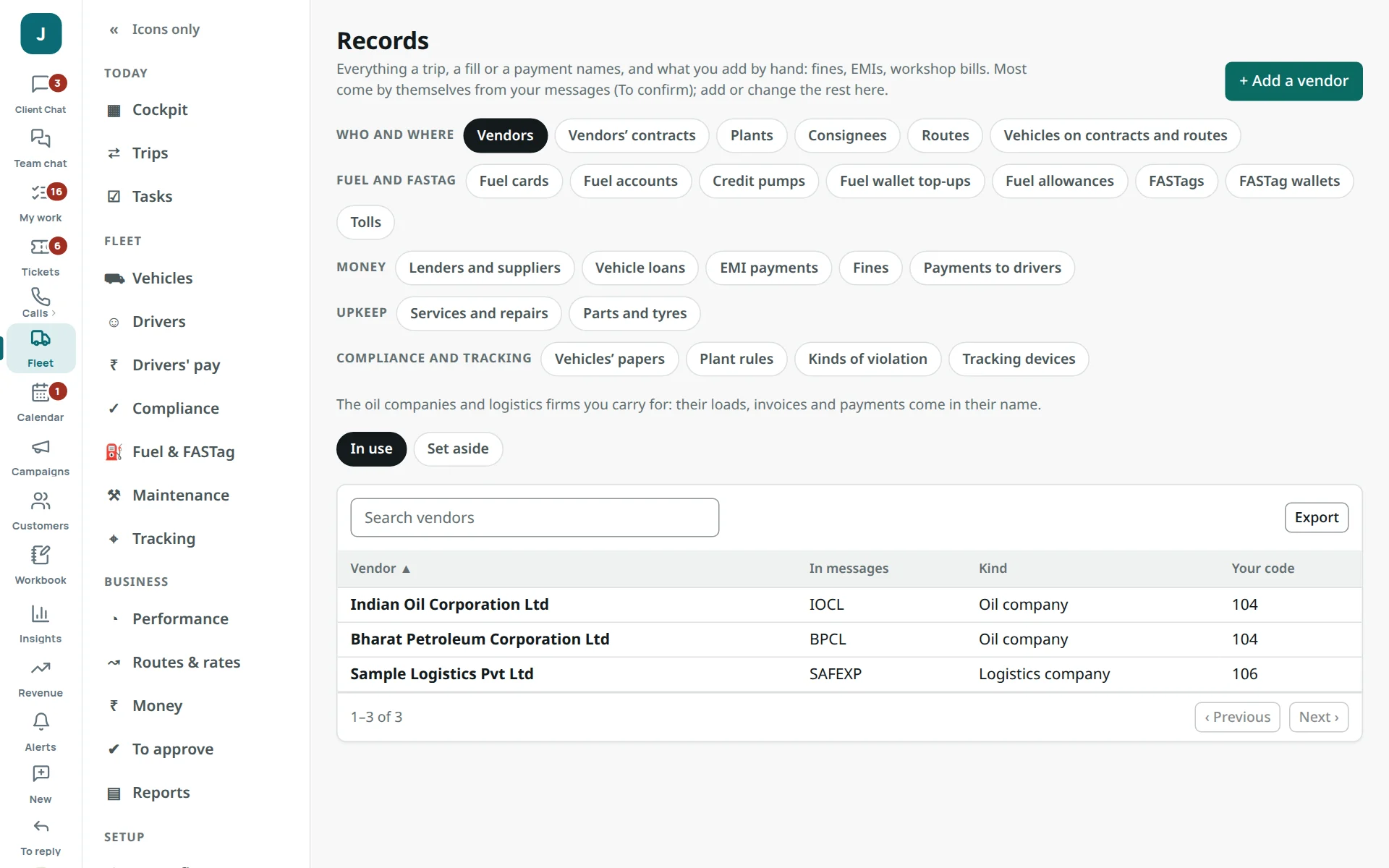
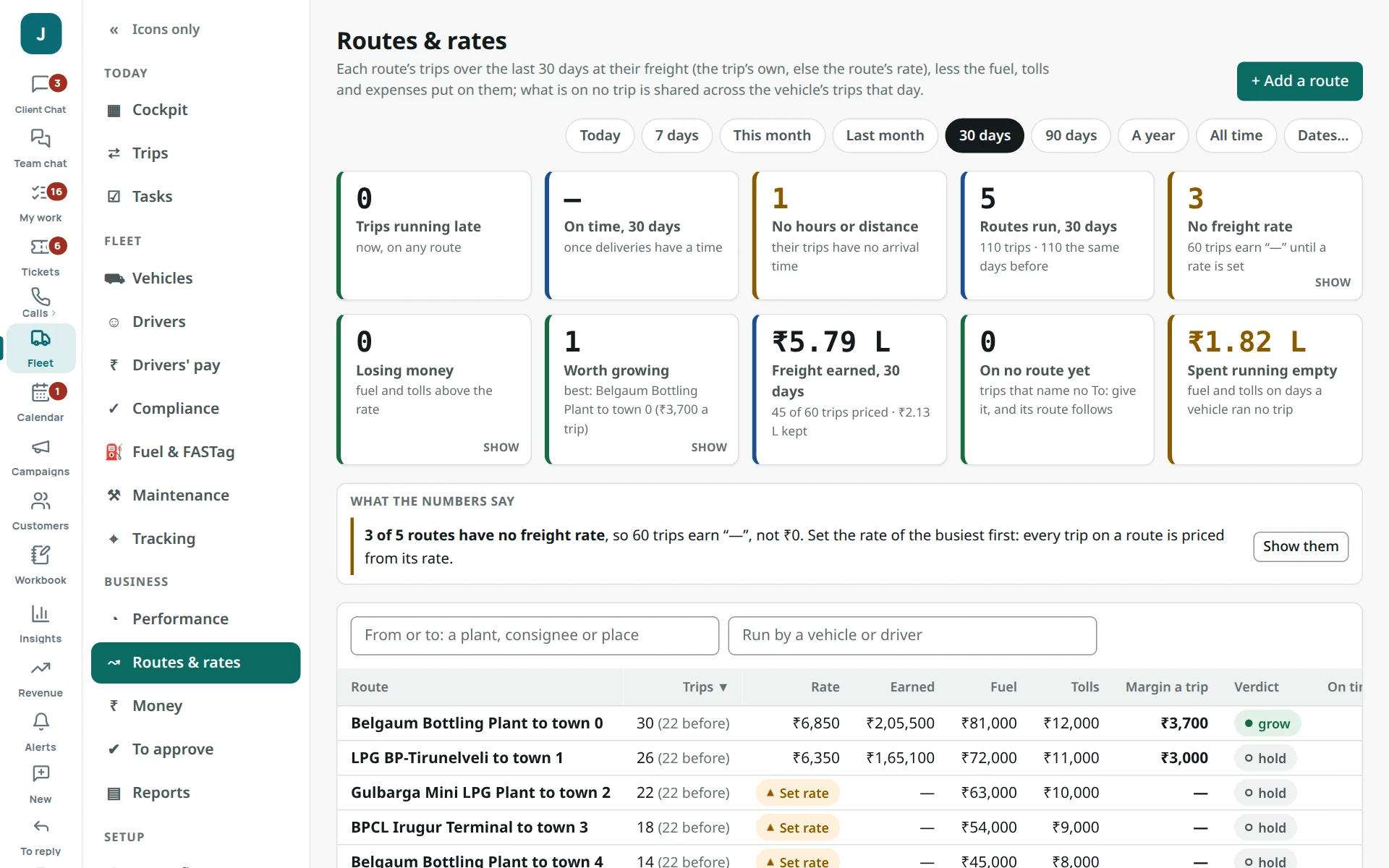
Setup → Records: plants, consignees, routes, vendors, loans, EMIs, fines, services and more — each list opens what it lists.Business → Routes & rates: each route’s distance, hours and freight rate. A route without a rate makes its trips earn “—”.
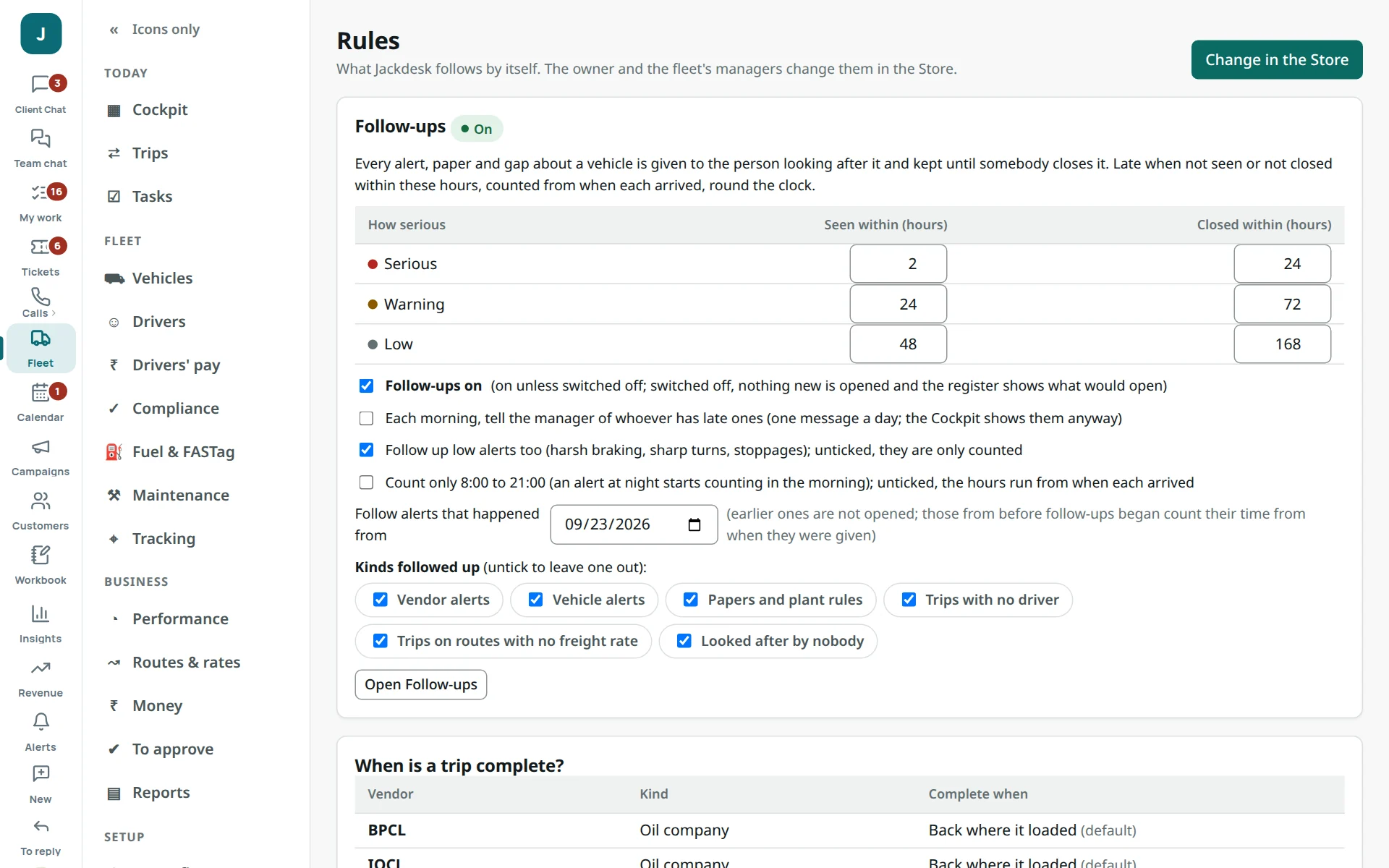
Setup → Rules: your own rules on what the messages say (“When a message says…”), and follow-up settings.9
Giving vehicles to people
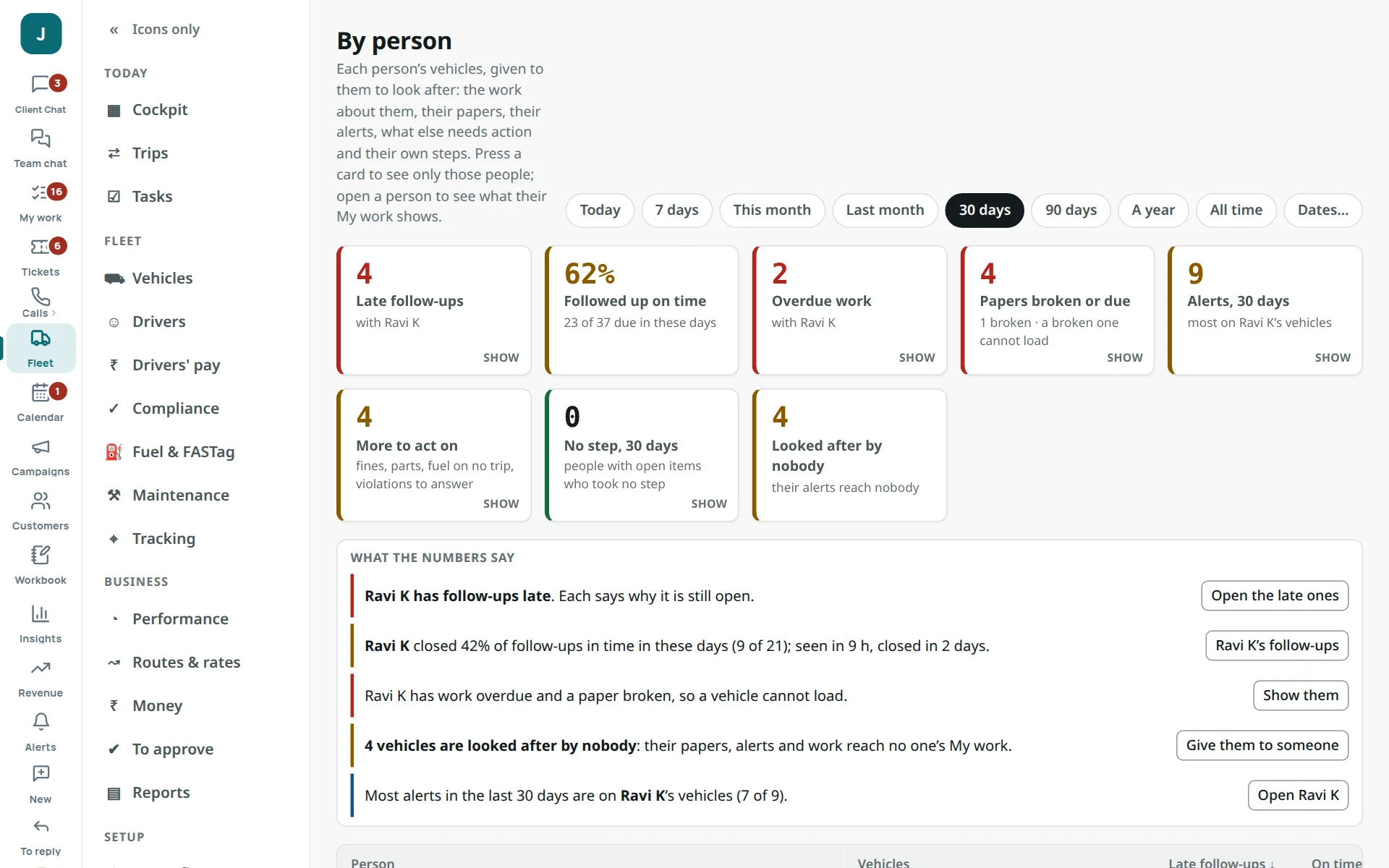
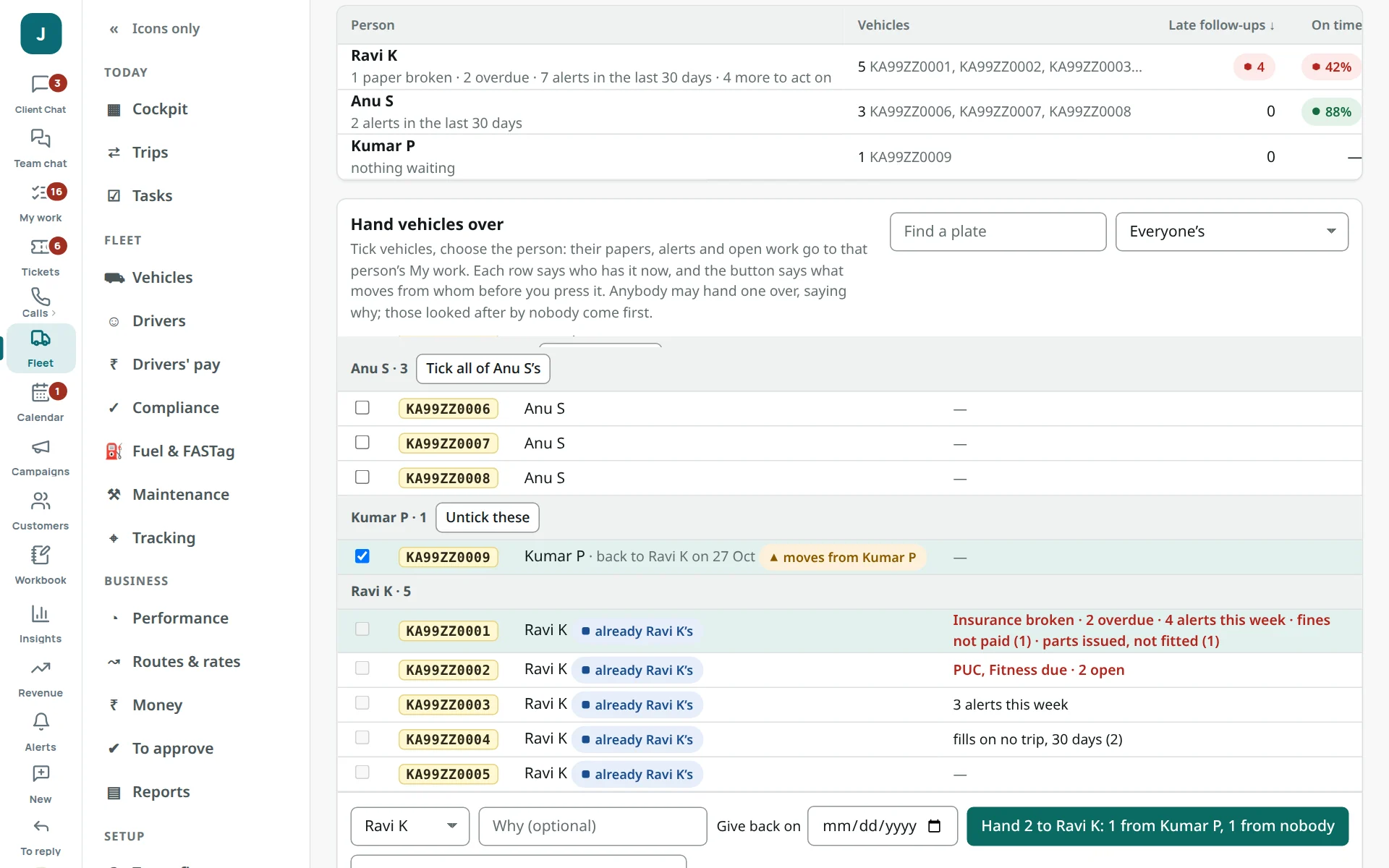
Fleet → By person: each person, their late follow-ups, overdue work and papers. Press a card to see only those people.Hand vehicles over: tick the vehicles, choose the person; the button says exactly what will happen. Their open work goes with them. Set “Give back on” for leave.10
Performance, running costs and forecast
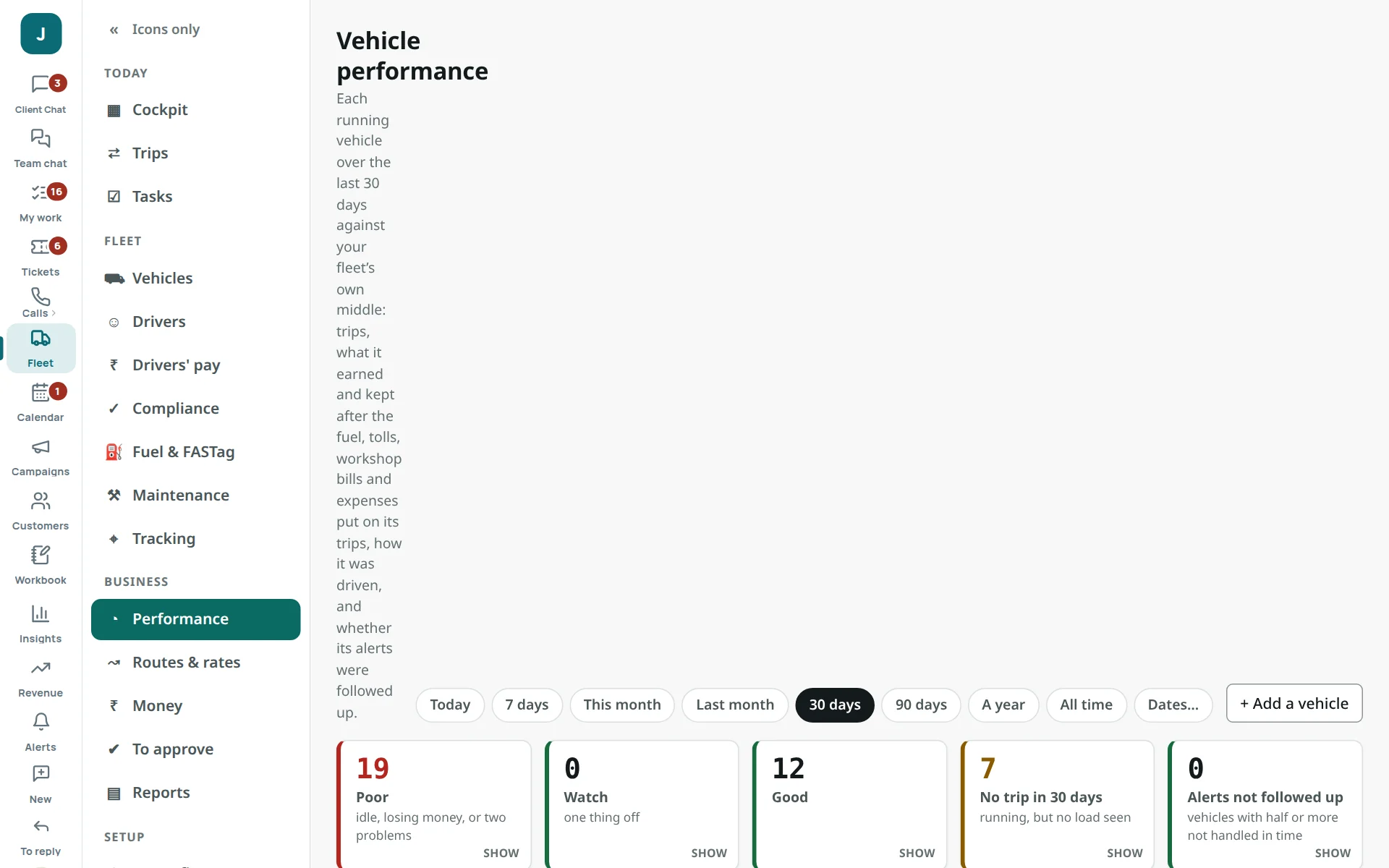
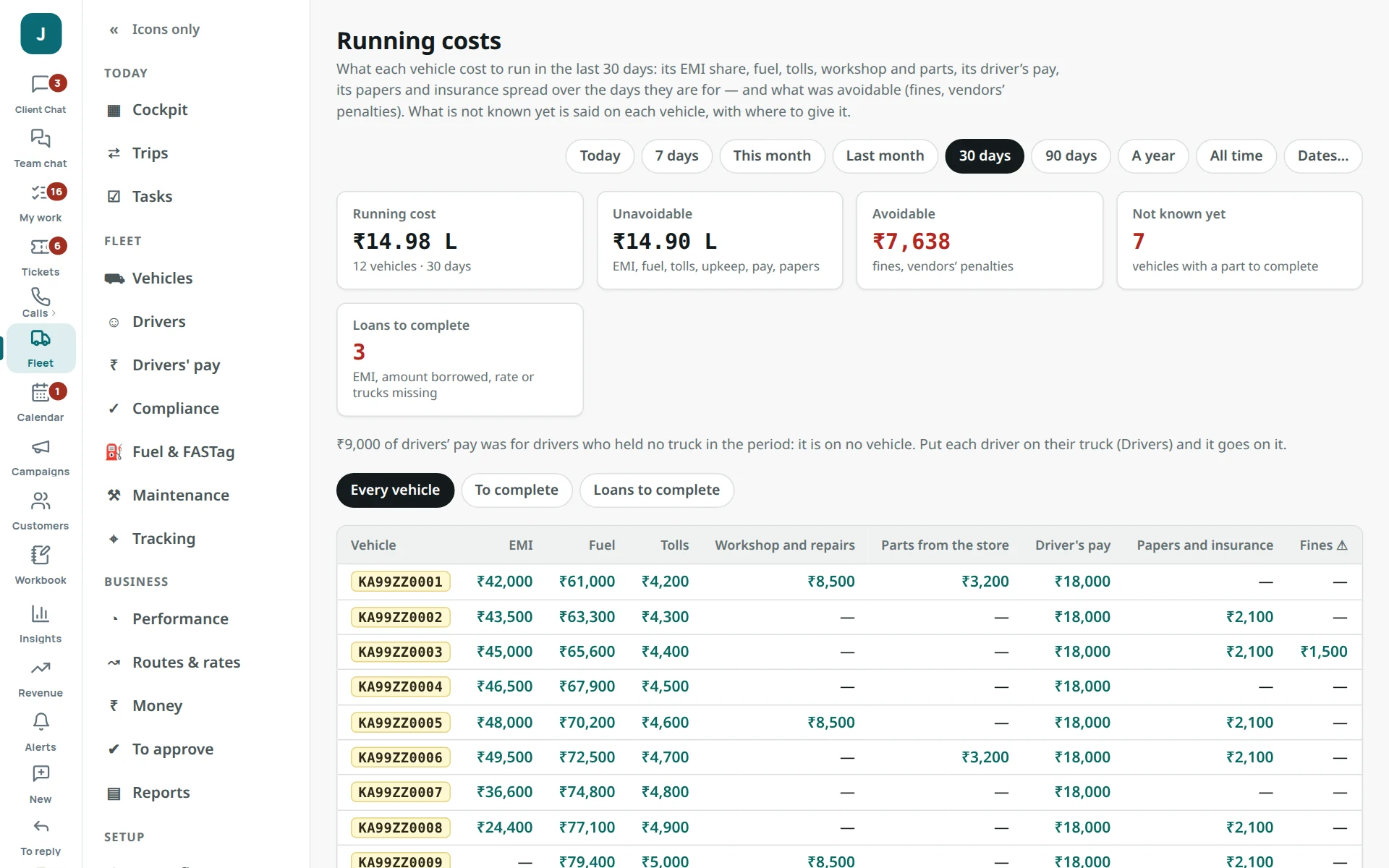
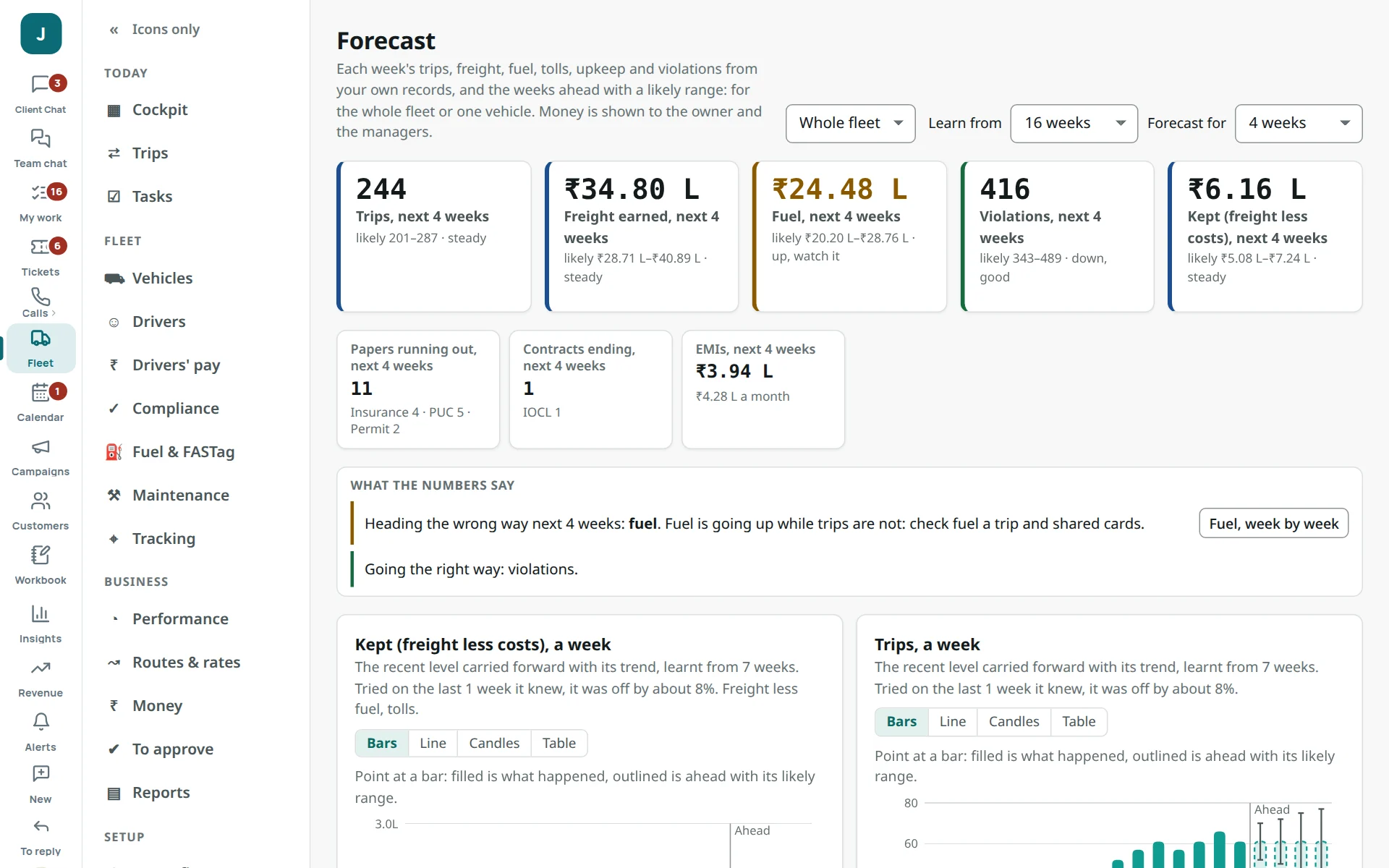
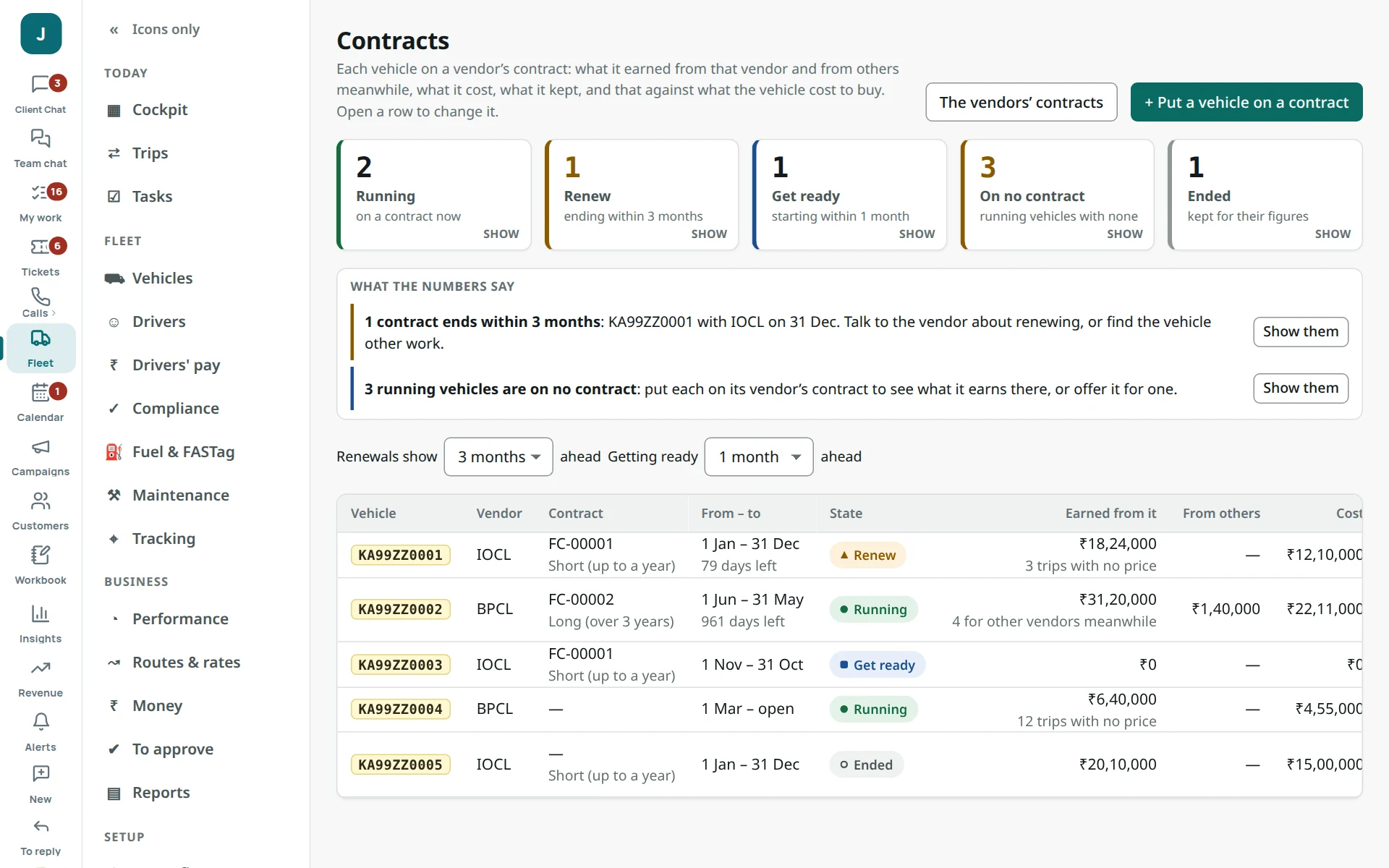
Performance: each vehicle’s verdict for the period, with reasons and payback.Running costs: each vehicle’s EMI, fuel, tolls, upkeep, parts, driver and papers, and what was avoidable.Forecast: the weeks ahead from your own records (needs 4 whole weeks).Contracts: each truck on a vendor’s contract, what it earned and kept.
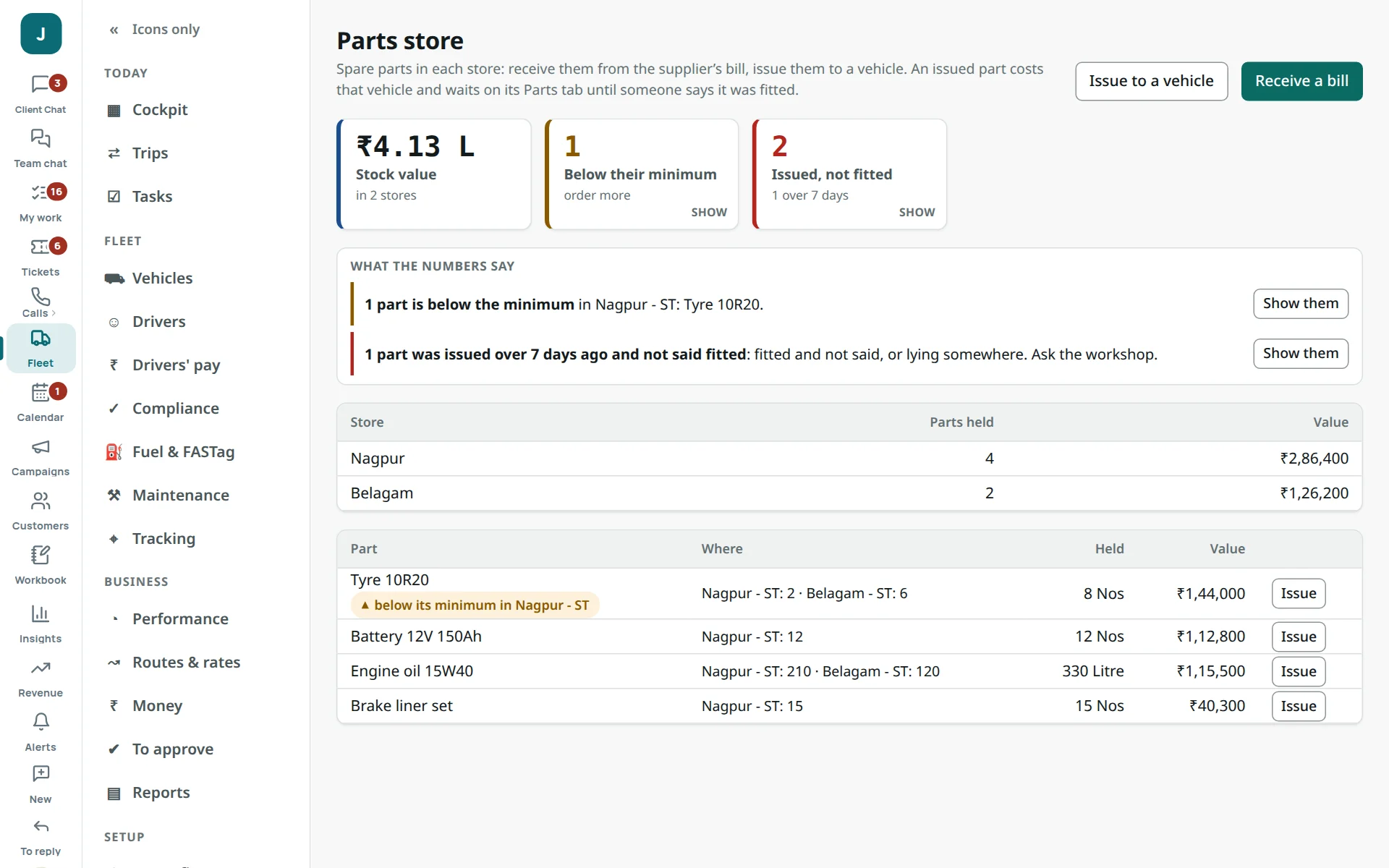
Parts store
Fleet → Parts store: spare parts in each store (one store per place), received from a supplier’s bill and issued to a truck.
Receive a bill: the store, the supplier (or a new one), the bill’s number and date, and each part with how many and the rate before GST. The books add the GST; the entry waits for an OK like every other.
Issue a part (or Issue to a vehicle): the store, how many, the truck, the kind of part. Its cost goes on that truck. The part waits on the truck’s Parts tab as “From the store, not fitted yet”.
When it is fitted: the truck → Parts → the part → status On the vehicle and the day. From then its wear counts.
11
Fleet settings in the Store
Store → App settings → Industry pack. Change these only with the owner’s agreement.
12
When something looks wrong
Nothing appears in To approve
No account is chosen for that kind of money: Store → App settings → Where the money goes (ask the Jackdesk admin if unsure).
The ledger is less than the Cockpit
Money → Where the money is: what waits for an OK, and what is not booked because its account is not chosen.
A bank statement will not keep
It must add up by its running balance: check that no page or day is missing and the columns are right.
Fuel on no vehicle is high
Cards at credit pumps not marked yet: Credit pumps → It pays this pump.
A vendor’s mails are not read
Store → What Jackdesk reads → Senders Jackdesk does not know → Read this sender. Tell the Jackdesk admin if it needs a pattern.
Staff see no Fleet screens
Store → Roles & privacy → Fleet roles: give their role a Fleet role.
A rule found nothing
Check that kind of message comes in (the count beside it) and that the conditions are not too narrow (“contains” is safest).