Jackdesk Fleet: User Manual
How to see your trucks, trips, papers, fuel and alerts in one place, act on what needs you each day, and put a record right when a message got it wrong.
I want to…
Words you will see
Finding your way
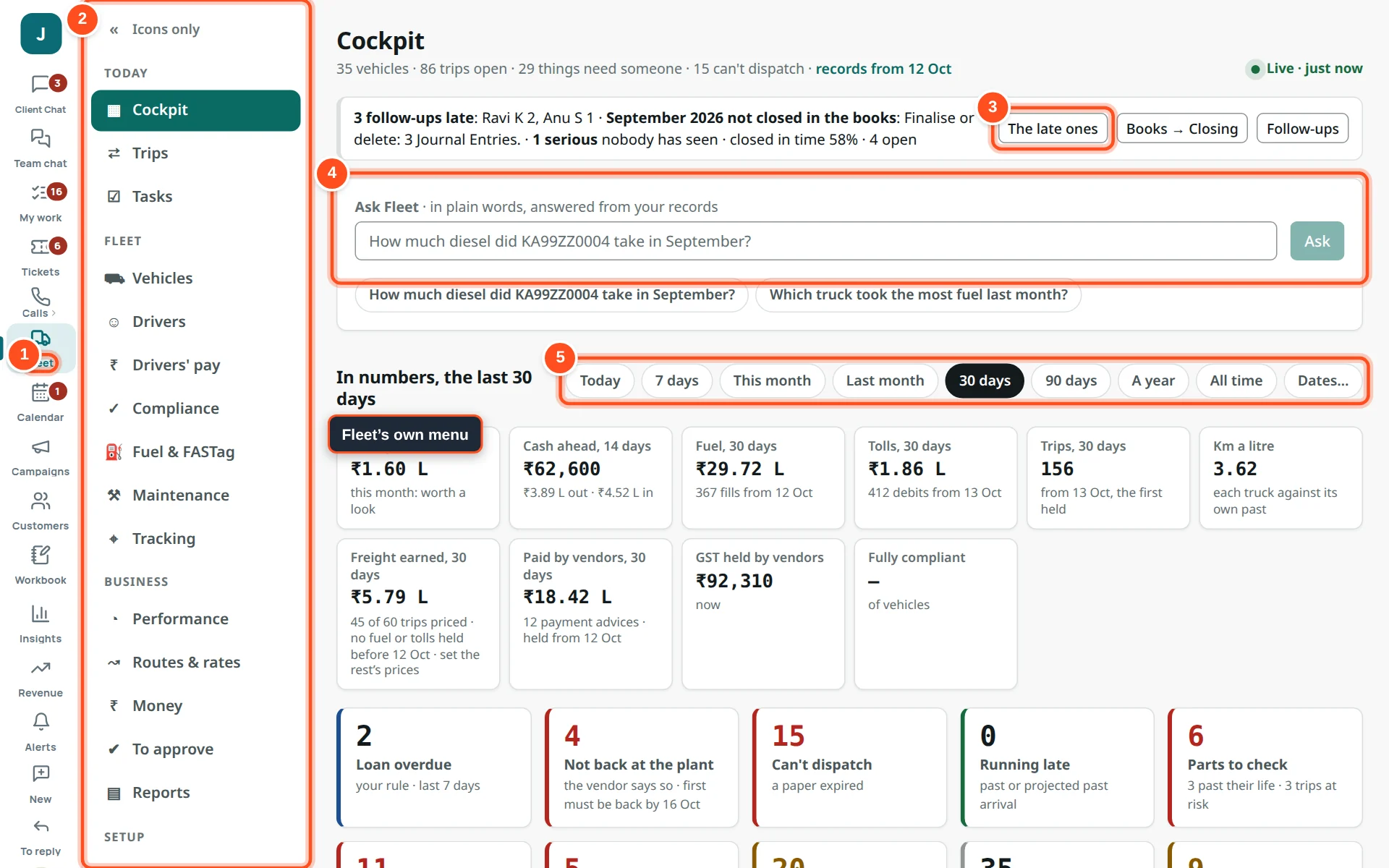
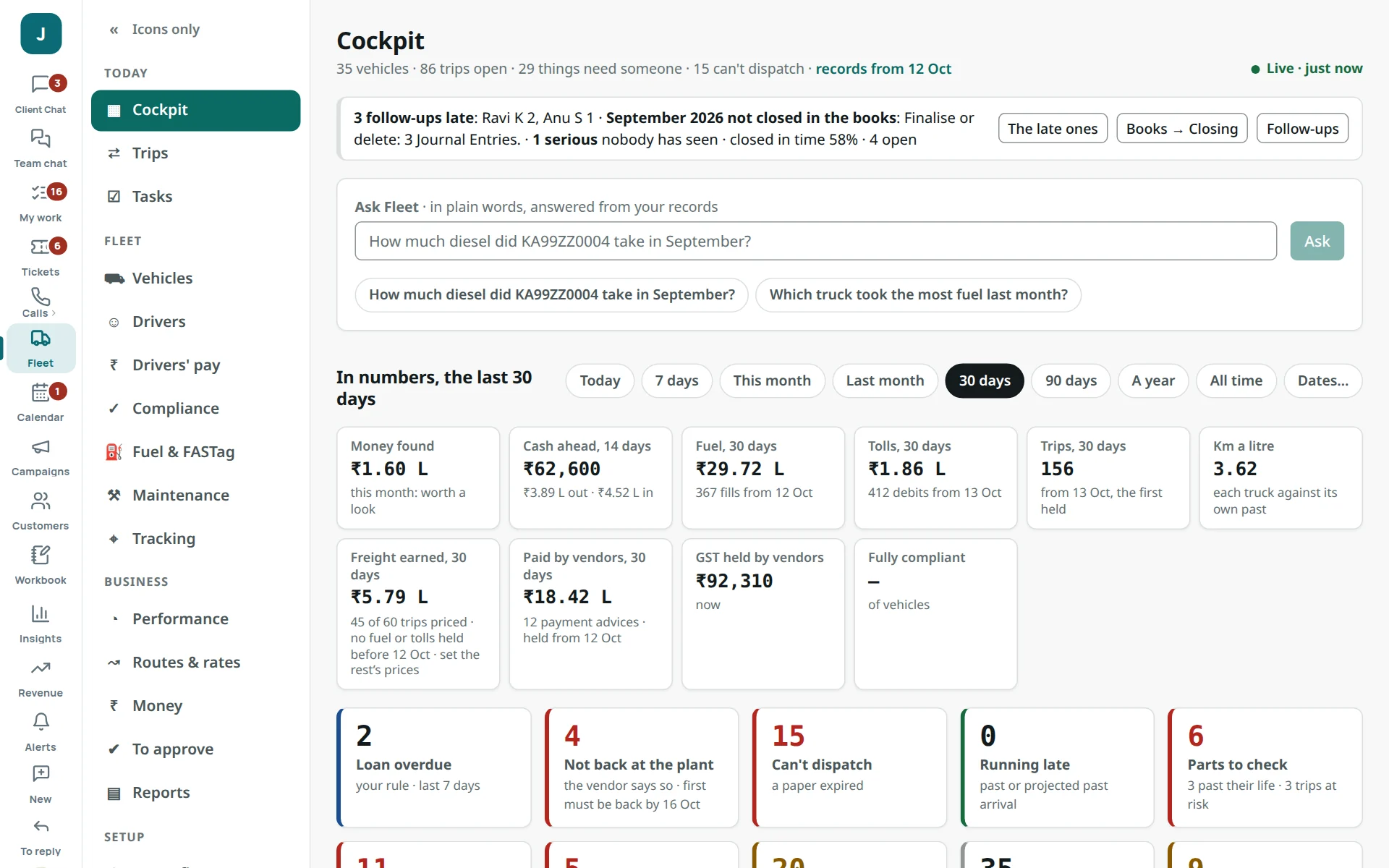
- 1Press Fleet on the left rail.
- 2Fleet’s own menu, in four groups: Today (Cockpit, Trips, Tasks), Fleet (Vehicles, Drivers, Compliance, Fuel & FASTag, Maintenance, Tracking…), Business and Setup. Icons only makes it narrow.
- 3The first line says what is late and with whom. The late ones opens them.
- 4Ask Fleet — type a question in plain words (see Ask Fleet).
- 5The period: Today, 7 days, This month, Last month, 30 days, 90 days, A year, All time, or Dates…. Chosen on one screen, it stays on every screen.
| Who | Start the day with |
|---|---|
| Dispatcher | Trips → Running late, At risk, No driver; then the Tracking map. |
| Compliance | Compliance → Missed and Due soon; Tasks. |
| Anyone looking after vehicles | Follow-ups (or My work → Given to me in the desk). |
Follow-ups: what needs you
Every alert, paper and gap about a vehicle is given to the person looking after it, and stays until someone closes it.
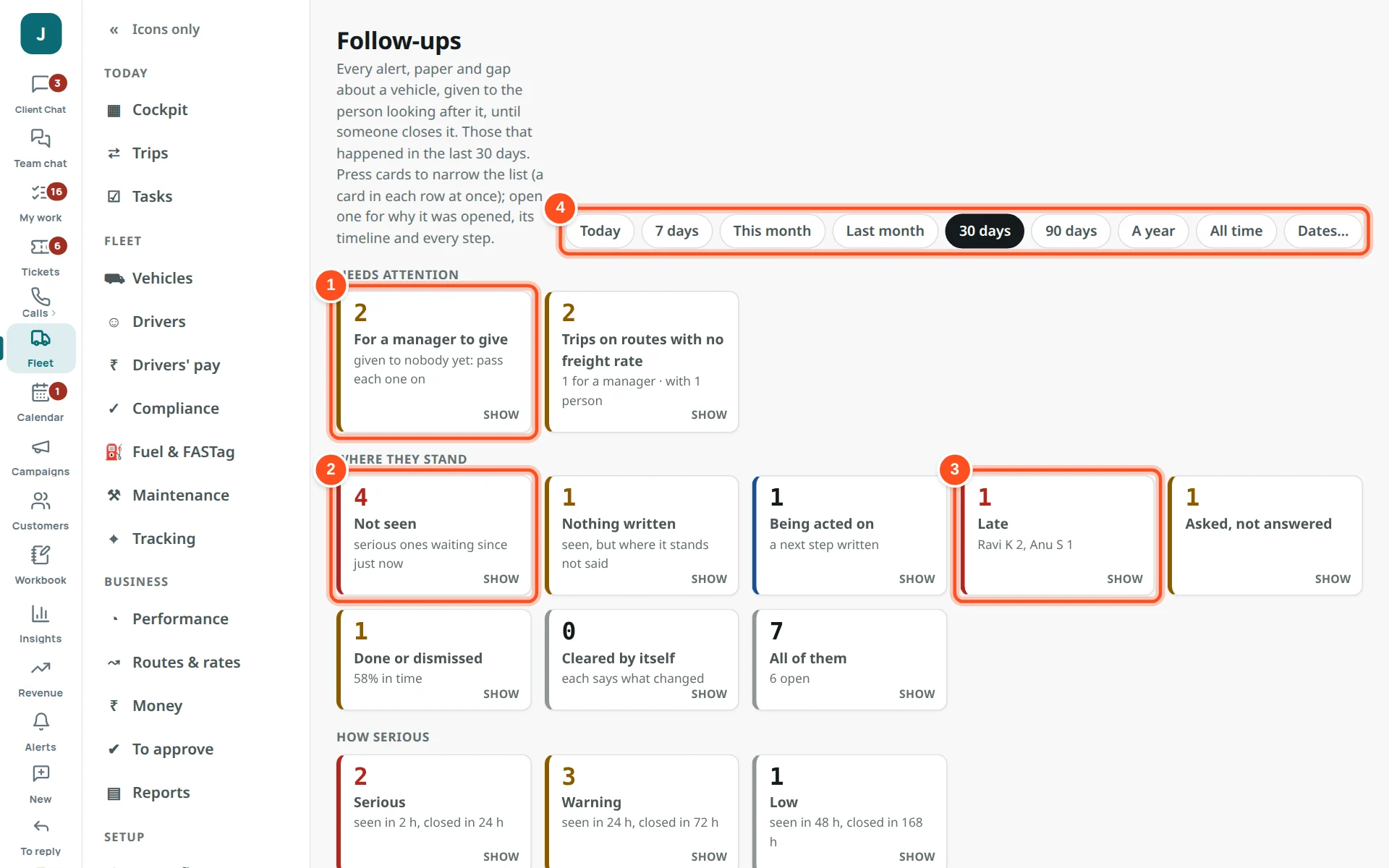
- 1For a manager to give — given to nobody yet.
- 2Where they stand: Not seen, Nothing written, Being acted on, Late, Asked, Done…
- 3Late: past the time it should have been seen or closed, and with whom.
- 4The period counted.
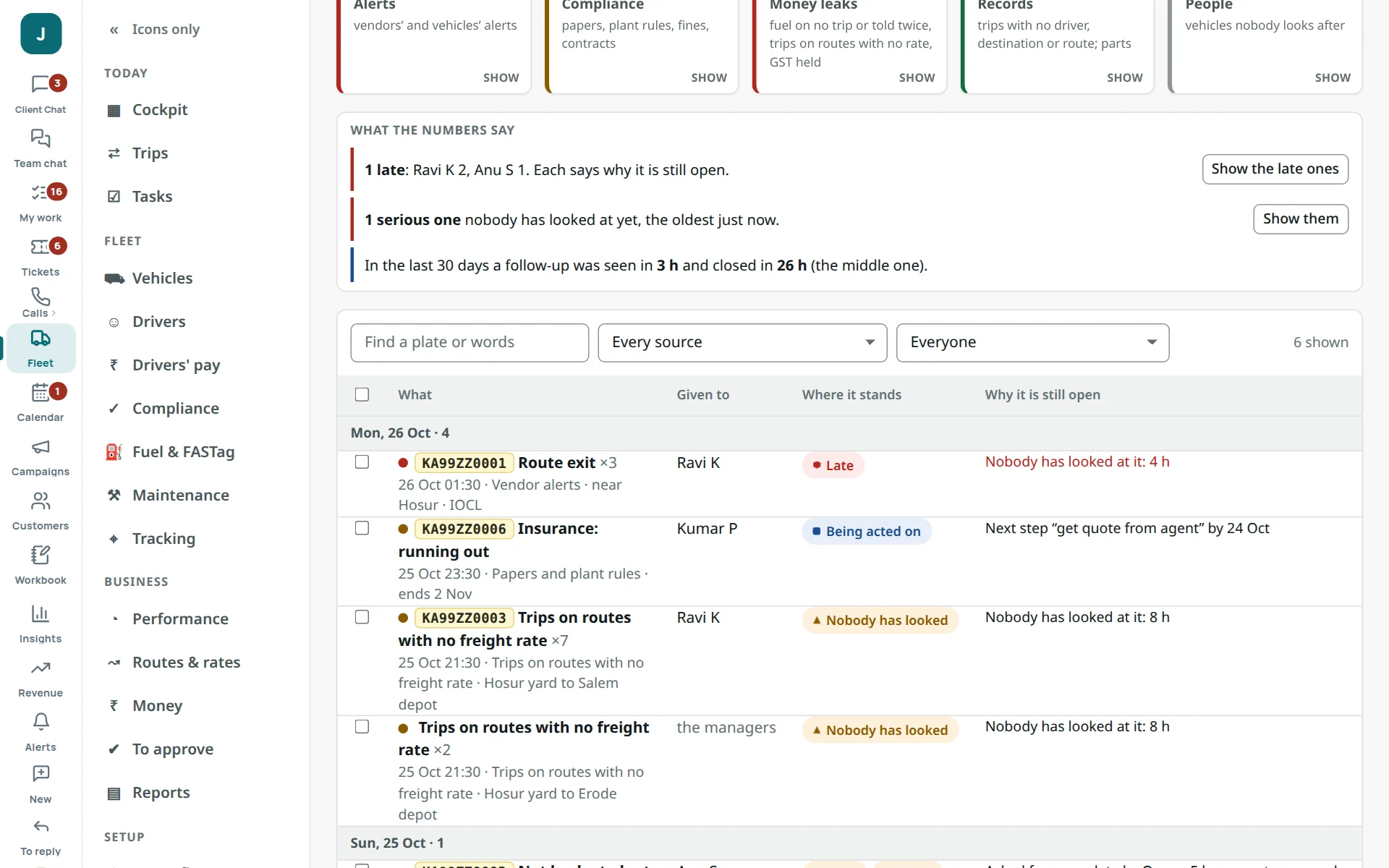
Handle one
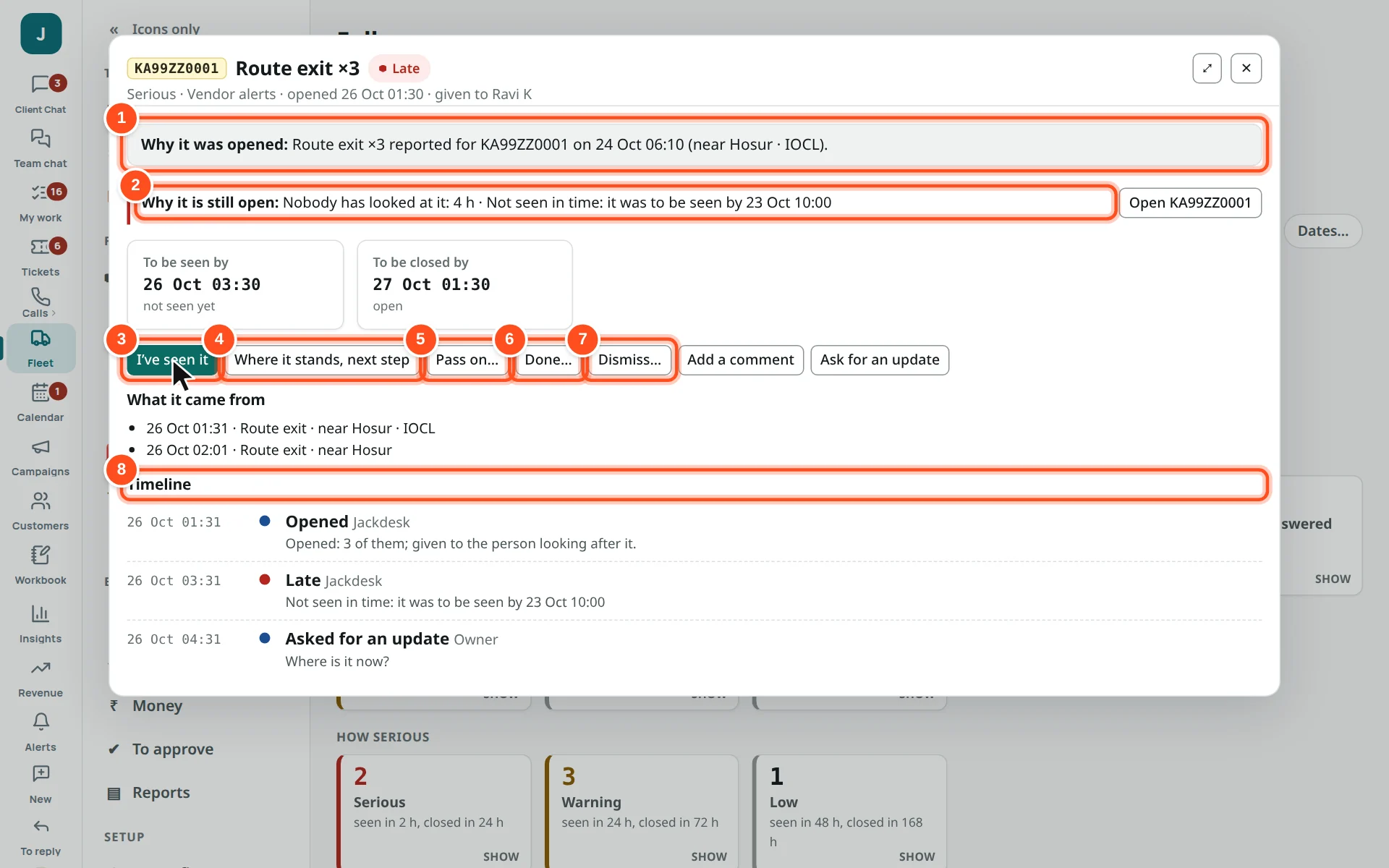
- 1Why it was opened.
- 2Why it is still open — what is still missing.
- 3I’ve seen it — press as soon as you look. The clock for “seen” stops.
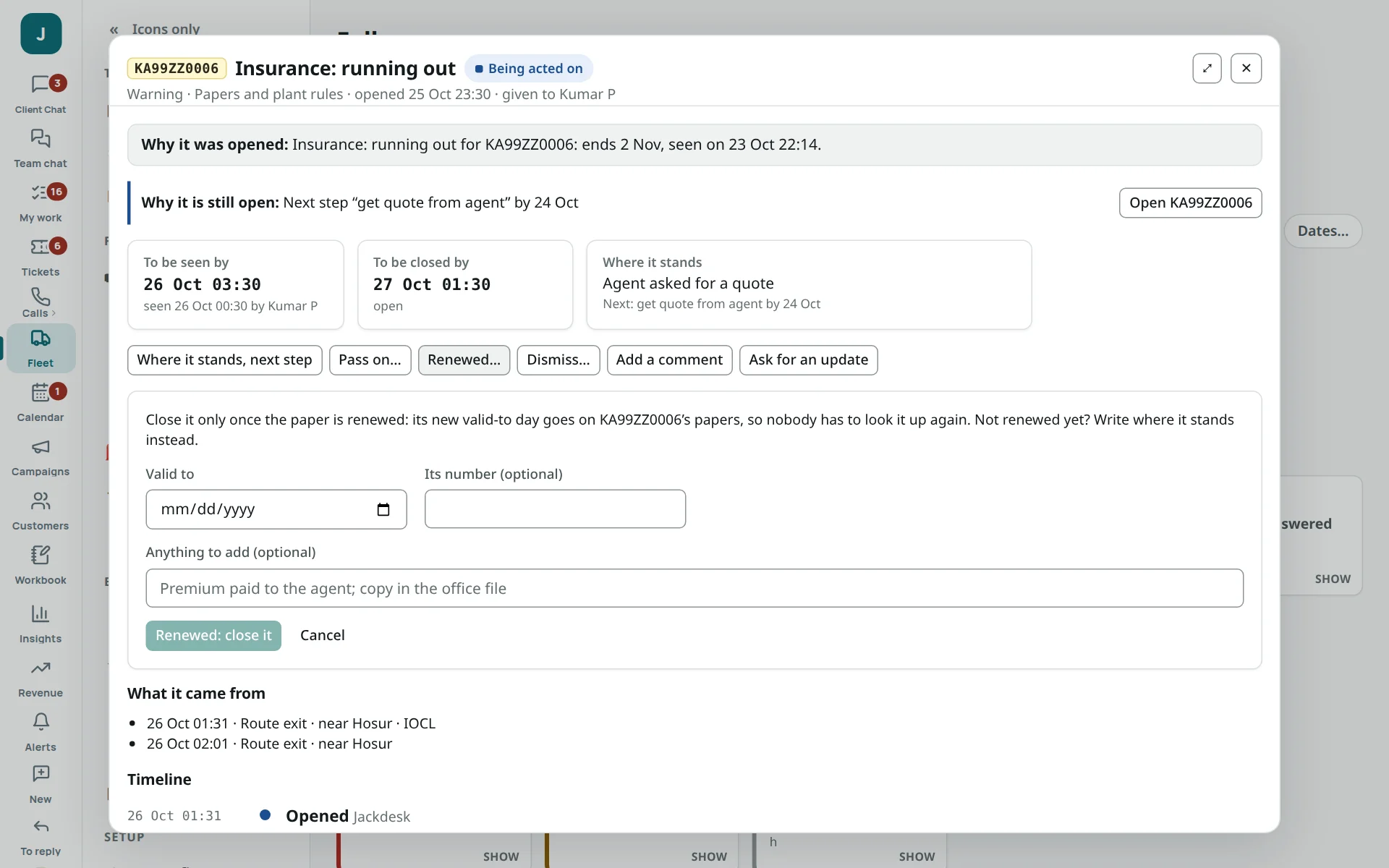
- 4Where it stands, next step — write what is happening and what is next, with a day.
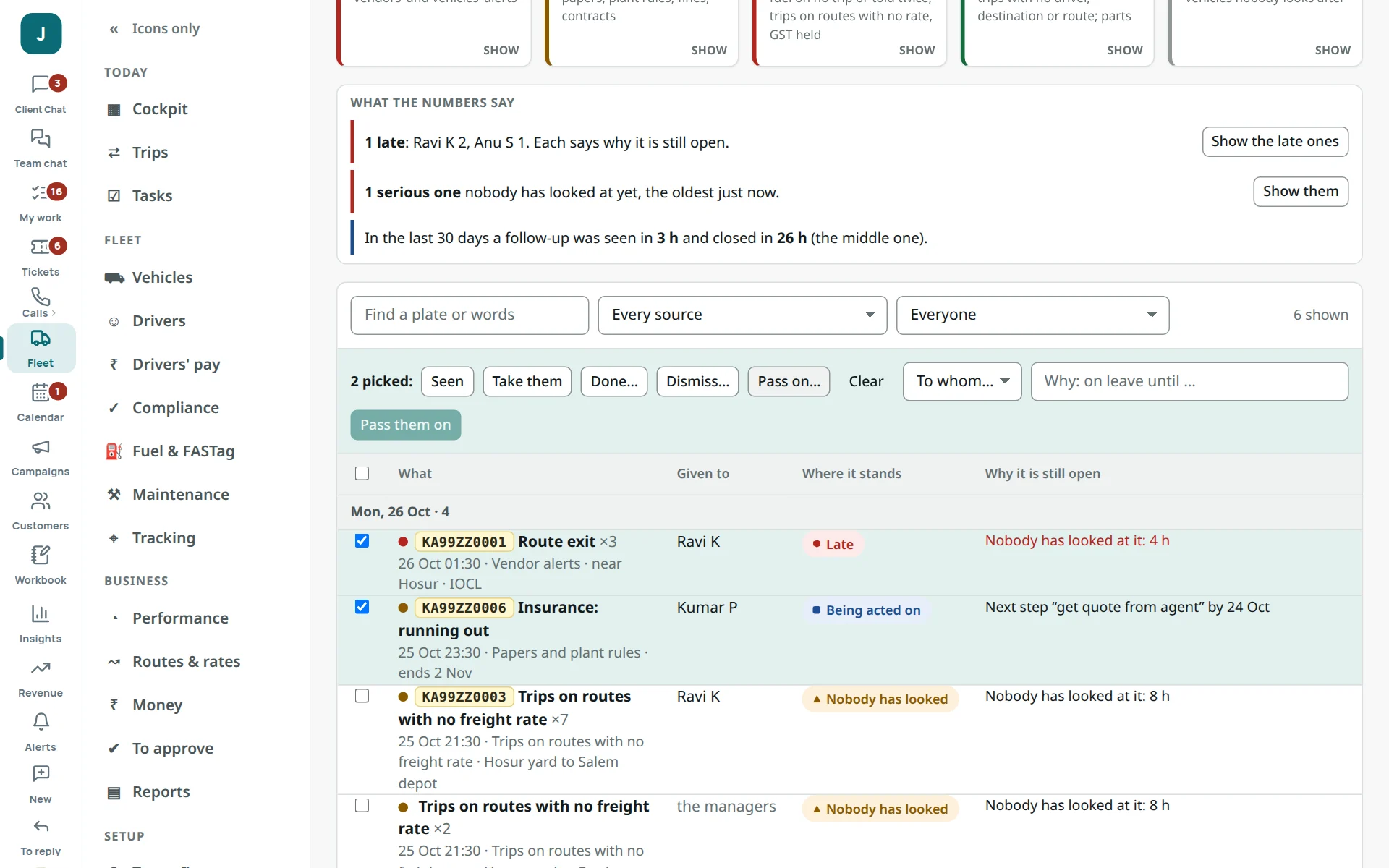
- 5Pass on… — give it to someone else, with the reason (on leave, needs accounts).
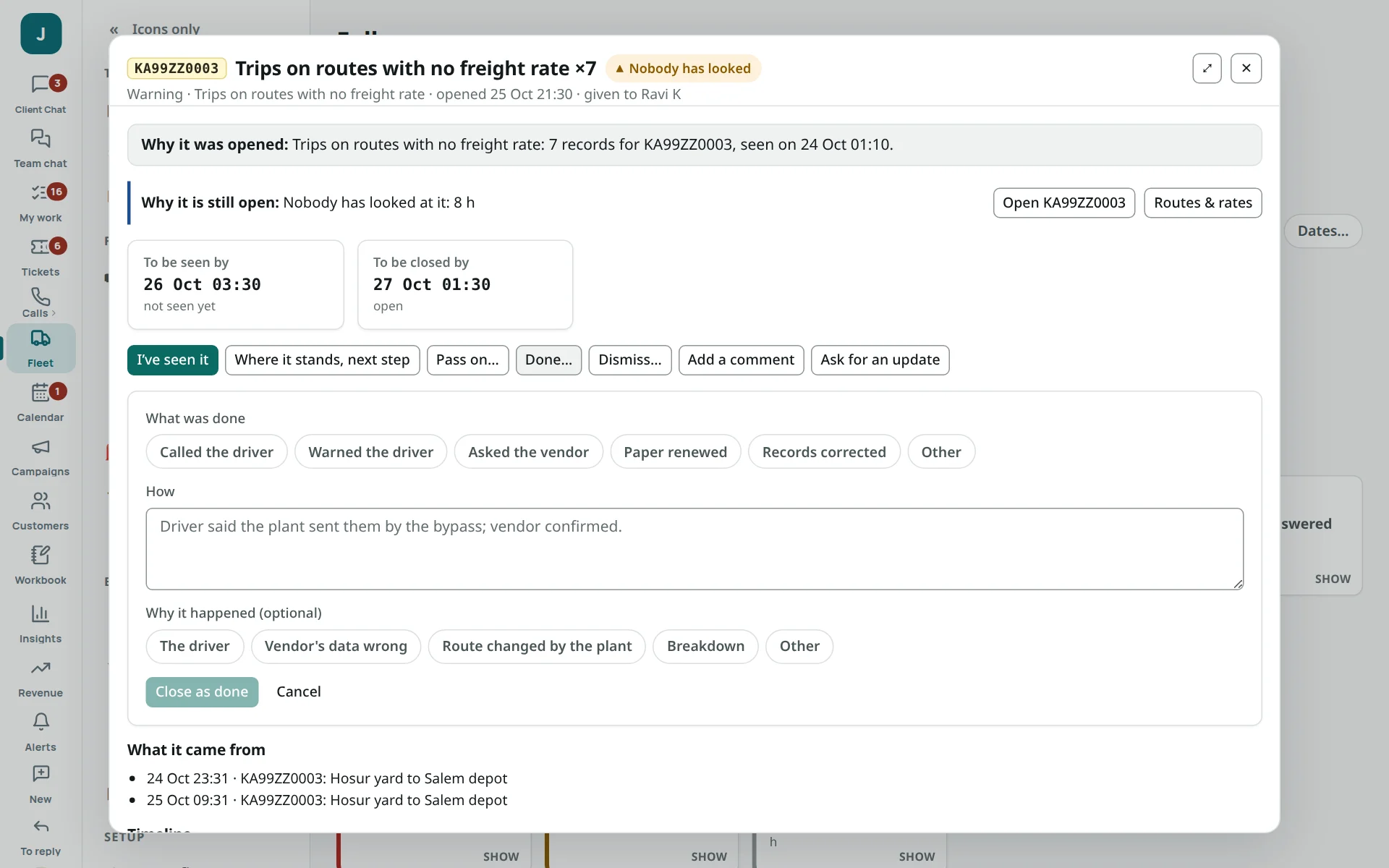
- 6Done… — what was done, how, and (if known) why it happened.
- 7Dismiss… — when it is not real (a false alarm, told twice).
- 8Timeline — every step, with who and when.
| How serious | Seen within | Closed within | For example |
|---|---|---|---|
| Serious | 2 hours | 1 day | Route exit, night driving, overspeed, SOS, not back at the plant, a paper expired, breakdown |
| Warning | 1 day | 3 days | A paper running out, a fine not paid, entries waiting |
| Low | 2 days | 7 days | Trips with no driver or route; fuel on no trip; papers not known |
Trips
Most trips arrive by themselves from the vendors’ reports and invoices. You add the ones that did not, and put right what a report got wrong.
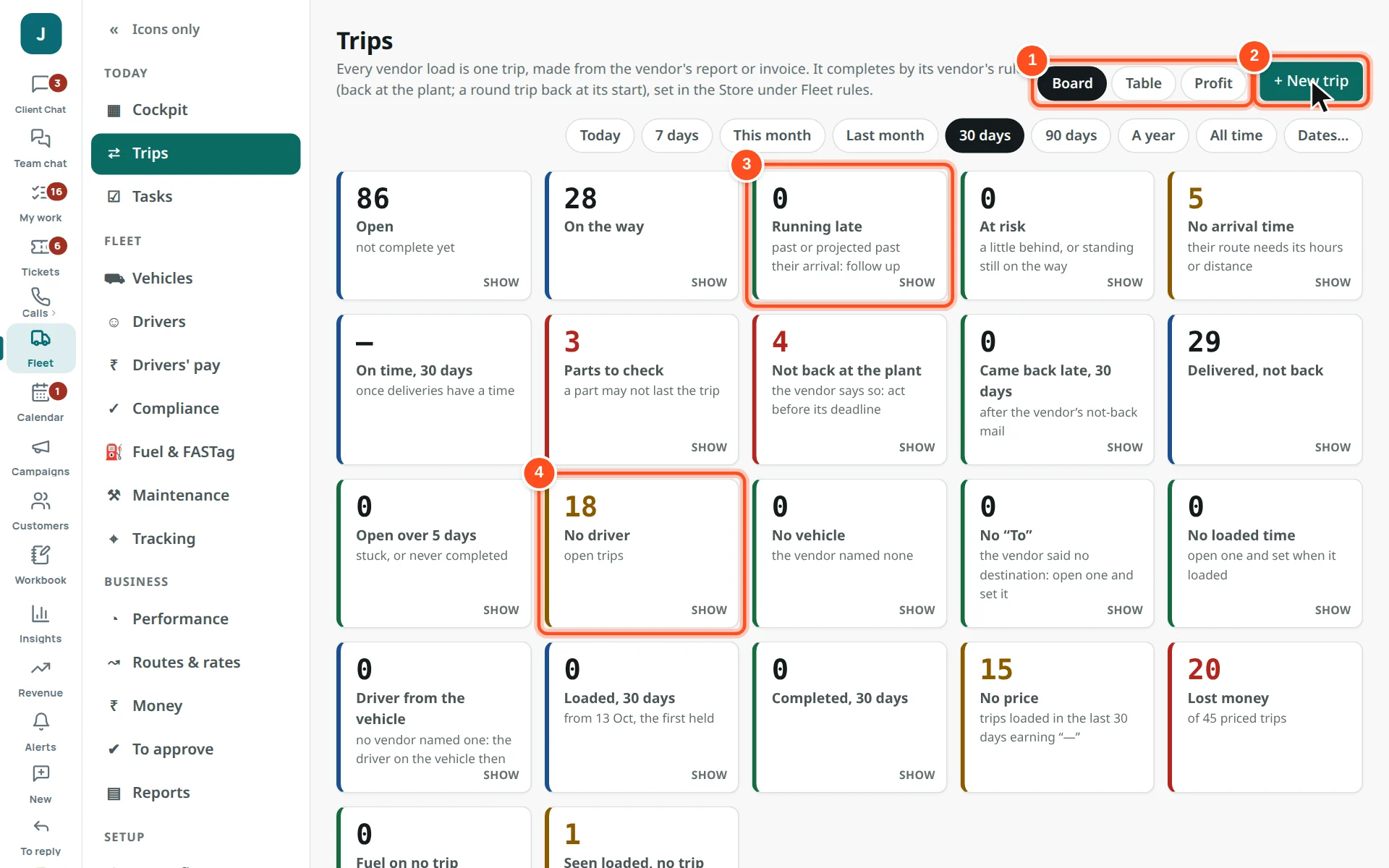
- 1Board, Table or Profit view.
- 2+ New trip.
- 3Running late — past or projected past their arrival: follow up.
- 4No driver — open trips with no driver named.
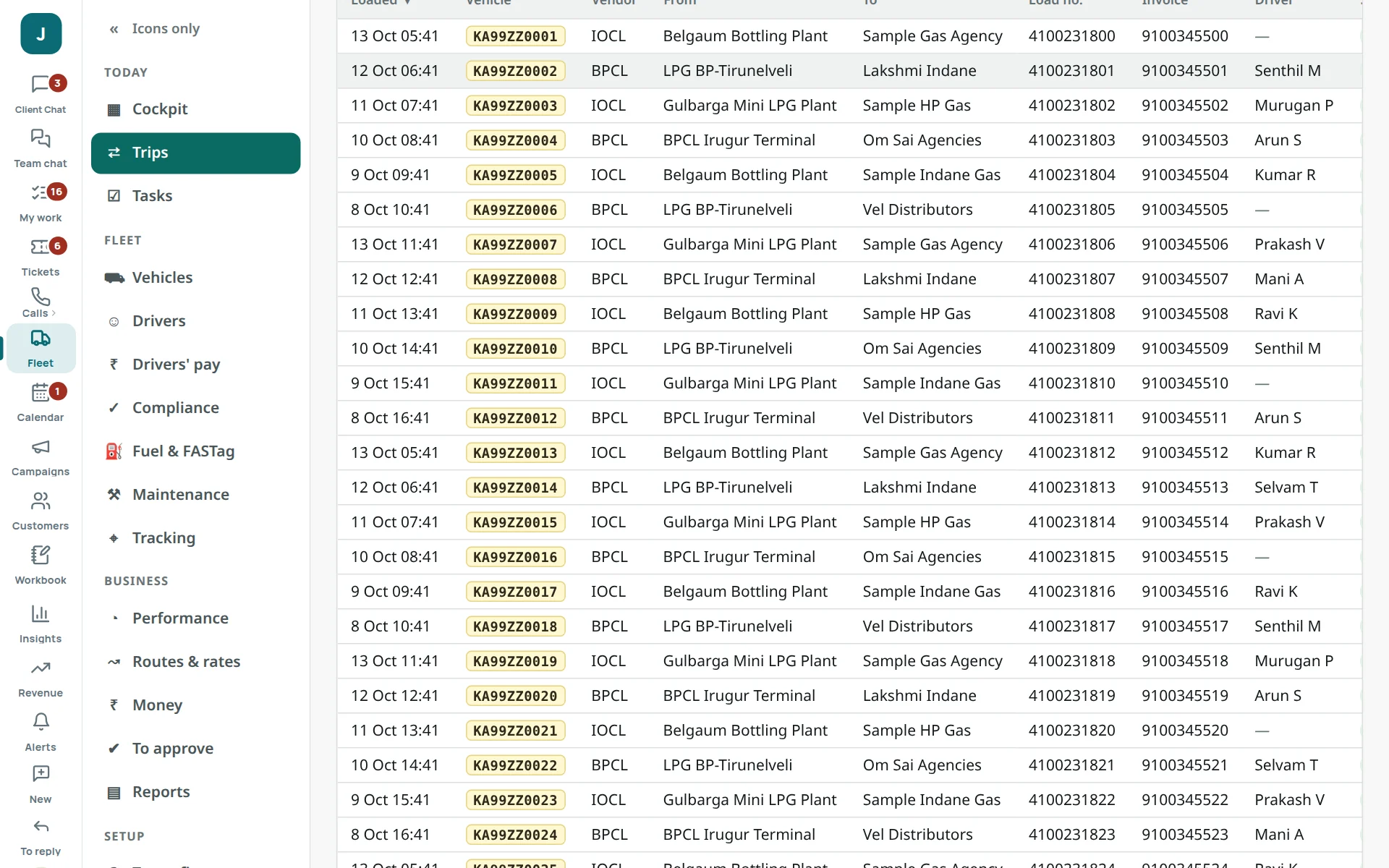
A trip
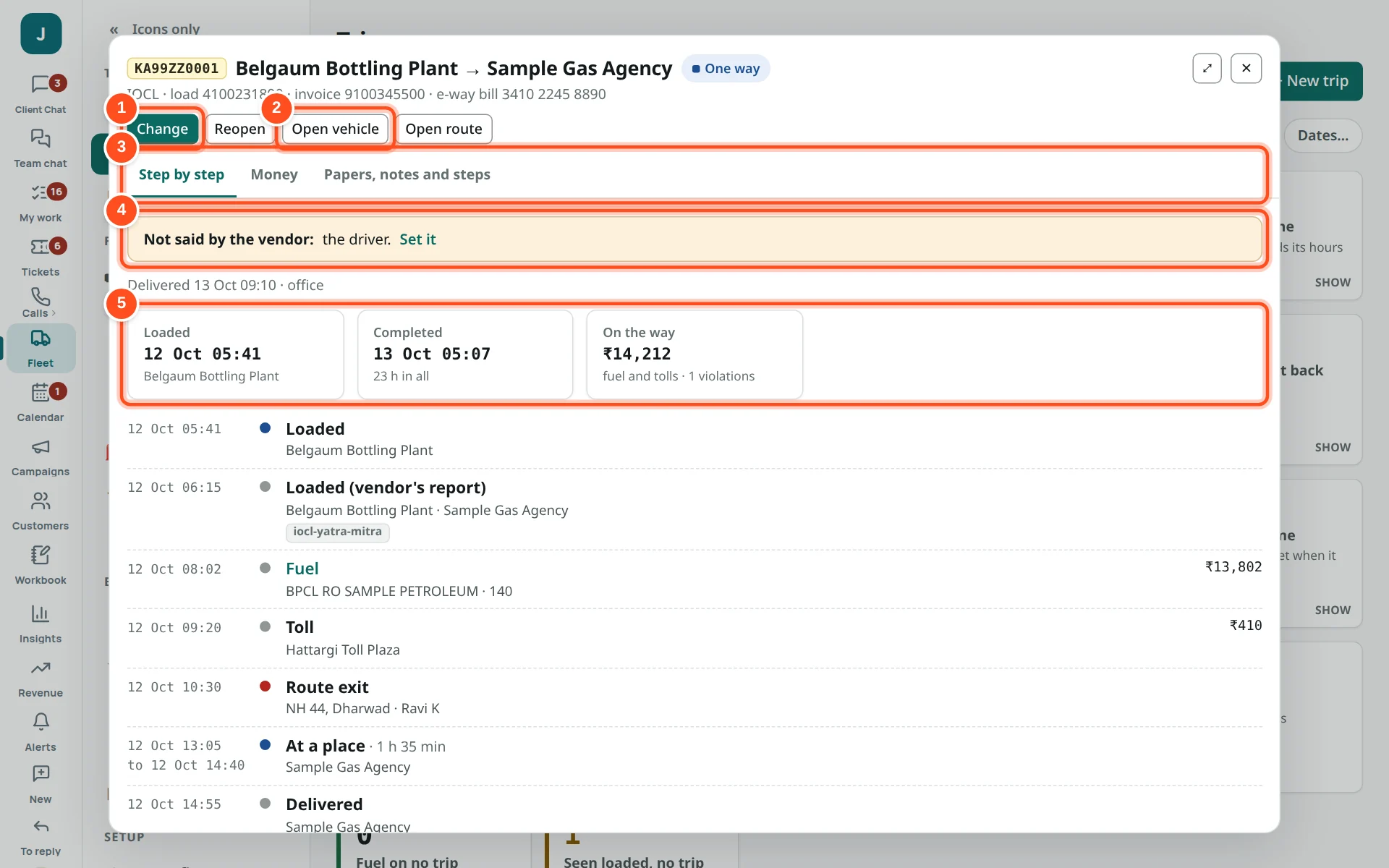
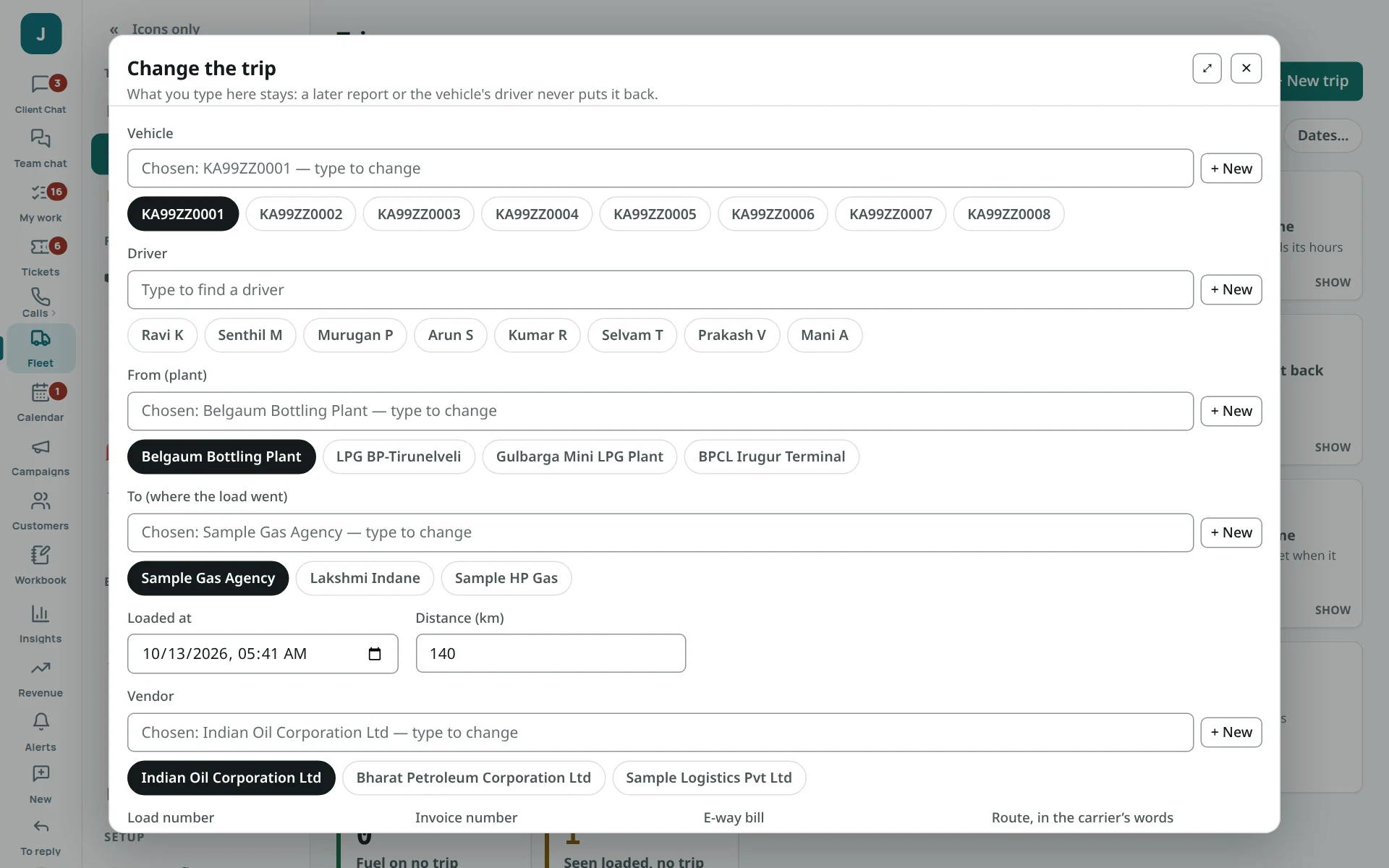
- 1Change — its vehicle, driver, plant, where it went, when it loaded, distance. What you type stays even if a later report says otherwise.
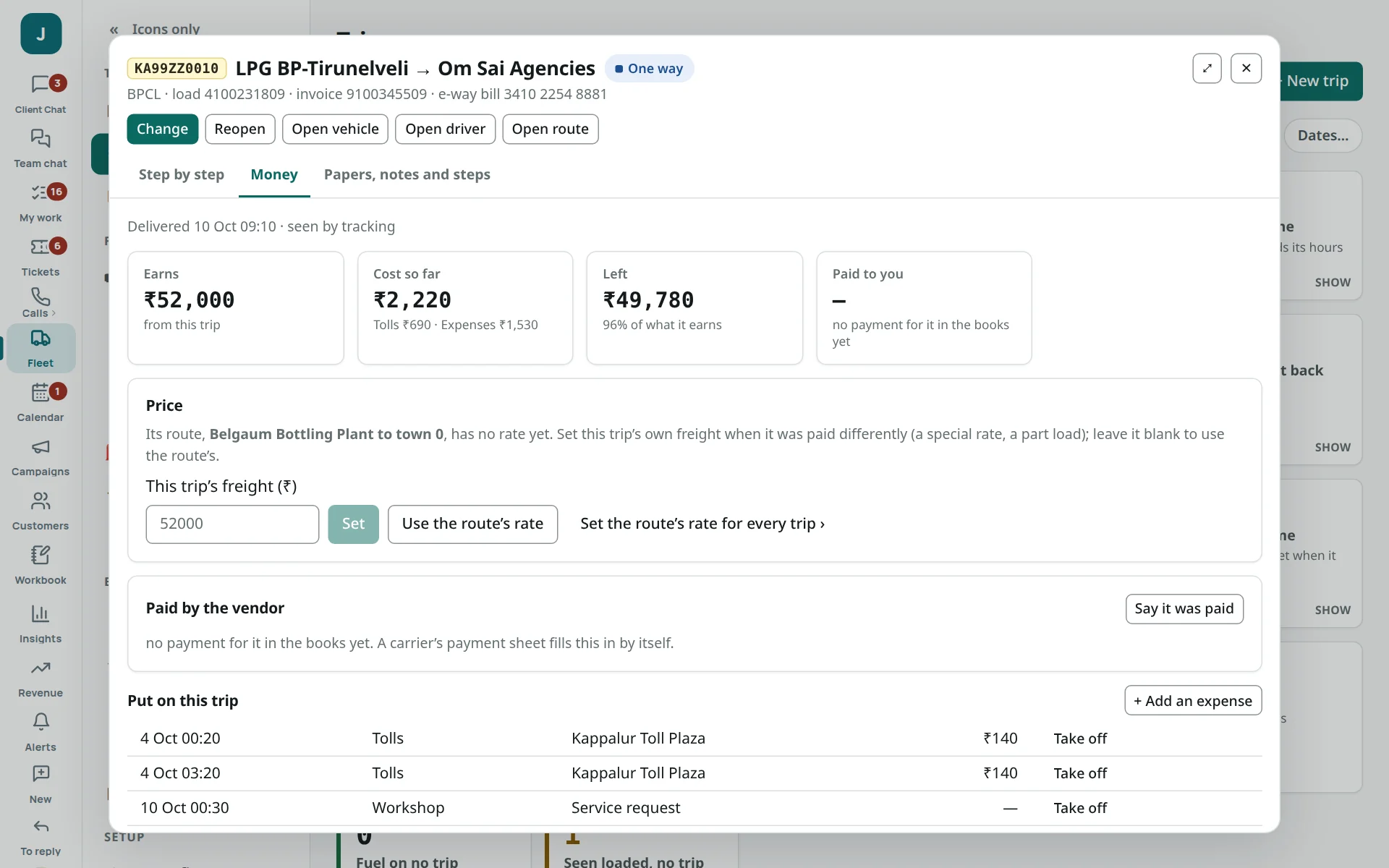
- 2Open vehicle or Open route.
- 3Tabs: Step by step, Money (what it earned and cost), Papers, notes and steps.
- 4Not said by the vendor — what is missing; Set it.
- 5Each step: loaded, fuel, tolls, alerts, arrived, delivered.
Make a trip by hand
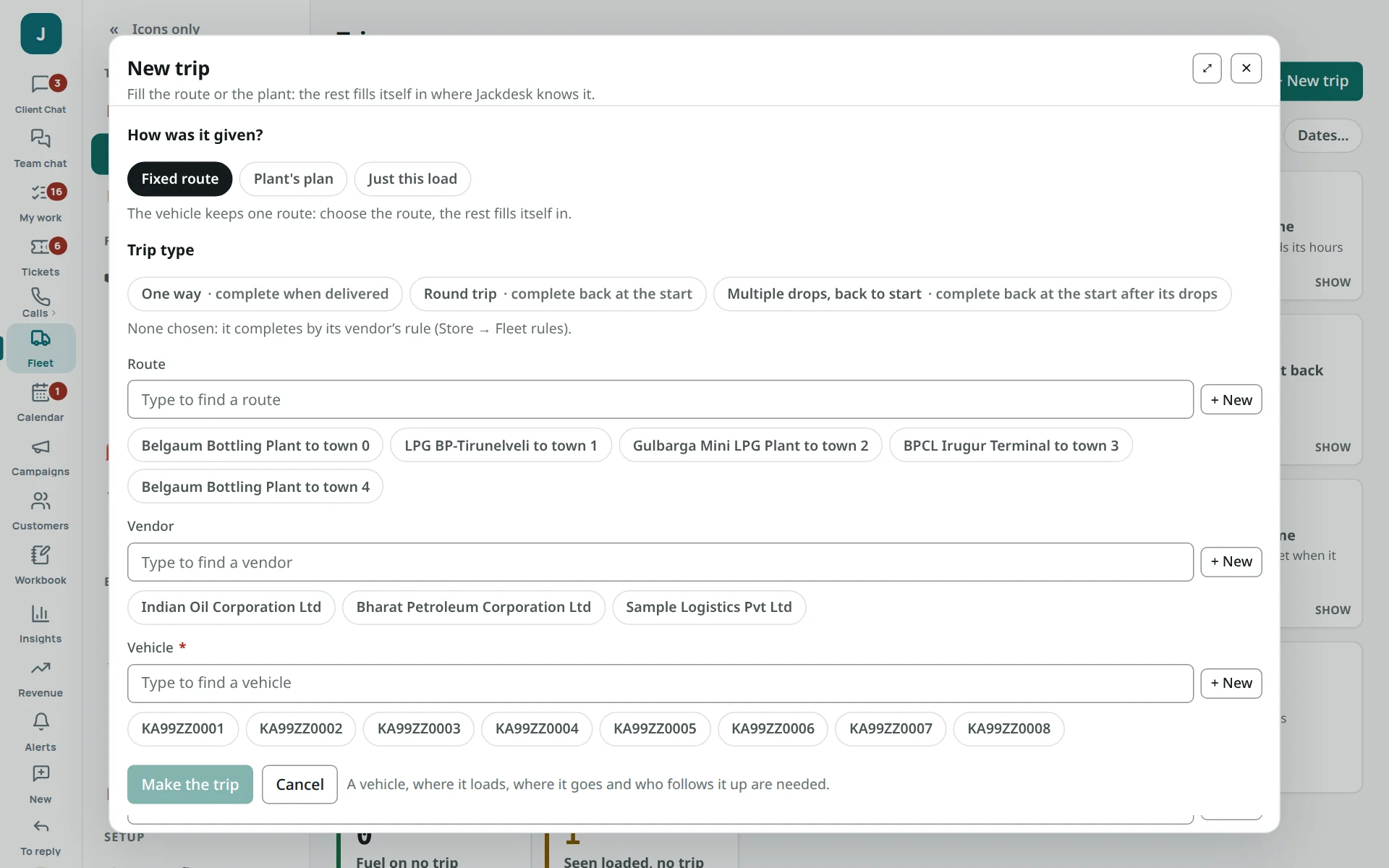
- Trips → + New trip. Choose how it was given (a fixed route, the plant’s plan, or just this load) and its type: one way, round trip, or several drops.
- Pick the route (the plant, consignee and vendor fill in), or the plant and consignee.
- Pick the truck: its driver fills in. A part that will not last the trip shows in red.
- Press Make the trip.
Vehicles
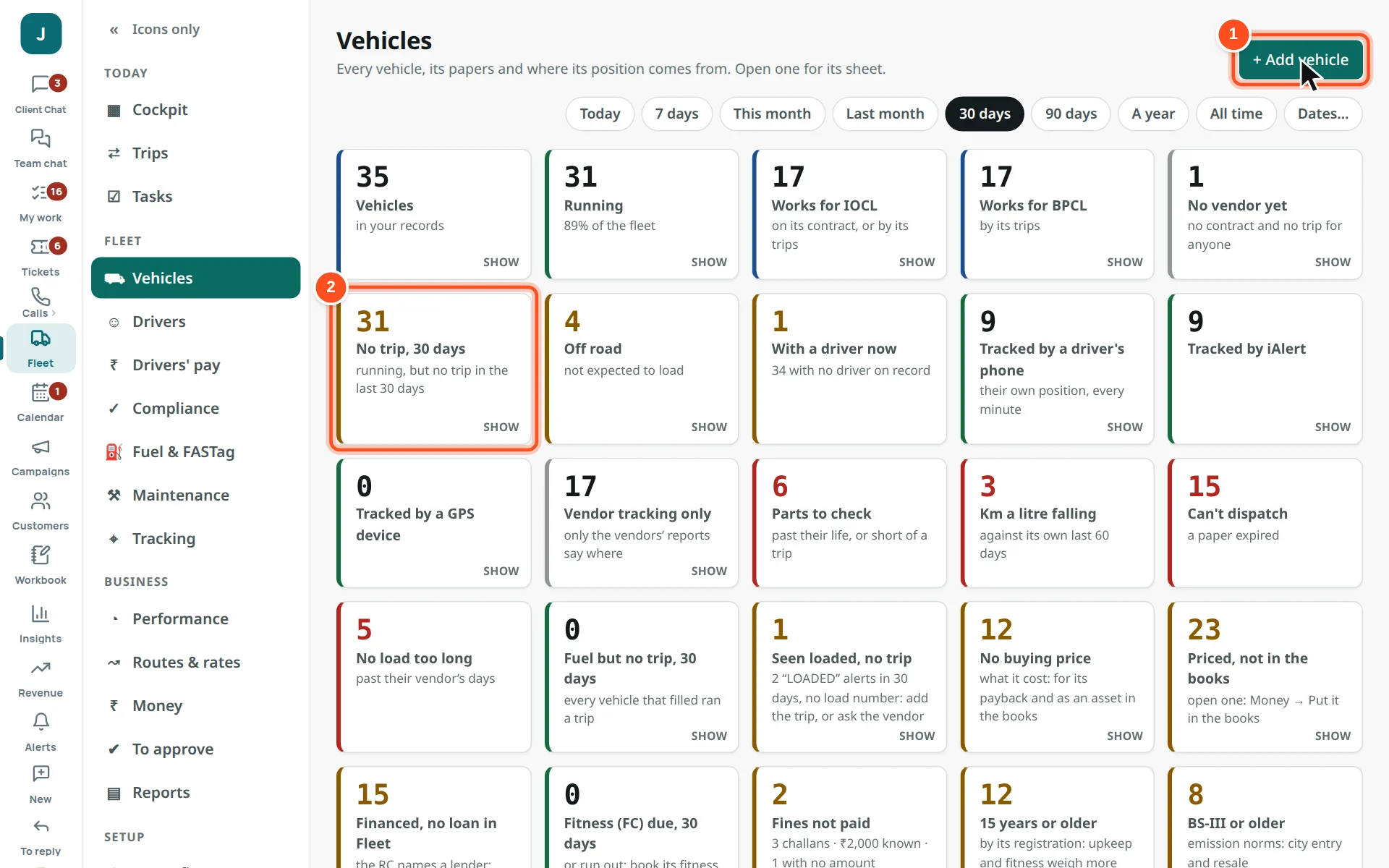
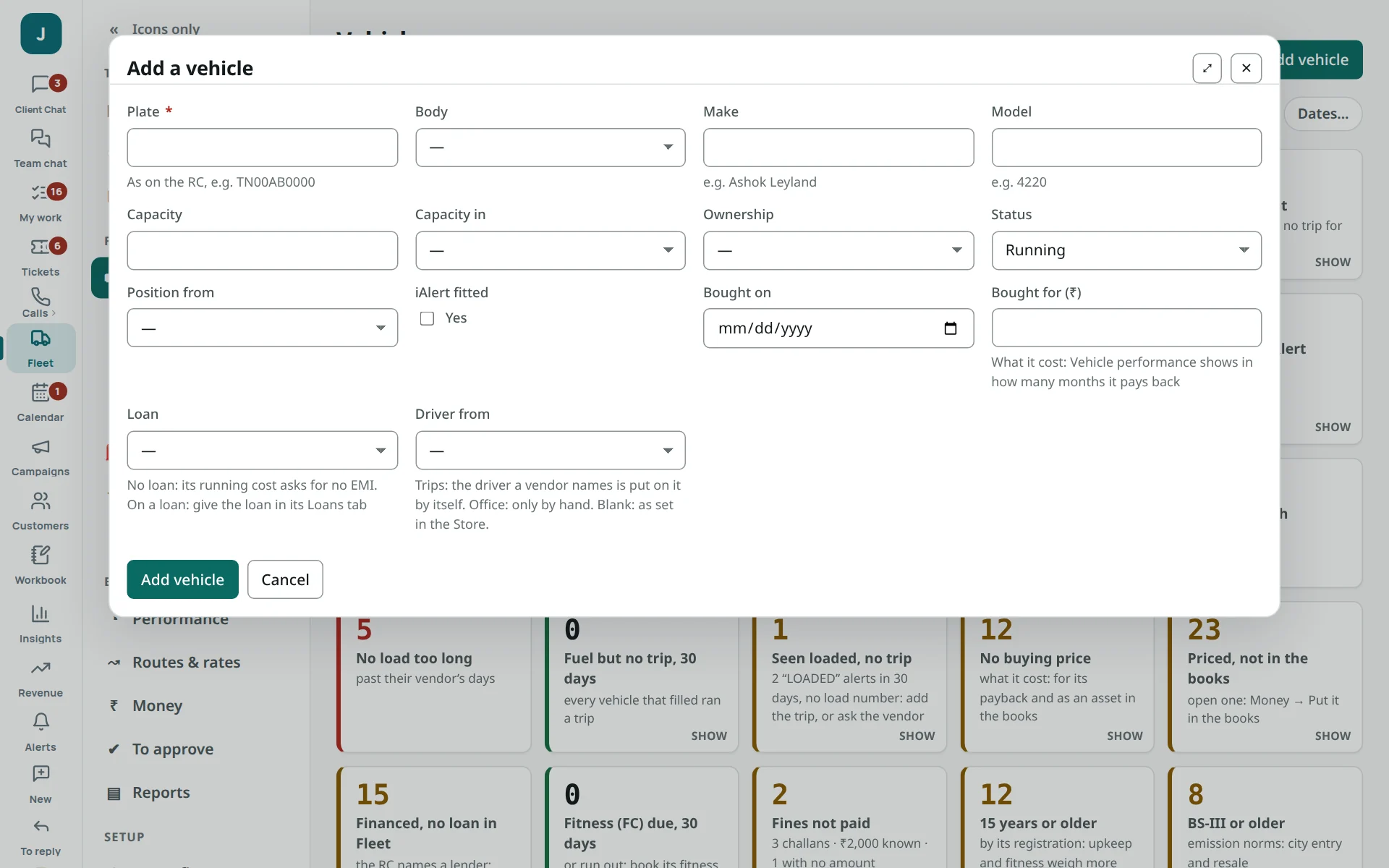
- 1+ Add vehicle.
- 2Each card counts vehicles; SHOW lists just those.
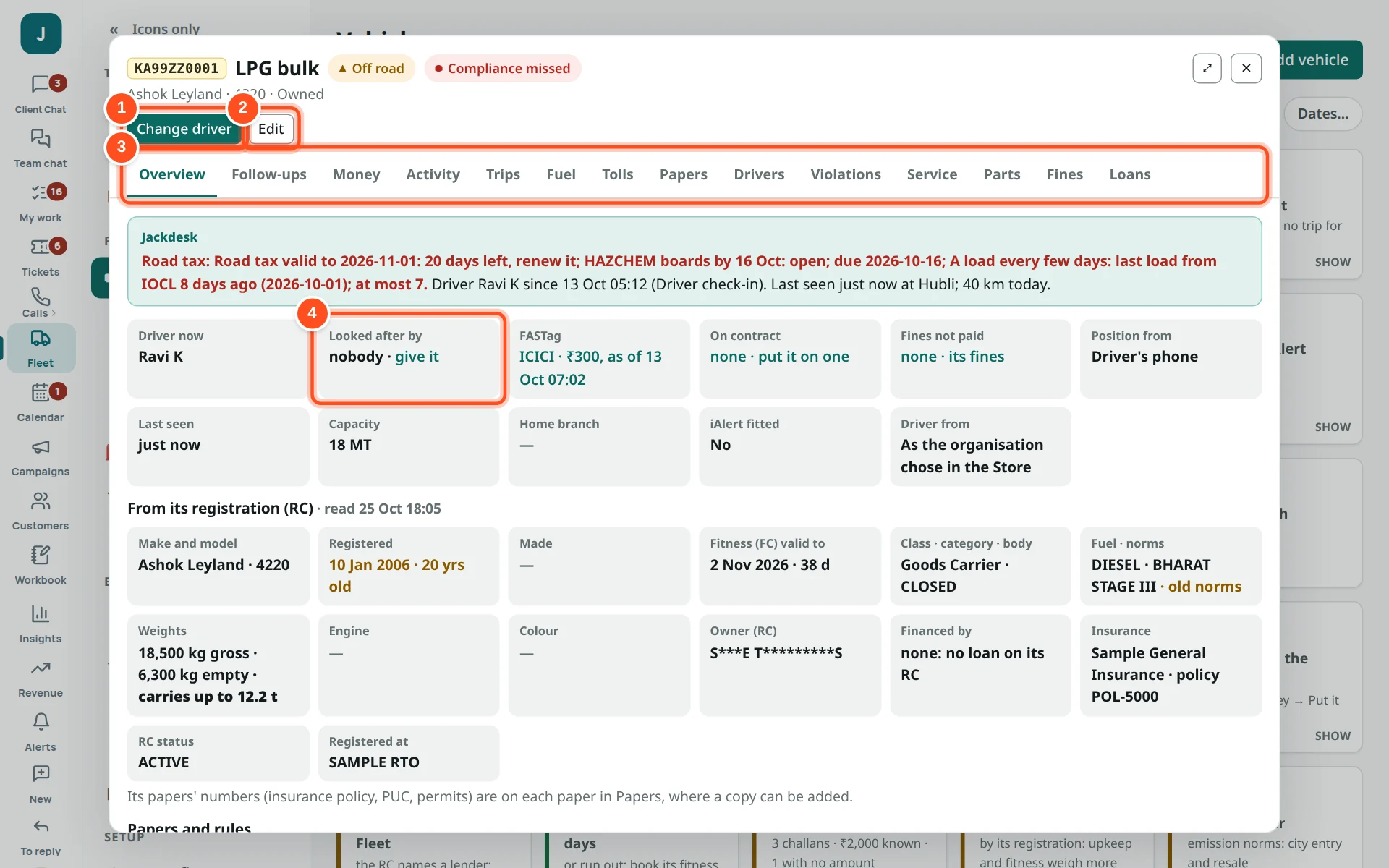
- 1Change driver — put another driver on it from now.
- 2Edit — its details, status (Running, Off road, Sold).
- 3Tabs: Overview, Follow-ups, Money, Activity, Trips, Fuel, Tolls, Papers, Drivers, Violations, Service, Parts, Fines, Loans. Each tab has its own + Add.
- 4Looked after by — the person its follow-ups go to.
Drivers
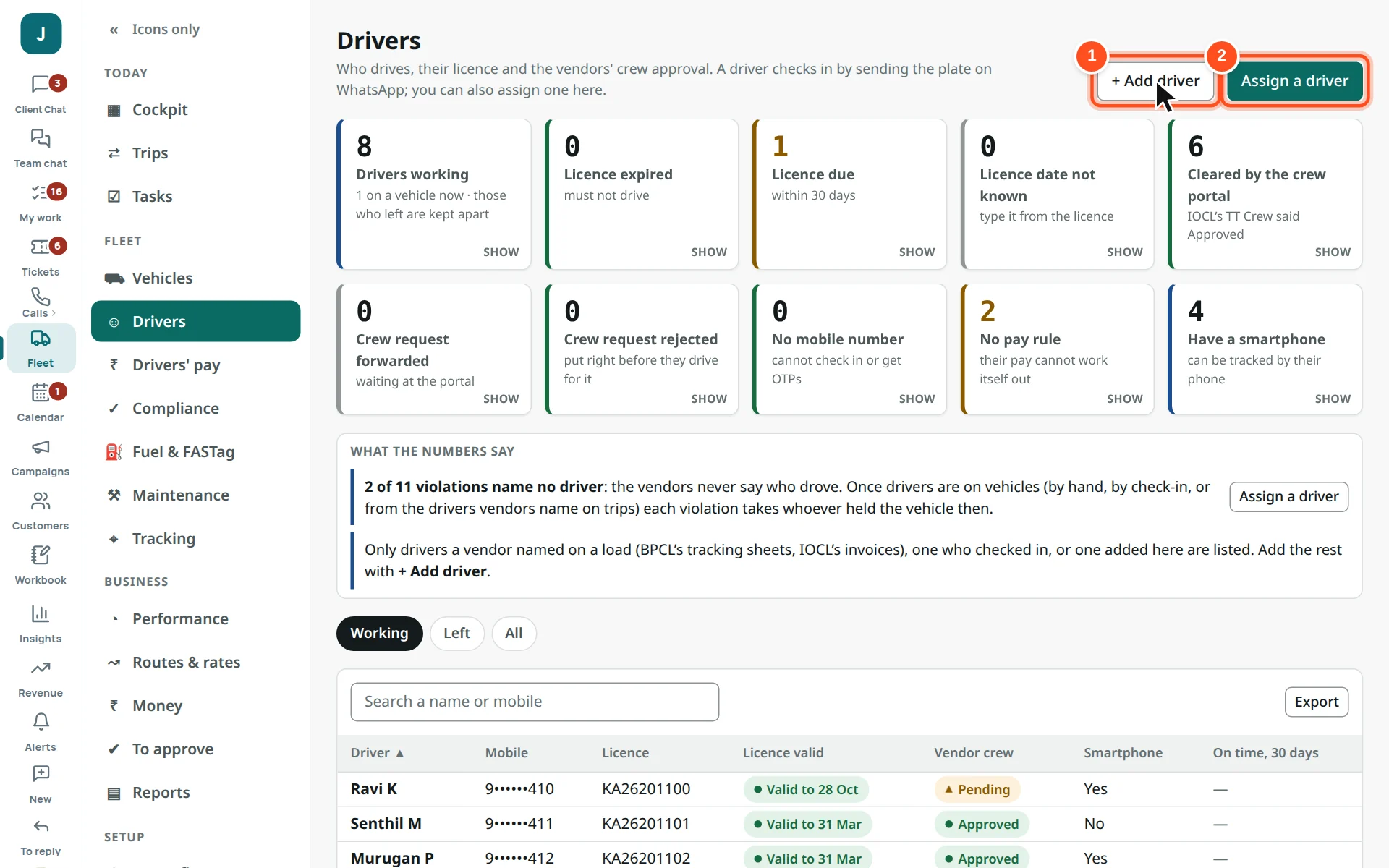
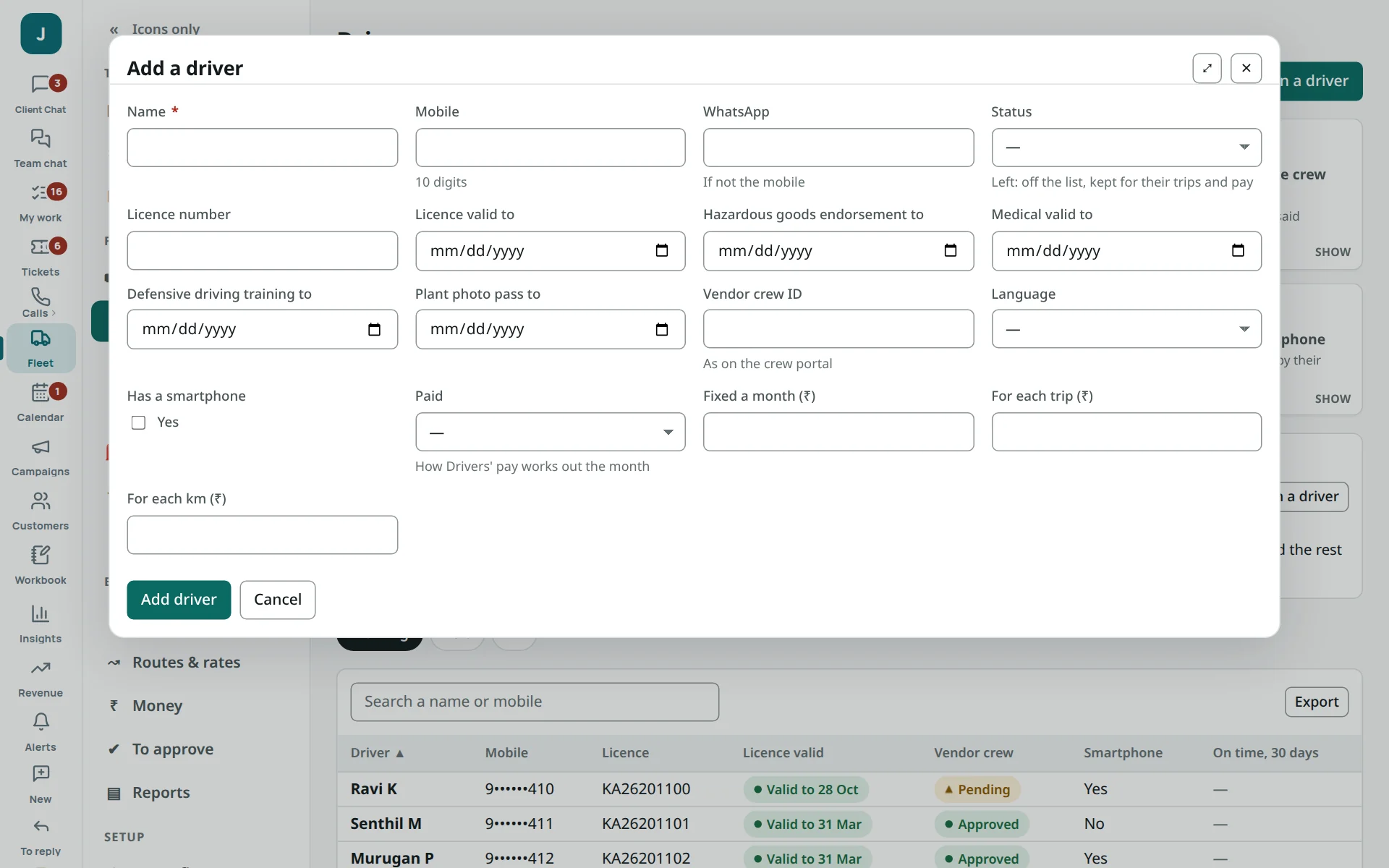
- 1+ Add driver.
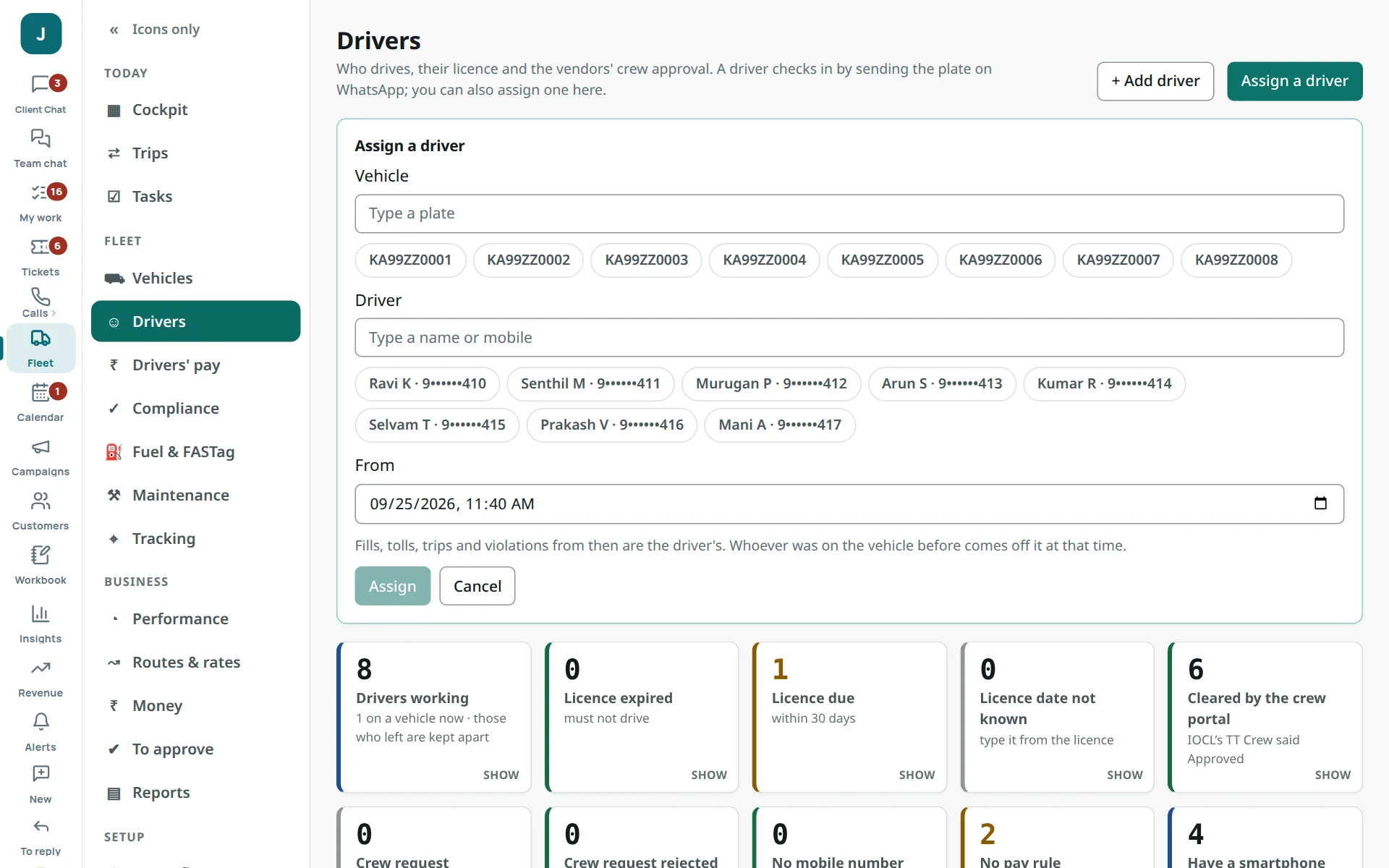
- 2Assign a driver to a truck.
Compliance: papers and plant rules
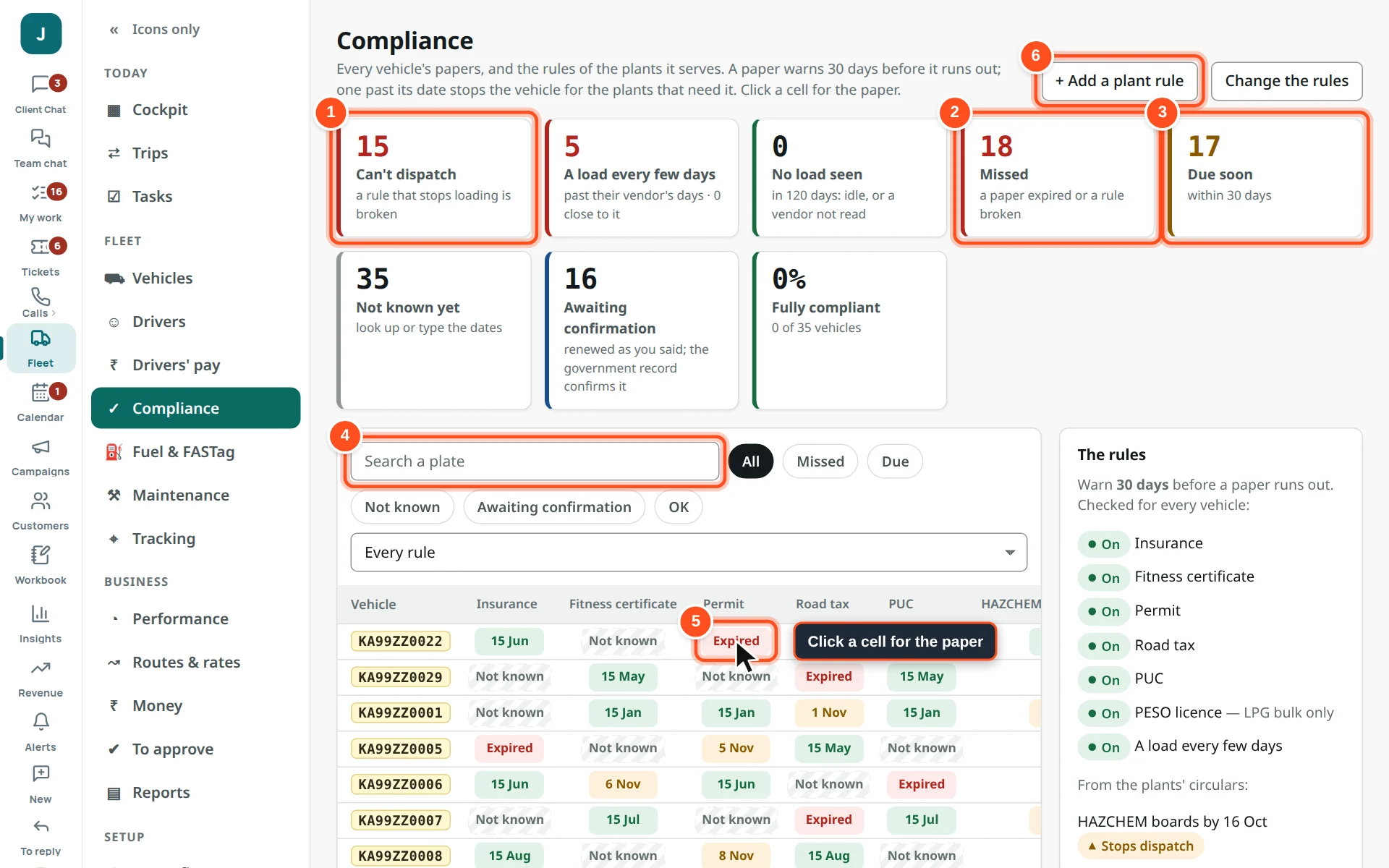
- 1Can’t dispatch — a paper or rule that stops loading is broken.
- 2Missed — a paper expired or a rule broken.
- 3Due soon — within 30 days.
- 4Find one plate.
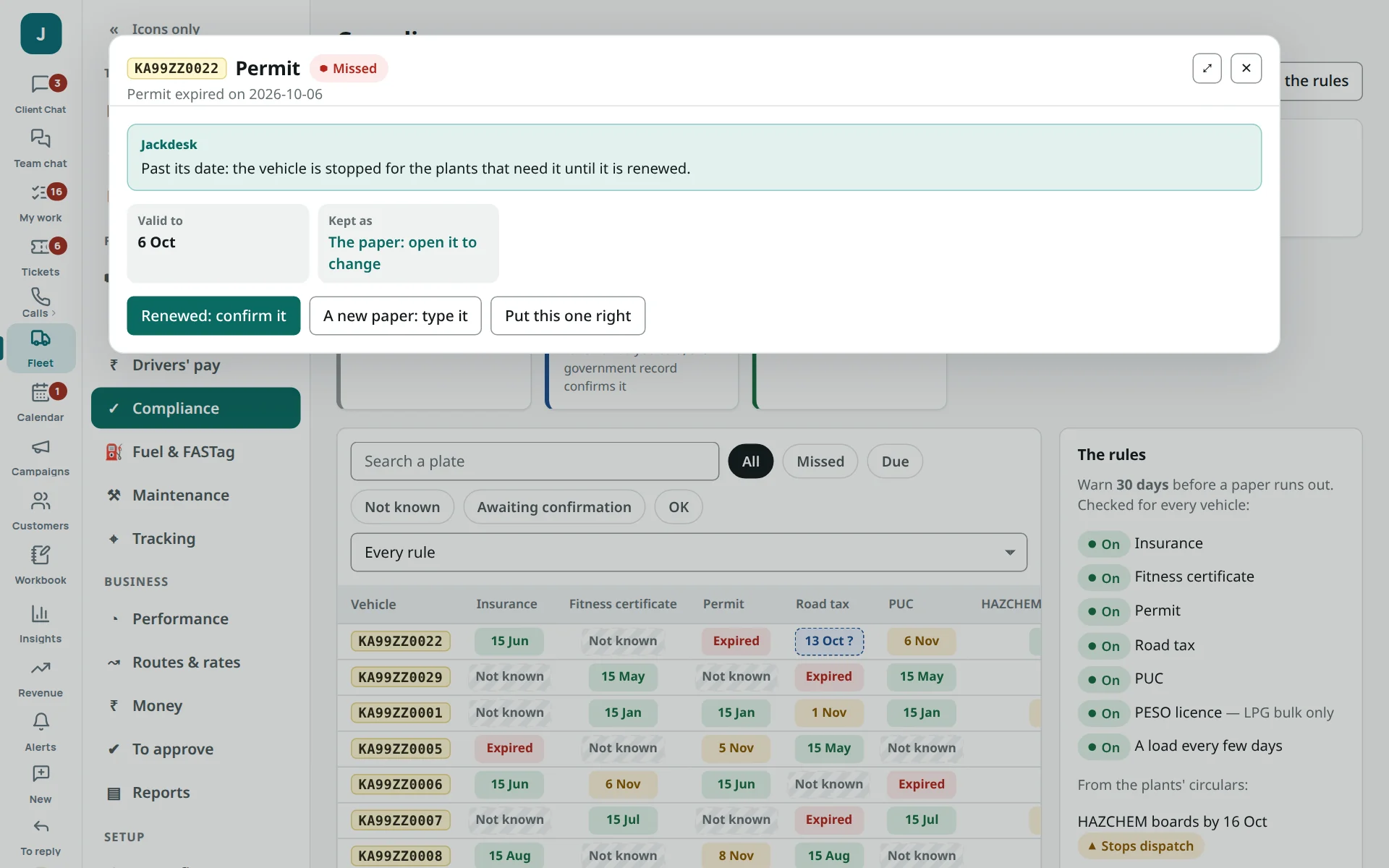
- 5Each cell is one paper of one truck: green OK, amber due, red expired, grey not known. Click it.
- 6+ Add a plant rule — a plant’s circular (boards by a date, an extinguisher refill).
Fuel and FASTag
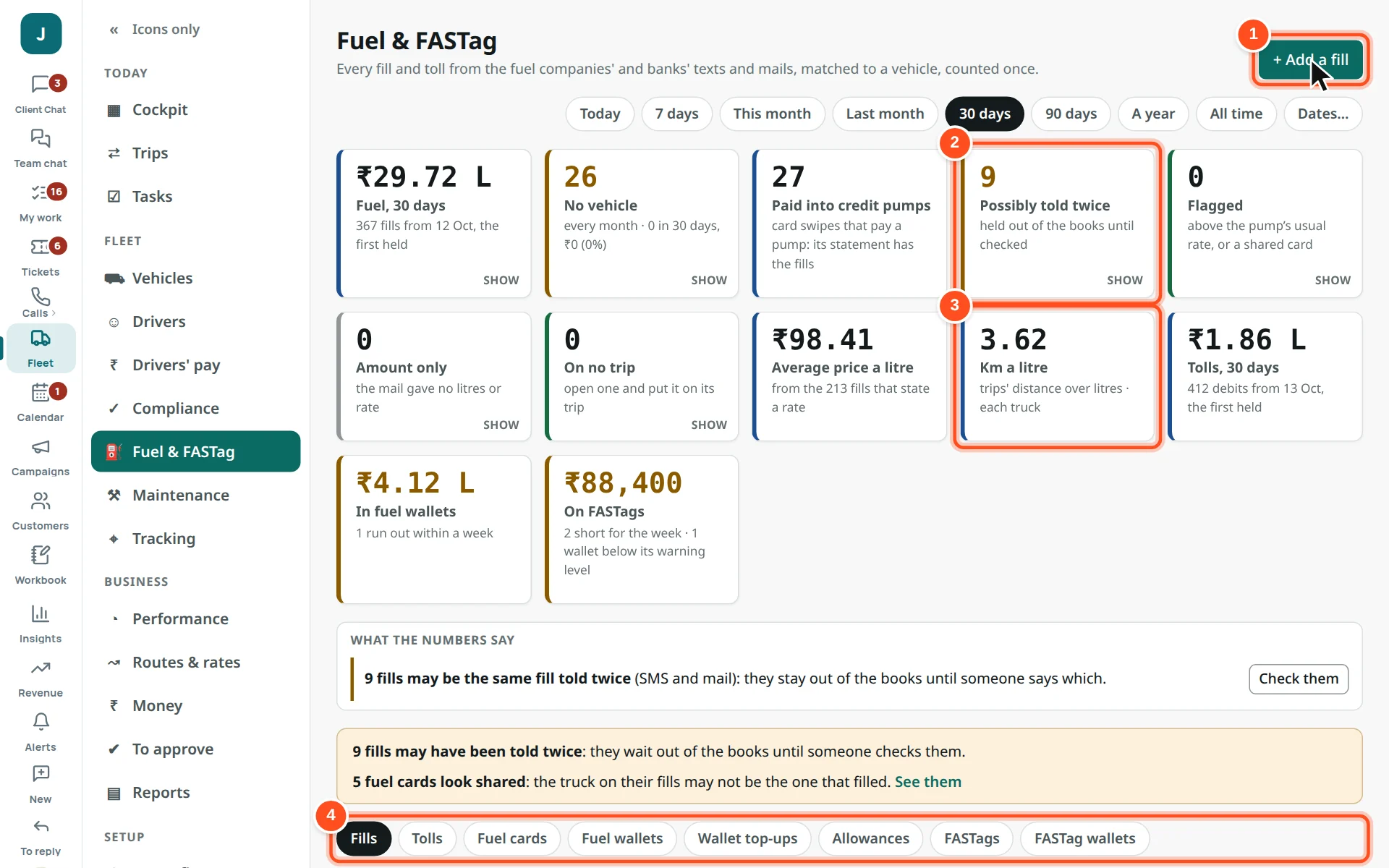
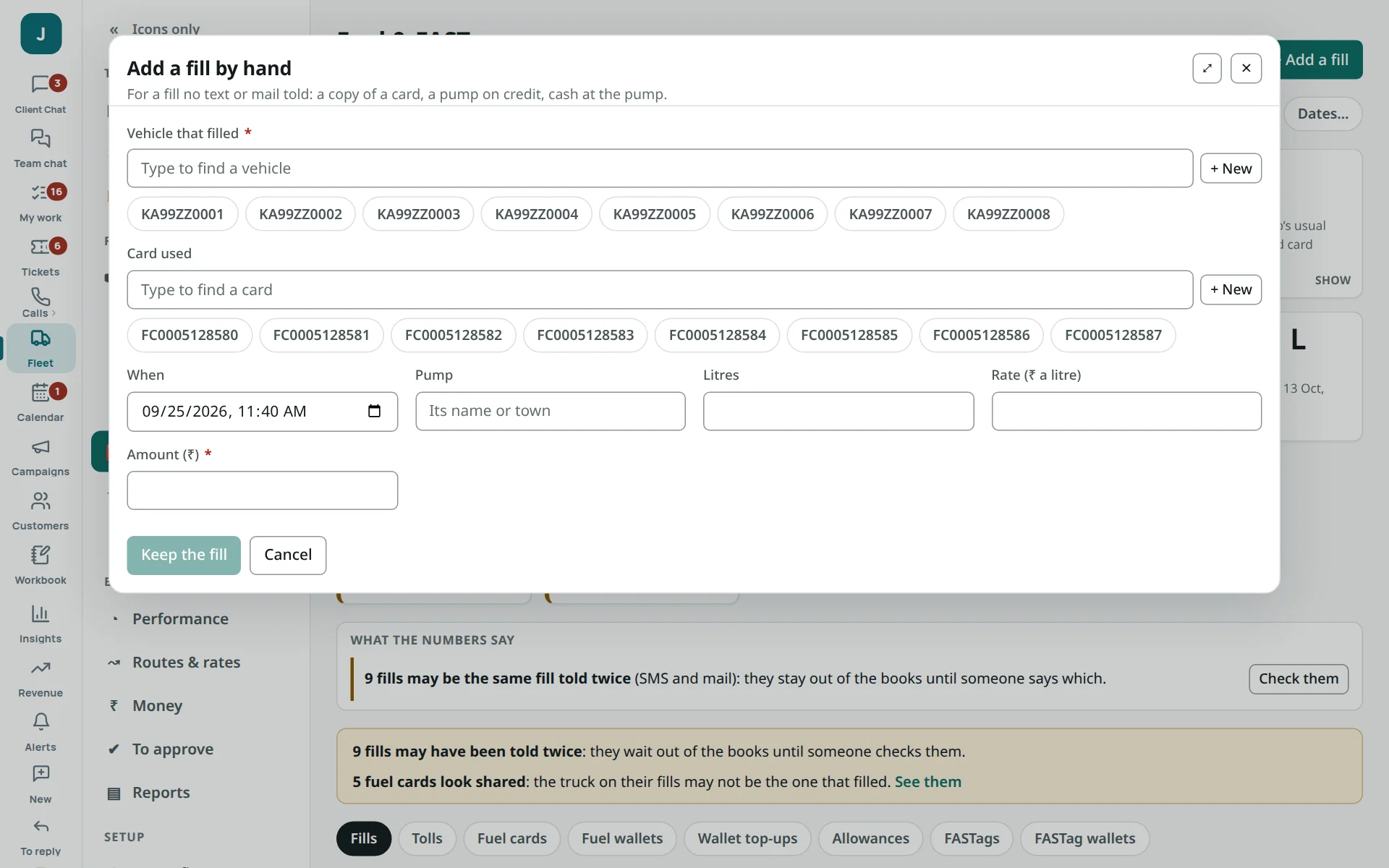
- 1+ Add a fill — a fill no message told.
- 2Possibly told twice — the same fill by SMS and mail; check and keep one.
- 3Km a litre — each truck against its own past. Falling means a look.
- 4Lists: Fills, Tolls, Fuel cards, Fuel wallets, Wallet top-ups, Allowances, FASTags, FASTag wallets.
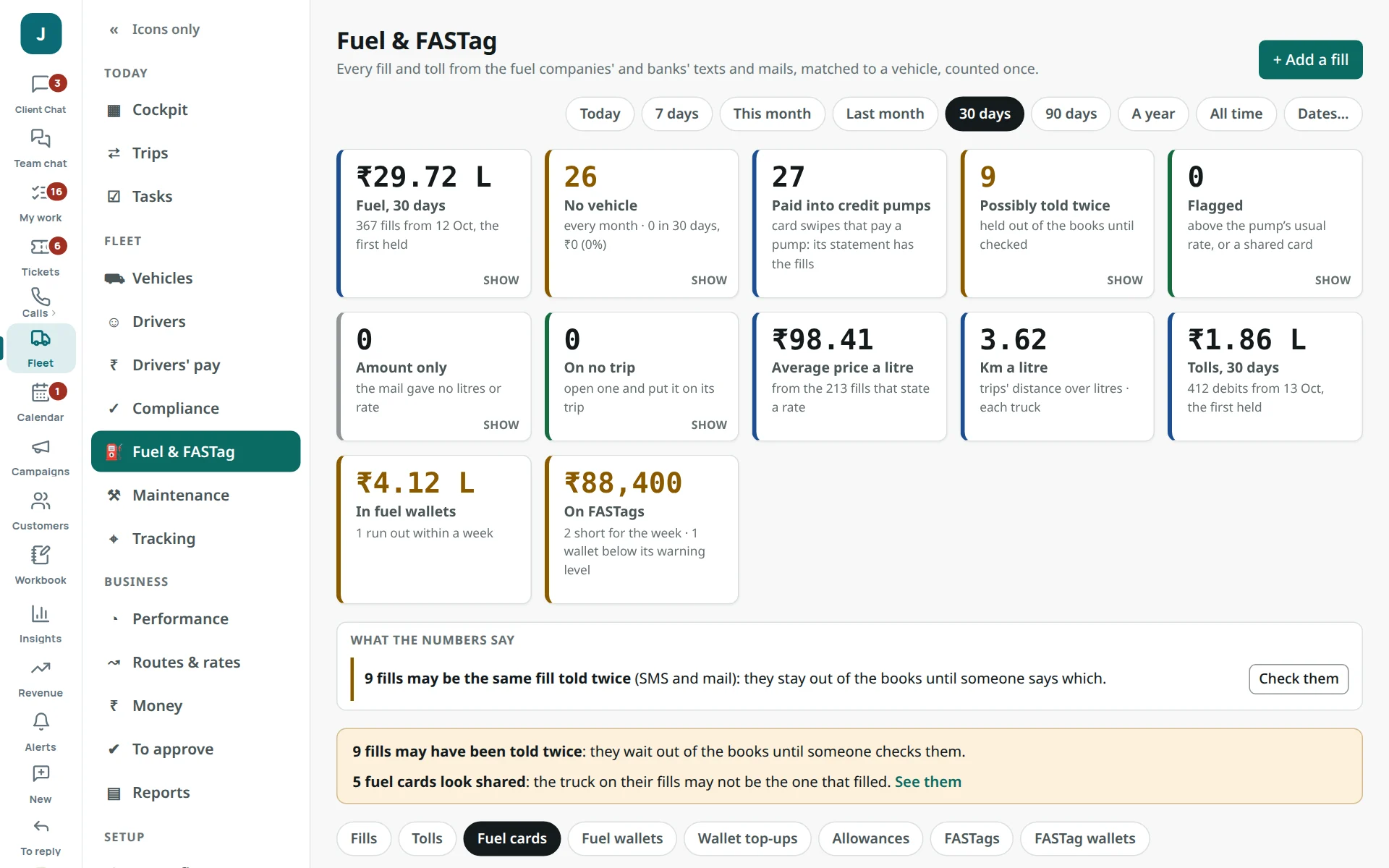
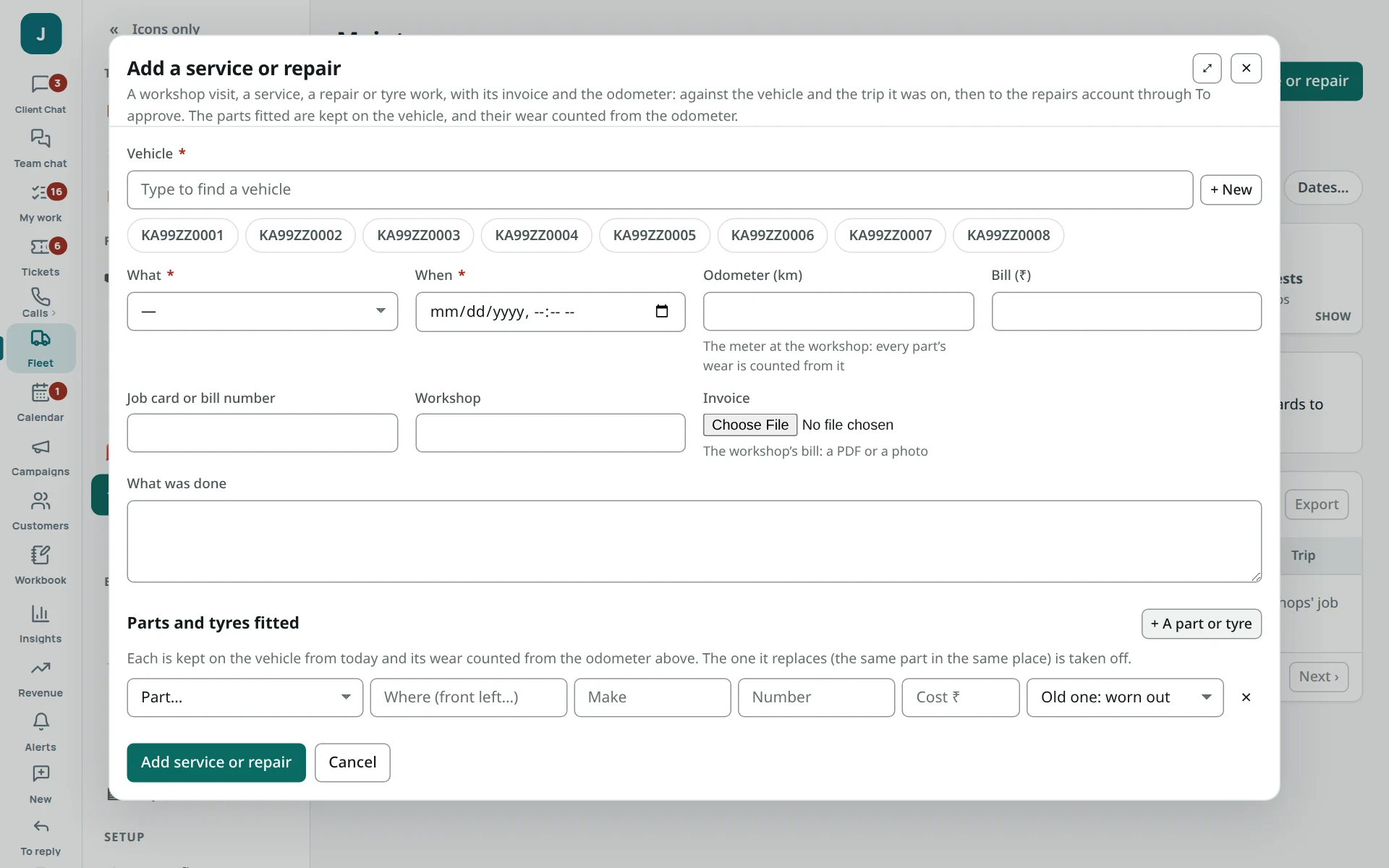
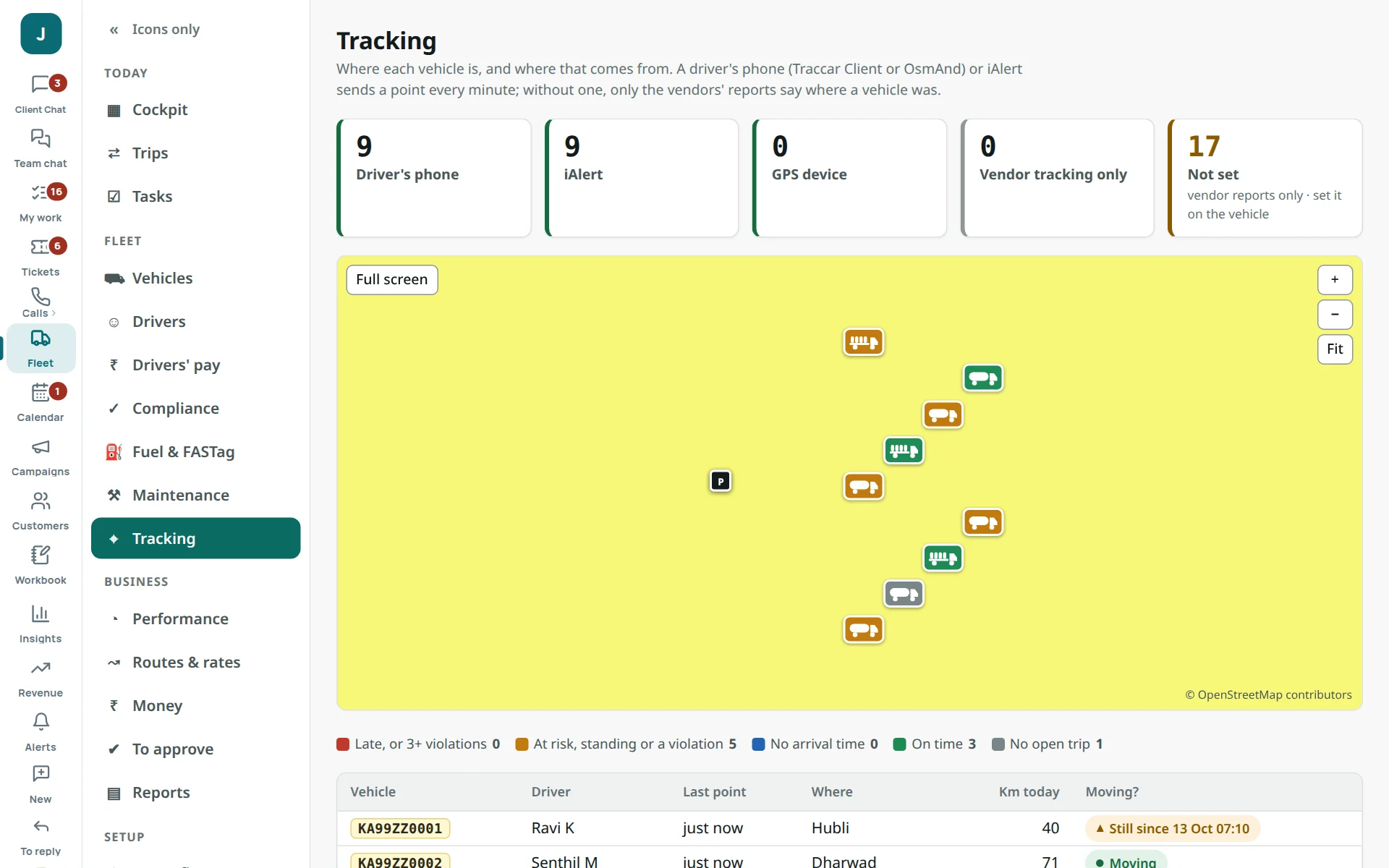
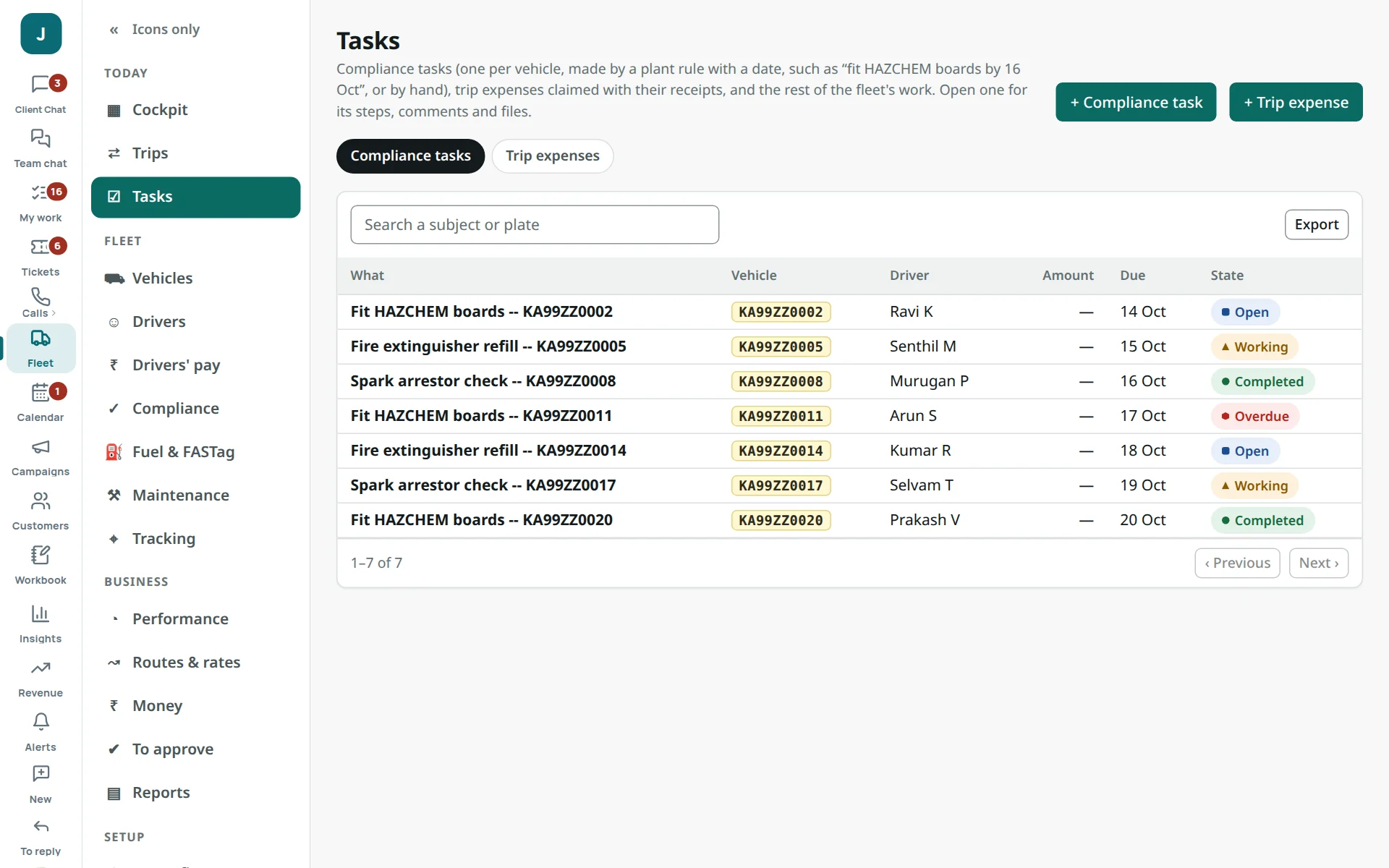
Maintenance, tracking and tasks
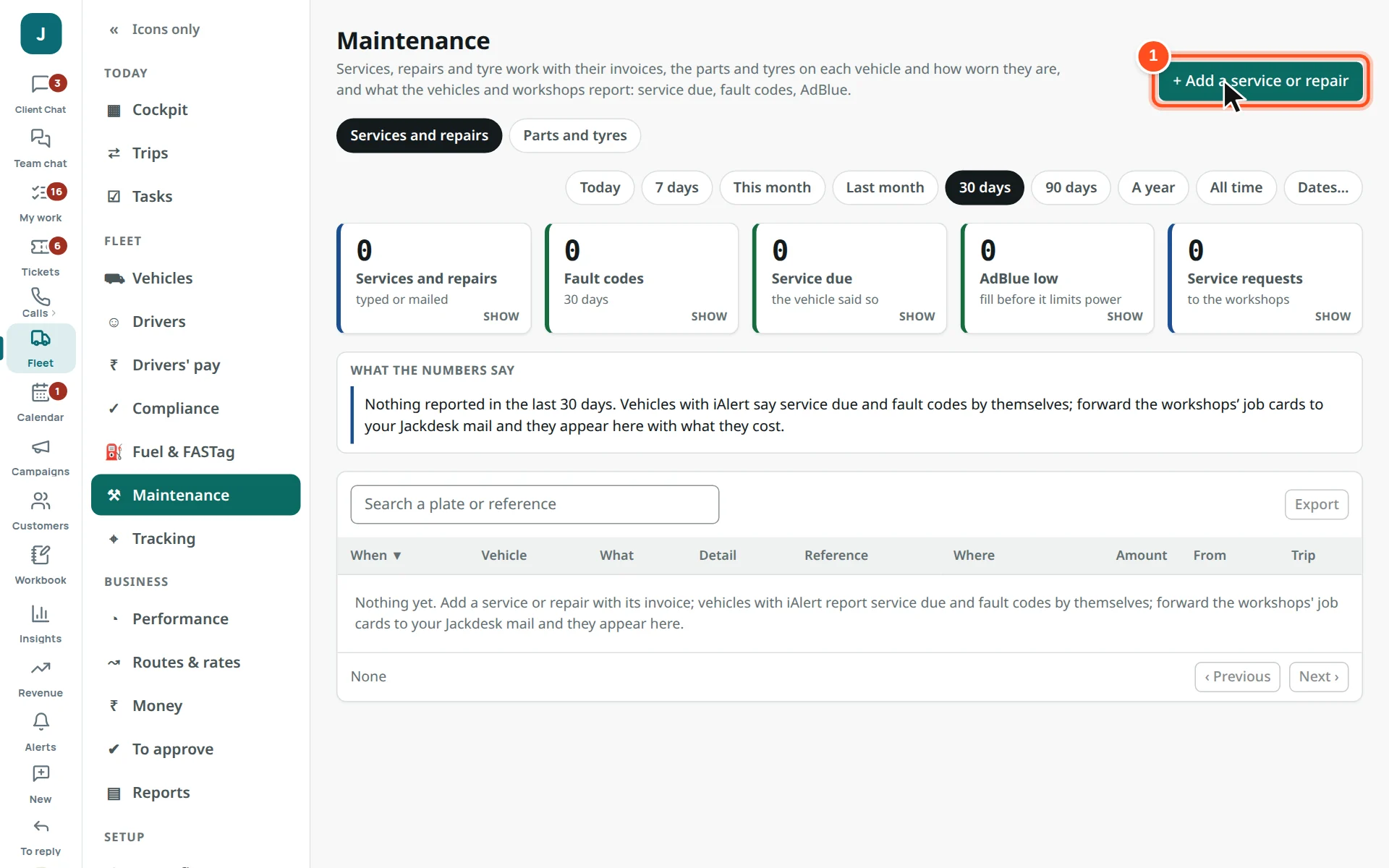
- 1+ Add a service or repair.
Putting a record right
A message can be wrong or say too little. Every record can be corrected by hand, and the books follow.
- Open the record from any list or any tab of a vehicle or driver (a fill, a toll, a trip, a paper, a fine, a service…).
- Press Change. The form says what it needs, and refuses an amount below zero or a “to” date before its “from”.
- Save. If its money entry is still waiting in To approve, it is made again with your change within minutes.
Ask Fleet and reports
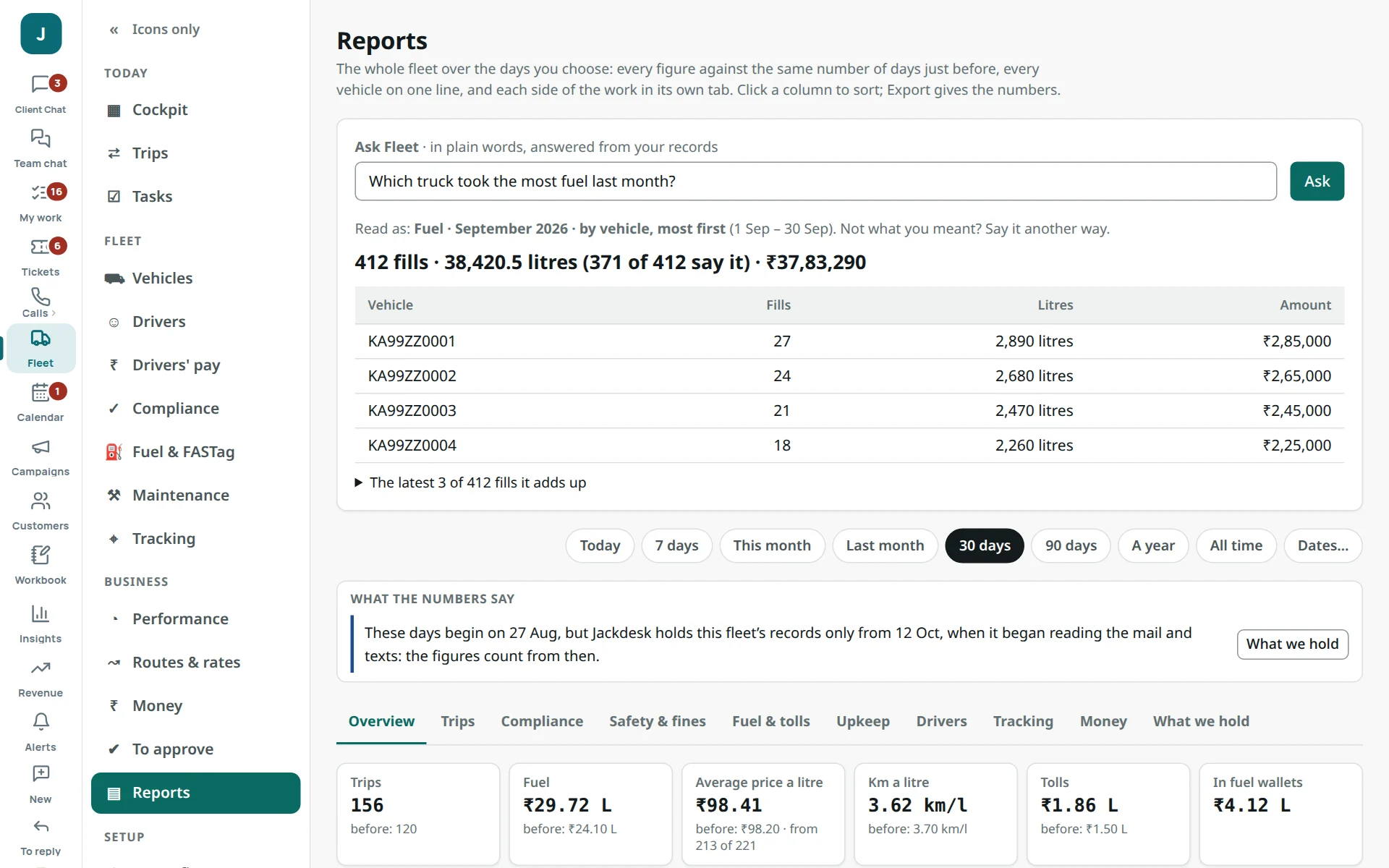
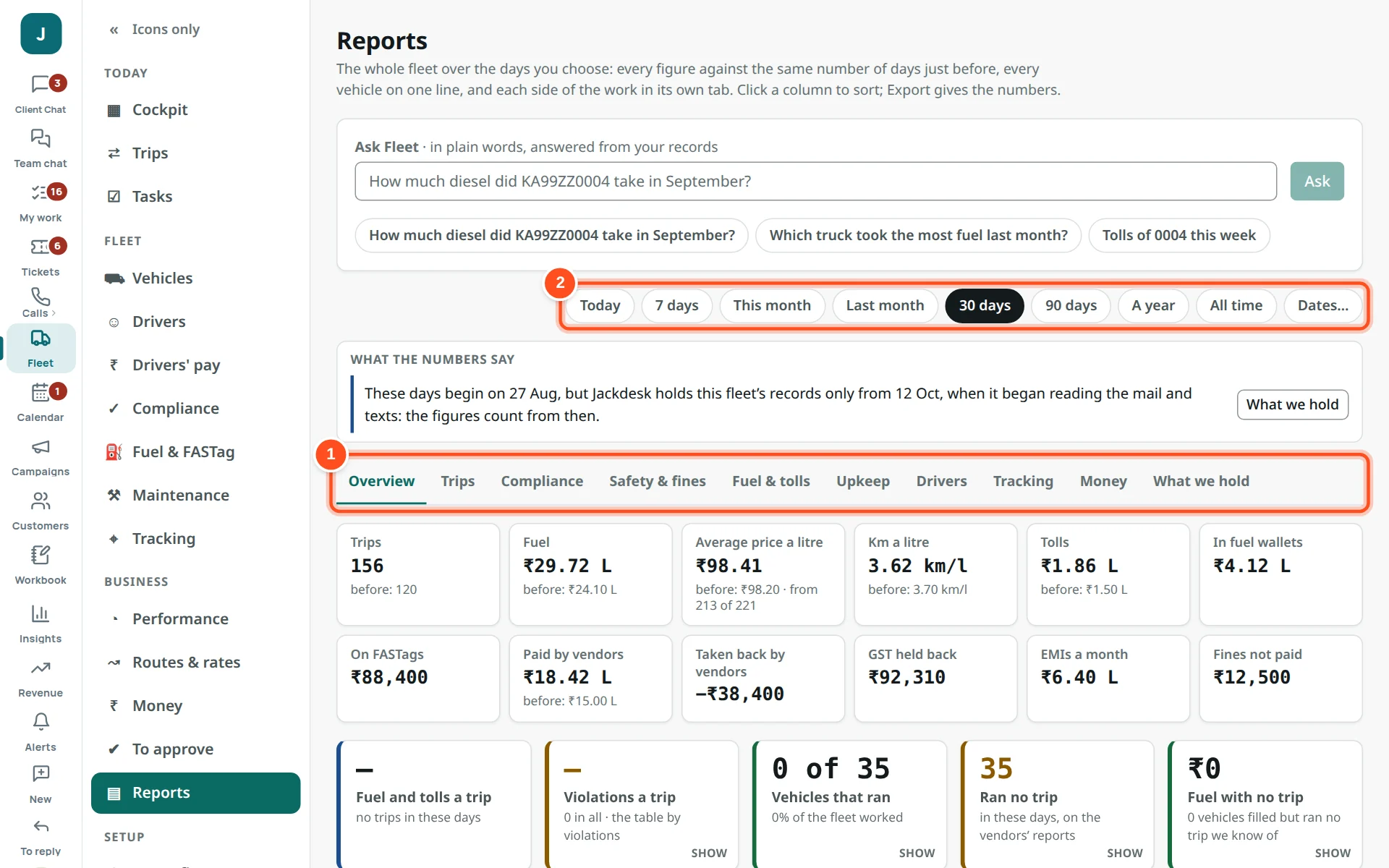
- 1Tabs: overview, trips, compliance, safety and fines, fuel and tolls, upkeep, drivers, tracking, money.
- 2The period.
When something looks wrong
A figure shows “—”
Something it needs is not given yet. The Cockpit’s Your data, how complete says what, with a button to fix it.
A trip earns “—”
Its route has no freight rate. Ask your manager to set it (Routes & rates), or set this trip’s own freight on its Money tab.
A trip has no arrival time
Its route has no hours or distance: Records → Routes → No hours.
Fuel went on the wrong truck
Open the fill → Filled by another truck. If the card is shared by several trucks, say so on the card (Fuel cards).
A follow-up keeps coming back
The problem itself is not put right yet (driver still not typed, paper not renewed in the records). Fix the record.
I see no Fleet screens
Your role has no Fleet role yet. Ask the owner (Store → Roles & privacy → Fleet roles).
A button or screen is missing
Refresh with Ctrl + Shift + R. If still missing, contact the Jackdesk admin.