Jackdesk: Admin Manual
What owners and managers do inside Jackdesk: WhatsApp templates, automatic replies (workflows), booking forms, reports, customer records for everyone, and keeping the team on track.
I want to…
Who is an admin, and where things are
| You want to change… | Where |
|---|---|
| WhatsApp templates and saved replies | Desk → More → Message templates |
| Automatic replies, menus, routing to a department | Desk → More → Workflows |
| Booking and enquiry forms | Desk → More → Forms |
| Reports | Desk → Insights (rail) |
| Customer cards and columns for everyone, imports, merging | Desk → Customers |
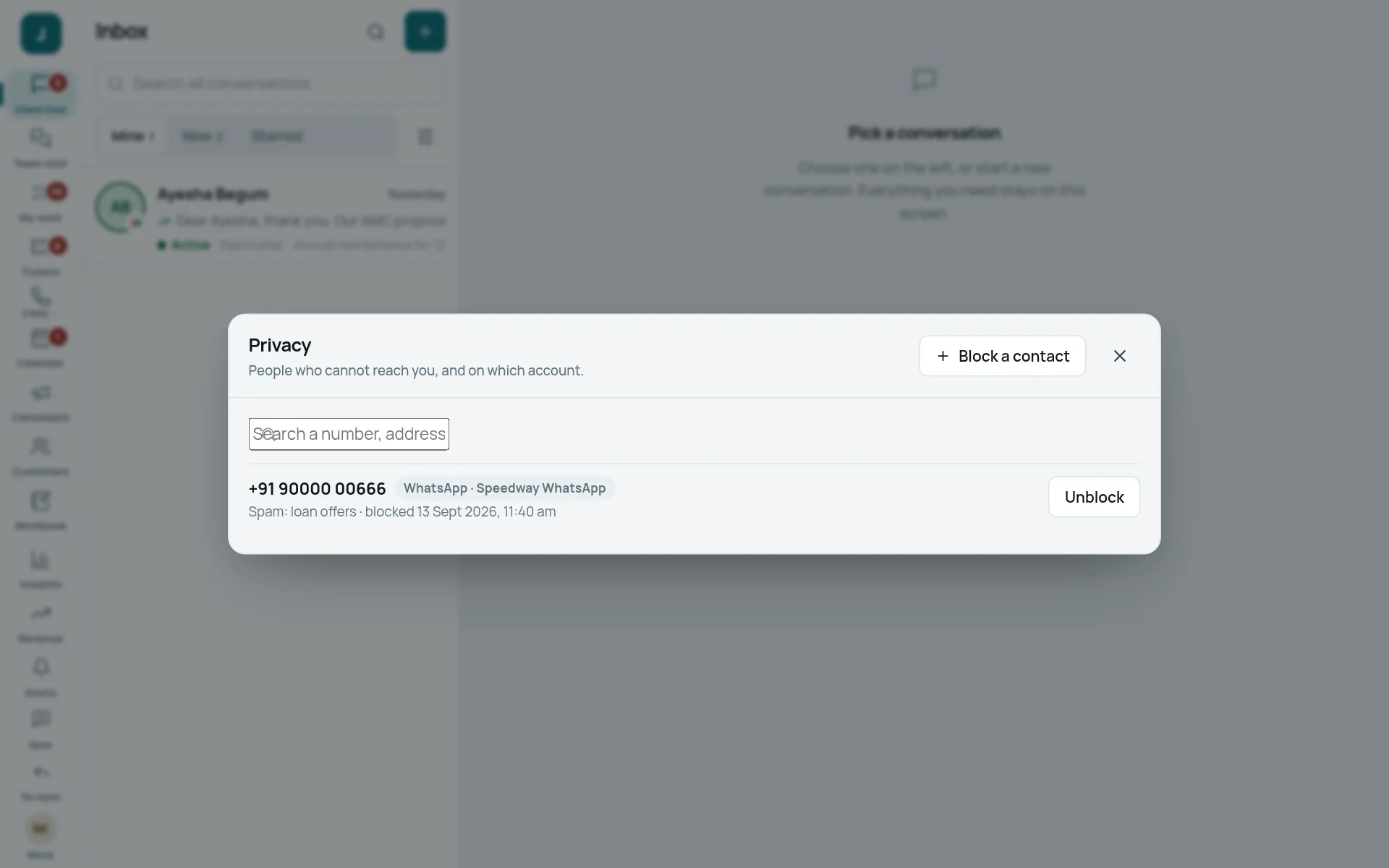
| Blocked numbers | Desk → More → Privacy |
| Channels, staff, roles, how chats are shared, the rail | Store (store.jackdesk.com) — see the Jackdesk Store Admin Manual |
WhatsApp templates and saved replies
A template is a message WhatsApp approves in advance. You need one to write first to a customer, after 24 hours of silence, and for every WhatsApp campaign.
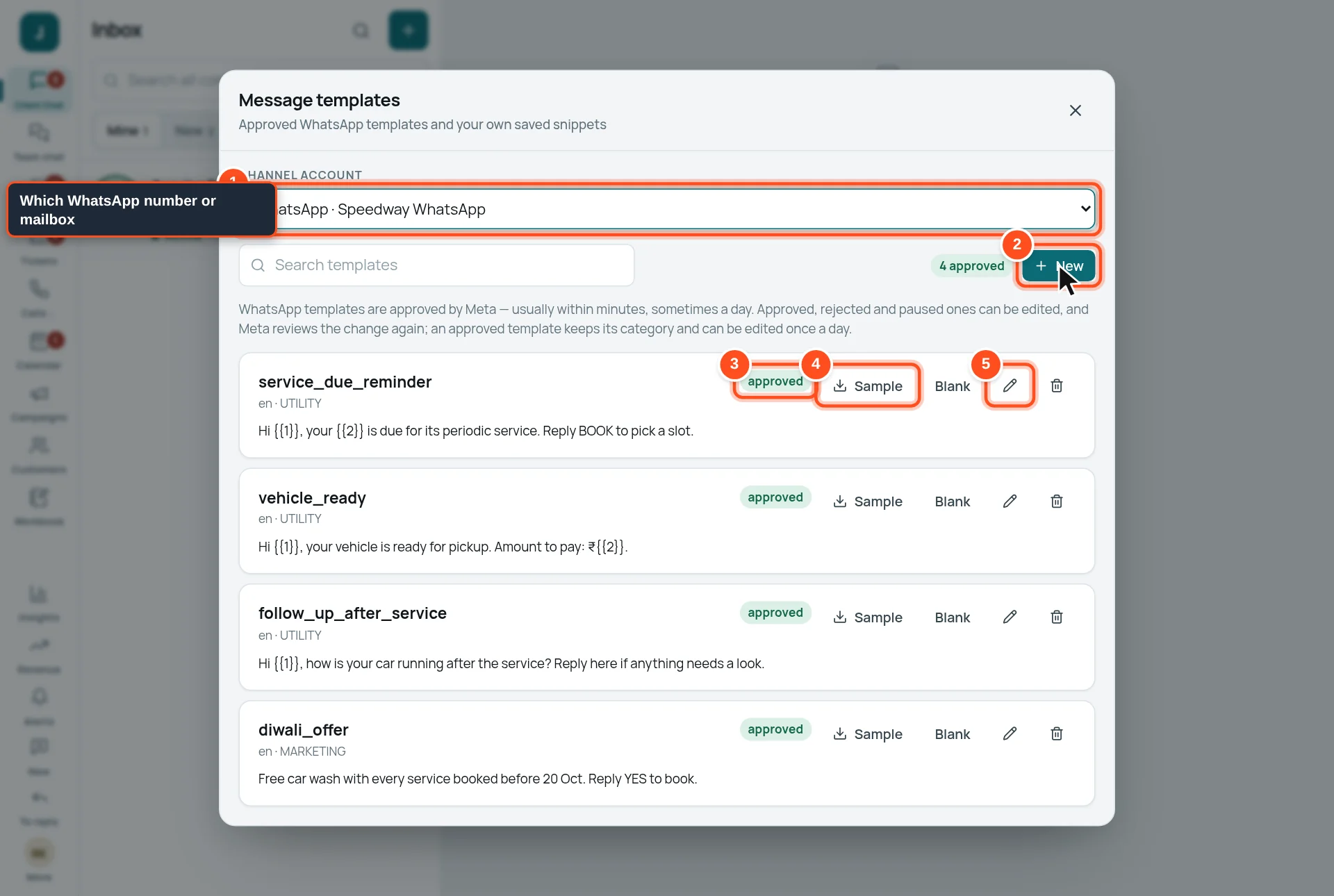
- 1Choose the WhatsApp number (or mailbox, for saved replies).
- 2New — make a template.
- 3Its state: approved (ready to use), pending, rejected (with Meta’s reason) or paused.
- 4Sample — download a sheet with one column per blank in the template, for campaigns from a spreadsheet. Blank gives headers only.
- 5Edit or delete it.
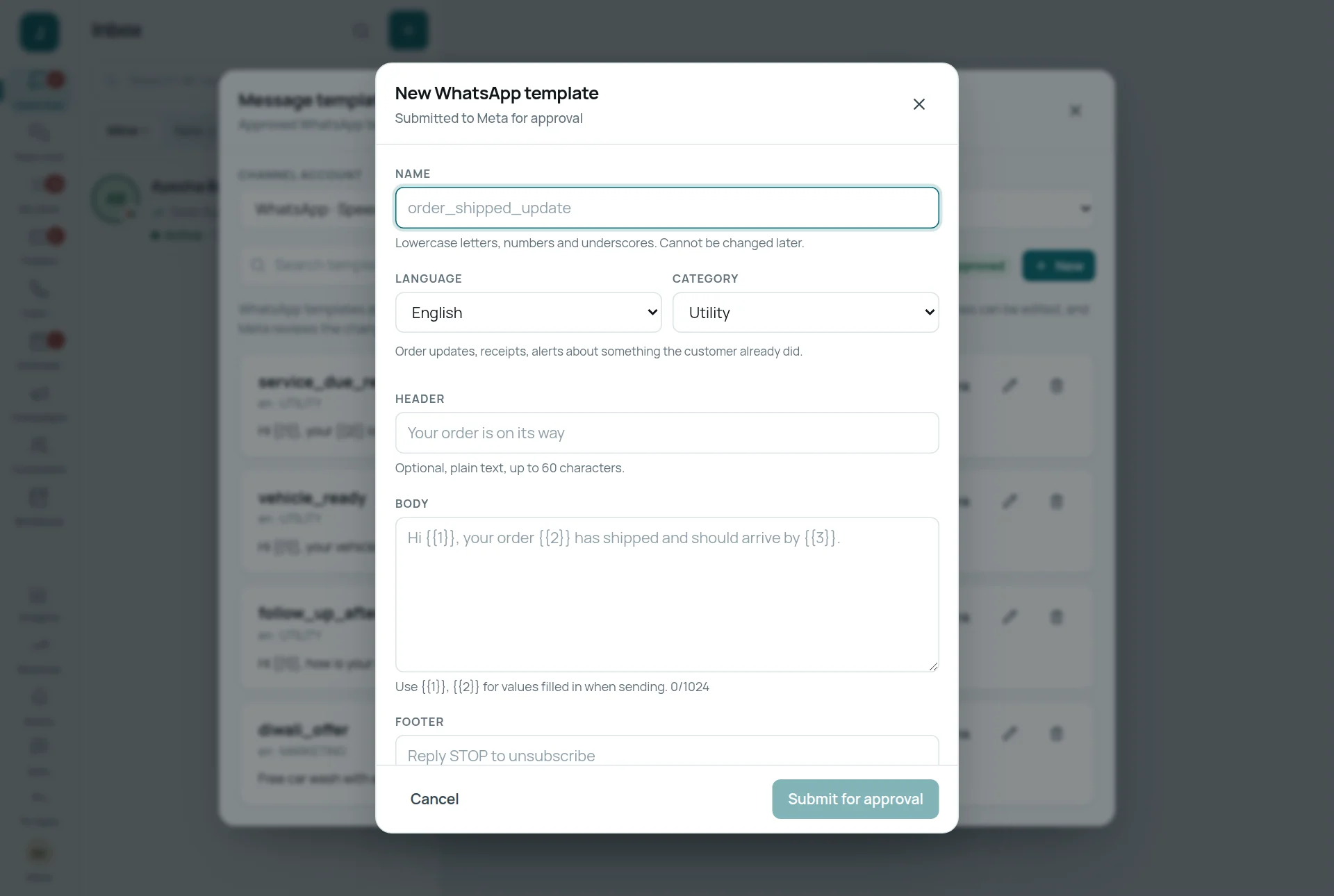
- Name: lowercase letters, numbers and underscores, for example service_due_reminder. It cannot be changed later.
- Language, and Category: Utility for updates, receipts and reminders about something the customer already did; Marketing for offers. Marketing messages cost more and need the customer’s consent.
- Header (optional, up to 60 characters), for example “Your vehicle is ready”.
- Body: the message. Use {{1}}, {{2}} for what is filled in when sending (name, amount, date).
- Footer (optional), for example “Reply STOP to unsubscribe”. Buttons can be added below.
- Press Submit for approval. Meta usually approves within minutes, sometimes a day.
Workflows: automatic replies and routing
A workflow does something by itself when something happens: greets a new customer, sends a menu, hands the chat to the right department, replies after hours.
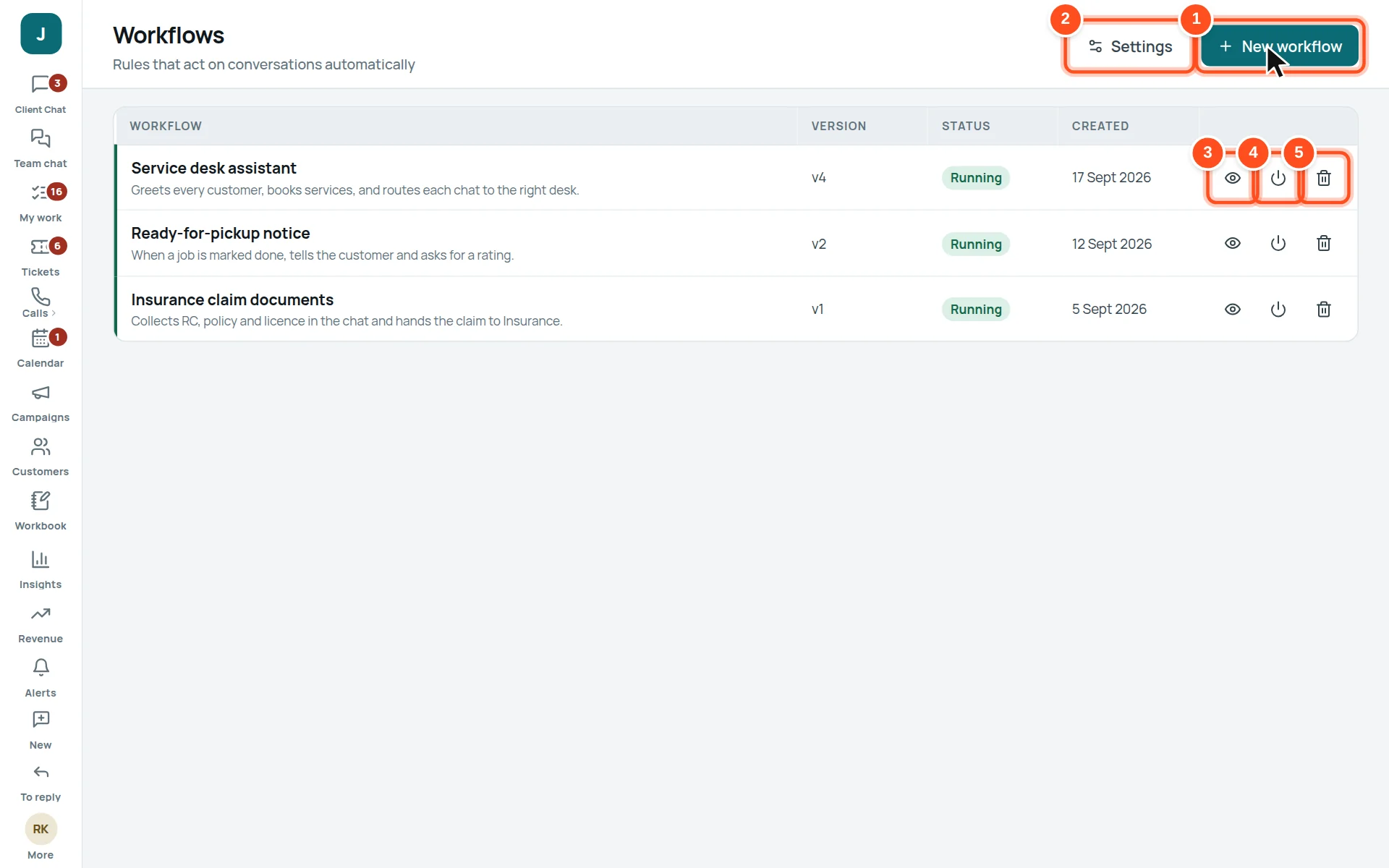
- 1New workflow.
- 2Settings — who may build workflows, limits, and an AI key if you use AI steps.
- 3See what it does, in plain steps.
- 4Pause or Start it.
- 5Delete it.
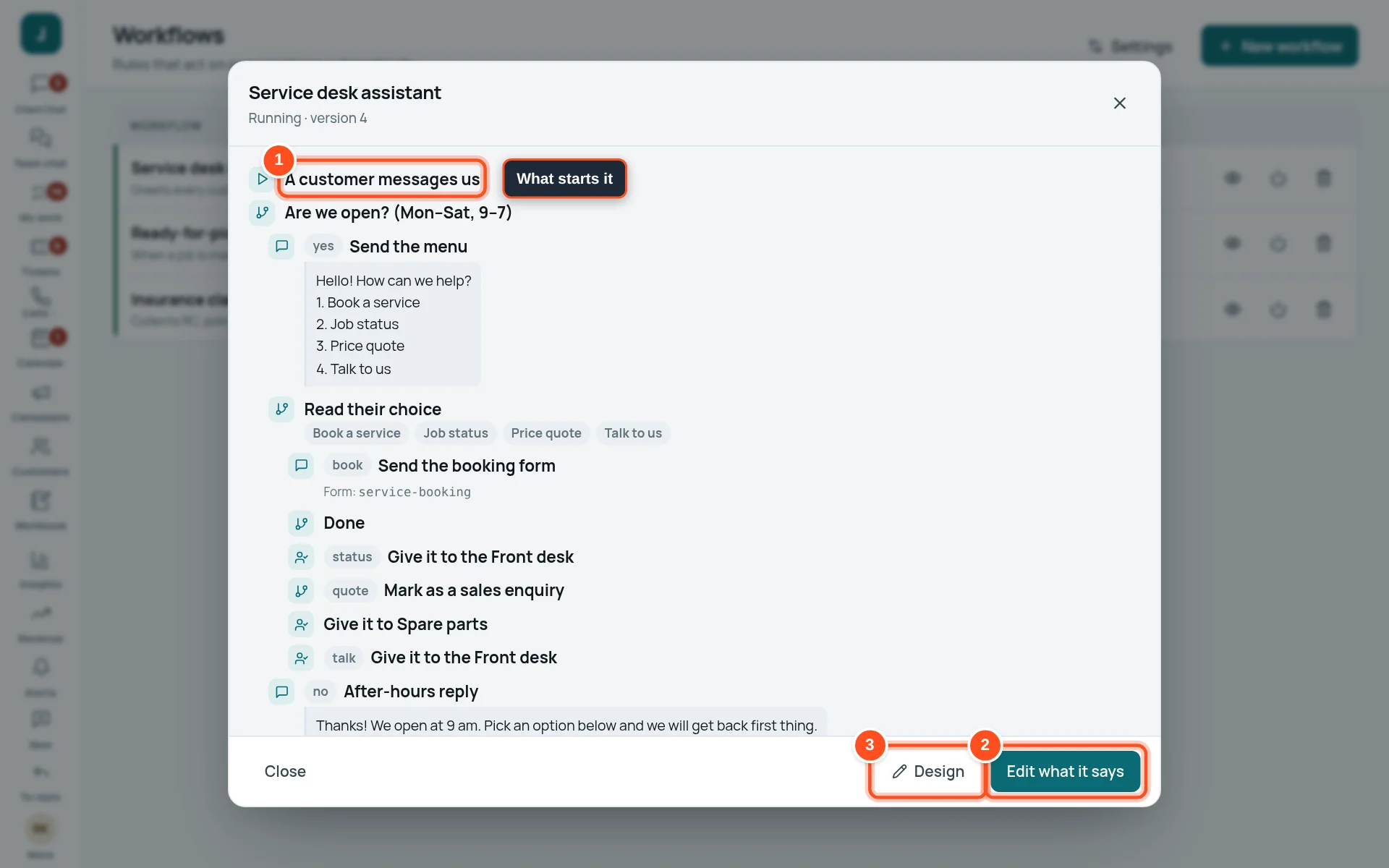
- 1What starts it (here: a customer messages us), then each step below it.
- 2Edit what it says — change the words of its messages without touching the steps.
- 3Design — open the drawing board to change the steps themselves.
- Press New workflow, give it a name (“Welcome new customers”) and a note. It starts paused.
- In Design, choose what starts it and add steps: send a message or a menu, read the customer’s choice, give the chat to a department, mark it as a sales enquiry, wait, check the time…
- Test it with your own phone number.
- Publish it and press Start.
Forms and bookings
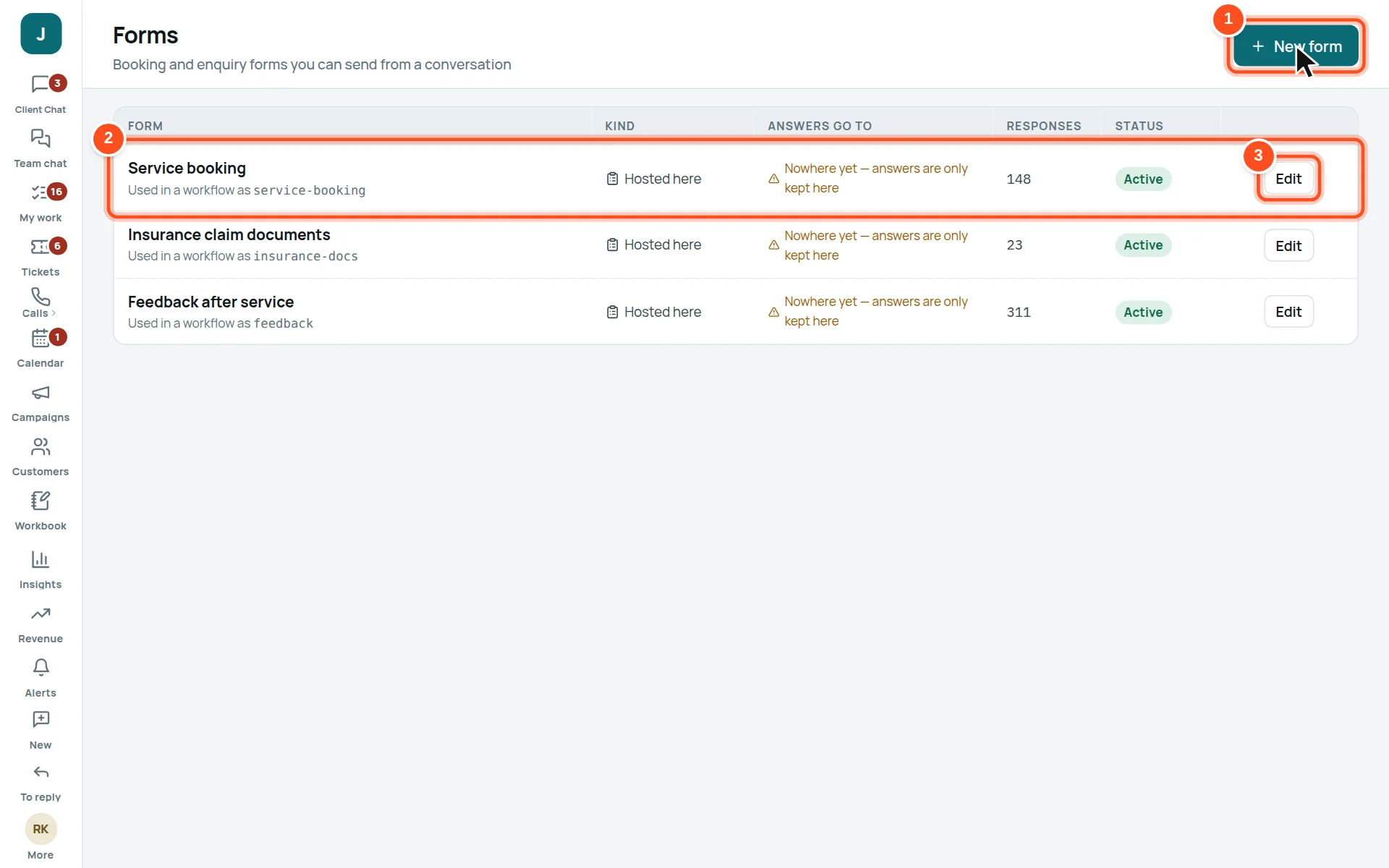
- 1New form.
- 2Each form, with how many times it was filled.
- 3Edit its questions and where answers go.
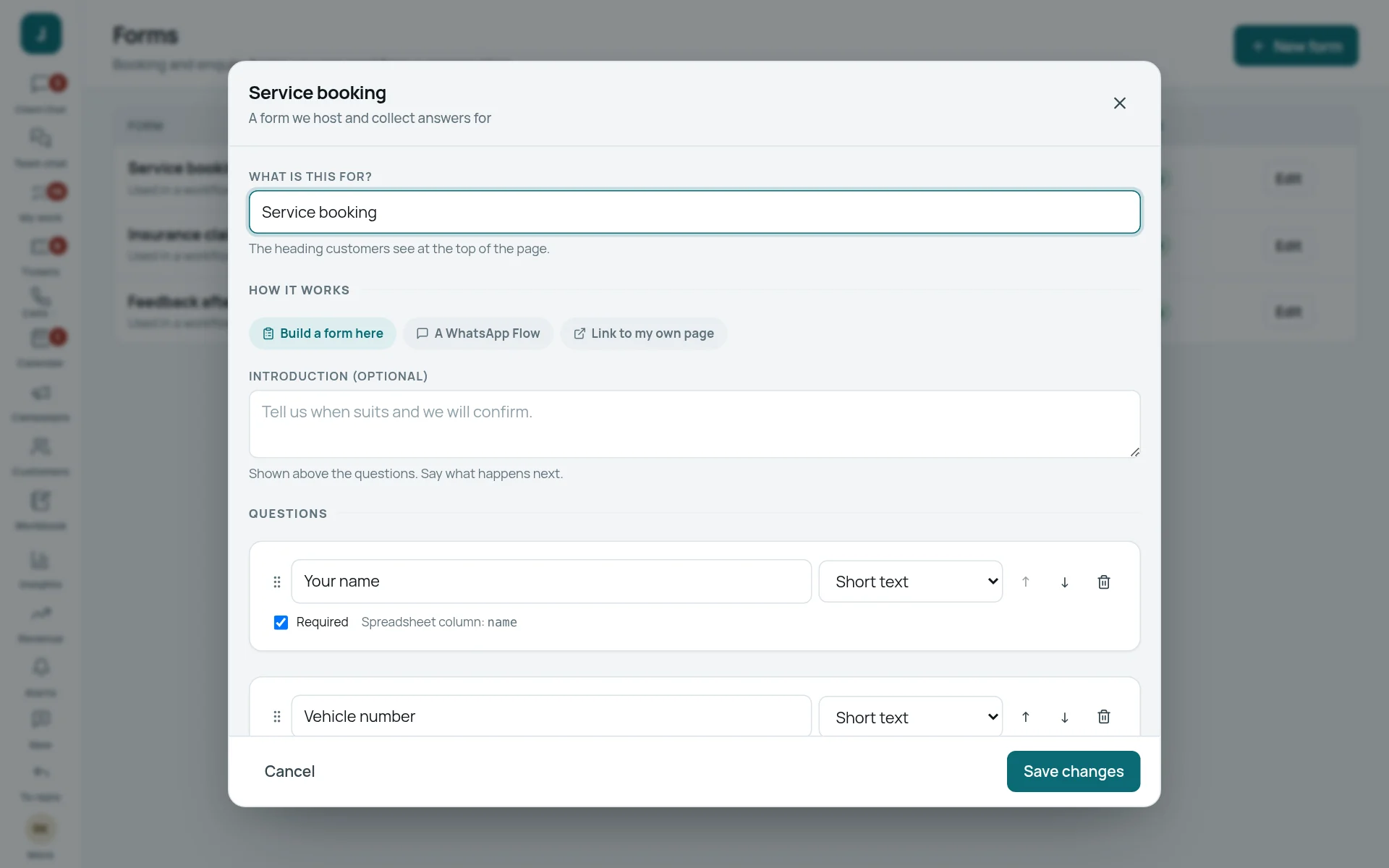
- Make the form and its questions.
- For bookings, set the slots (or let customers give a preferred time) and whether bookings confirm by themselves.
- Send it from a chat (the form button beside the attachment icon), or let a workflow send it.
- Bookings appear in Calendar → Appointments, where staff confirm them.
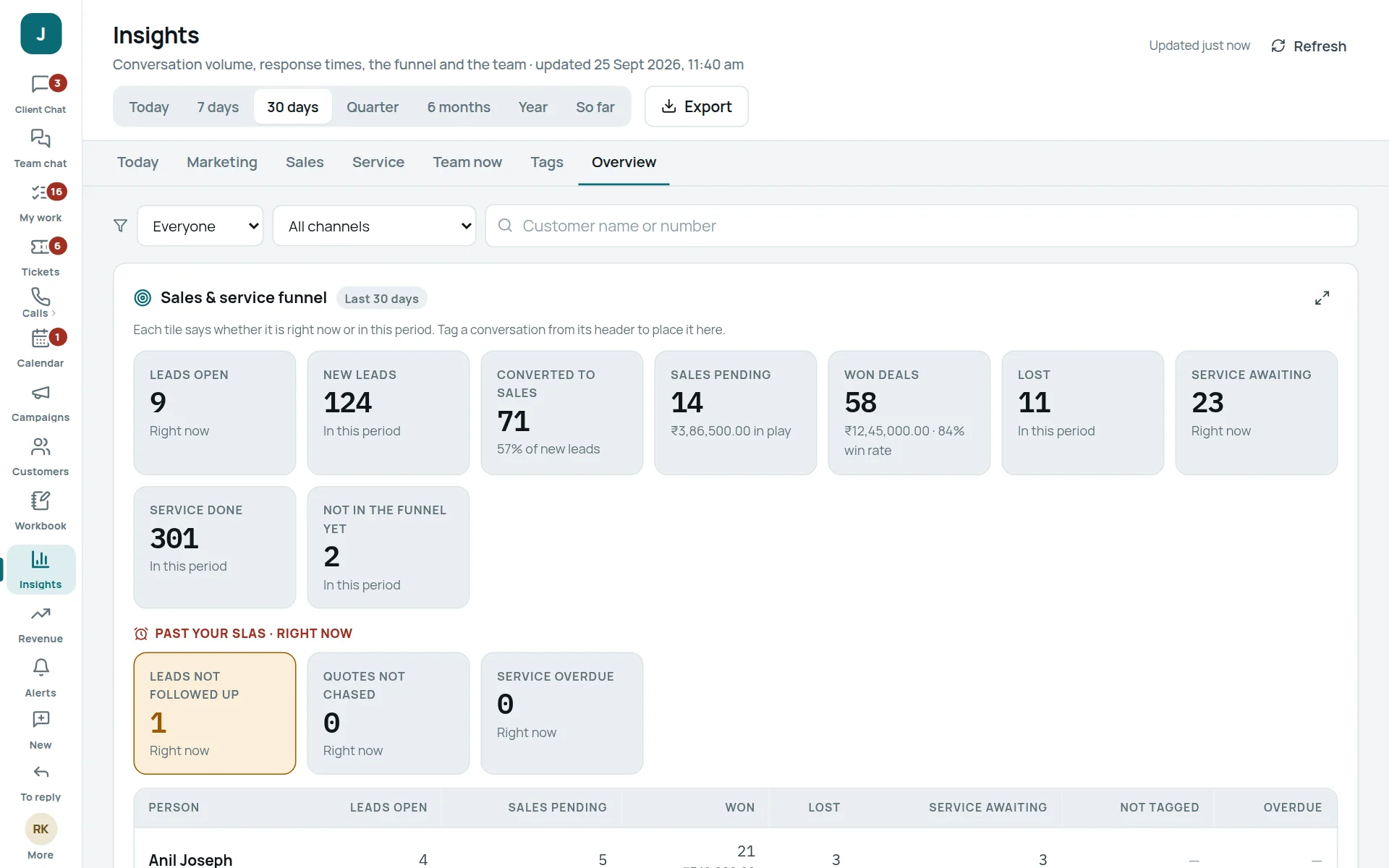
Insights: how the team is doing
Who can do this People whose role allows “View reports”.
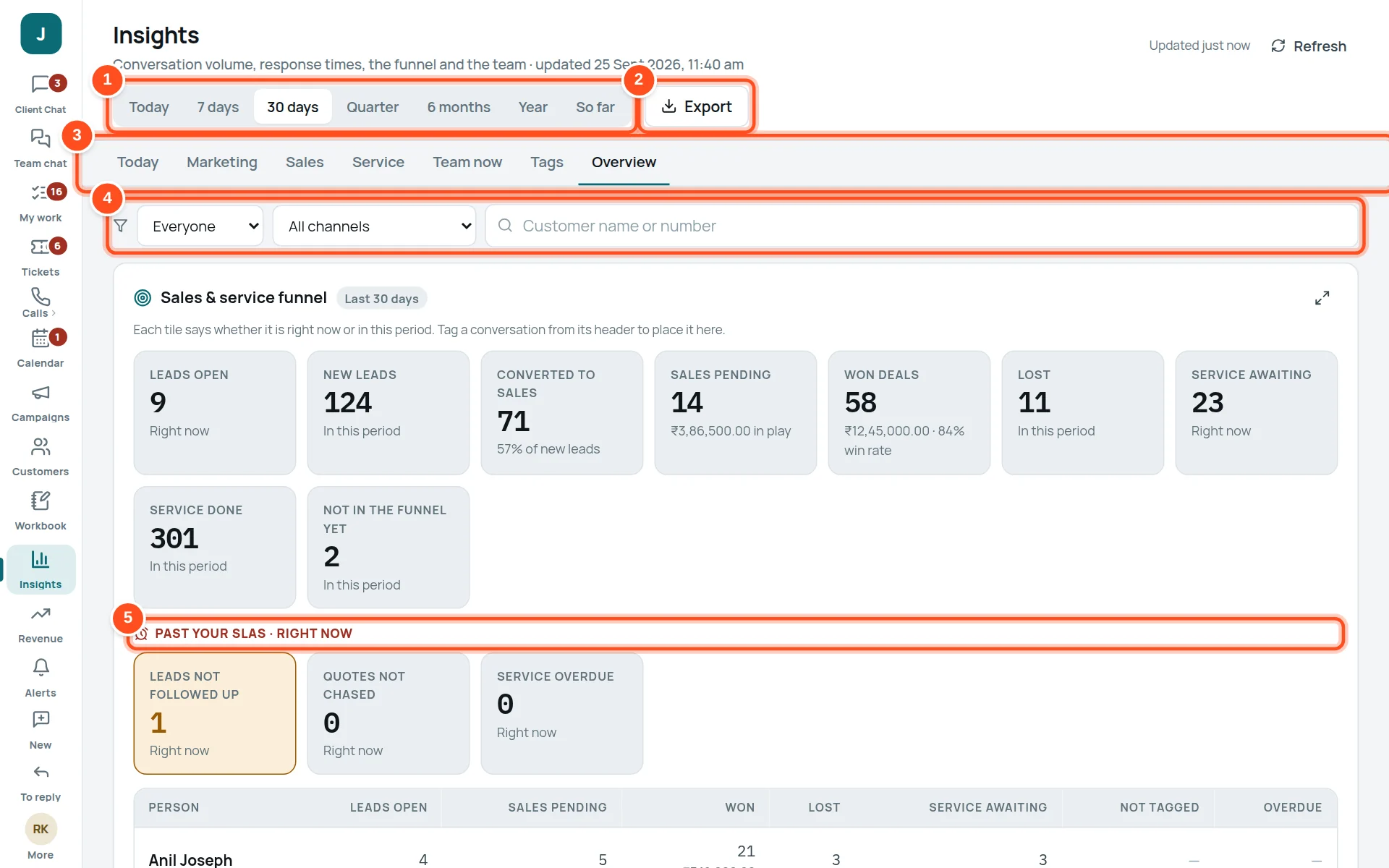
- 1The period: Today, 7 days, 30 days, Quarter, 6 months, Year, So far.
- 2Export to a spreadsheet.
- 3Tabs: Today, Marketing, Sales, Service, Team now, Tags, Overview.
- 4Narrow to one person, one channel, or one customer.
- 5Past your SLAs — leads not followed up, quotes not chased, service overdue: act on these first.
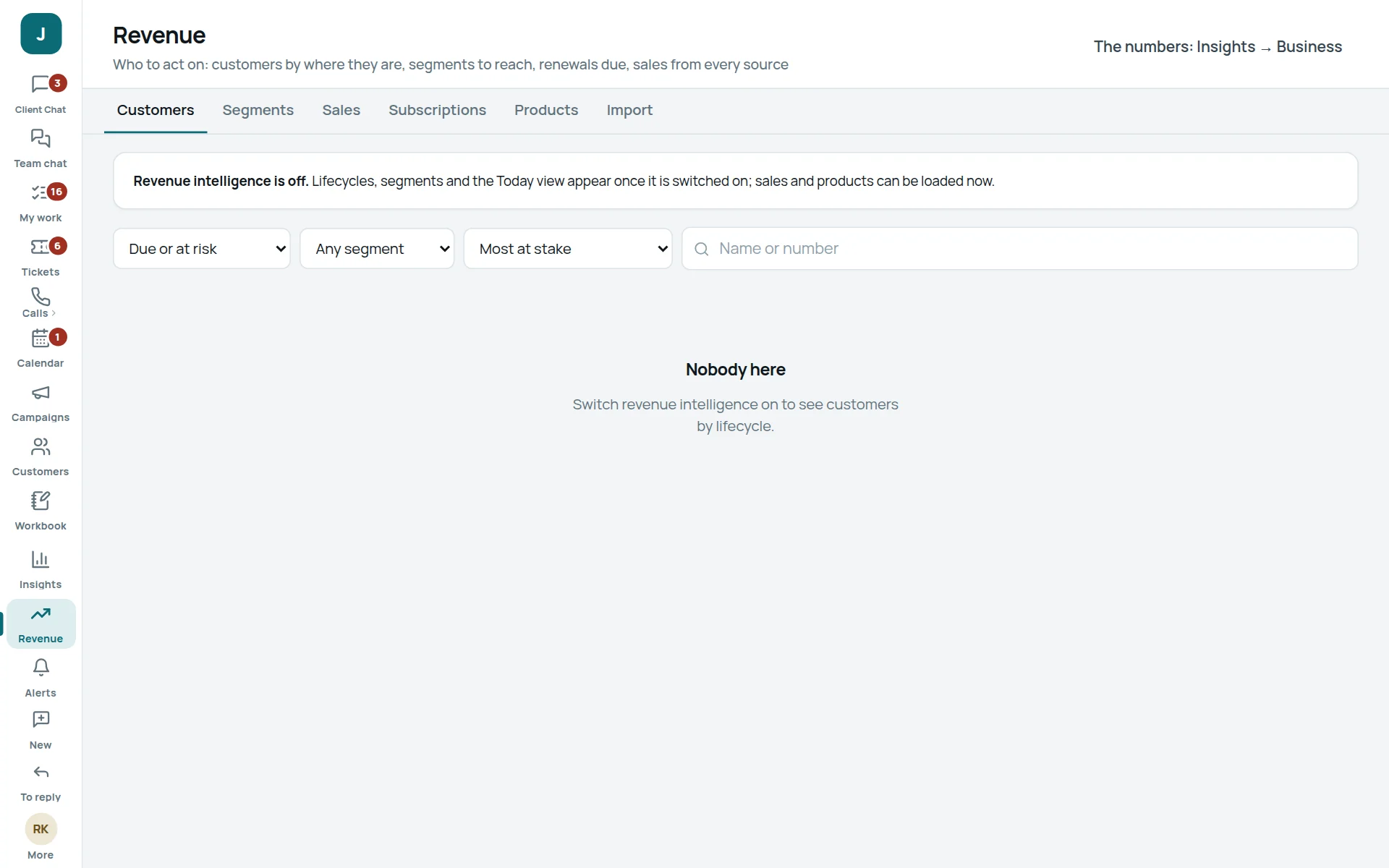
Customer records for everyone
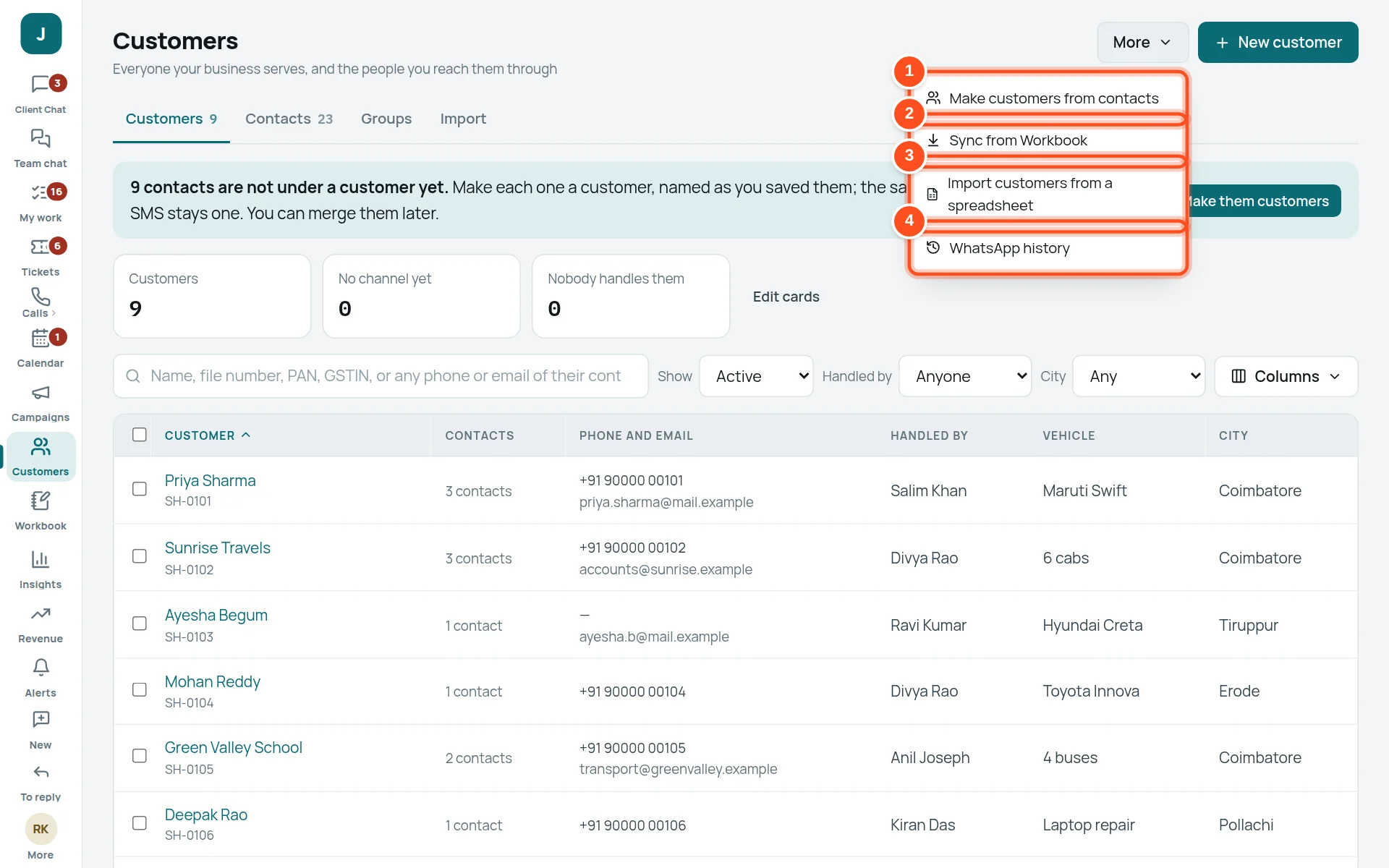
- 1Make customers from contacts — every loose contact becomes a customer (see the User Manual).
- 2Sync from Workbook — bring the clients you keep in Workbook.
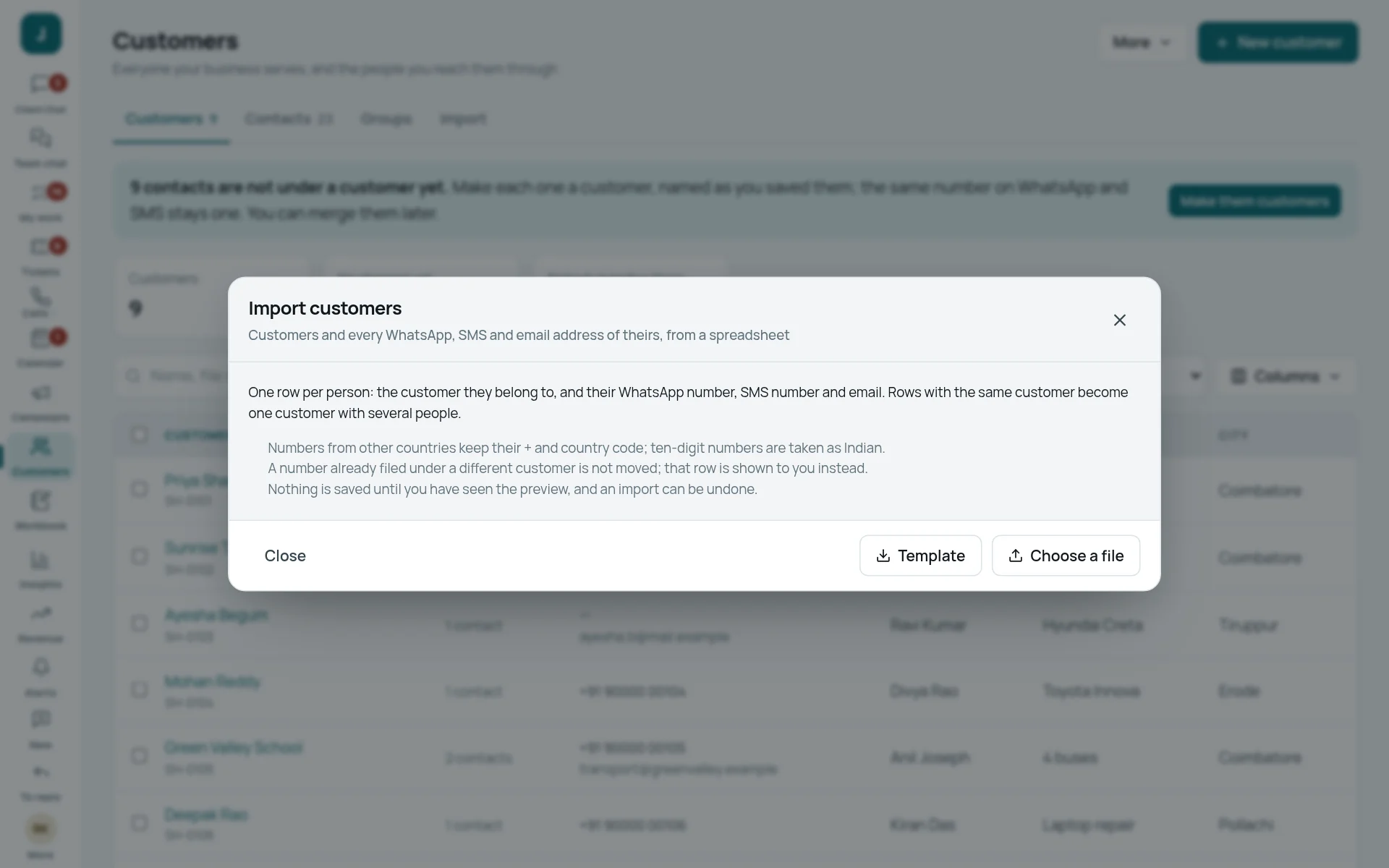
- 3Import customers from a spreadsheet.
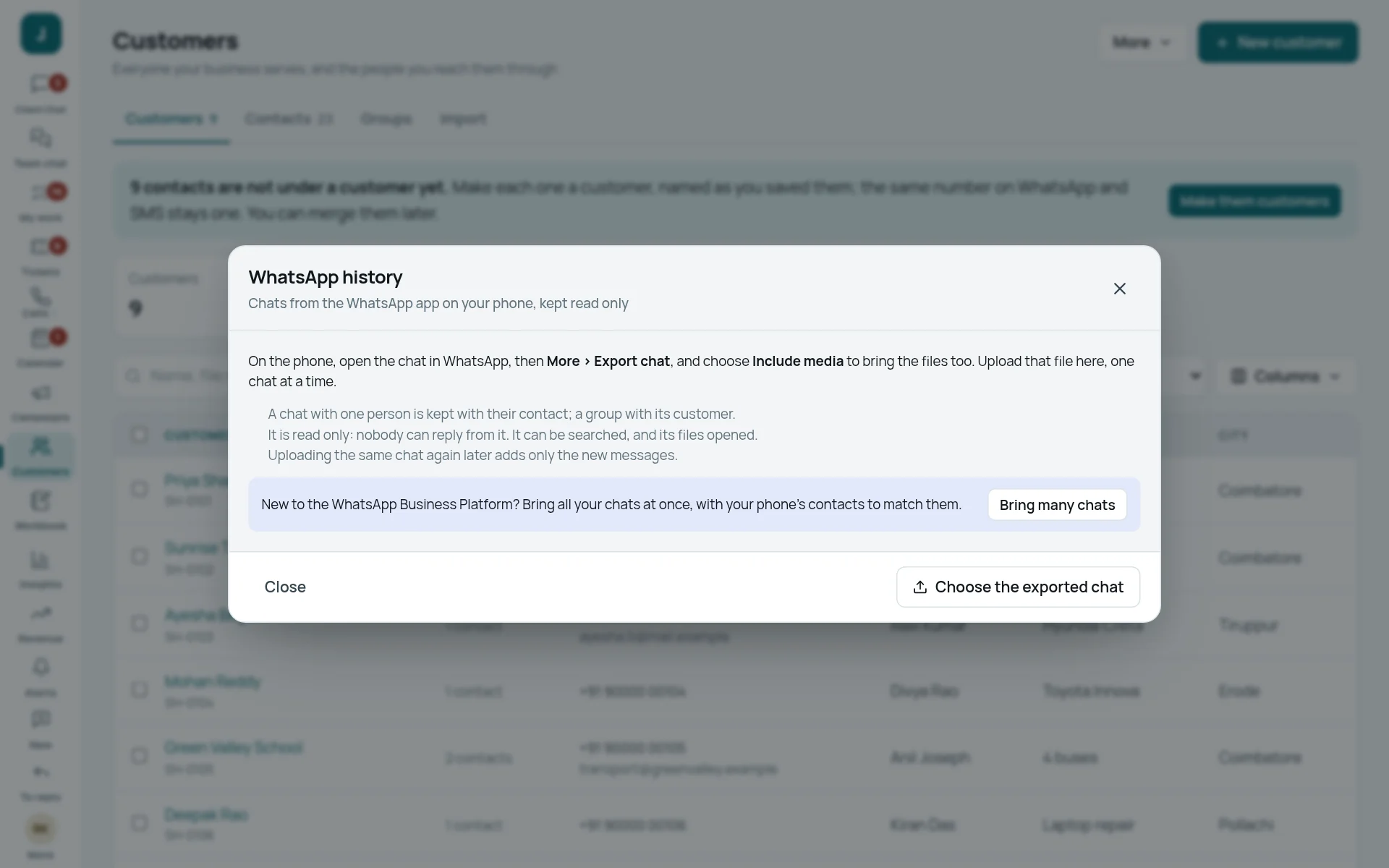
- 4WhatsApp history — bring chats exported from a phone, so old conversations are searchable.
The cards and columns everyone sees
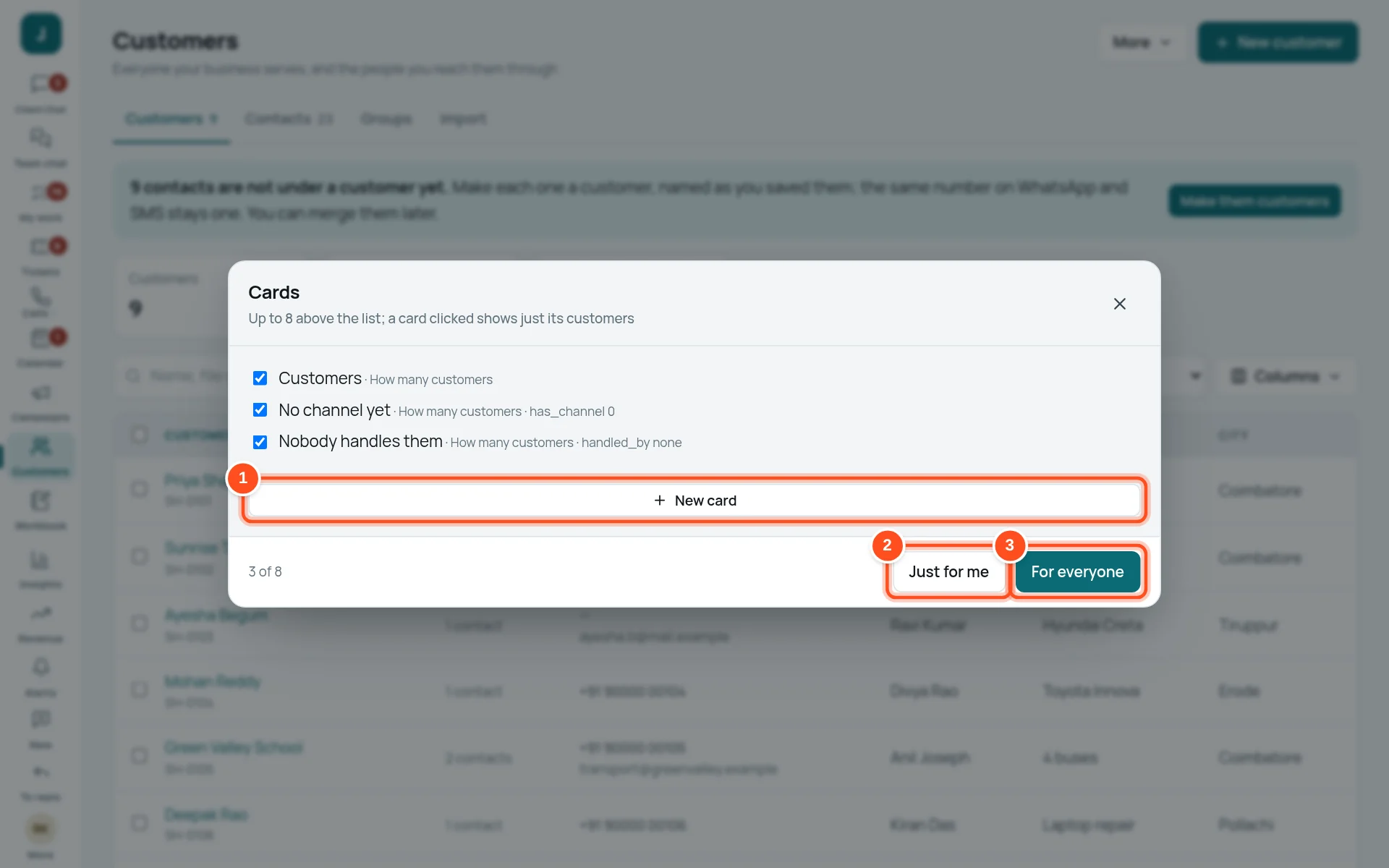
- 1New card — a count of customers matching your own filter (for example “AMC customers in Erode”).
- 2Just for me — keep this choice for yourself.
- 3For everyone — make it everyone’s default.
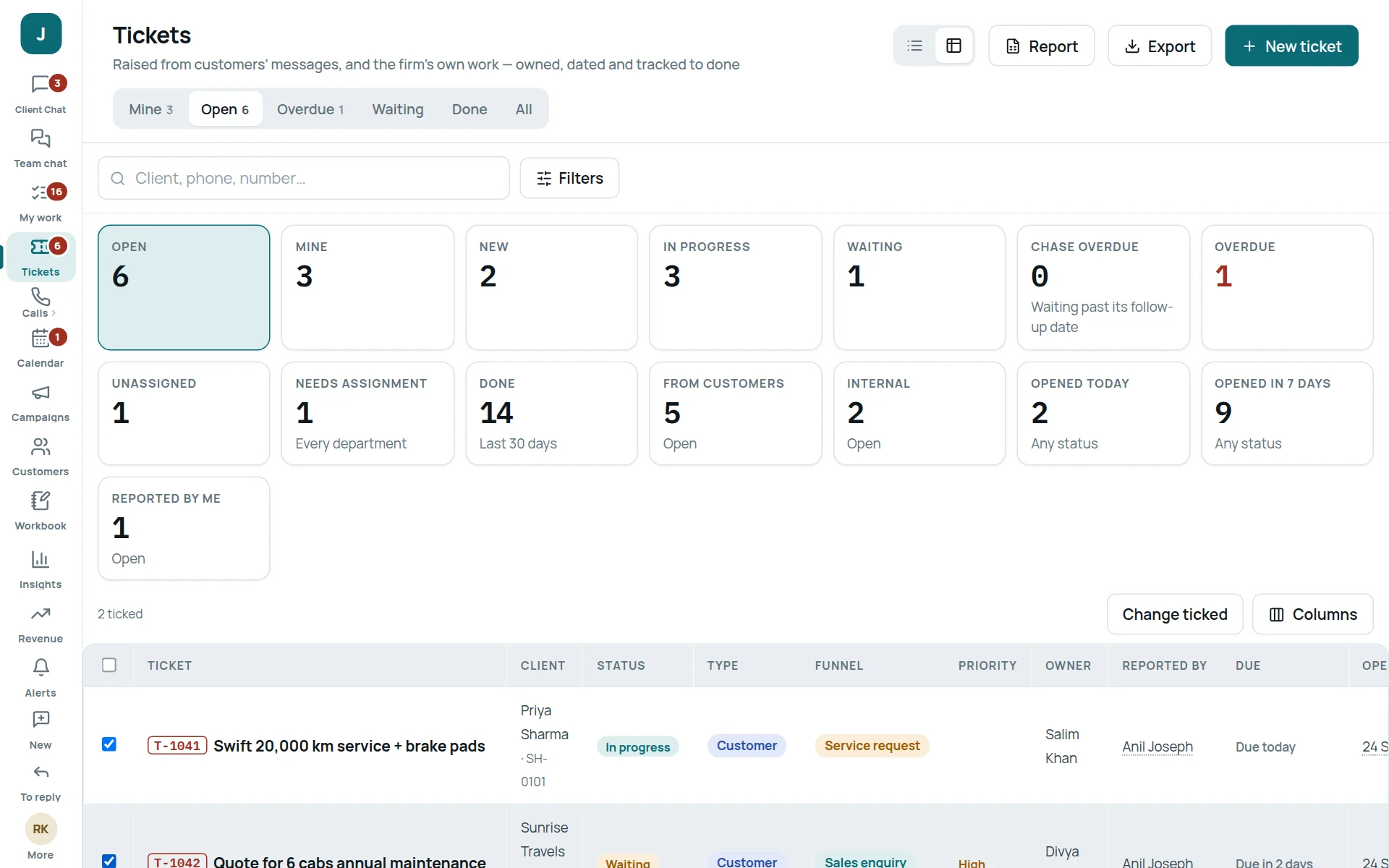
Keeping tickets moving
| Watch | Where |
|---|---|
| Overdue tickets and who holds them | Tickets → Overdue; Insights → Team now |
| Tickets nobody has taken | Tickets → Filters → nobody, or the Needs assignment card |
| A full report for a meeting | Tickets → Report → 7, 30 or 90 days → Download spreadsheet |
| Escalations to you | My work → Waiting on me |
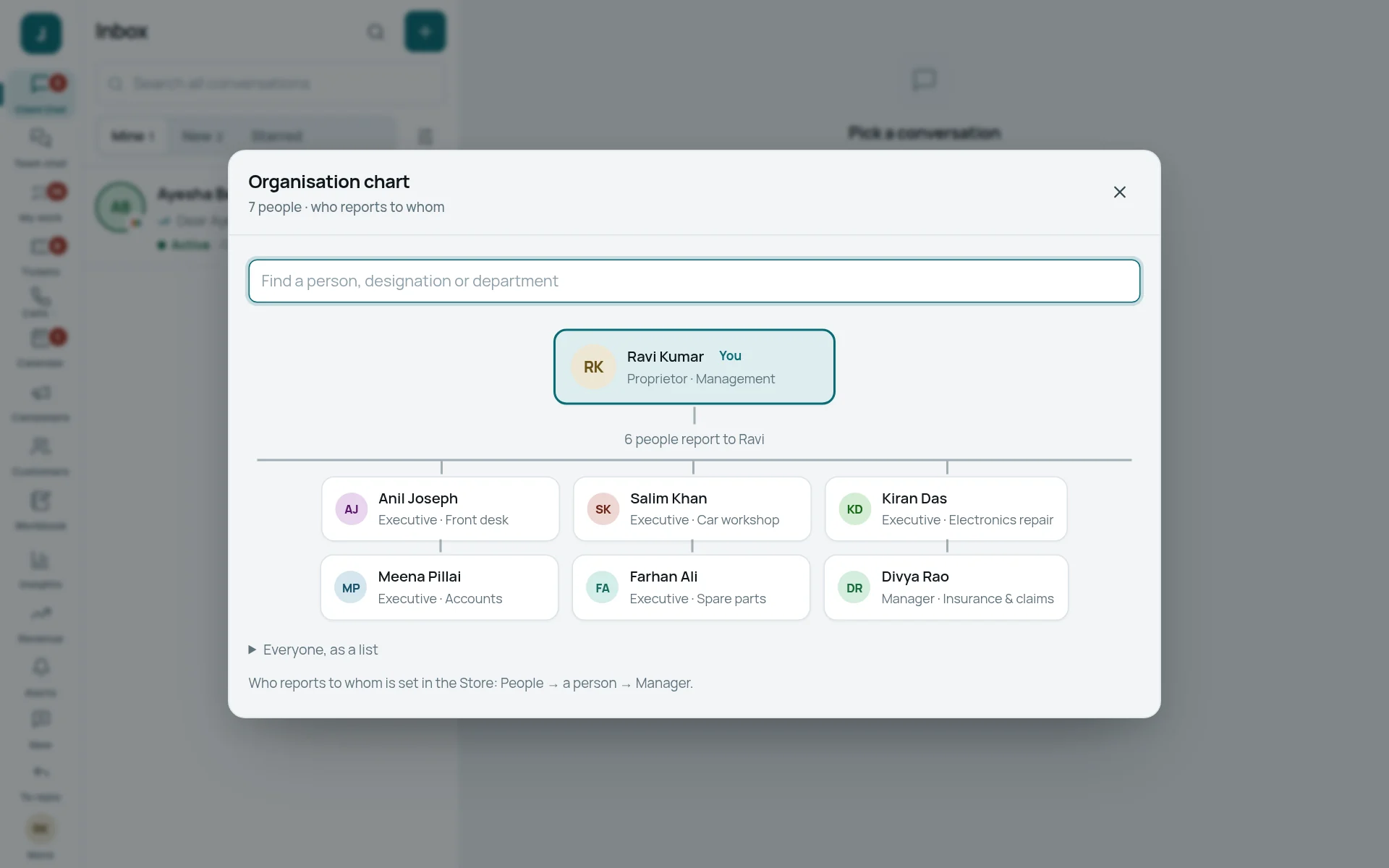
Blocked numbers and the organisation chart
When something goes wrong
A template was rejected
Open Message templates: the rejected template shows Meta’s reason. Change the words (often: too promotional for Utility, a blank at the start or end, or a spelling mistake) and submit again.
A workflow sent the wrong message
Press Pause on it at once (Workflows). To stop every workflow, switch off “Run workflows” in the Store → App settings. Then contact the Jackdesk admin.
Bookings are not arriving
Check the form is on (Forms), that Appointments is switched on in the Store → App settings, and look in Calendar → Appointments.
Insights shows nothing
Check the period at the top and the filters (person, channel). Insights must also be on in the Store → App settings.
I am not sure what a setting does
Do not change it. Write to the Jackdesk admin at jackdesk.admin@gmail.com with a screenshot of the setting.