Jackdesk: User Manual
How to answer customers on WhatsApp, email, SMS and website chat from one screen, keep track of work with tickets, plan your day, find any customer, and talk to your team.
I want to…
Words you will see
Jackdesk uses a few simple words again and again. Learn these first; everything else follows.
Signing in and finding your way
Open Jackdesk in Google Chrome or Microsoft Edge. There is no password: you get a one-time code each time.
Sign in
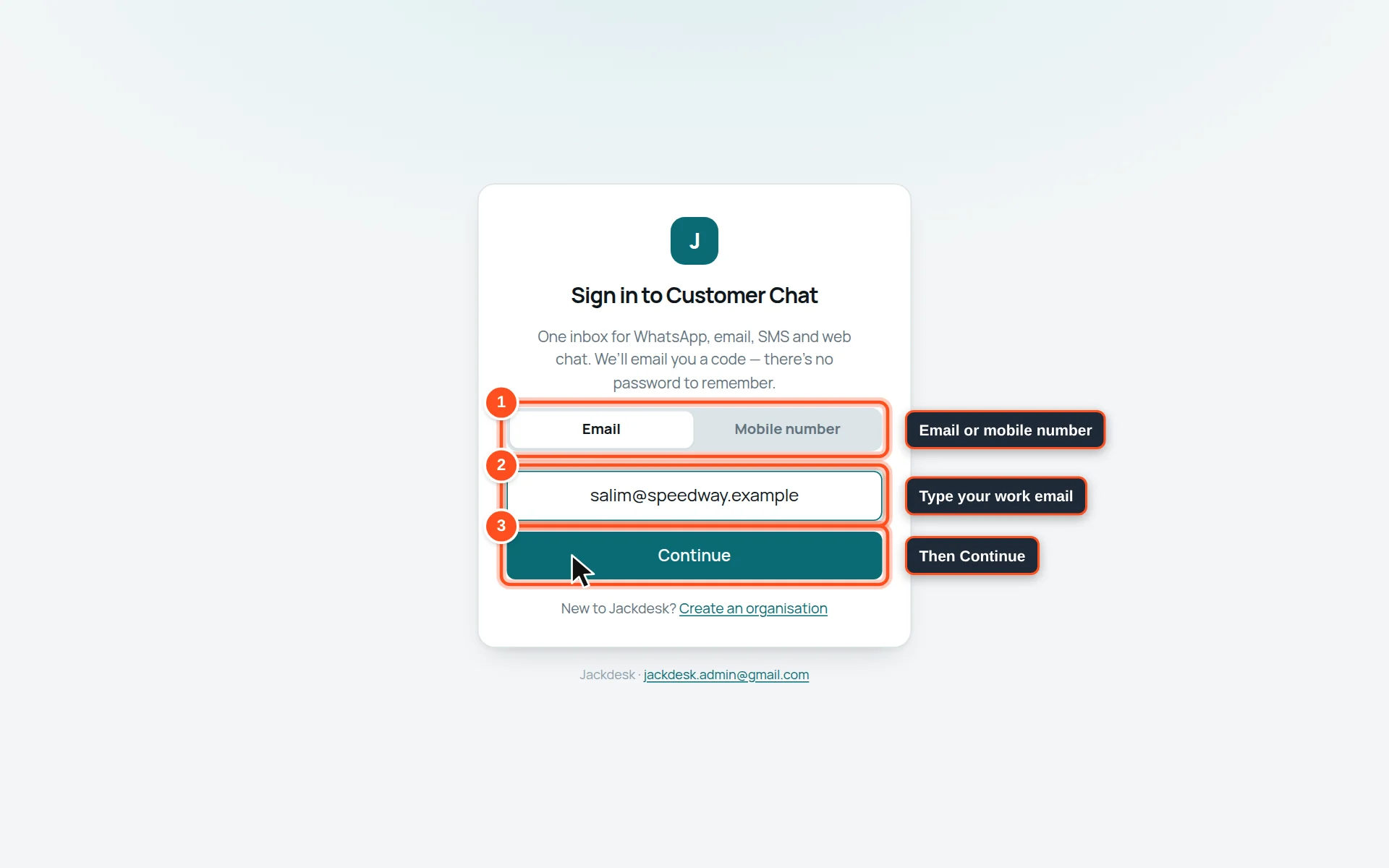
- 1Choose Email (code comes to your email) or Mobile number (code comes to your WhatsApp).
- 2Type your work email (or mobile number) — the one your admin added for you.
- 3Press Continue.
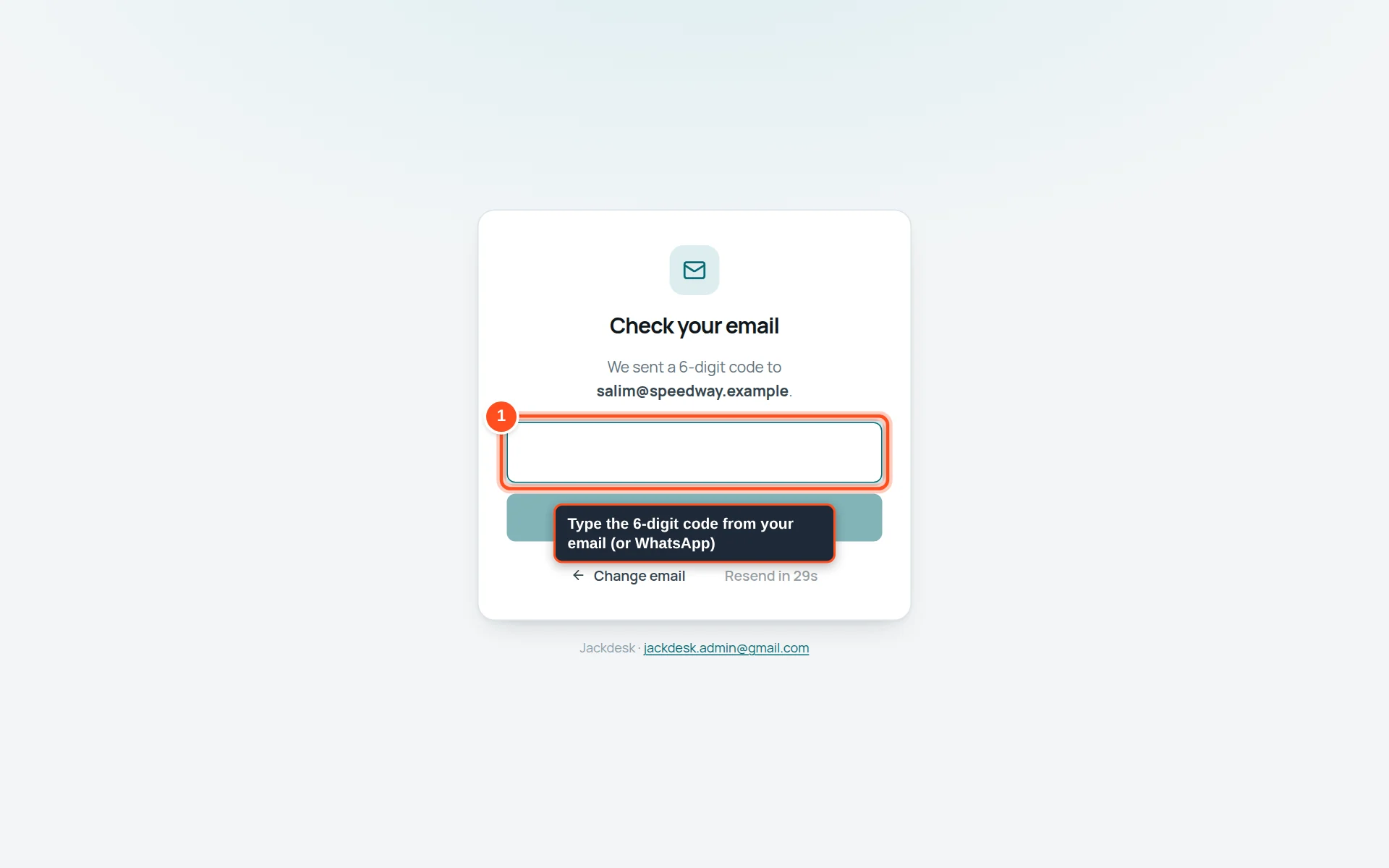
- 1Open your email (or WhatsApp), find the 6-digit code from Jackdesk and type it here. You are signed in.
The screen in three parts
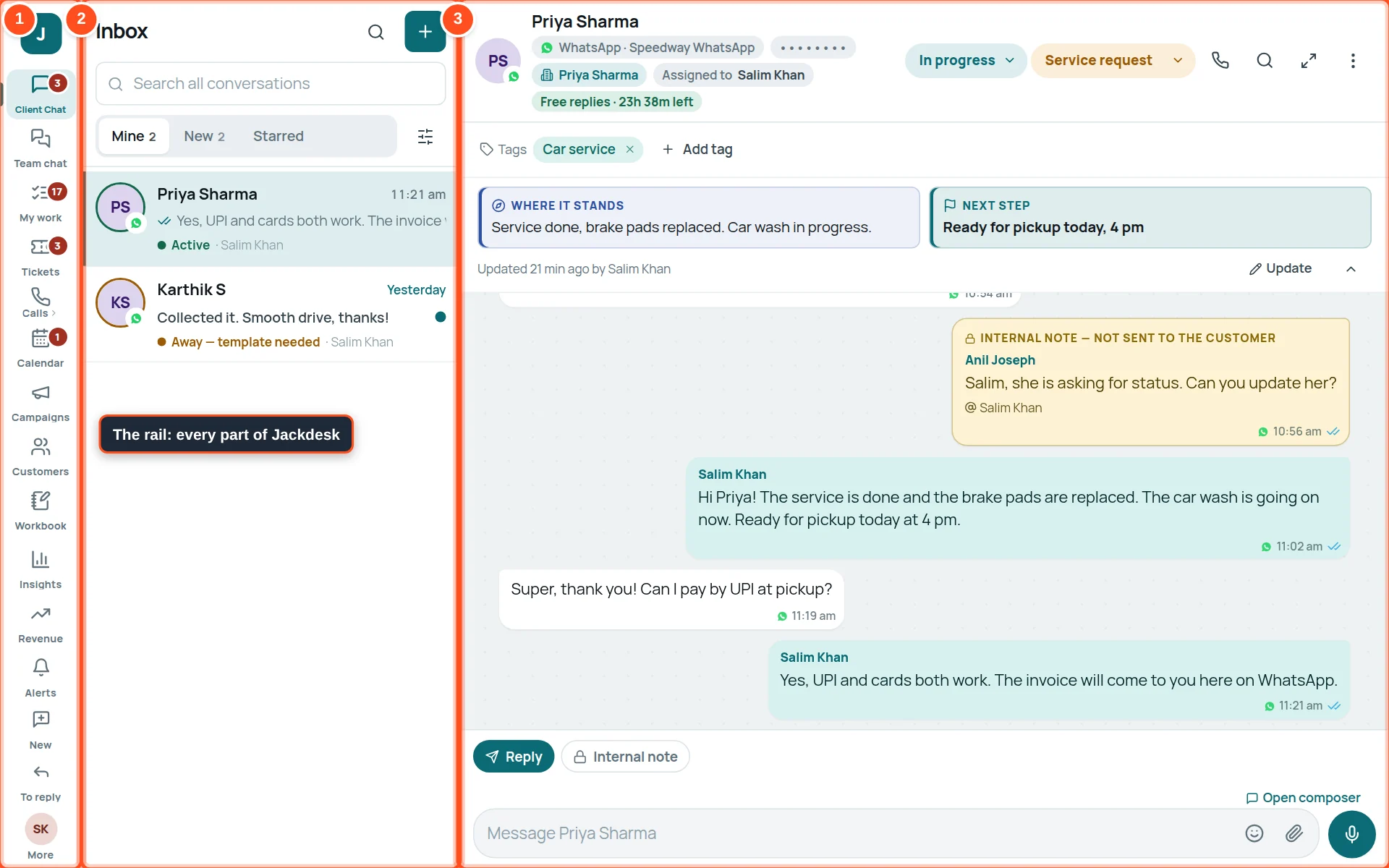
- 1The rail — the icons on the left. Each one opens a part of Jackdesk.
- 2The list — your conversations, newest at the top.
- 3The conversation — the messages of the chat you clicked, with the reply box at the bottom.
What each icon on the rail does

| No. | Icon | What it opens |
|---|---|---|
| 1 | Client Chat | Customer messages from every channel. |
| 2 | Team chat | Messages between colleagues (not customers). |
| 3 | My work | What is waiting on you, your to-dos, notes and pins. |
| 4 | Tickets | Jobs with an owner and a due date. |
| 5 | Calls | WhatsApp calls with customers. |
| 6 | Calendar | Appointments, meetings, to-dos and holidays. |
| 7 | Campaigns | Messages to many customers at once. |
| 8 | Customers | Your customers, their contacts and groups. |
| 9 | Workbook | Opens Workbook in a new tab (if your company uses it). |
| 10 | Insights | Reports: how fast the team answers, and more. |
| 11 | Revenue | Sales funnel and customer value. |
| 12 | Alerts | A channel has a problem (for example a mailbox disconnected). |
| 13 | New | Messages that came in while you were on another screen. |
| 14 | To reply | Customers waiting for your answer. |
| 15 | More | Your name, light or dark screen, templates, and Sign out. |
Your name, light or dark screen, and signing out
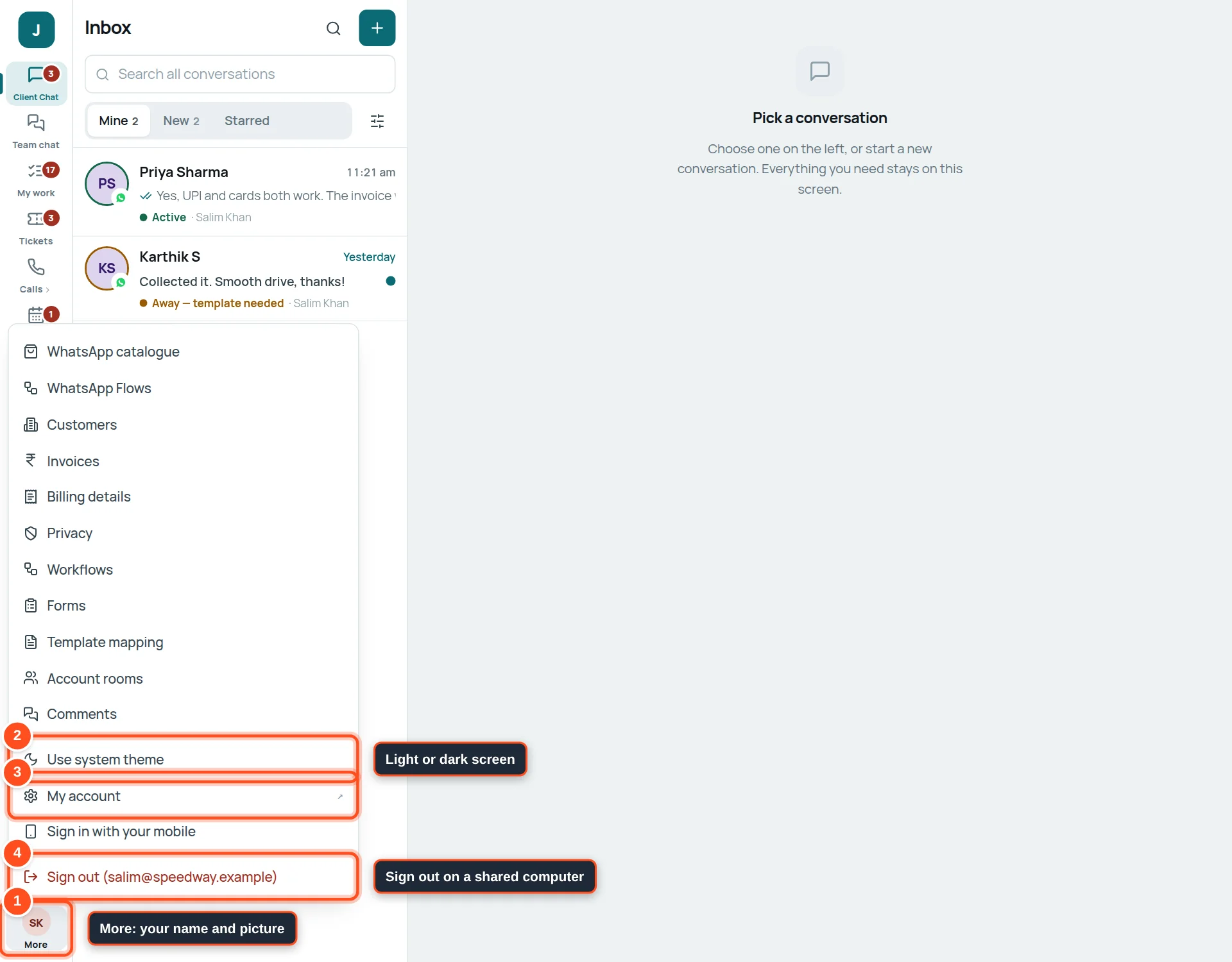
- 1Click your initials at the bottom of the rail to open the menu.
- 2Dark theme / Light theme — choose what is easier on your eyes.
- 3My account (staff) or Settings & admin (owner).
- 4Sign out — always sign out on a shared or office computer.
Client Chat: your conversations
Every message from every channel lands in one list. You do not need to open WhatsApp or Gmail separately.
The list
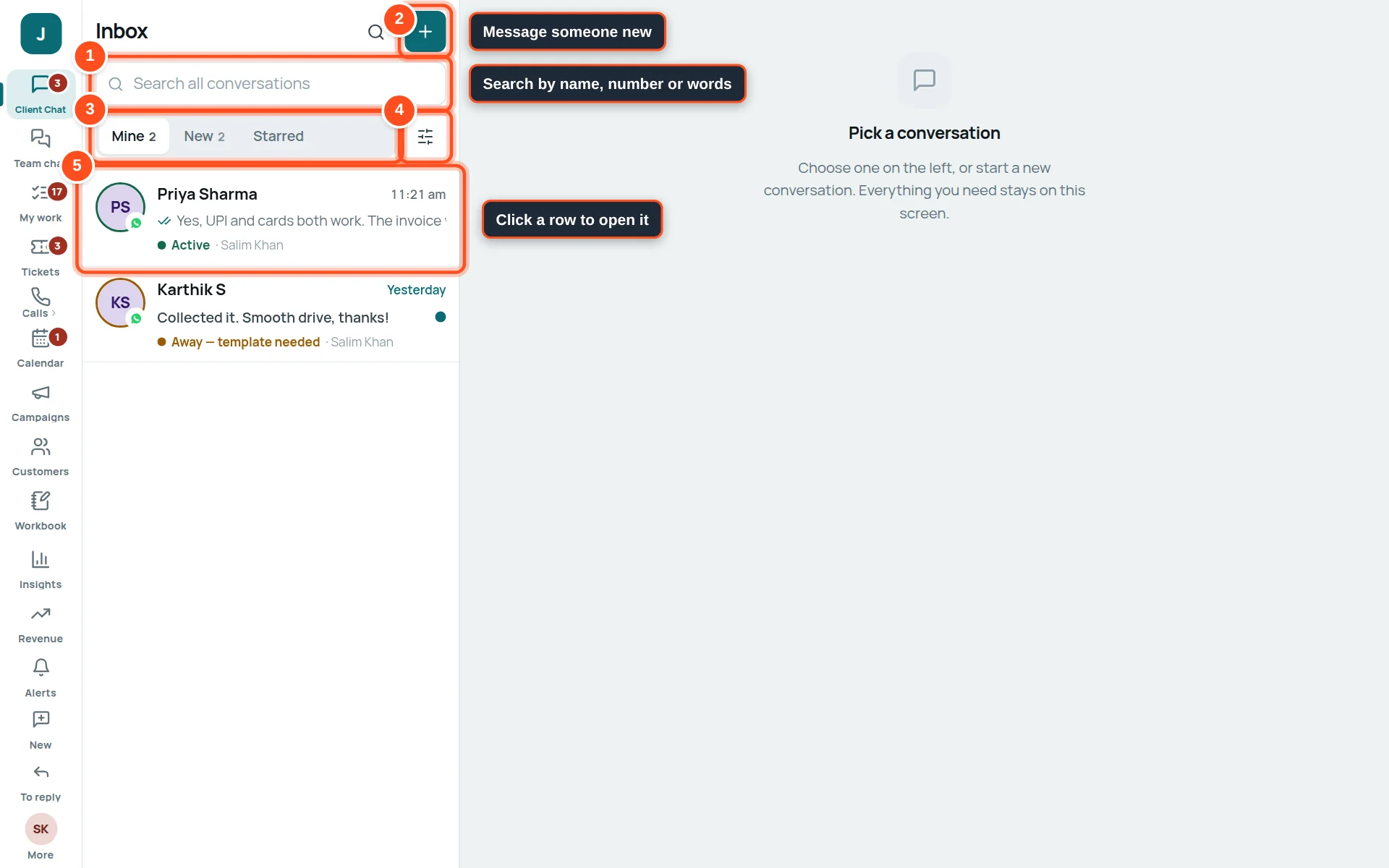
- 1Search — type a name, a phone number or any word from a message.
- 2+ — start a new chat with a customer.
- 3Mine = chats given to you. New = nobody has taken them yet. Starred = chats you starred. The small number is how many.
- 4All filters — more lists (Open, Closed) and “show only one channel”.
- 5Click a row to open the chat. A coloured dot means the customer is waiting for an answer.
Show only one channel
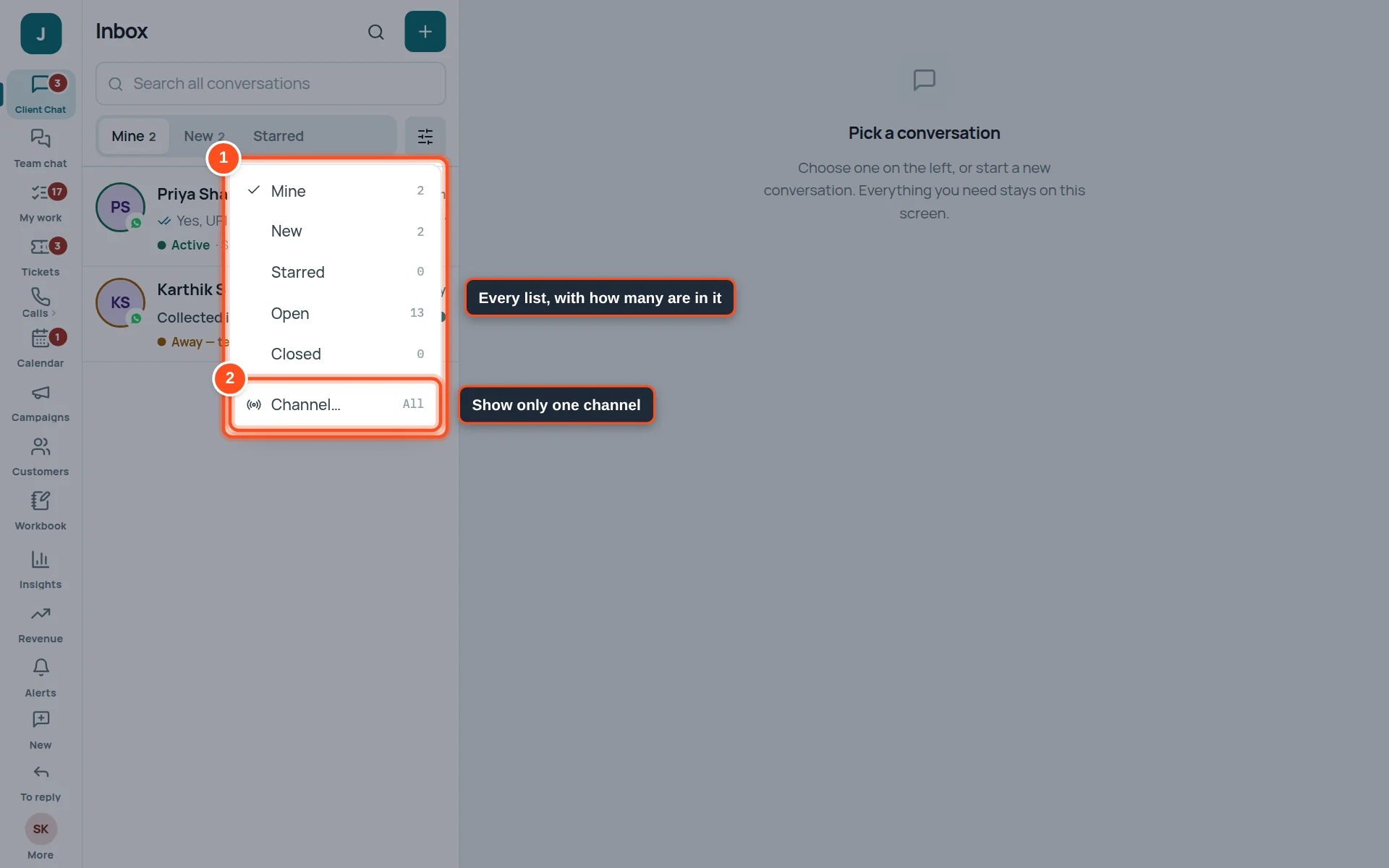
- 1Every list with how many chats are in it.
- 2Channel… opens the channel picker.
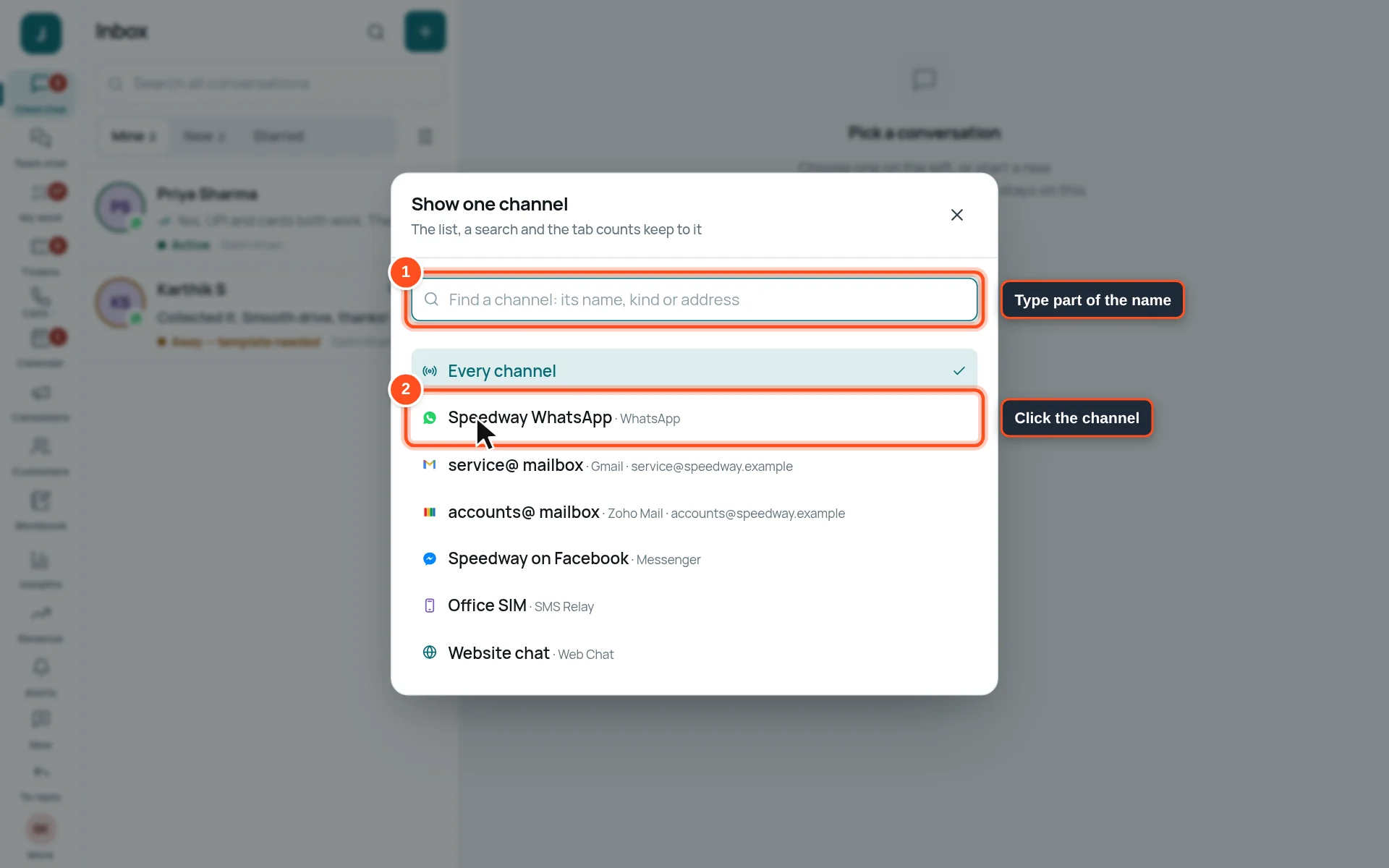
- 1Type part of its name (for example “mail”).
- 2Click the channel. The list now shows only its chats; press × on the “Only …” line to see every channel again.
The top of an open conversation

- 1The channel it came on (here: WhatsApp, on the company number).
- 2The customer this chat belongs to. Click it to open their customer page.
- 3Who must answer it (Assigned to).
- 4Free replies — time left to reply freely on WhatsApp (see “The 24-hour rule”).
- 5Status: New, In progress, Waiting, Resolved. Click to change it.
- 6Funnel stage: where the customer is (New lead, Quote sent, Won, Service request…). Click to change it.
- 7Call the customer on WhatsApp.
- 8Search inside this chat.
- 9Make the chat fill the screen.
- 10⋮ — more actions: assign, ticket, contact details, close, block.
| Status | Use it when |
|---|---|
| New | Nobody has started on it. |
| In progress | You are working on it. |
| Waiting | You are waiting for the customer or someone else. You will be asked what for, and when to chase. |
| Resolved | The work is done. (To end the chat itself, use Close — see below.) |
Funnel stages: New leadLead contactedSales enquiryQuote sentWonLostService requestService doneExisting customer
Replying to customers
Type, attach, send. Jackdesk sends it on the same channel the customer used.
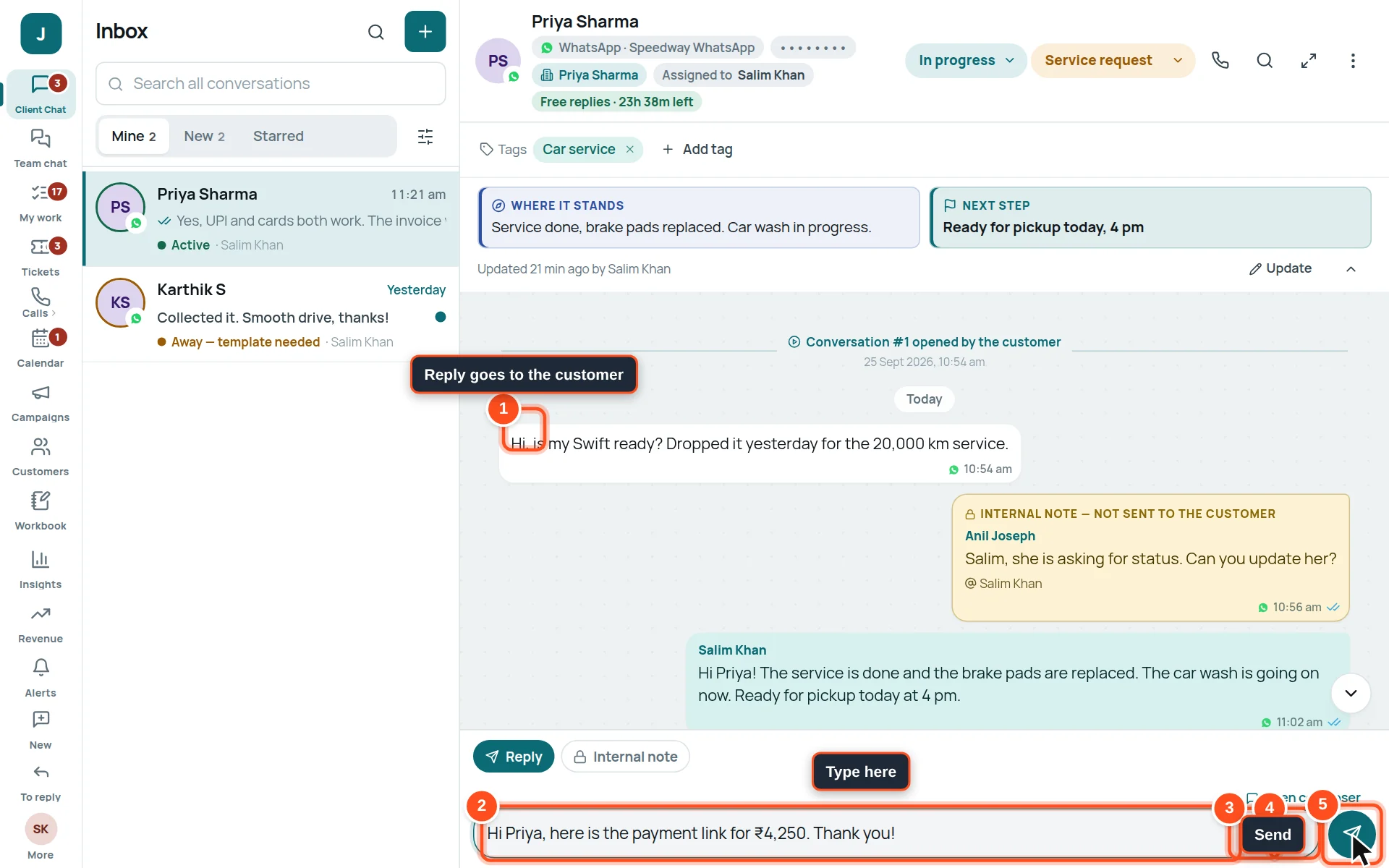
- 1Reply is selected: what you type goes to the customer.
- 2Type your message here. Press Shift + Enter for a new line.
- 3Add an emoji.
- 4Attach a photo, a document, a template or a saved reply.
- 5Send. (When the box is empty, this button records a voice note instead.)
- Open the chat from the list.
- Make sure Reply (not Internal note) is selected.
- Type your message.
- Press Enter or the send button.
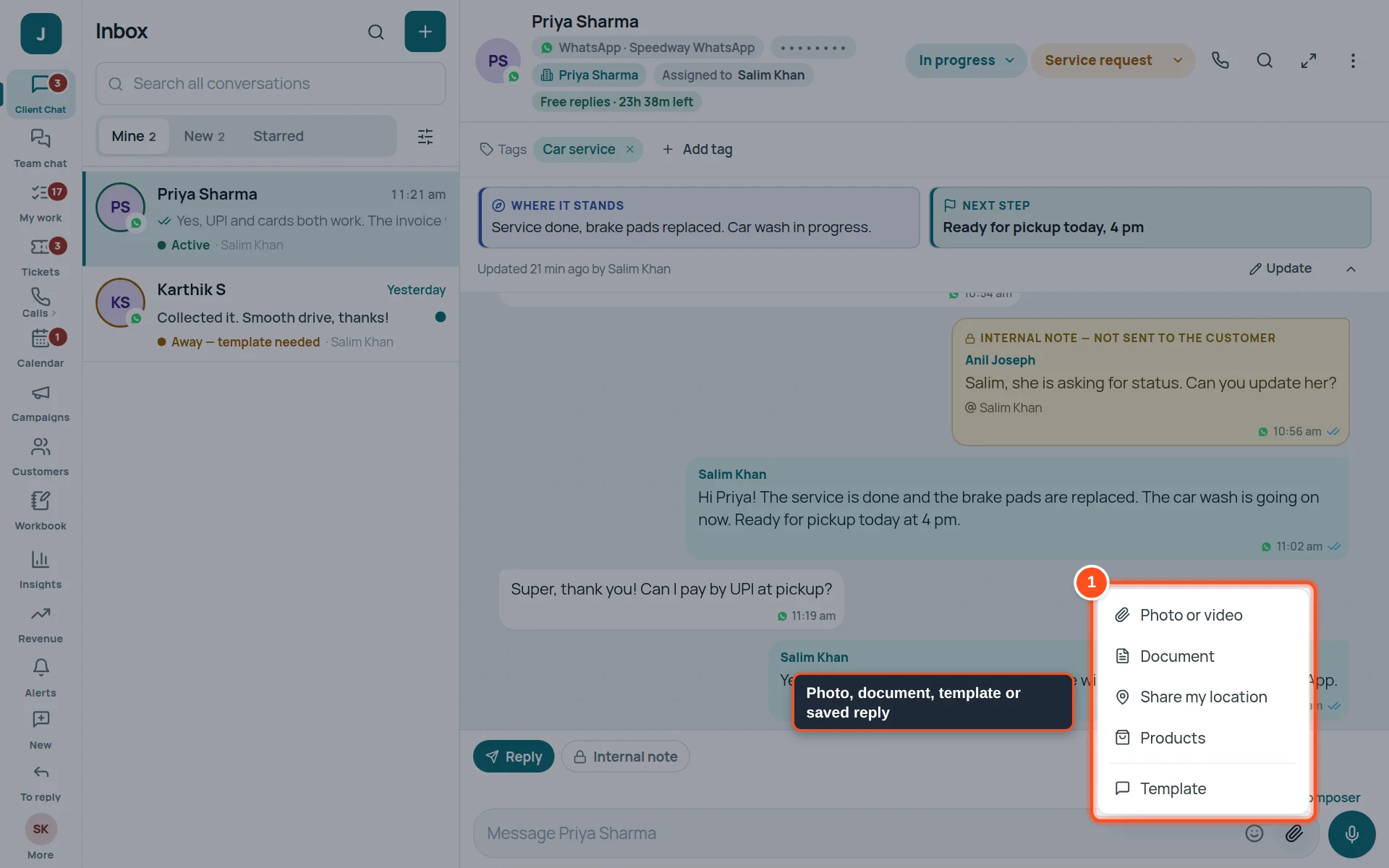
- 1Photo or video, Document, Template (WhatsApp) or Saved reply (other channels), and Products where your WhatsApp catalogue is on.
Did my message reach them?
| You see | It means |
|---|---|
| A clock | Still sending. |
| One tick ✓ | Sent. |
| Two ticks ✓✓ | Delivered to their phone. |
| Two coloured ticks | Read by the customer. |
| A red mark | Failed. Open the message menu and press Try sending again. |
Things you can do with one message
Move the mouse over a message and open its small menu. You can Reply to that message, Forward it, Share to Team chat, React with an emoji, Create a ticket from this, Copy text, Pin to My work or Add a to-do.
Replying to an email
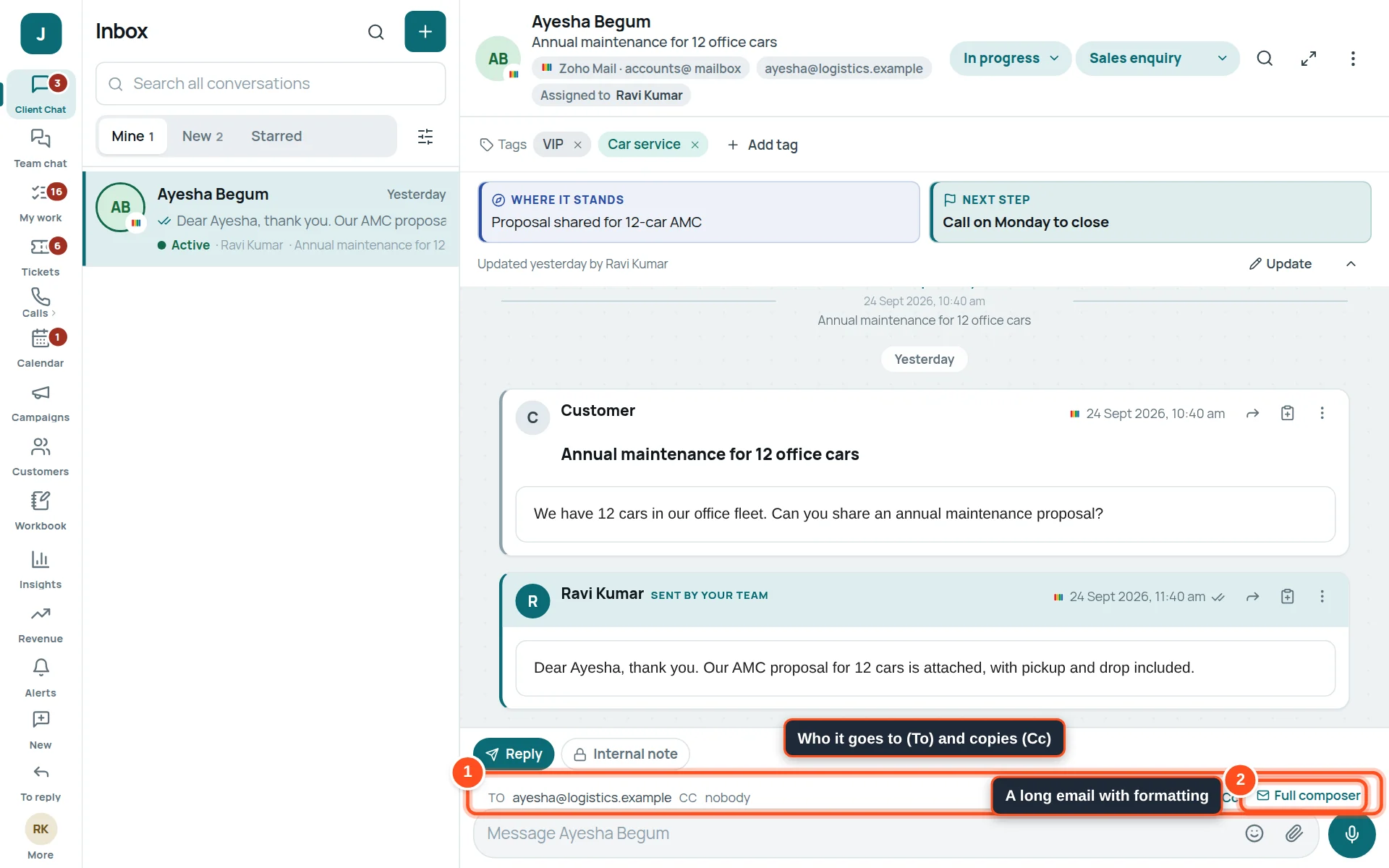
- 1To and Cc: who gets your reply. Press Edit Cc to add or remove people.
- 2Full composer: a bigger window for a long email with formatting.
The WhatsApp 24-hour rule (when it says “Template needed”)
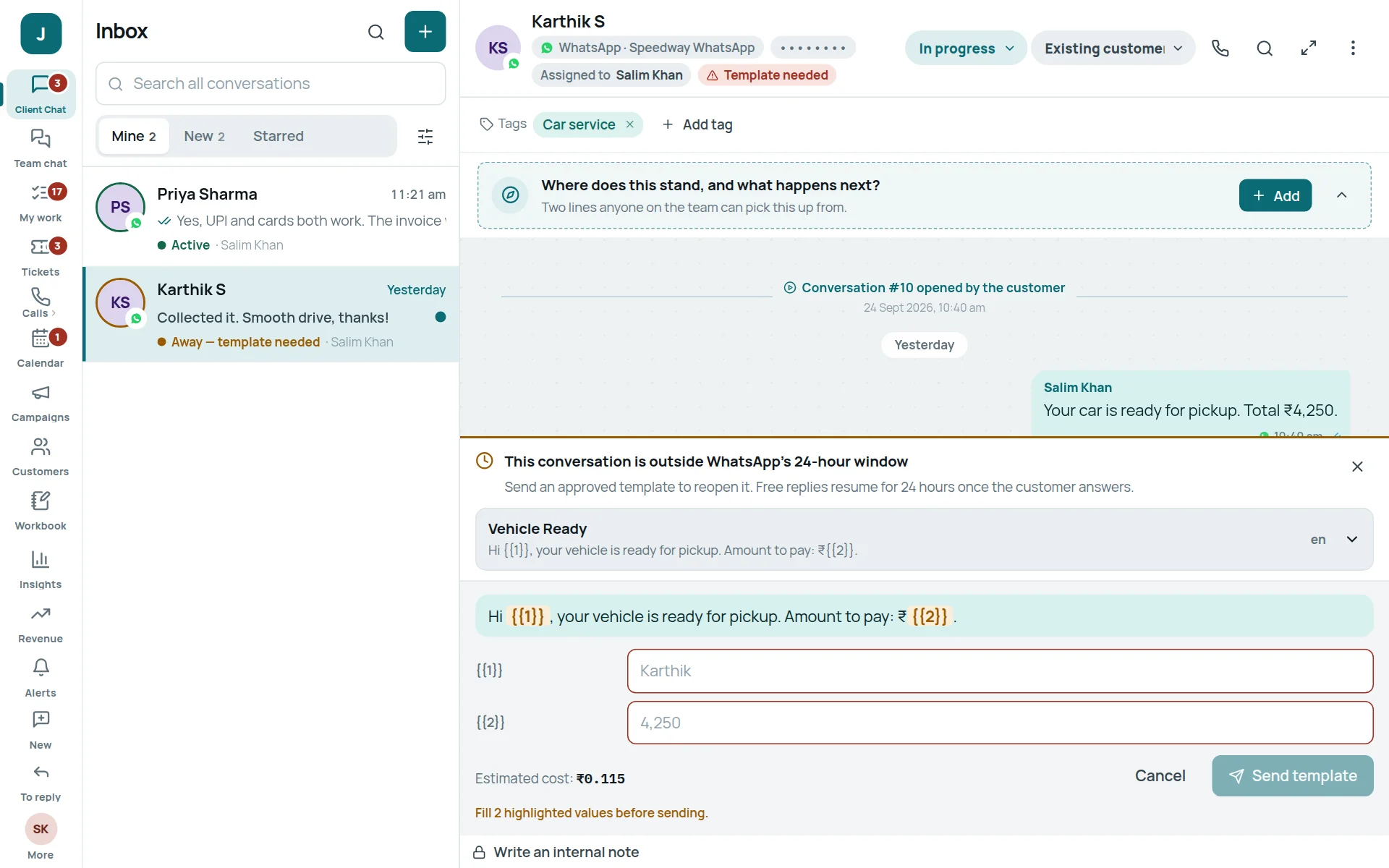
WhatsApp lets a business reply freely only for 24 hours after the customer’s last message. After that, you may send only a template — a message WhatsApp approved in advance. When the customer answers, the 24 hours start again.
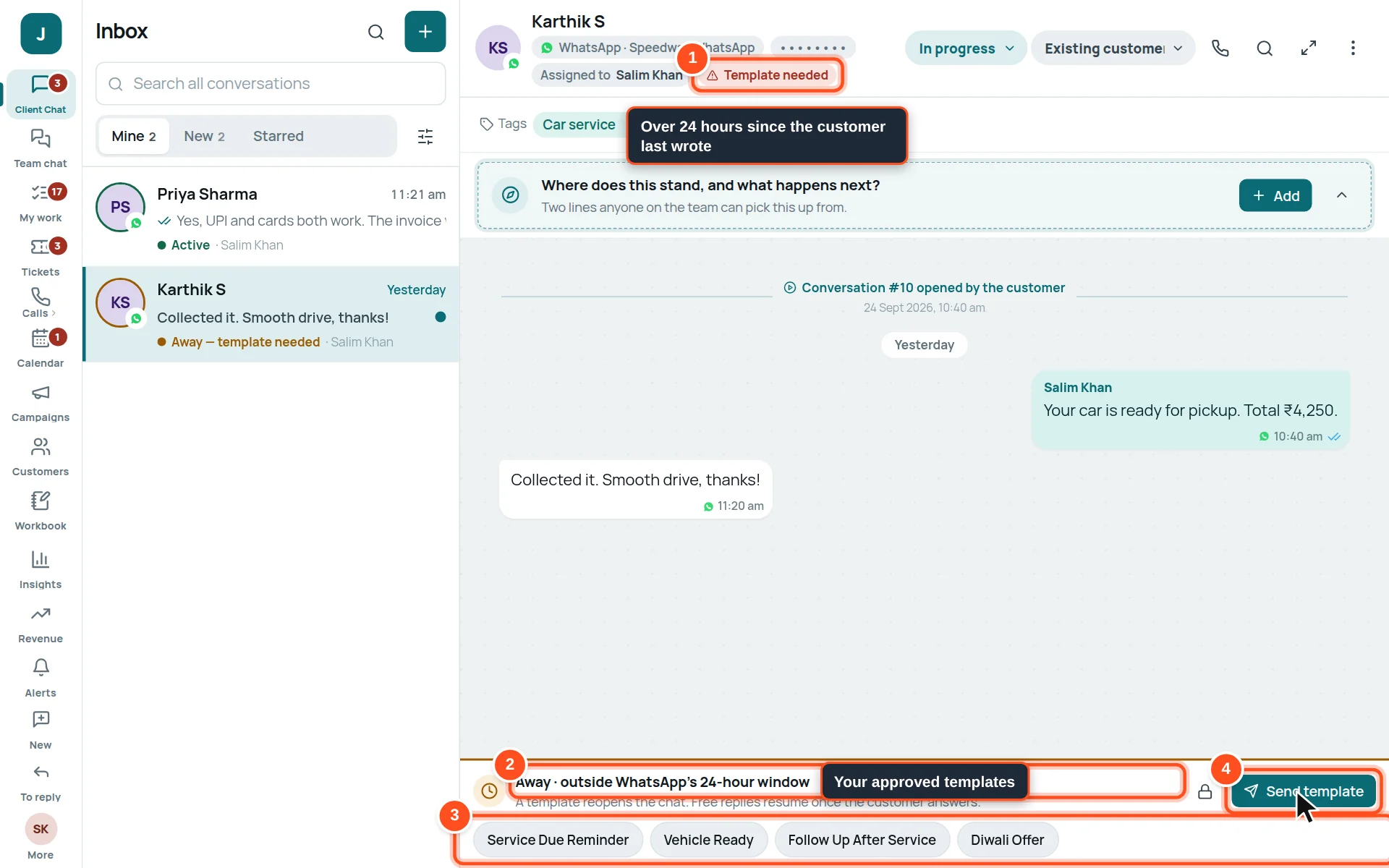
- 1Template needed — more than 24 hours since the customer last wrote.
- 2The reply box is replaced by this bar.
- 3Your company’s approved templates. Click one to fill it in.
- 4Press Send template.
Working together inside a chat
Notes for colleagues, handing a chat over, and keeping everyone up to date — all without the customer seeing.
Write an internal note and call a colleague (@mention)
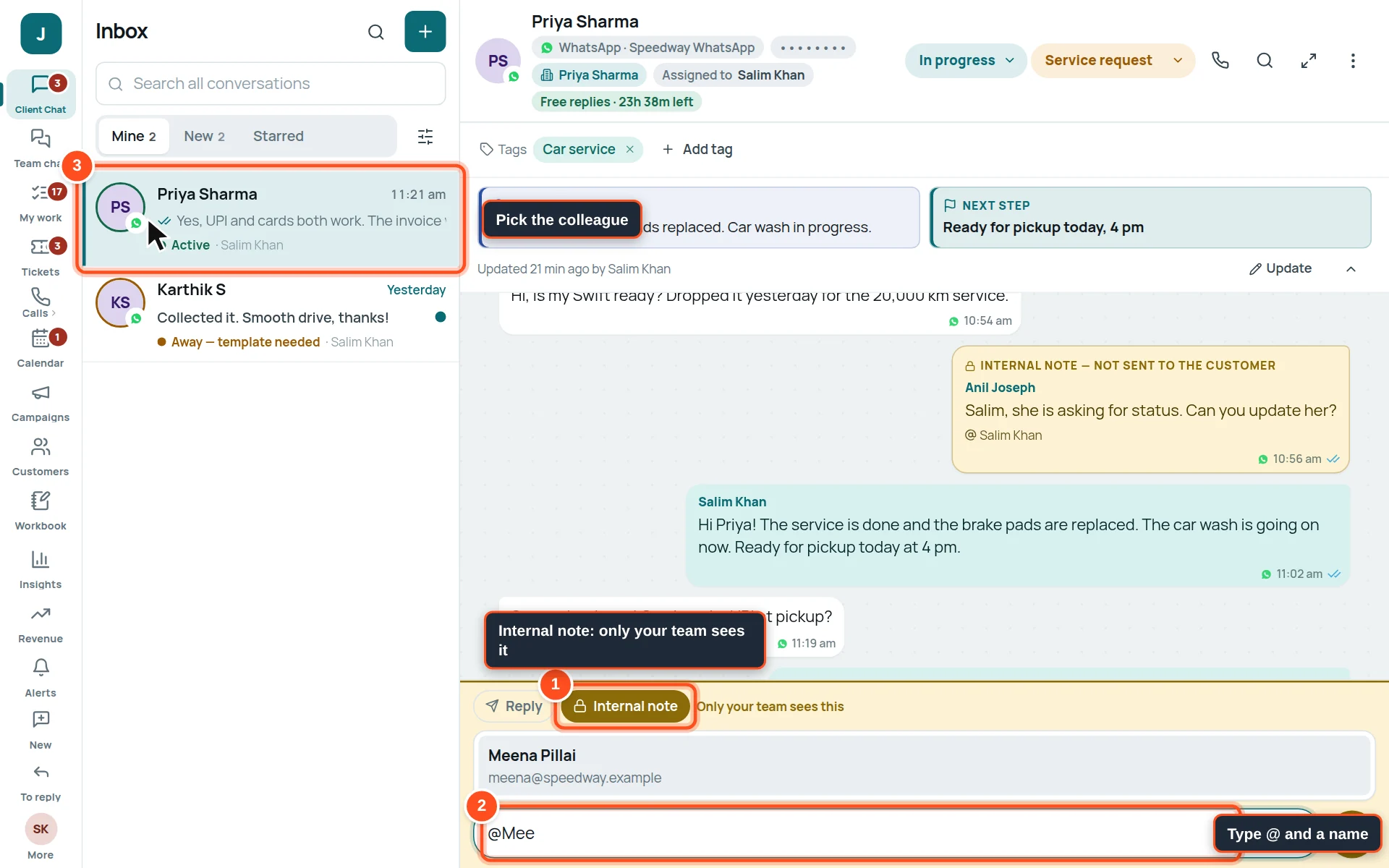
- 1Click Internal note. The box turns yellow: only your team sees this.
- 2Type @ and the first letters of a colleague’s name.
- 3Click their name. They get an alert and the chat shows up for them.
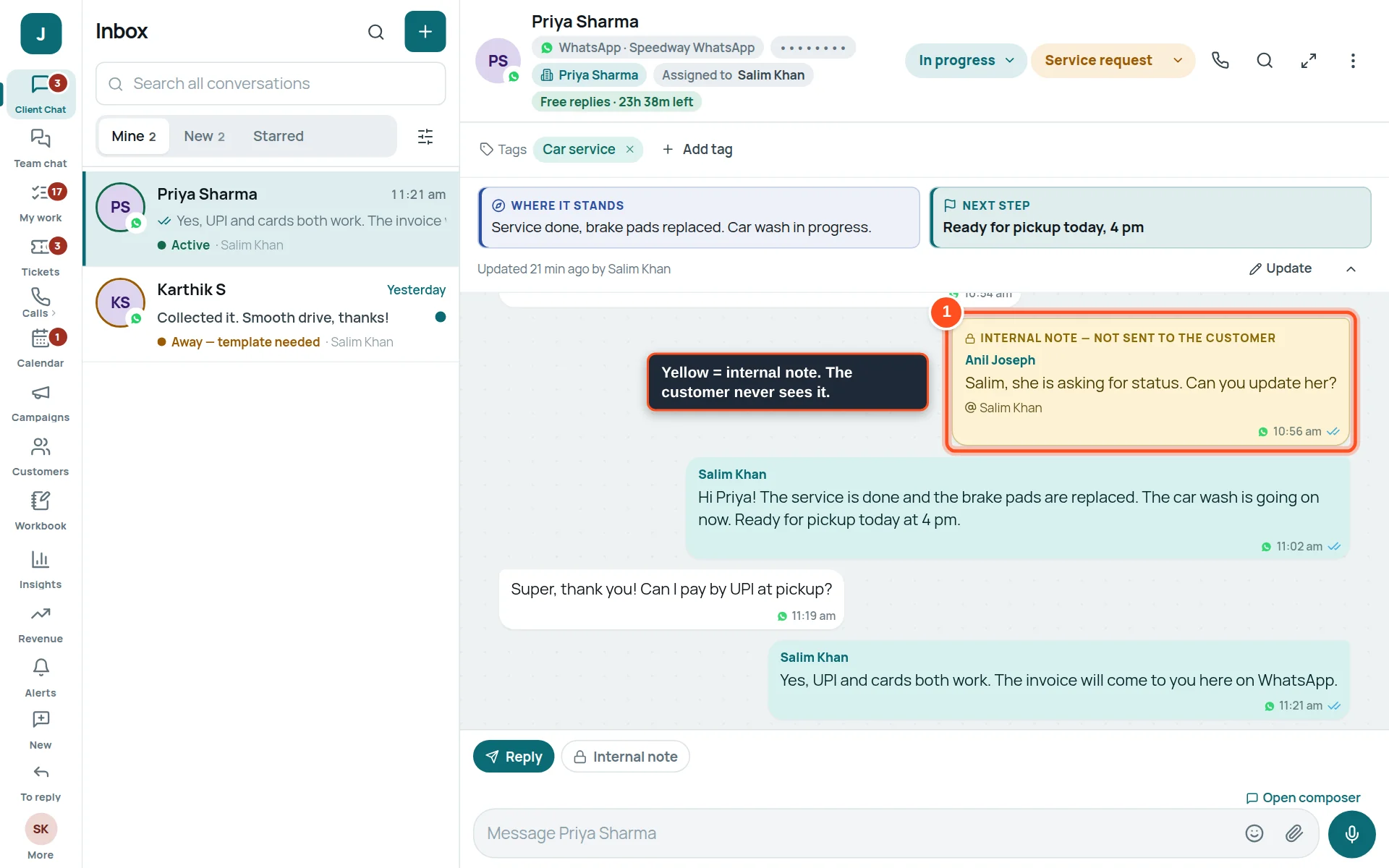
- 1Yellow messages are internal notes. They are never sent to the customer.
Give a chat to someone else (assign)
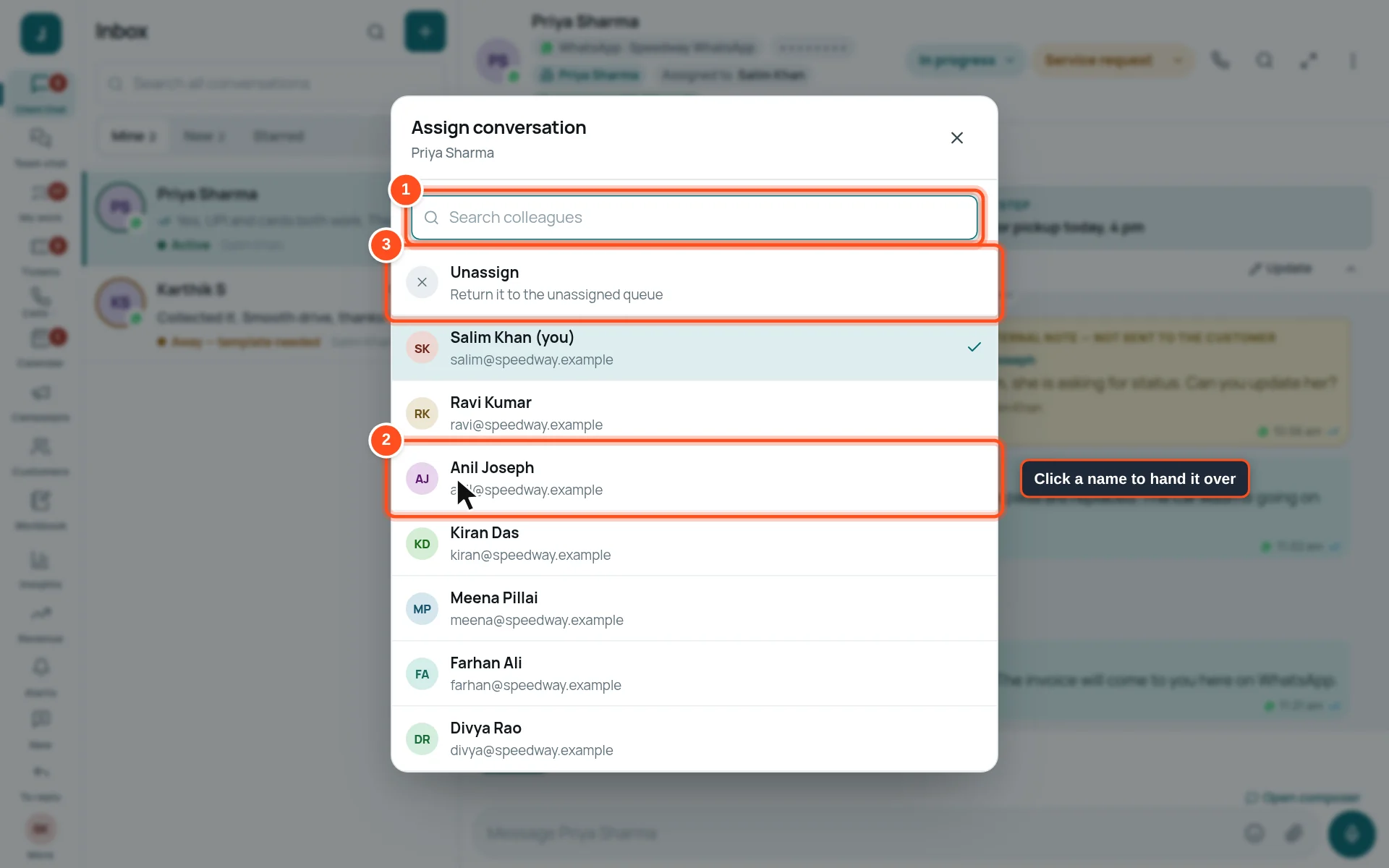
- 1Search for a colleague.
- 2Click their name: the chat is now theirs, and they are told.
- 3Unassign puts it back in the New list for anyone to pick up.
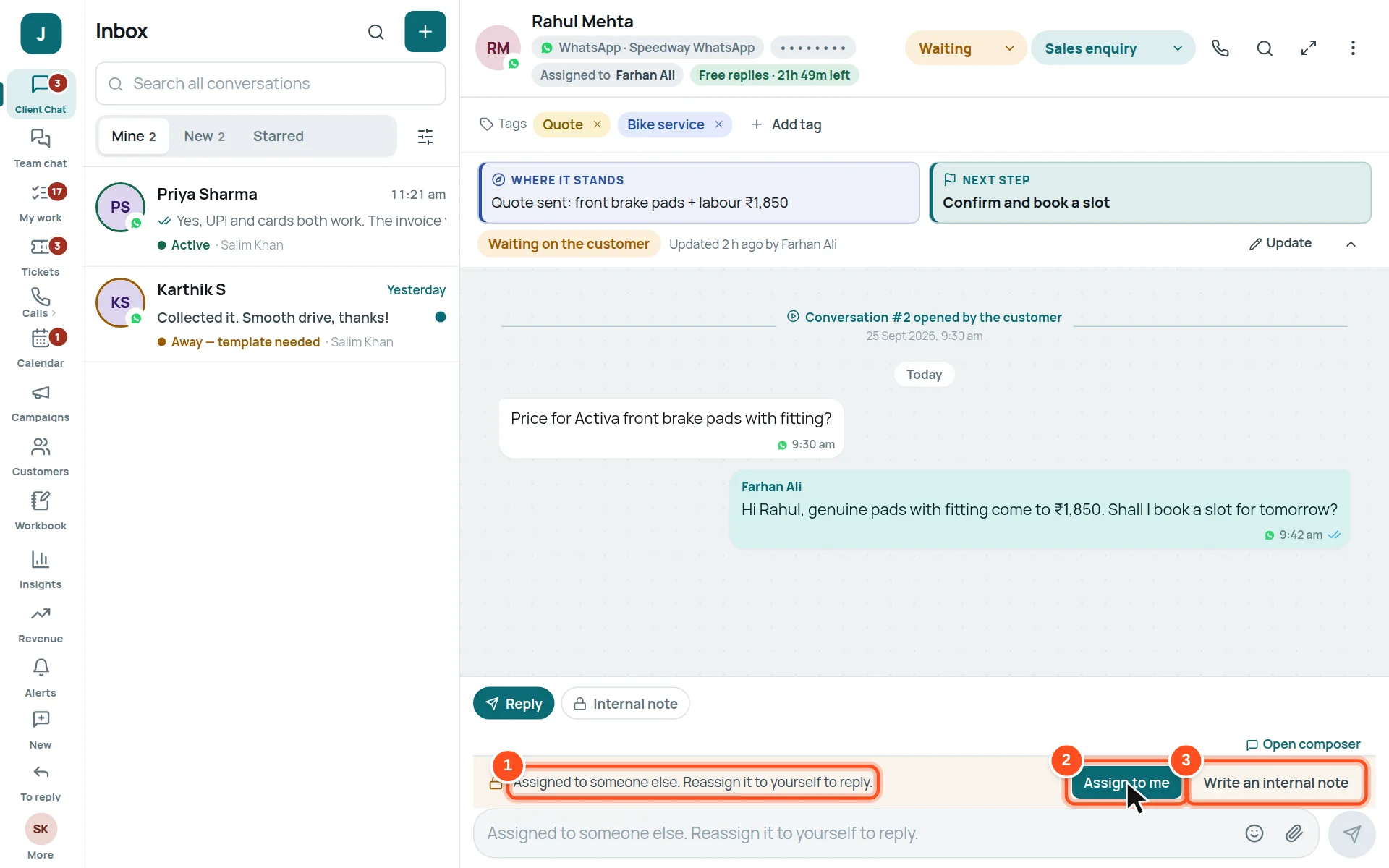
- 1You cannot reply to a chat assigned to a colleague (so two people never answer one customer).
- 2Assign to me takes it over (your colleague is told).
- 3Or Write an internal note to them instead.
Where it stands and the next step
Two short lines at the top of the chat tell anyone in the team what is happening — so a colleague can take over without reading every message.
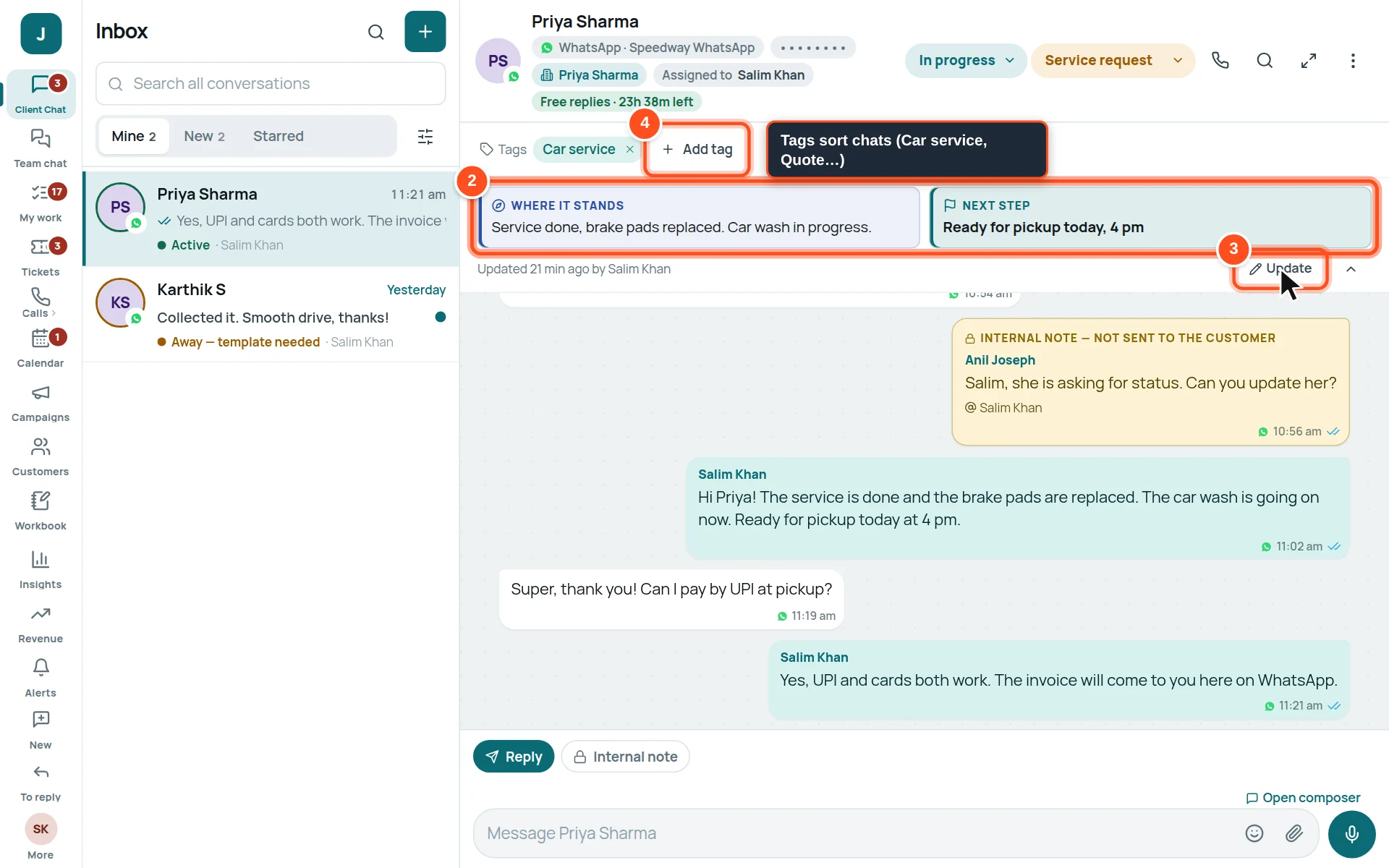
- 1Where it stands — what has happened so far.
- 2Next step — what happens next, and when.
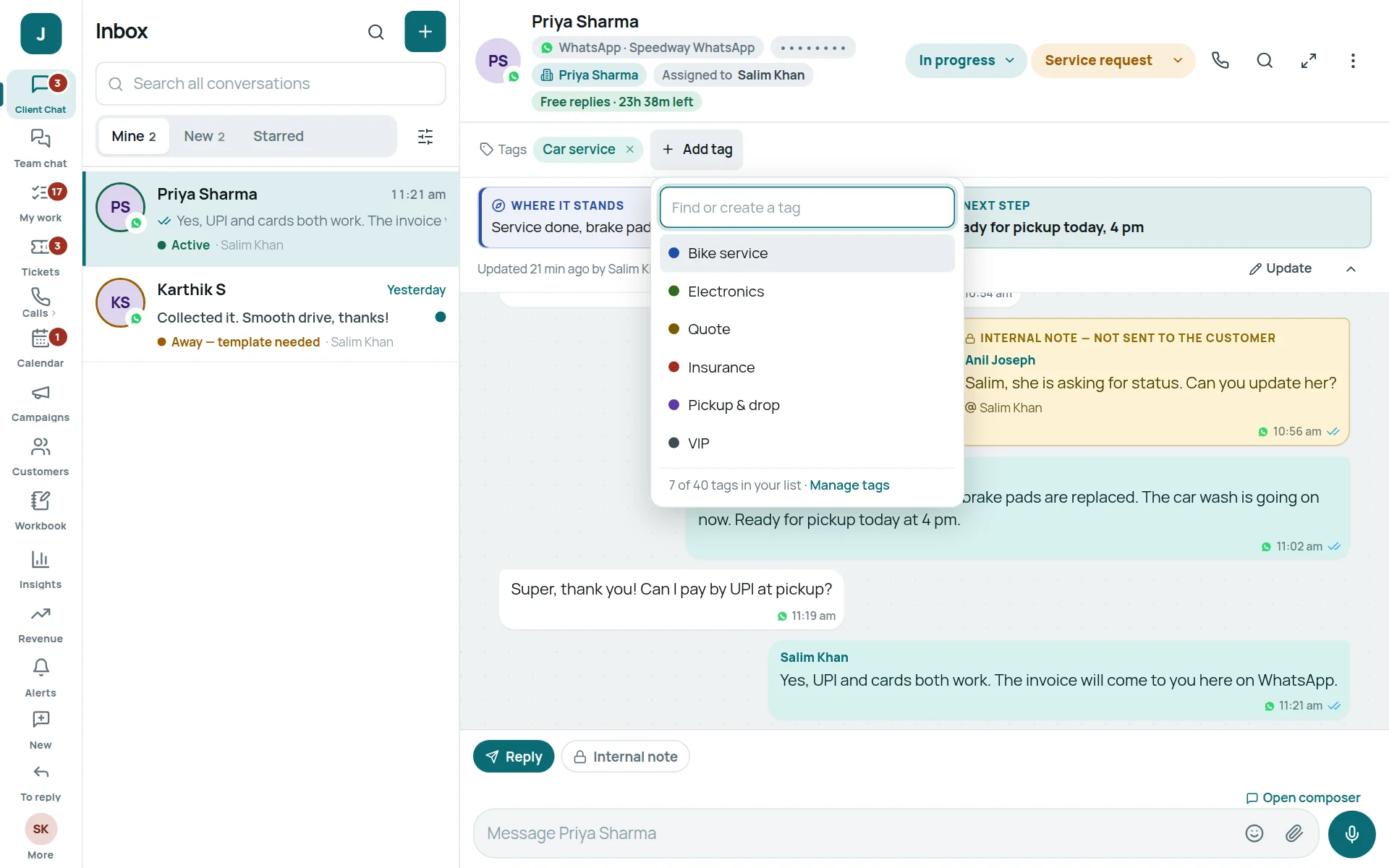
- 3Press Update to change them.
- 4Add tag — put a label such as Car service, Quote or VIP.
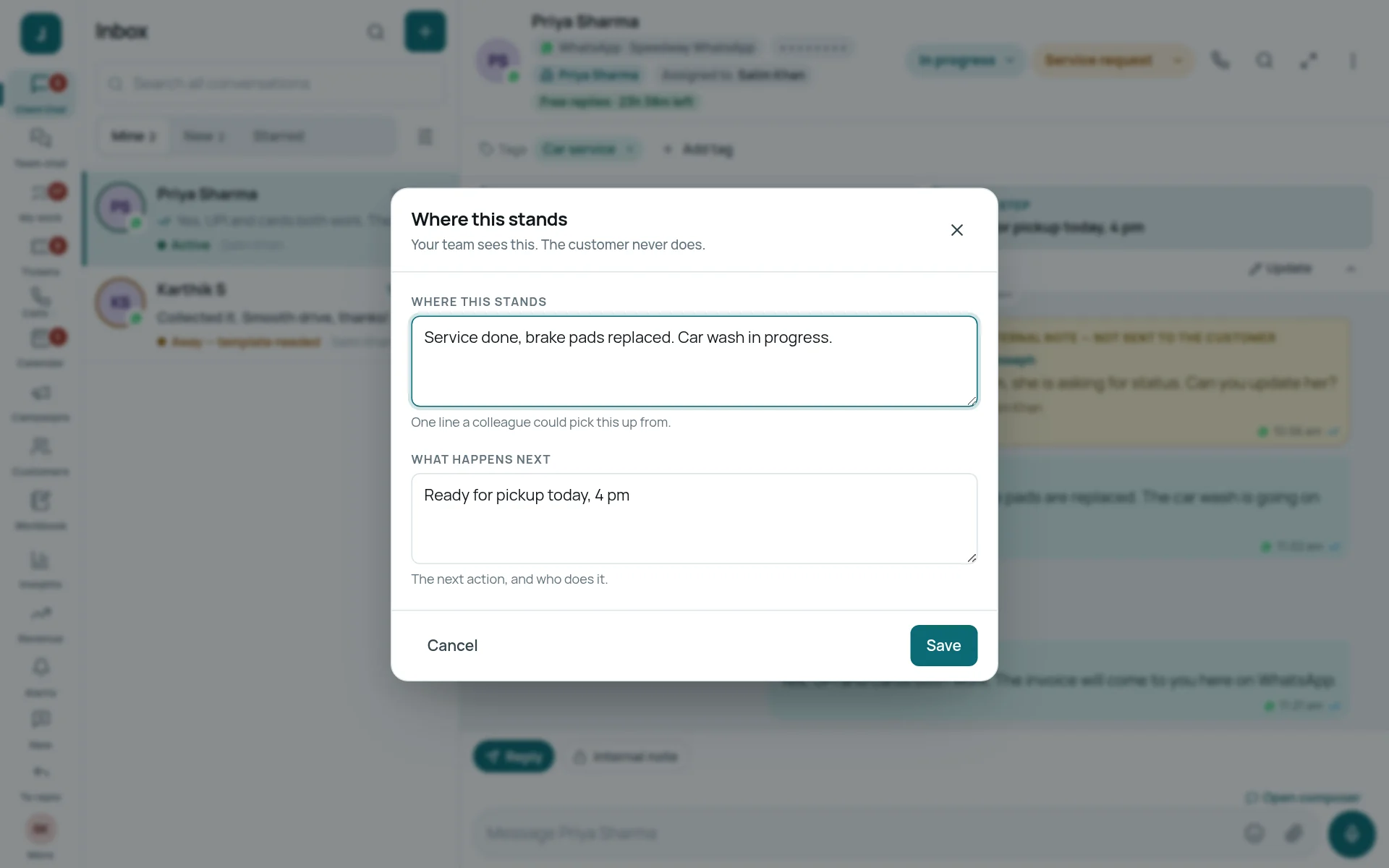
Tags
The ⋮ menu
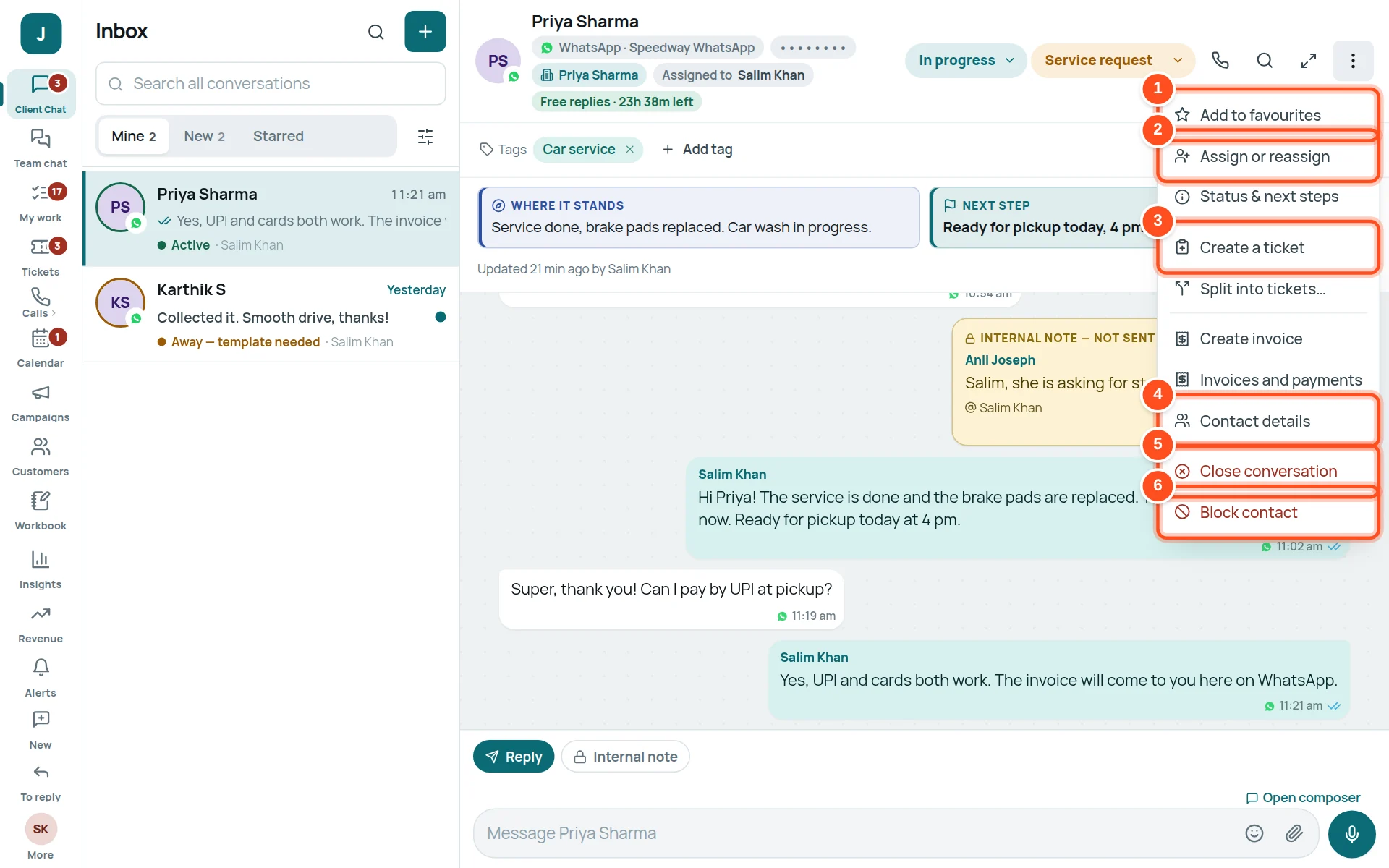
- 1Add to favourites — it appears under Starred.
- 2Assign or reassign — give it to a colleague.
- 3Create a ticket — turn it into a job with an owner and due date (see Tickets).
- 4Contact details — the customer’s name, number, notes and which customer record it belongs to.
- 5Close conversation — when the conversation is finished.
- 6Block contact — for spam or abuse only.
Starting and closing conversations
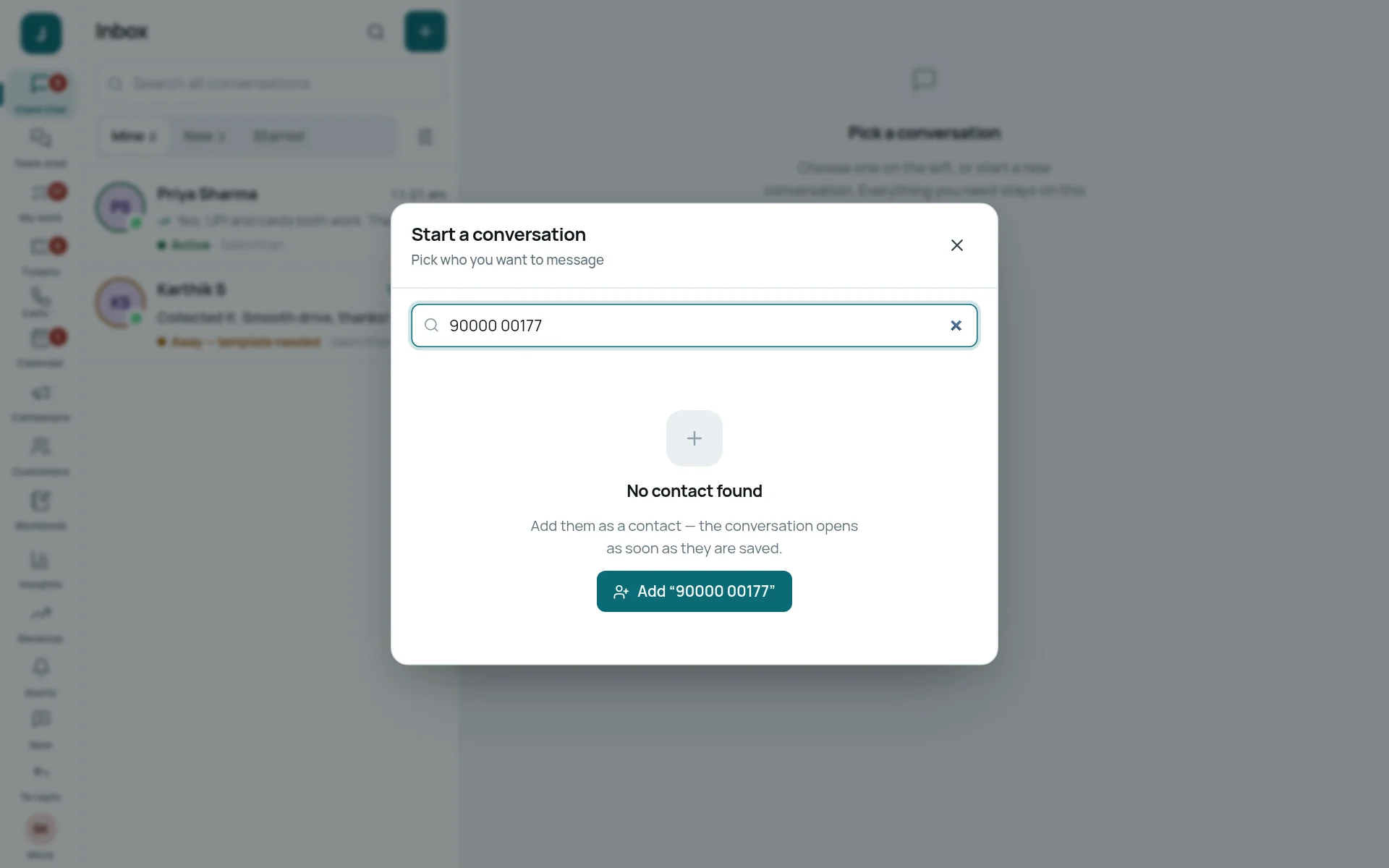
Start a new chat
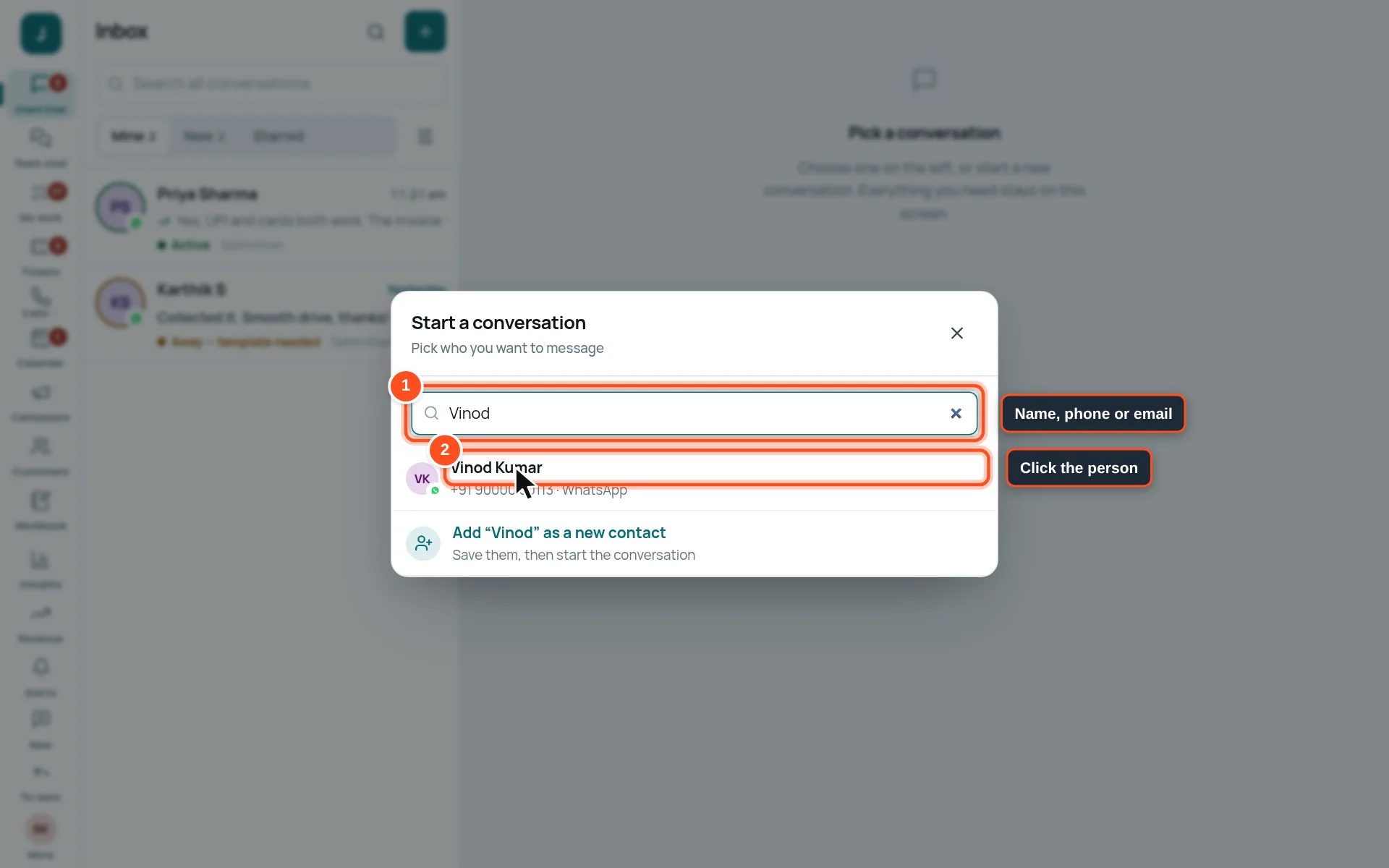
- 1Type the customer’s name, phone number or email.
- 2Click the person. The chat opens; write your message.
Close a conversation
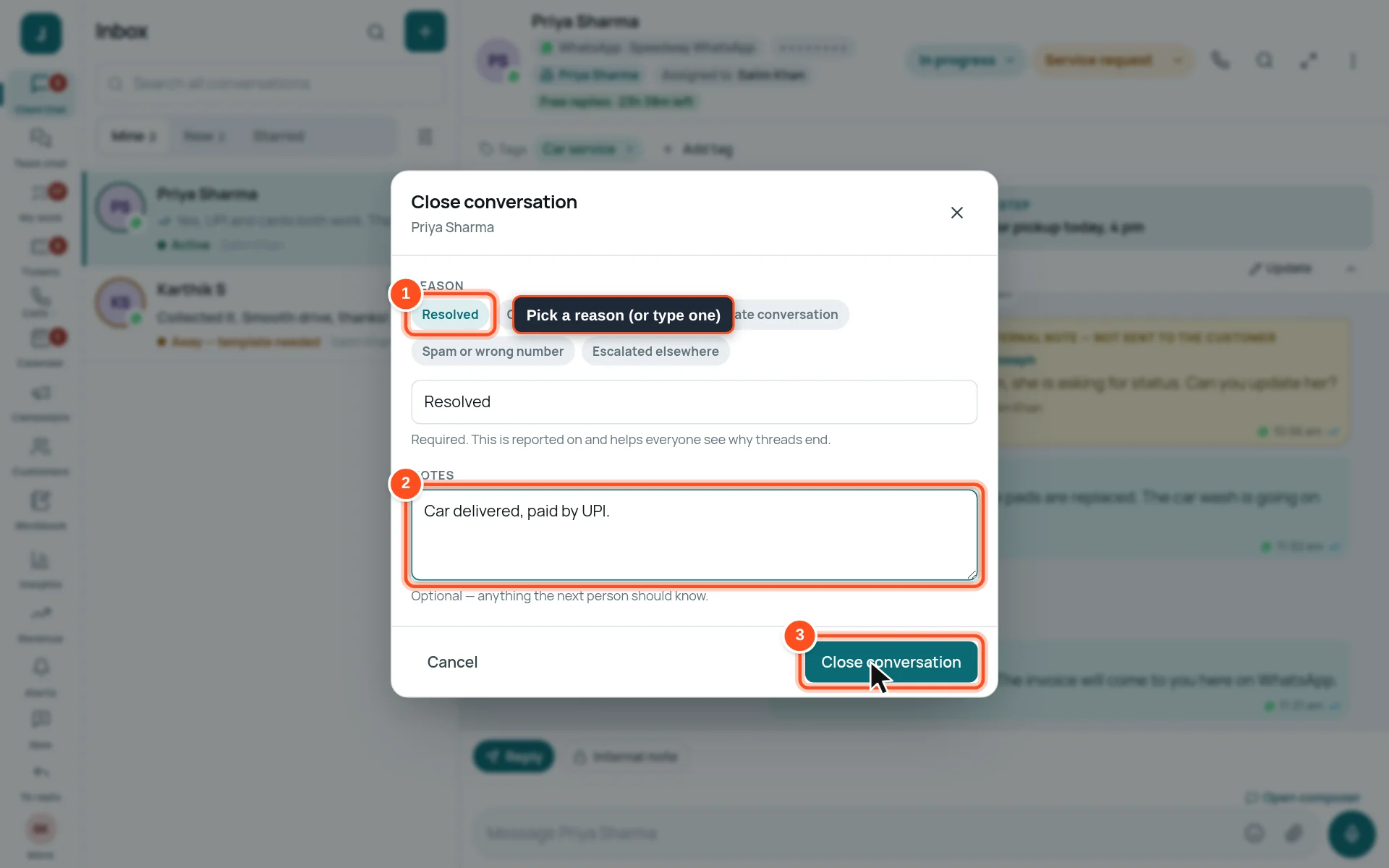
- 1Pick a reason: Resolved, Customer did not respond, Duplicate conversation, Spam or wrong number, Escalated elsewhere — or type your own.
- 2Add a note for the next person (optional).
- 3Press Close conversation.
Contact details
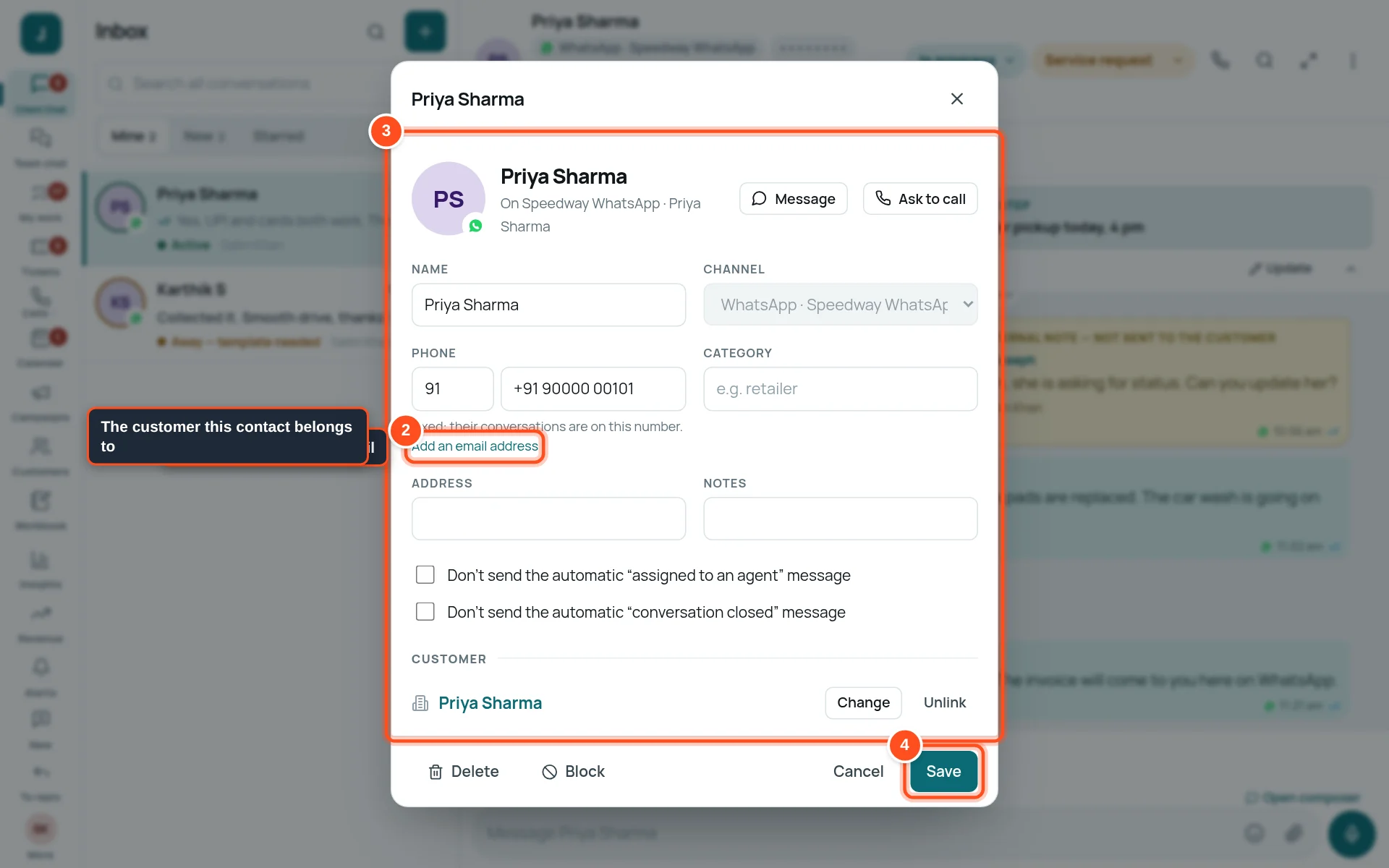
- 1Change the name to what you call them.
- 2Add an email address — when the same person also writes by email.
- 3Customer — the customer record this contact belongs to. Change or Unlink it here (see “Customers and contacts”).
- 4Press Save.
Tickets: jobs that must get done
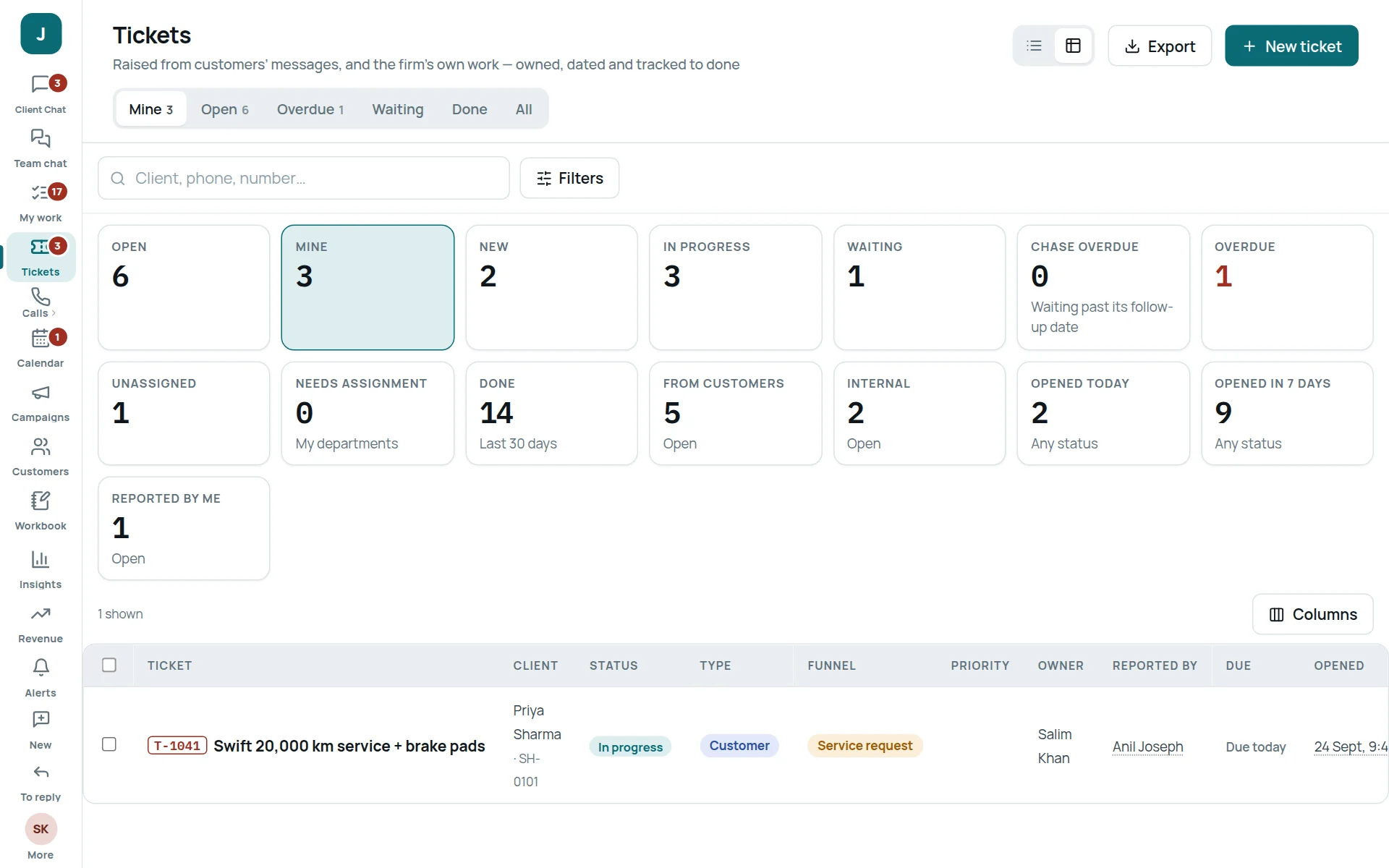
A chat is a conversation. A ticket is a job: it has one owner, a due date and a status, so nothing is forgotten. Customers never see tickets.
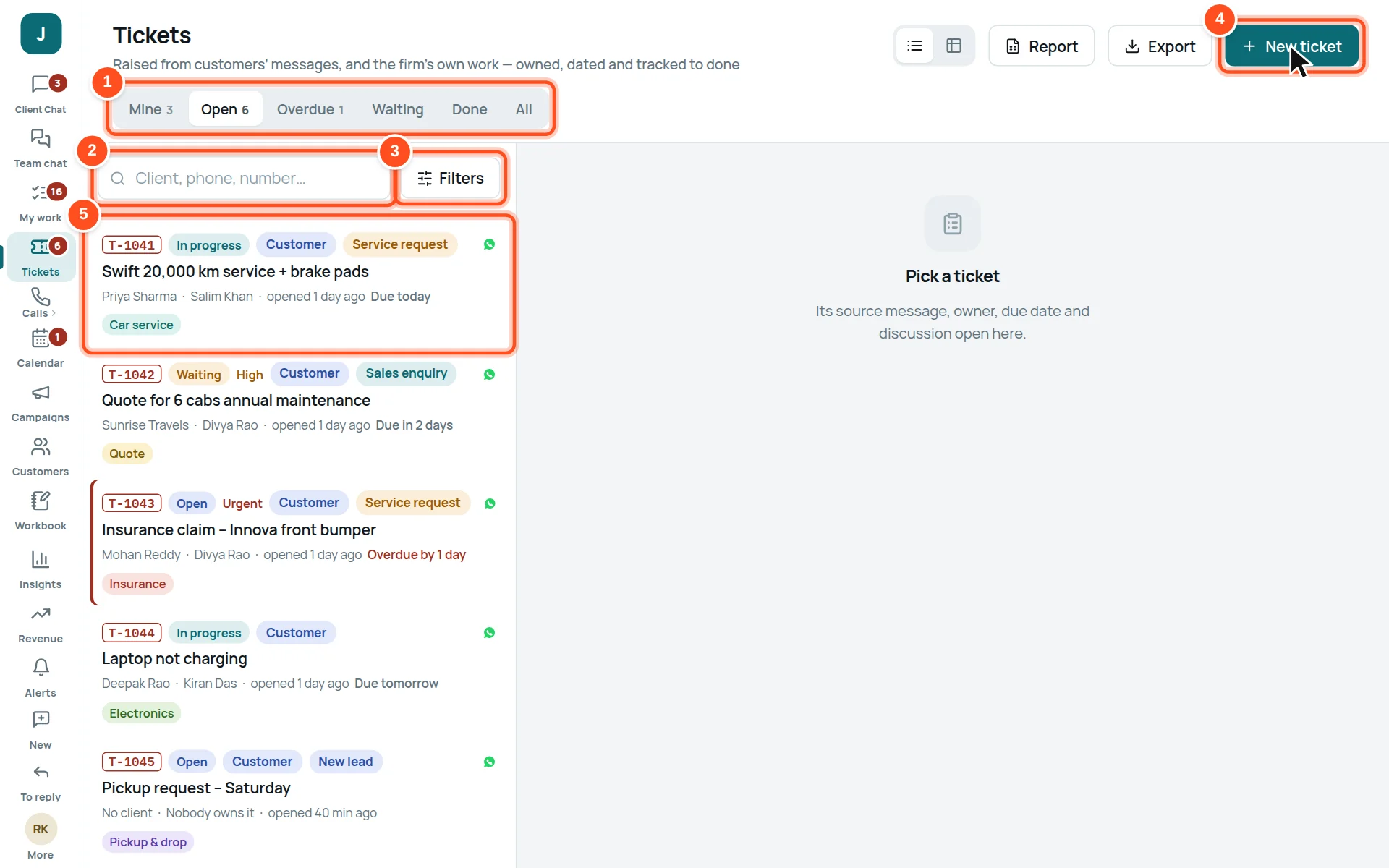
- 1Lists: Mine, Open, Overdue, Waiting, Done, All.
- 2Search by client, phone or ticket number.
- 3Filters — by owner, channel, tag, funnel stage and more.
- 4New ticket — make one by hand.
- 5Each row: number, status, type, title, client, owner and due date. Red text means overdue.
Inside a ticket
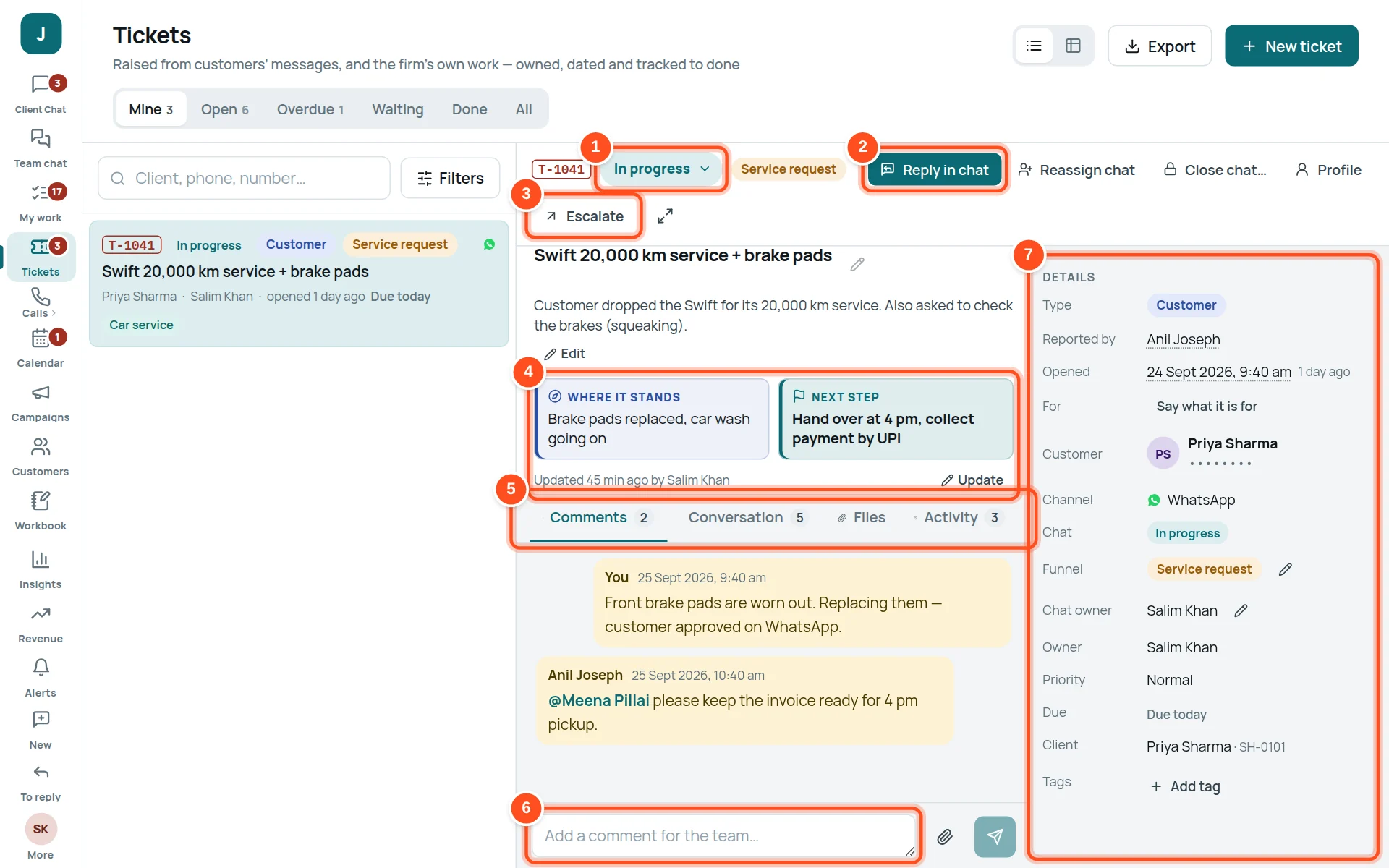
- 1Its status: Open, In progress, Waiting, Resolved, Closed.
- 2Reply in chat jumps to the customer’s conversation (also: Reassign chat, Close chat, Profile).
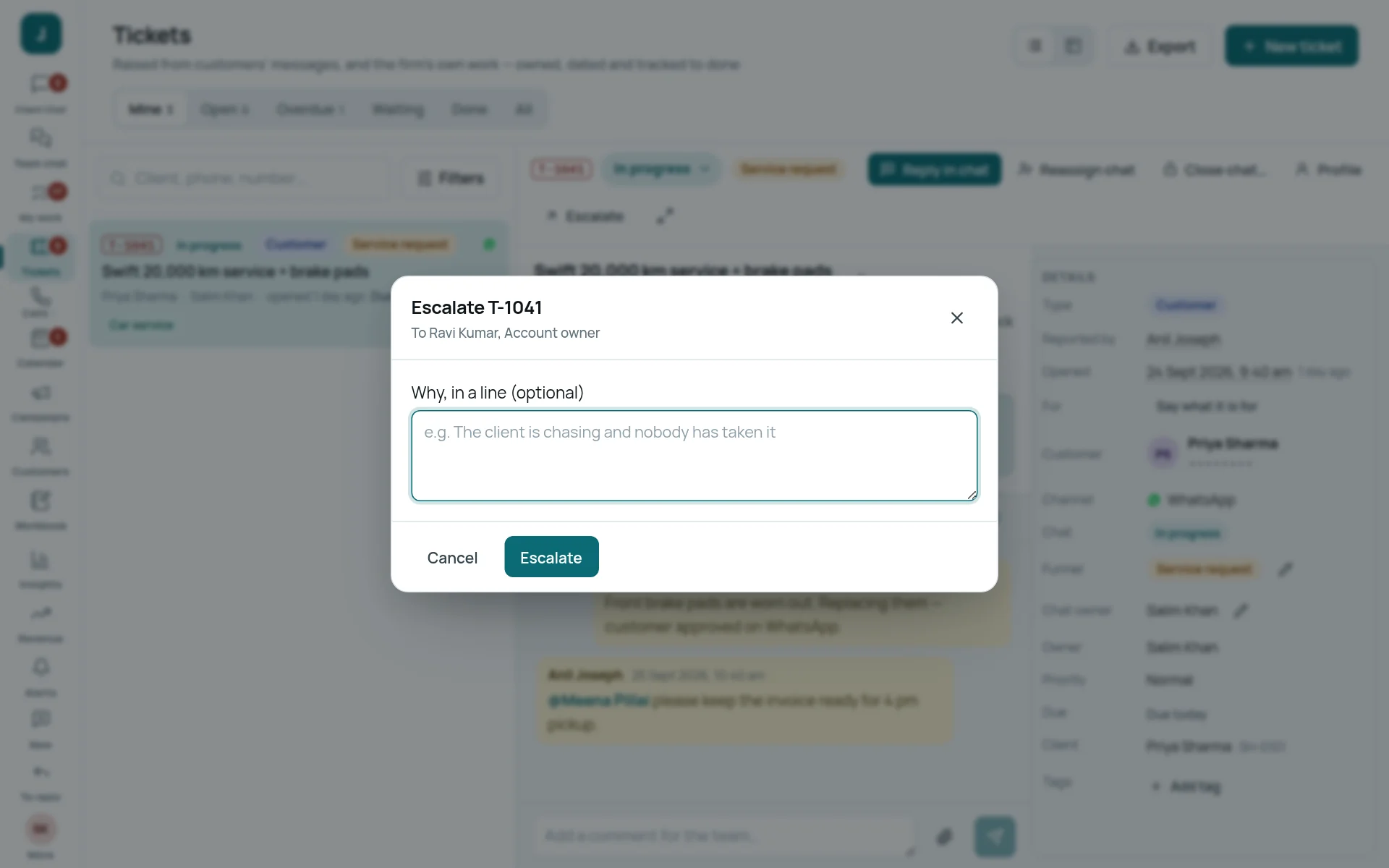
- 3Escalate — pass it one step up (your manager, the department head, or the owner) with a note.
- 4Where it stands and Next step — keep them current.
- 5Tabs: Comments (team talk), Conversation (the customer’s messages), Files, Activity (every change, with who and when).
- 6Write a comment. Type @ to call a colleague.
- 7Details: type, owner, priority, due date, client and tags. Click a value to change it.
Make a ticket
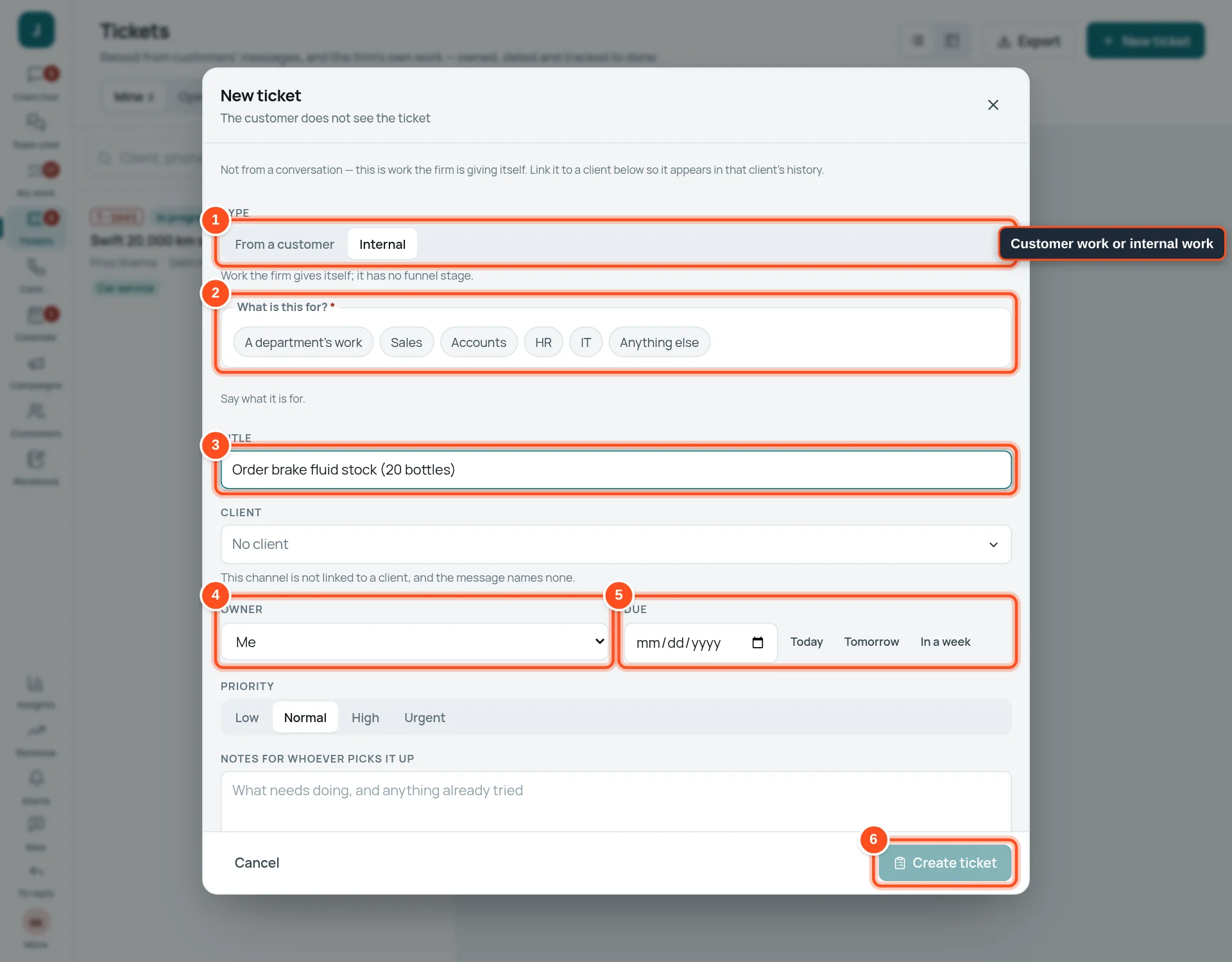
- 1Type: From a customer (work for a customer) or Internal (the company’s own work).
- 2What is this for? A department’s work, Sales, Accounts, HR, IT or Anything else.
- 3A short title, for example “Order brake fluid stock”.
- 4Owner — who will do it (Me, or a colleague).
- 5Due — pick a date, or press Today, Tomorrow or In a week.
- 6Press Create ticket.
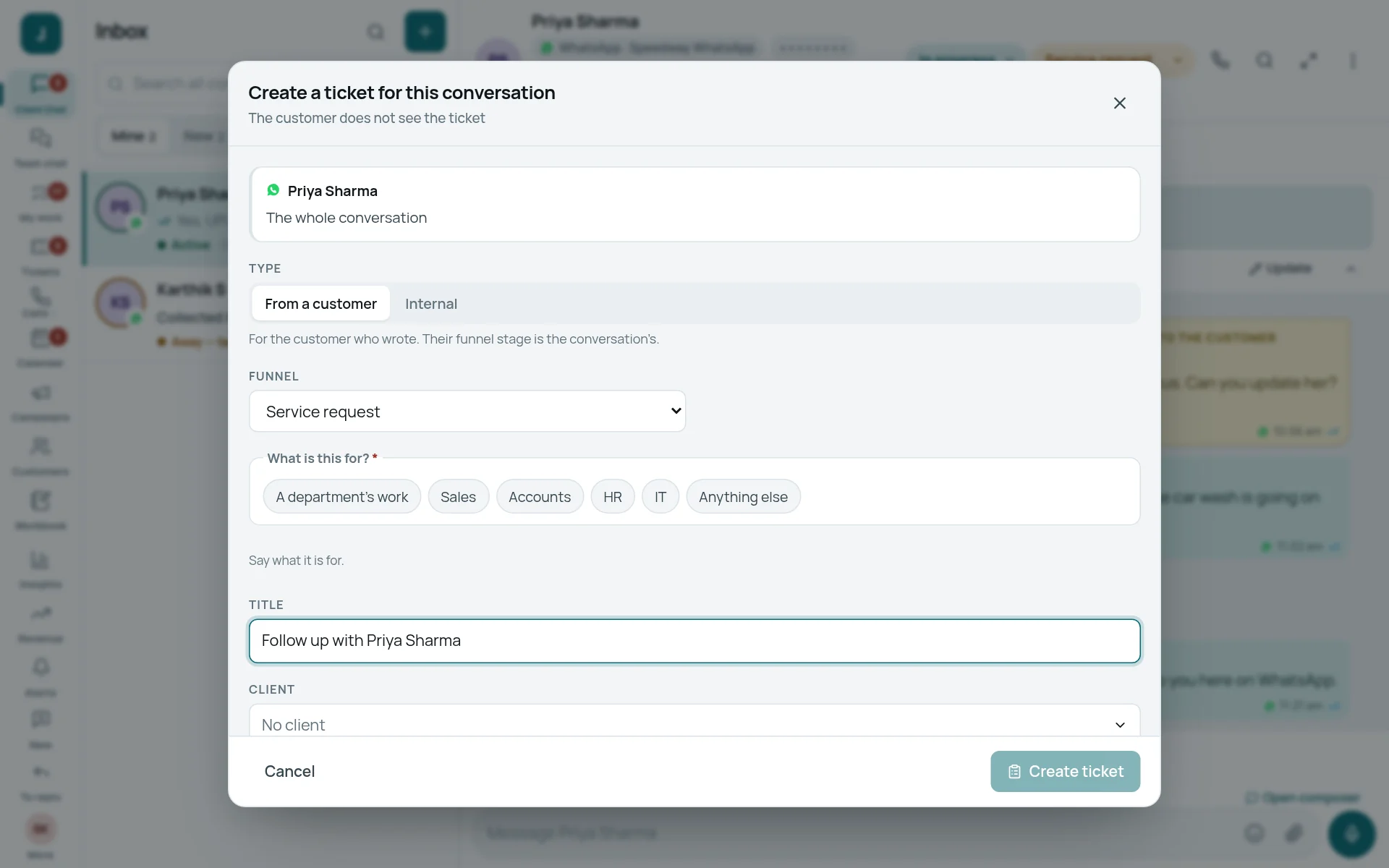
When a ticket is waiting on someone
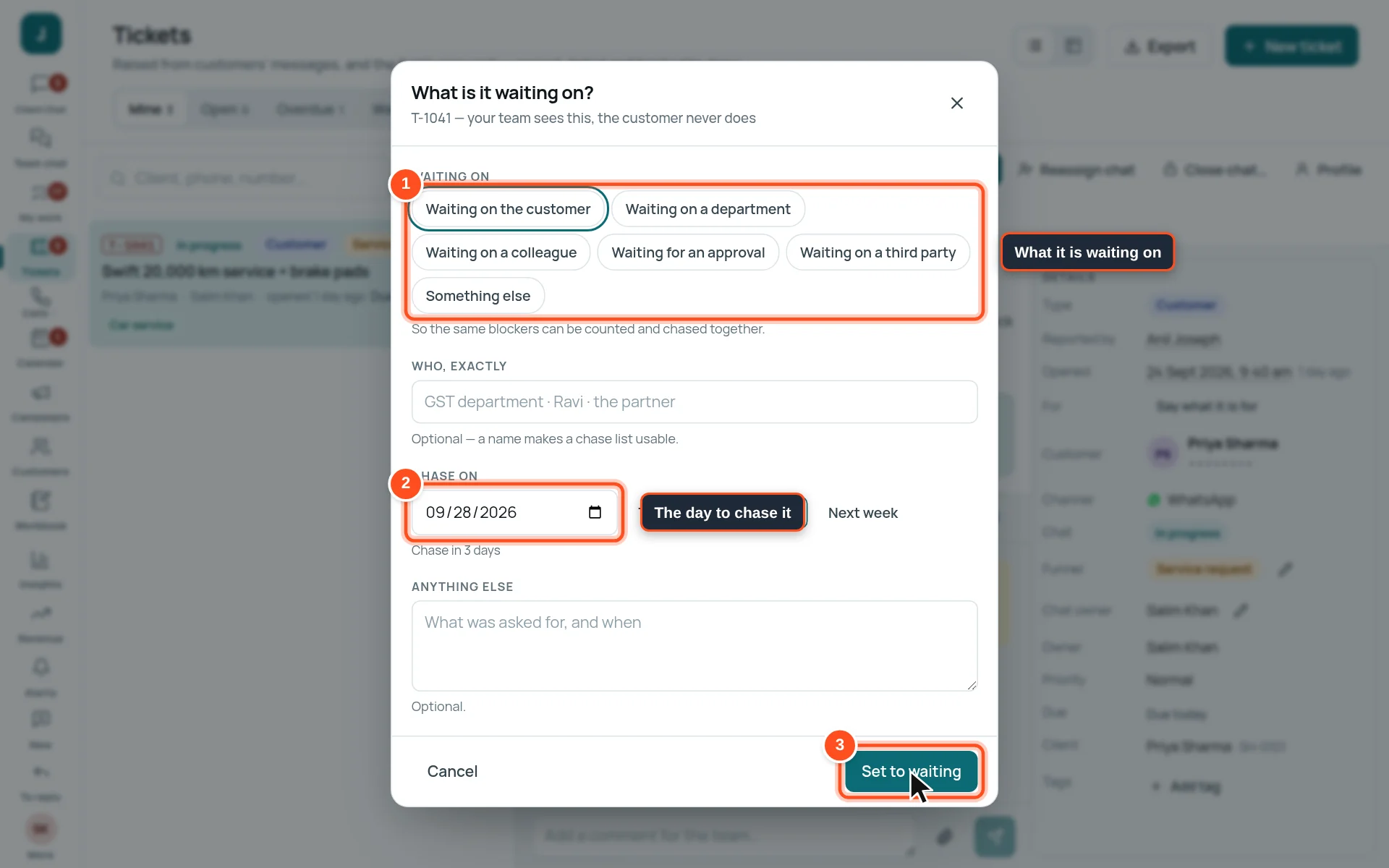
- 1What it is waiting on: the customer, a department, a colleague, an approval, a third party, or something else.
- 2Chase on — the day to follow up. On that day it shows in My work → Follow up today.
- 3Press Set to waiting.
My work: your own list
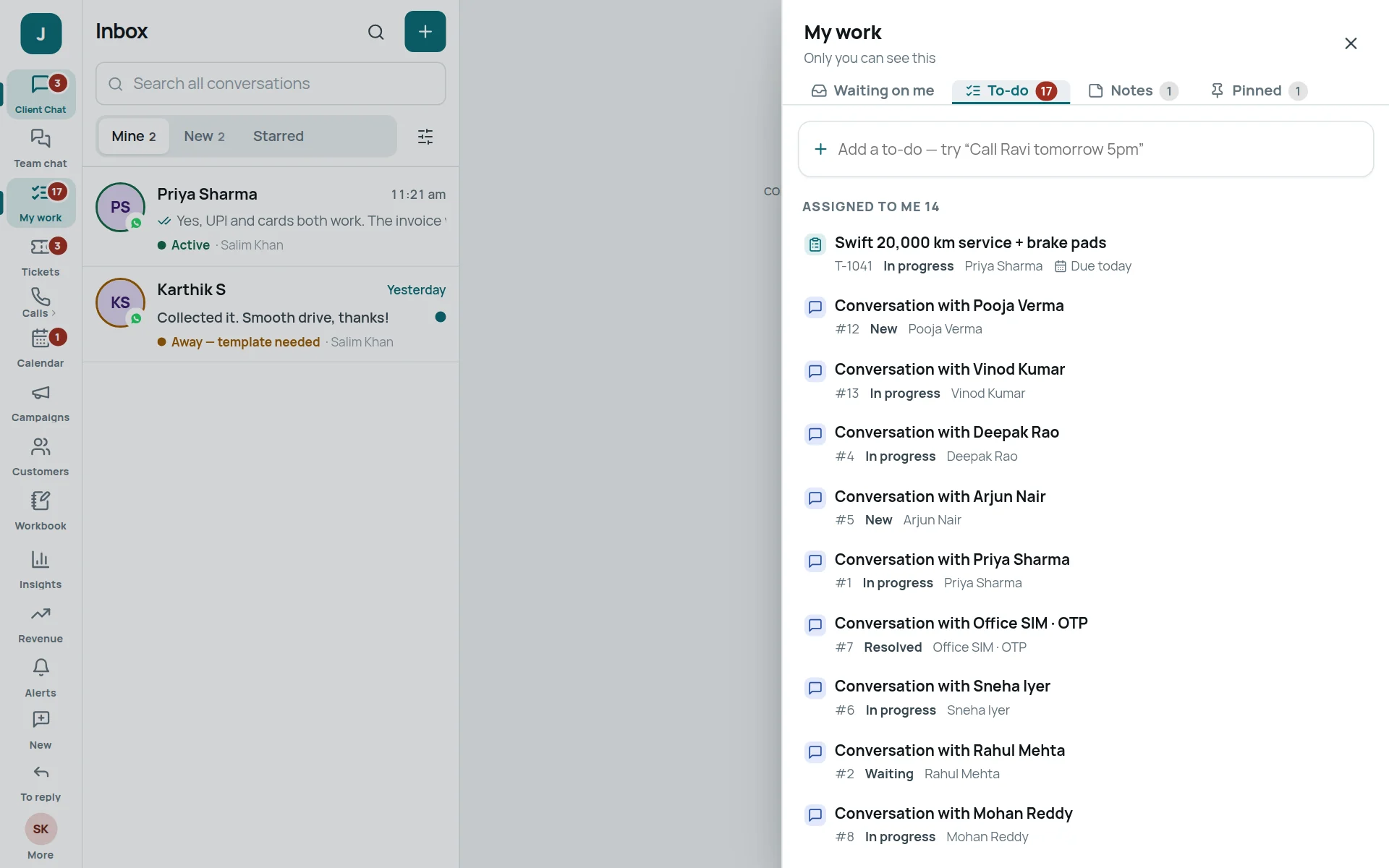
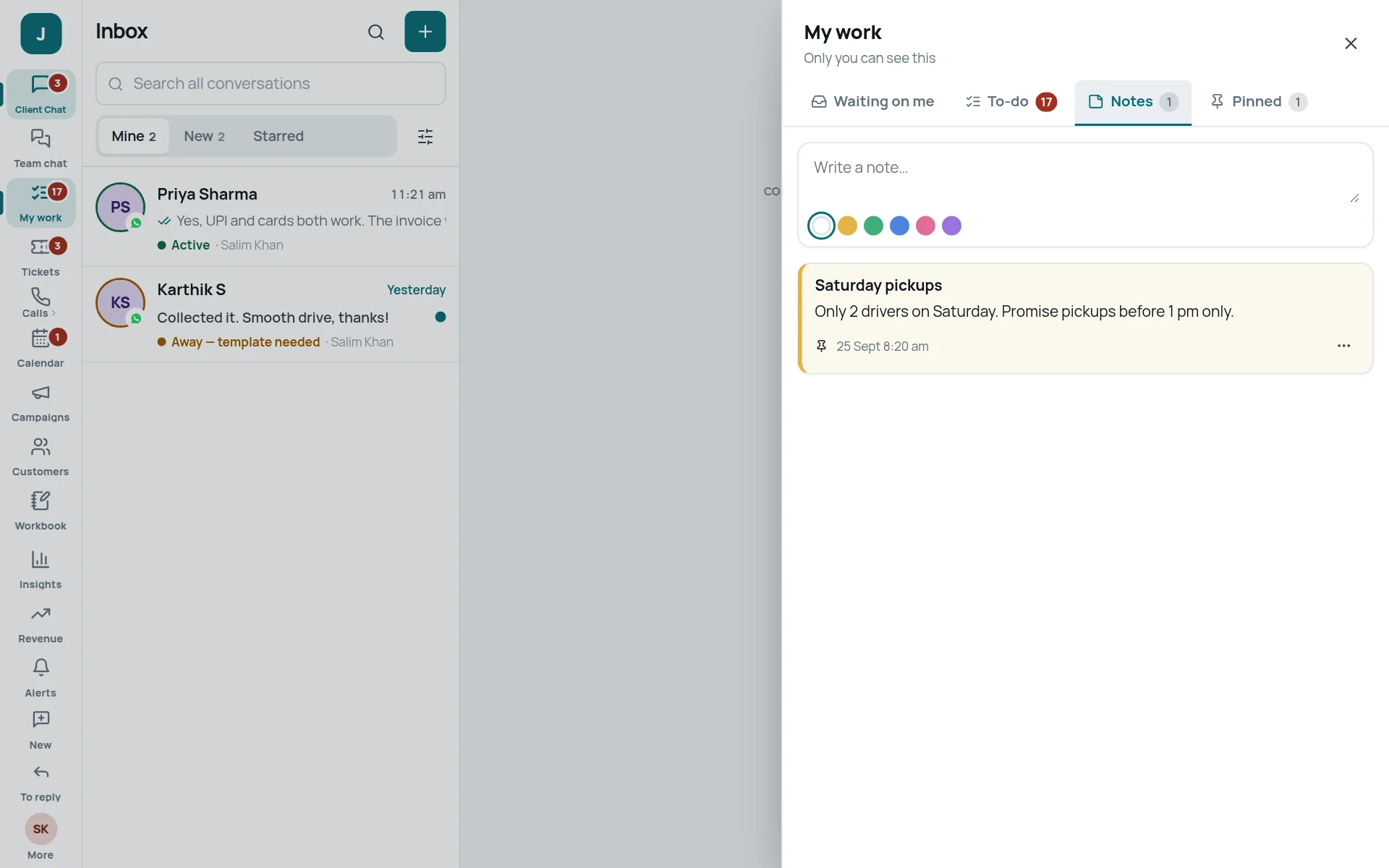
Only you can see My work. Open it from the rail at any time; it slides in from the right.
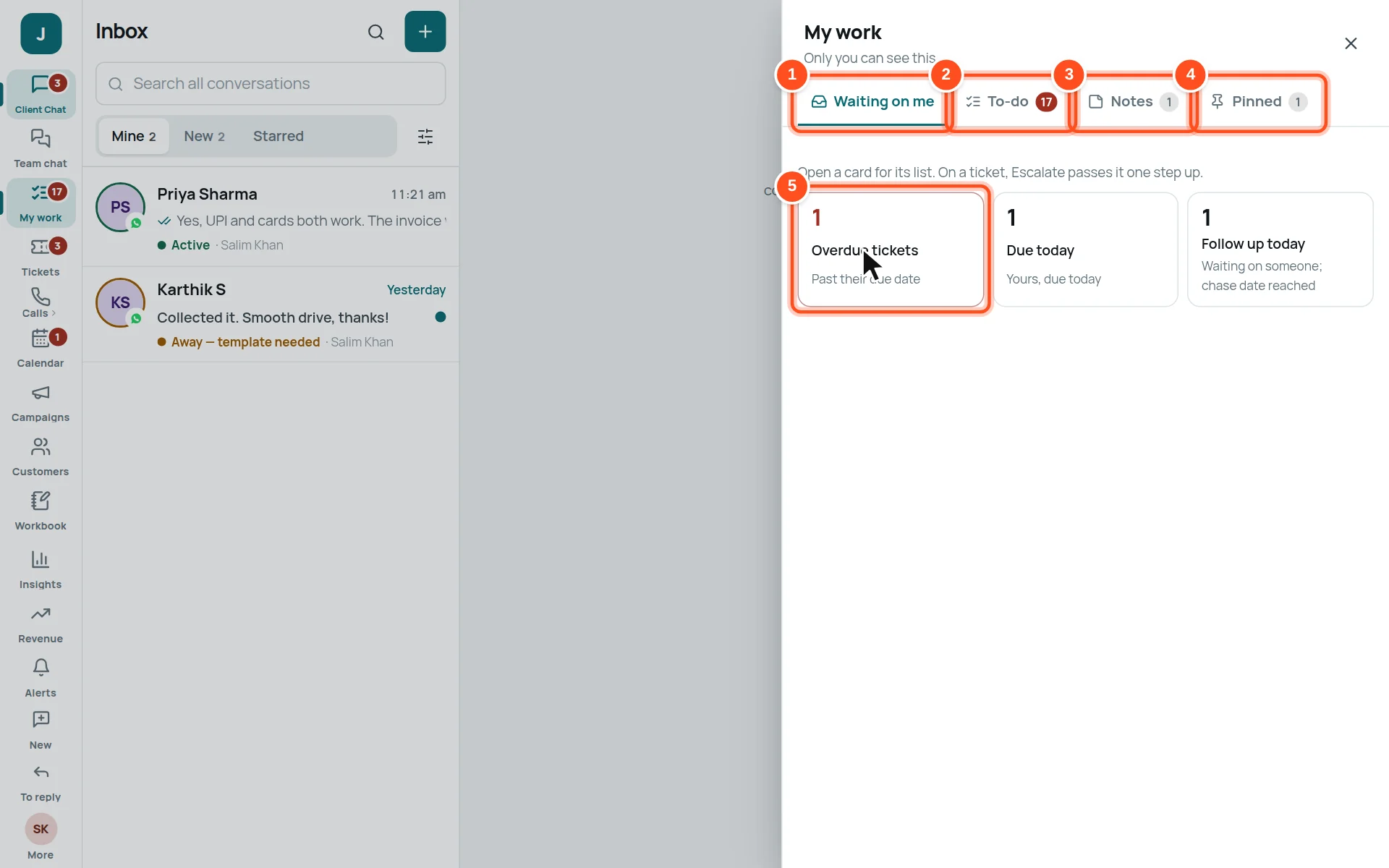
- 1Waiting on me — cards for overdue tickets, tickets due today, and follow-ups due today.
- 2To-do — your reminders, with a time.
- 3Notes — sticky notes for yourself.
- 4Pinned — messages you pinned from chats.
- 5Click a card to see its list.
- To make a to-do from a customer’s message: move the mouse over the message, open its menu, press Add a to-do.
- Give it a time and, if you want, a reminder.
- It appears in My work and on your Calendar.
Calendar
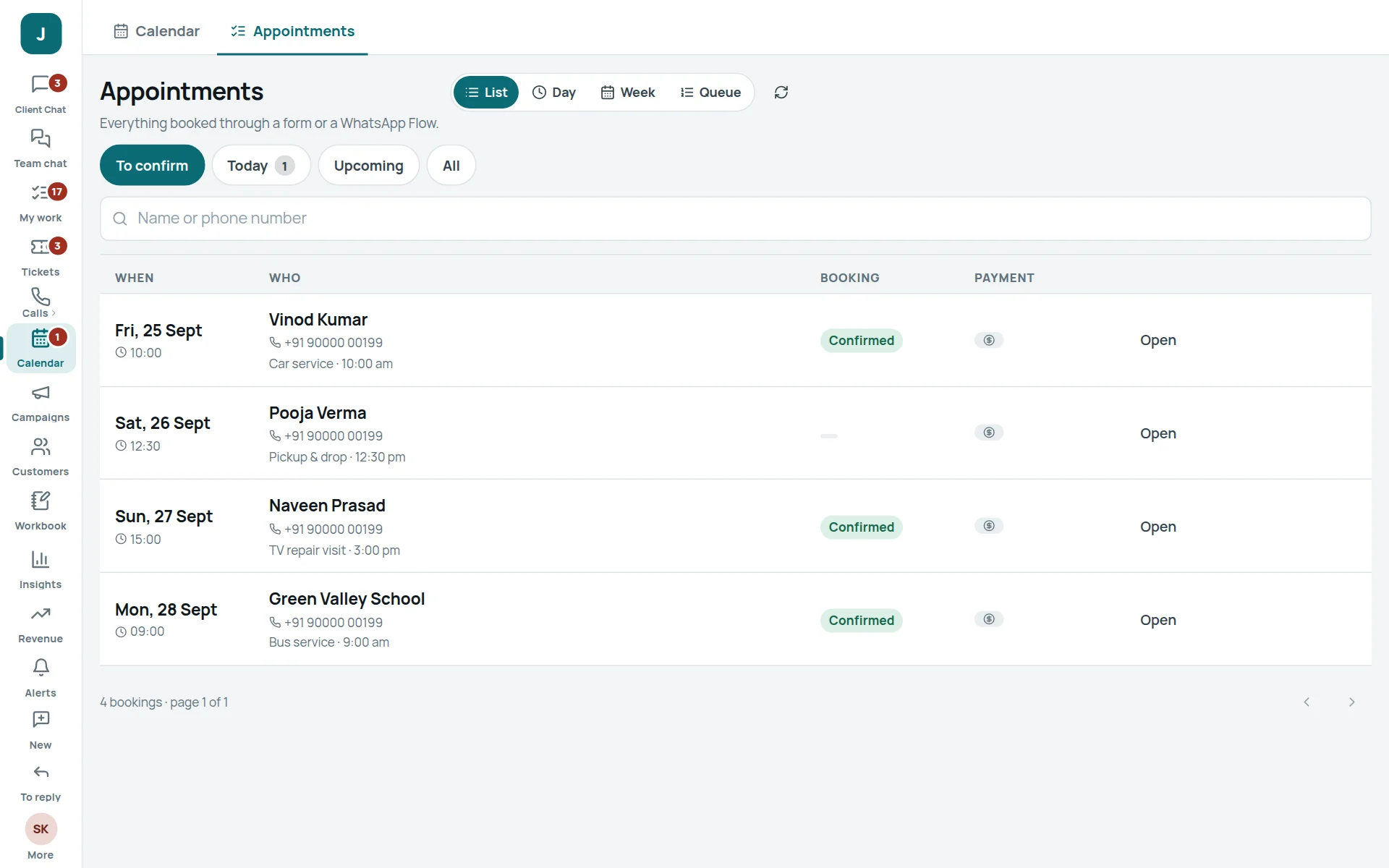
Appointments booked by customers, your meetings, your to-dos and the company’s holidays — on one calendar.
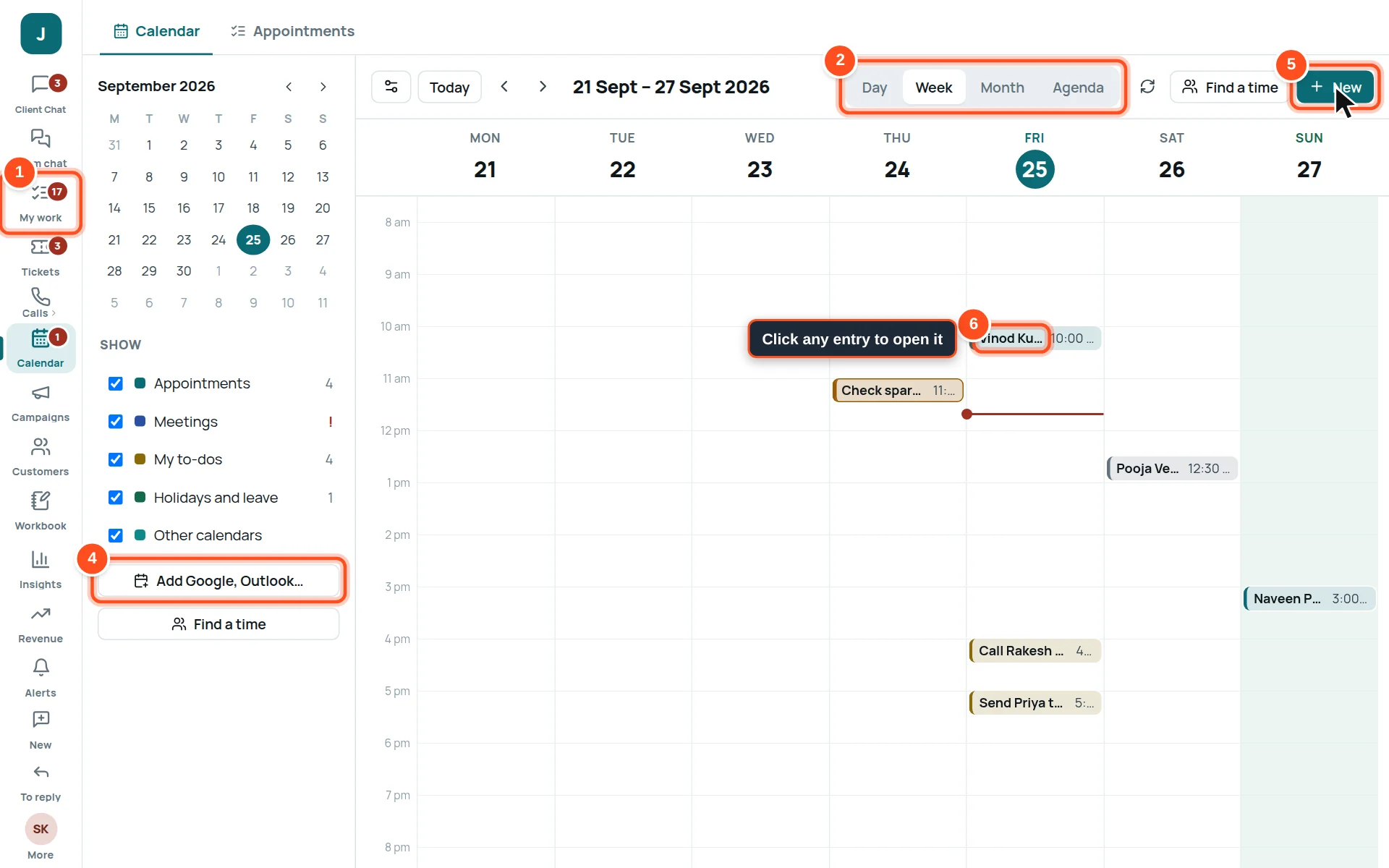
- 1Today, and the arrows to go back and forward.
- 2Day / Week / Month / Agenda — how much to see at once.
- 3Show — tick what to see: Appointments, Meetings, My to-dos, Holidays and leave, Other calendars.
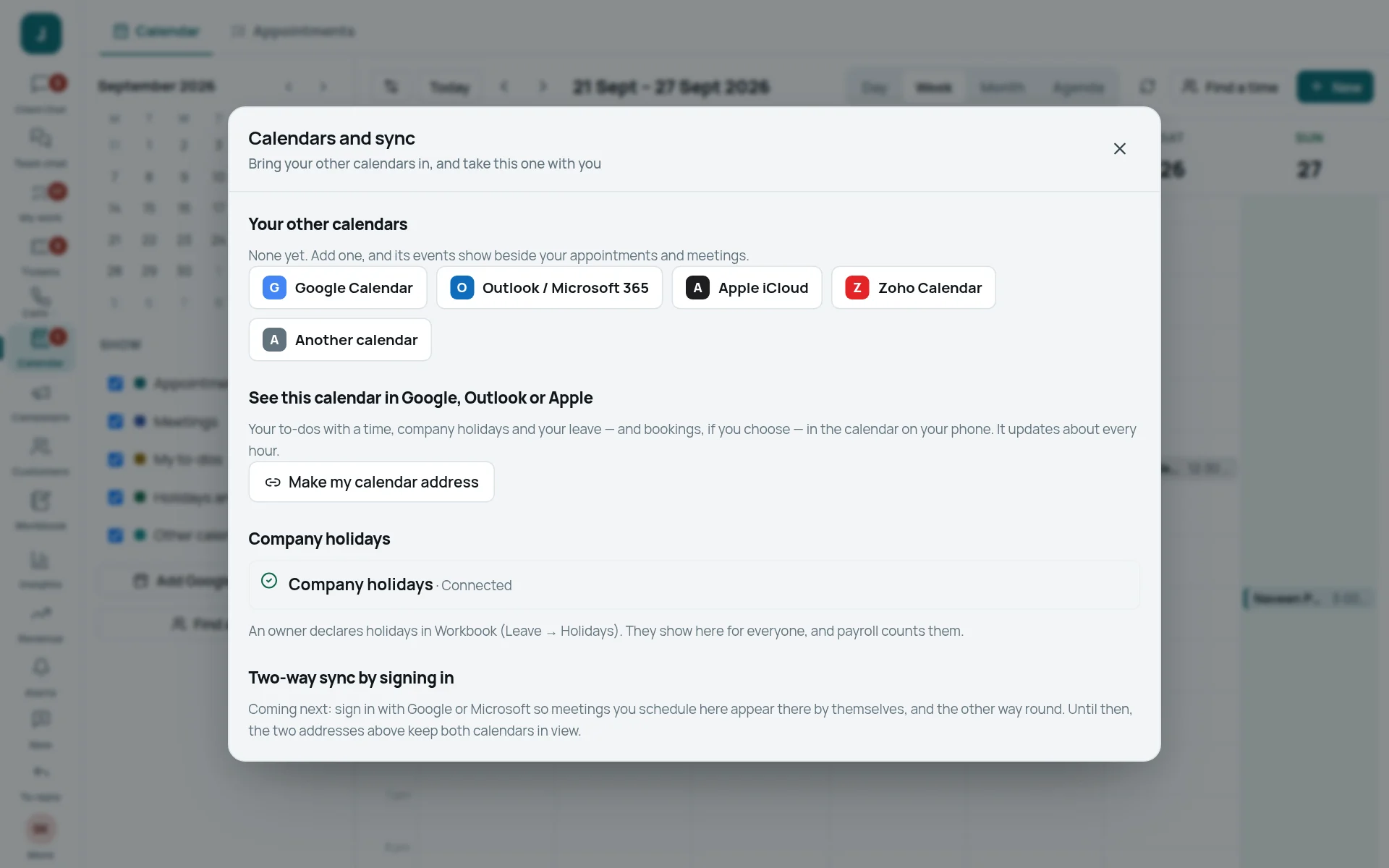
- 4Add Google, Outlook… — see your own phone calendar here too.
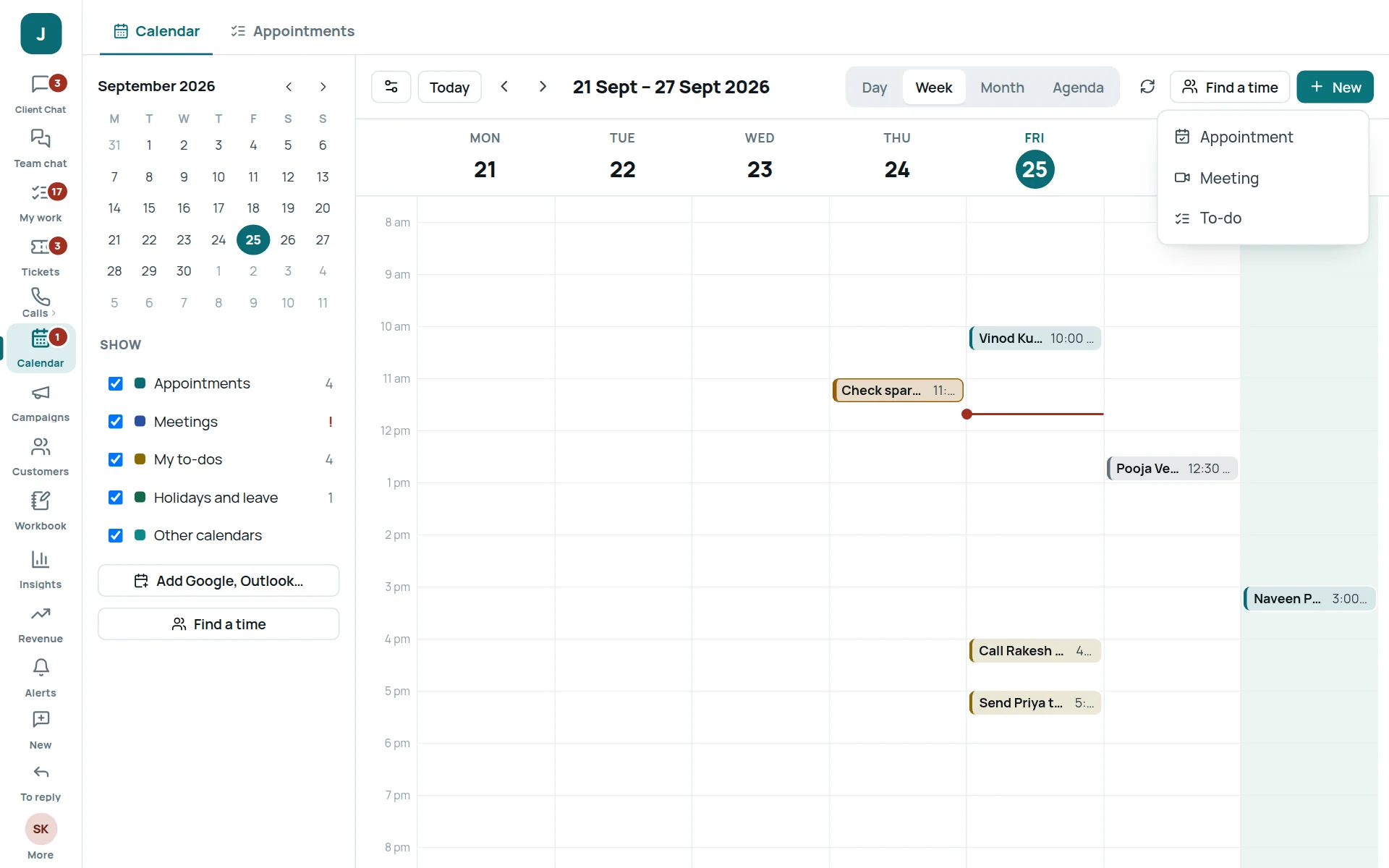
- 5New — add an appointment, a meeting or a to-do.
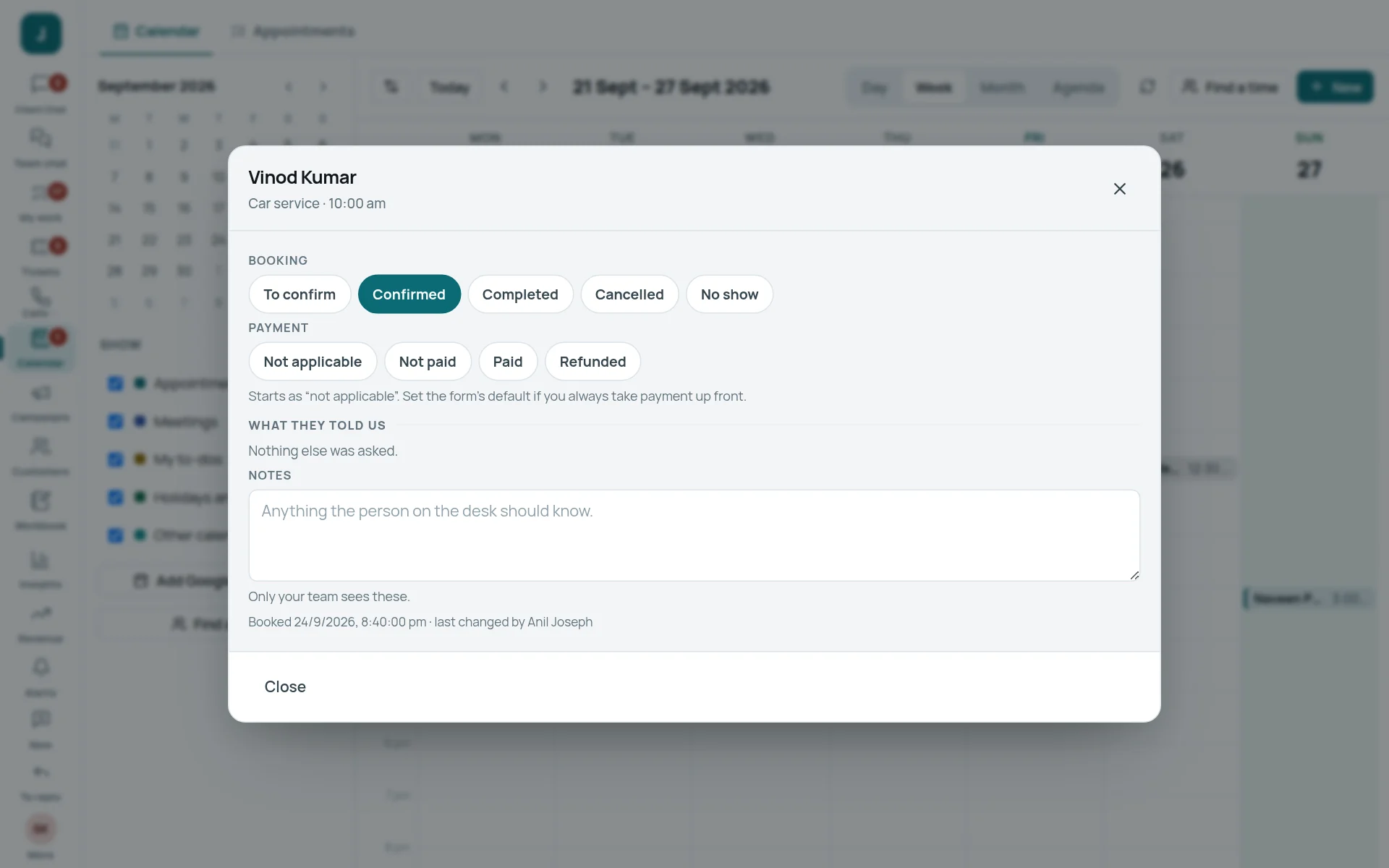
- 6Click any entry to open it.
Customers and contacts
One customer, many ways to reach them. Put a customer’s WhatsApp, email and SMS together, and you see all their chats, tickets and files in one place.
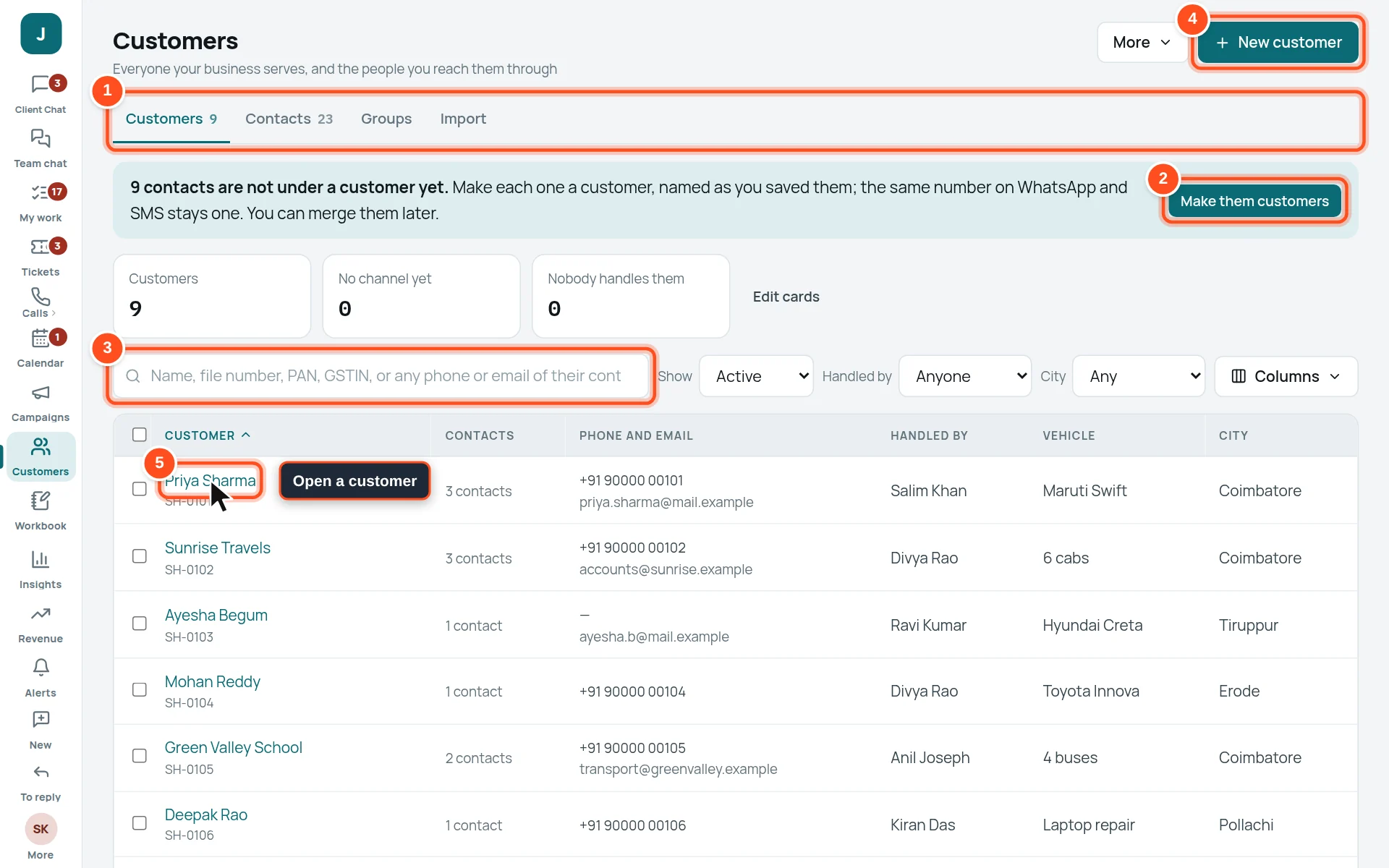
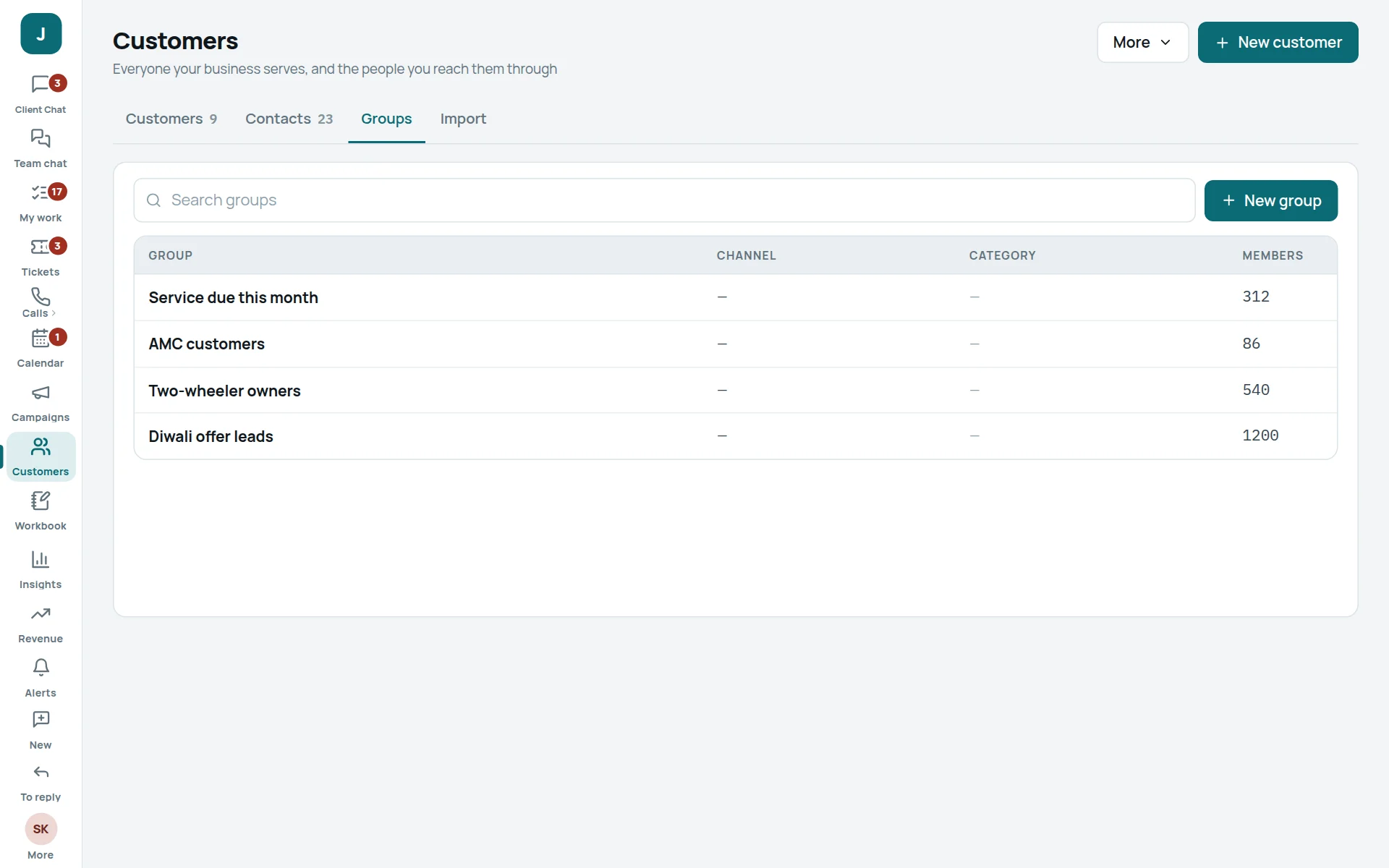
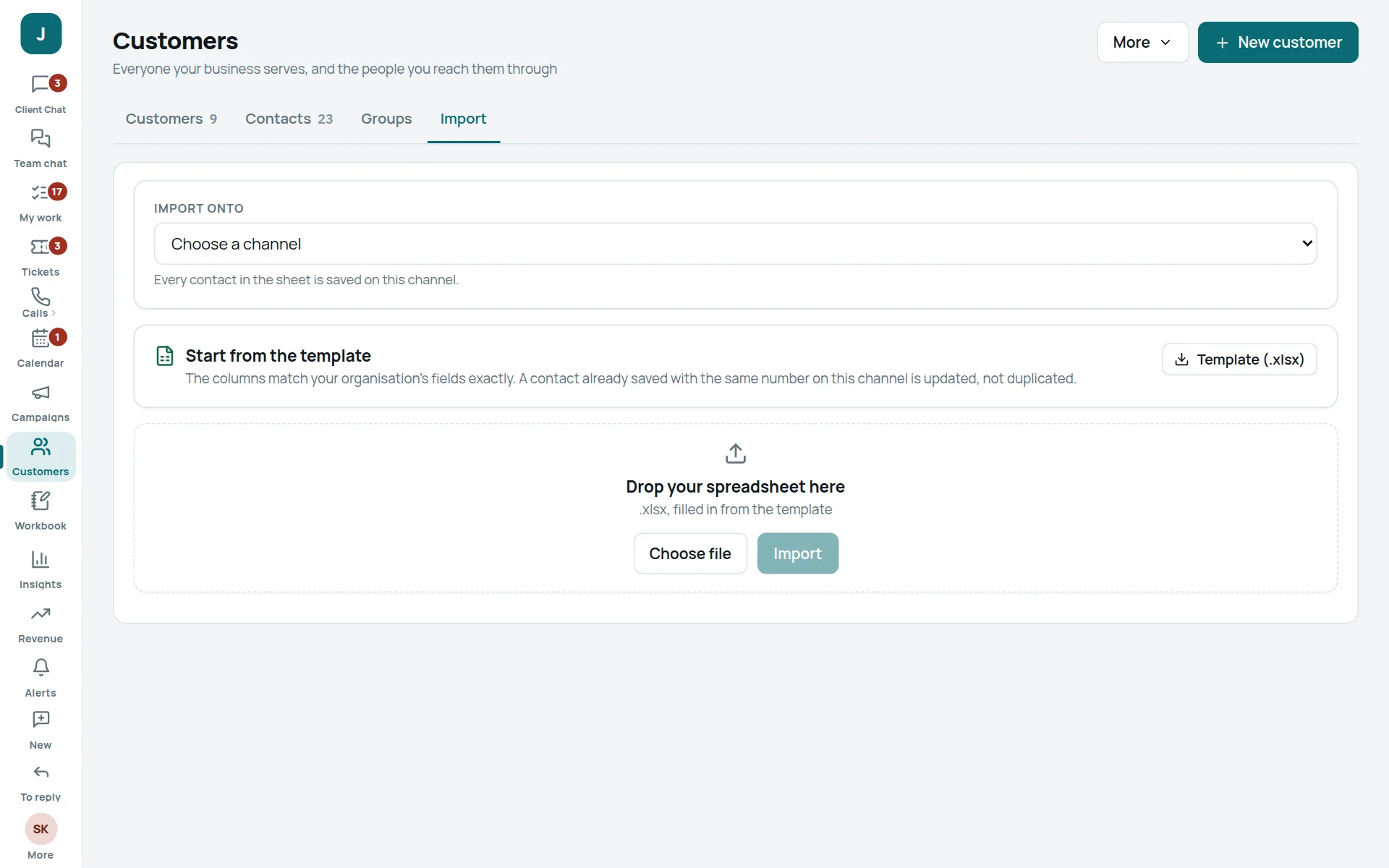
- 1Tabs: Customers, Contacts, Groups, Import.
- 2This bar says how many contacts are not under any customer yet. Make them customers fixes them all at once.
- 3Search by name, file number, PAN, GSTIN — or any phone or email of their contacts.
- 4New customer — add one by hand.
- 5Click a name to open the customer.
A customer’s page
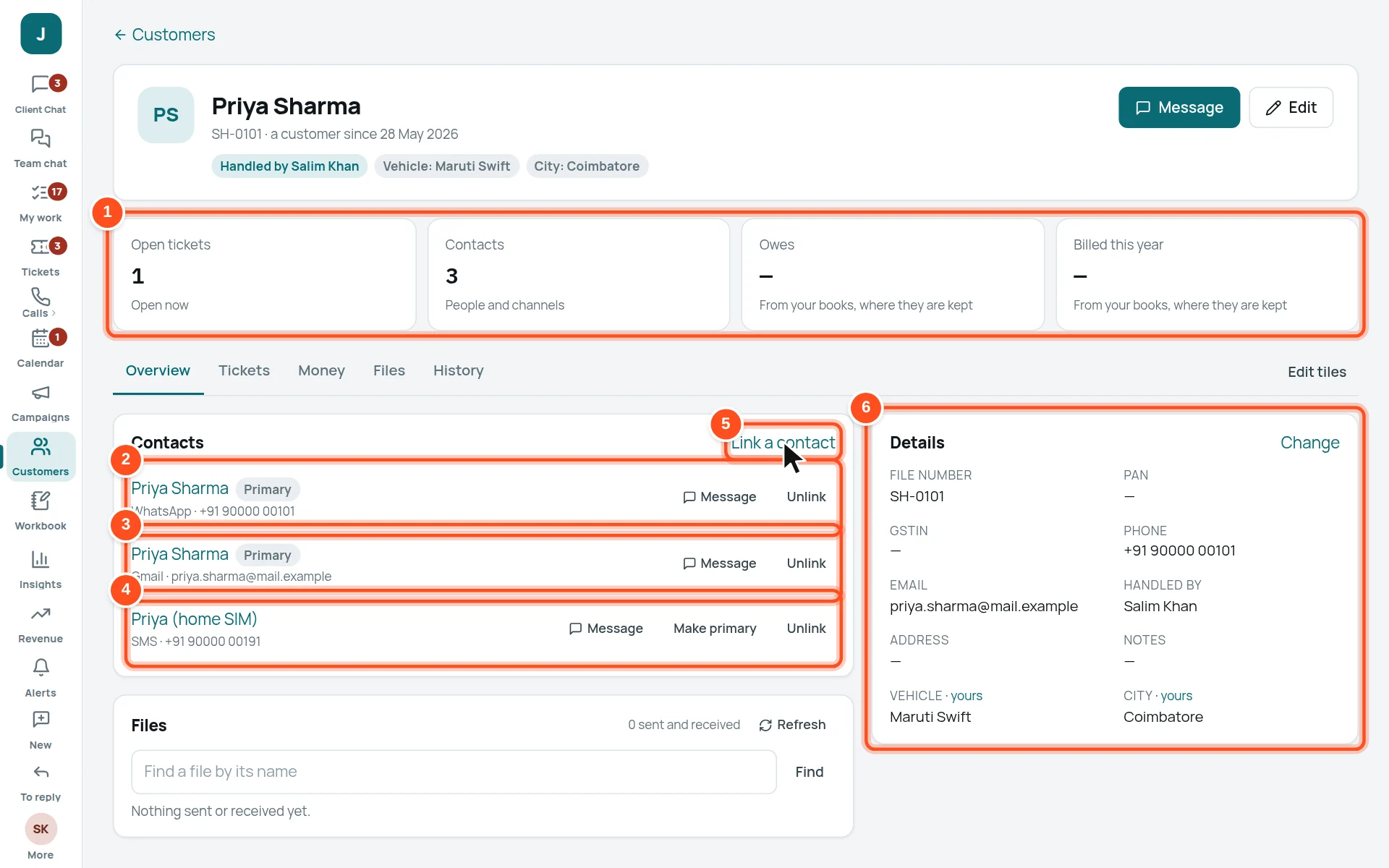
- 1Tiles: open tickets, contacts, what they owe and what was billed this year.
- 2Contact 1: their WhatsApp number (marked Primary: the main number).
- 3Contact 2: their email address.
- 4Contact 3: their SMS number.
- 5Link a contact — add another number or email of the same customer.
- 6Details — file number, PAN, GSTIN, phone, email, who handles them. Change to edit.
Link a contact to a customer (put WhatsApp, email and SMS together)
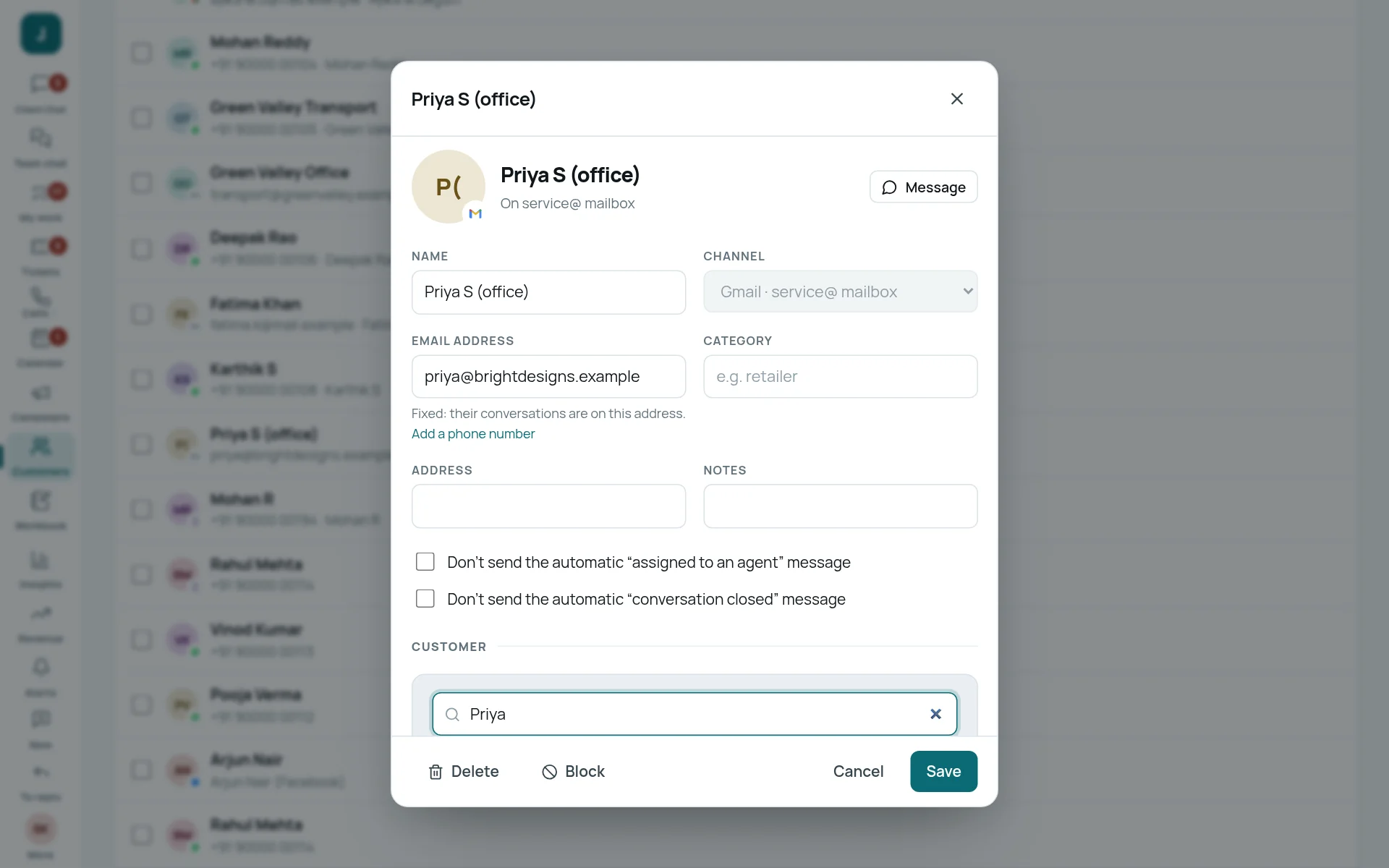
Example: Priya also emails from her office address. That email came in as a separate contact, “Priya S (office)”. Link it to her customer record:
- Open Customers and click Priya Sharma.
- In the Contacts box, press Link a contact.
- Type part of the name, number or email (here “Priya”).
- Press Link beside the right one. It joins Priya’s page straight away.
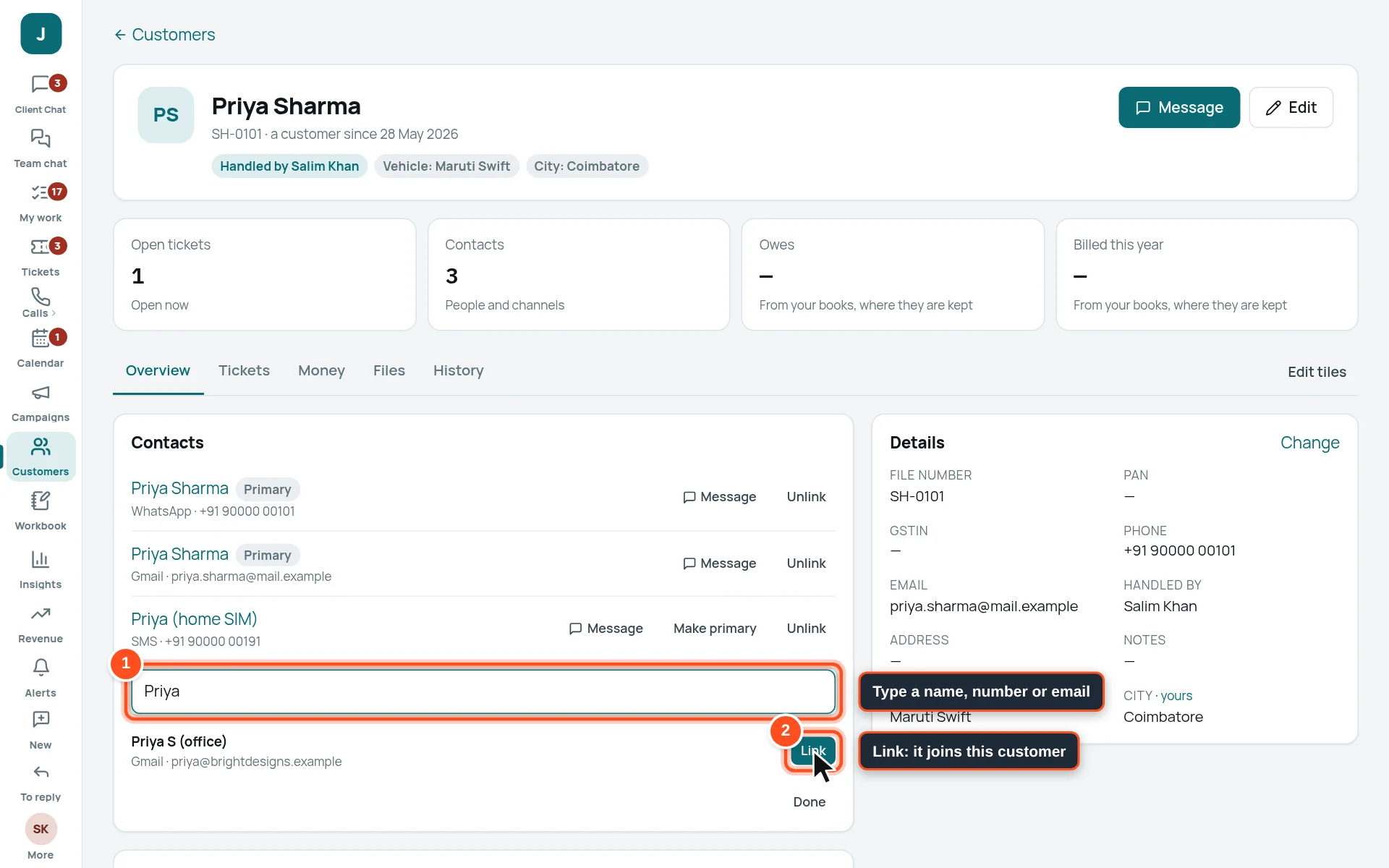
- 1Type a name, number or email.
- 2Press Link. (If it says “now with another customer”, linking moves it to this one.)
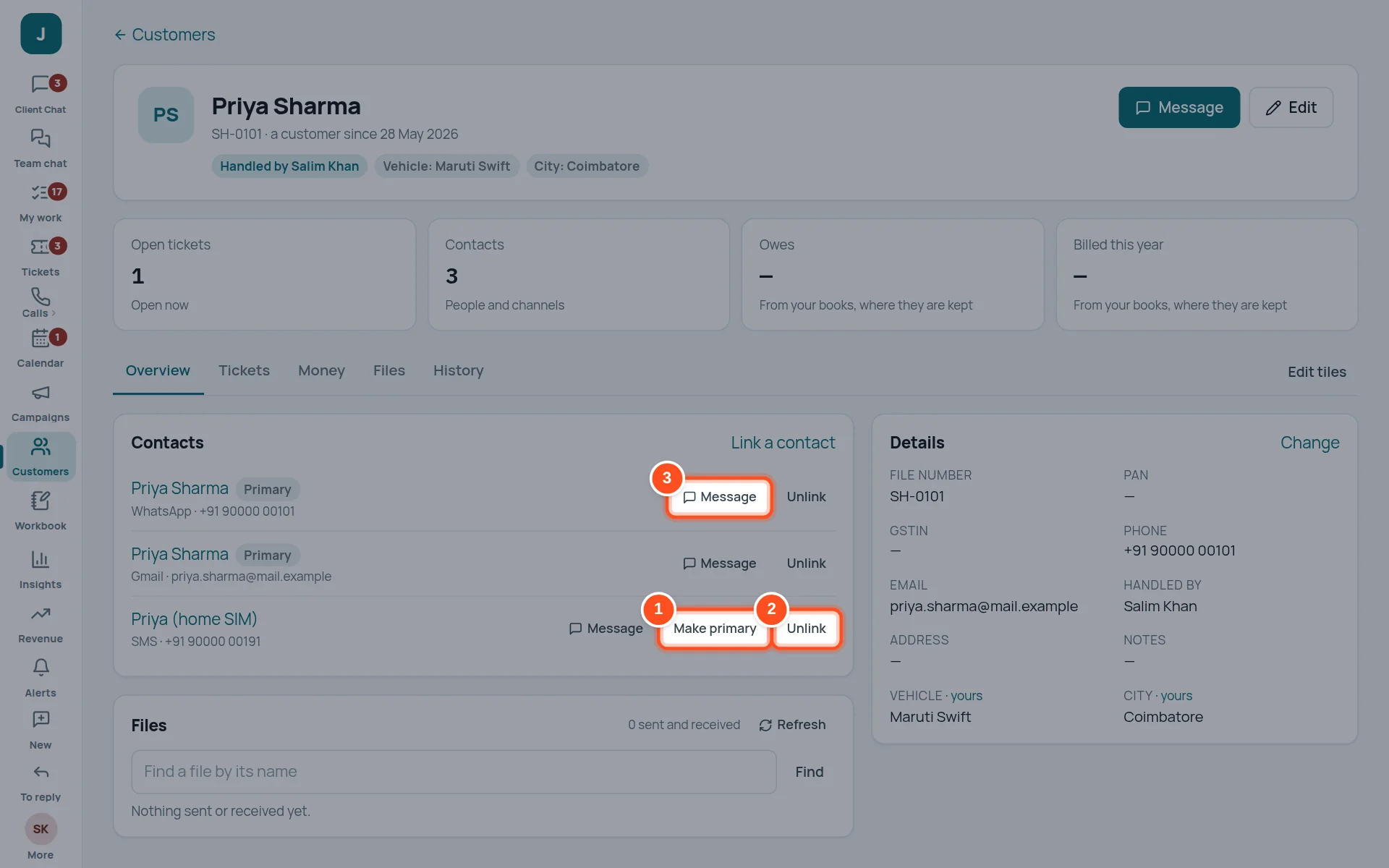
- 1Make primary — use this number or email as the customer’s main one.
- 2Unlink — take it off this customer (nothing is deleted).
- 3Message — start a chat on that channel.
Or link from the contact’s side
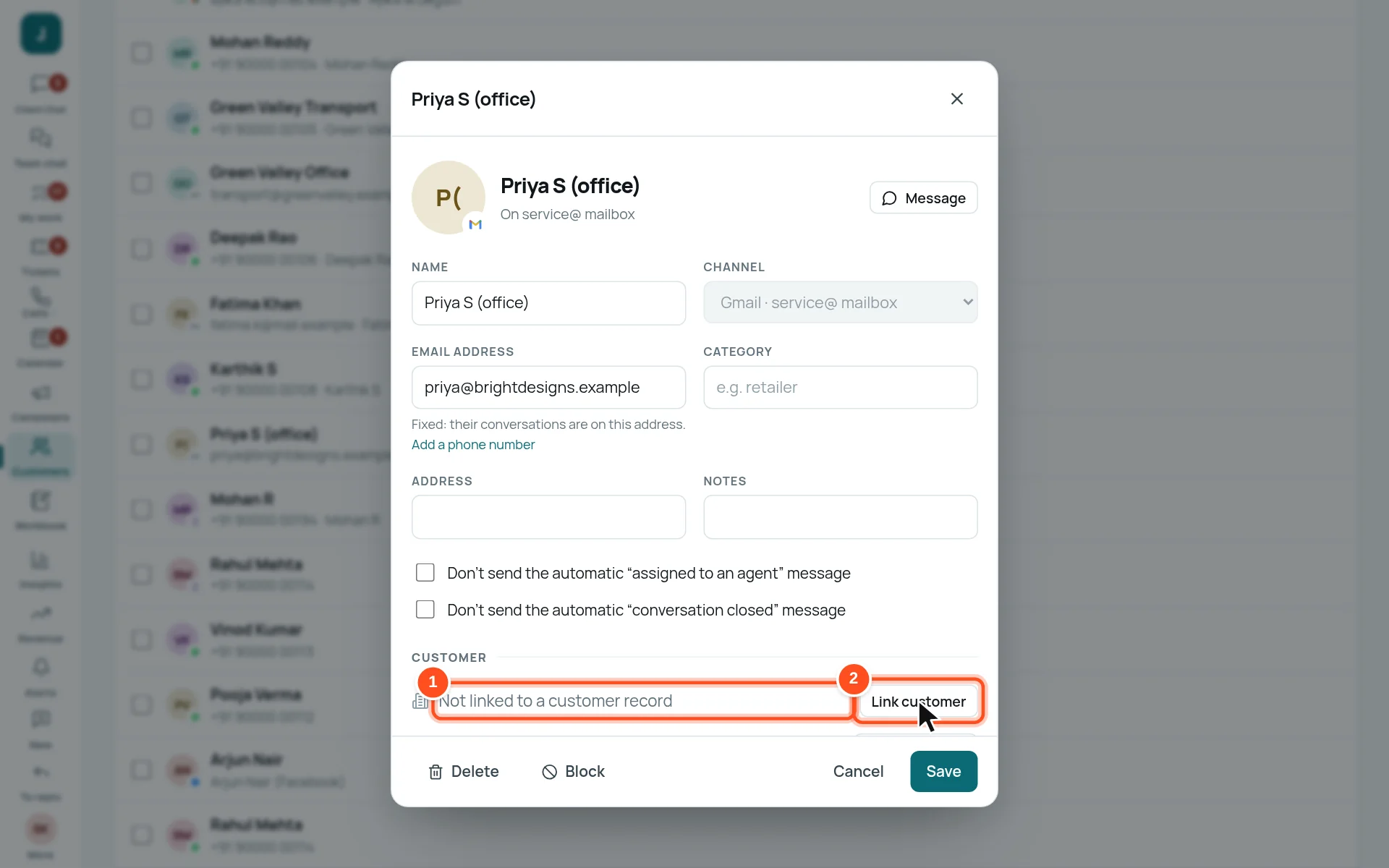
- 1It says Not linked to a customer record.
- 2Press Link customer.
Make customers from all loose contacts at once
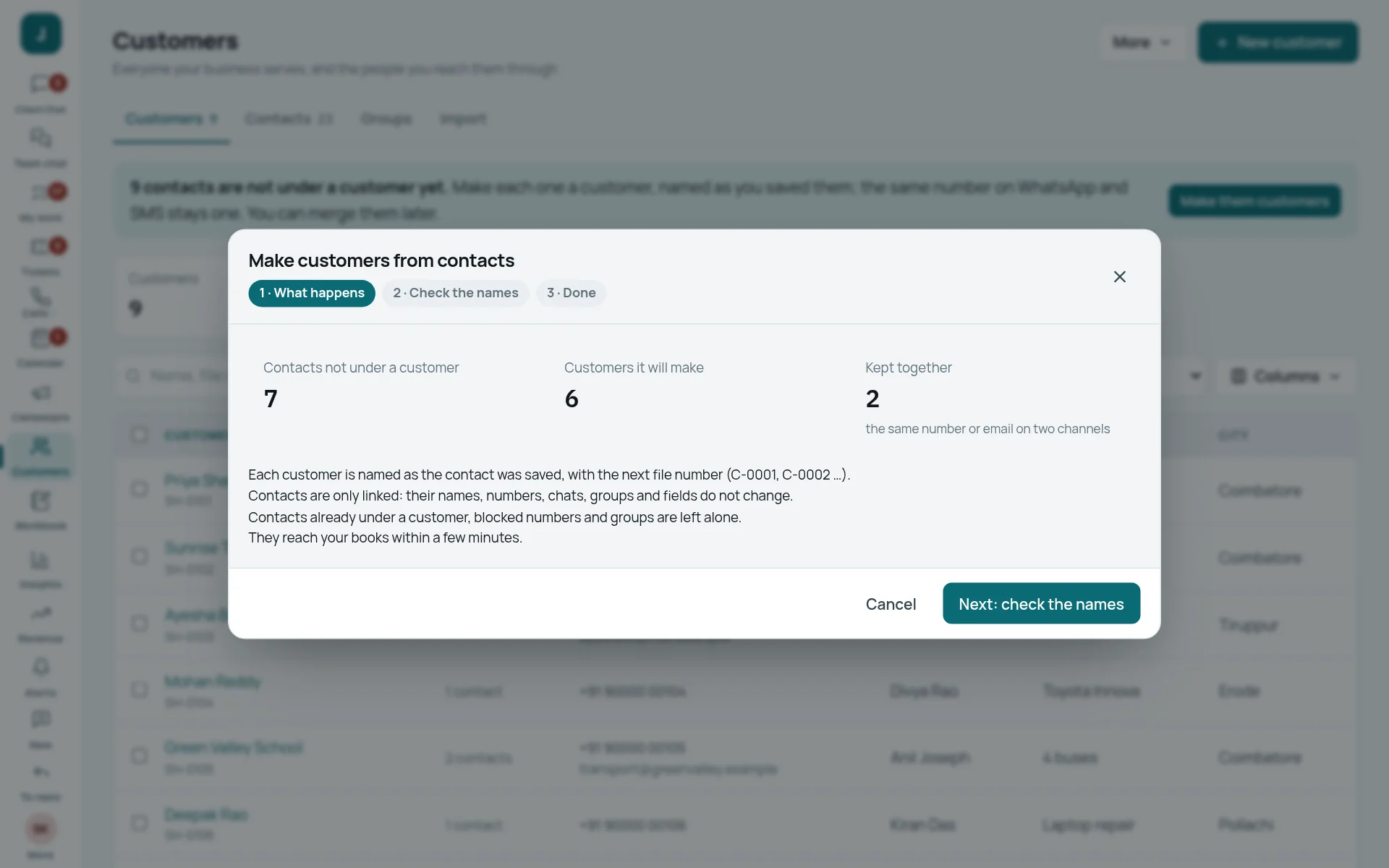
- On Customers, press Make them customers in the blue bar.
- Read what will happen: each contact becomes a customer, named as you saved it. The same number on WhatsApp and SMS is kept together as one customer.
- Press Next: check the names, check, and confirm.
- Changed your mind? Undo that batch is offered for a while afterwards.
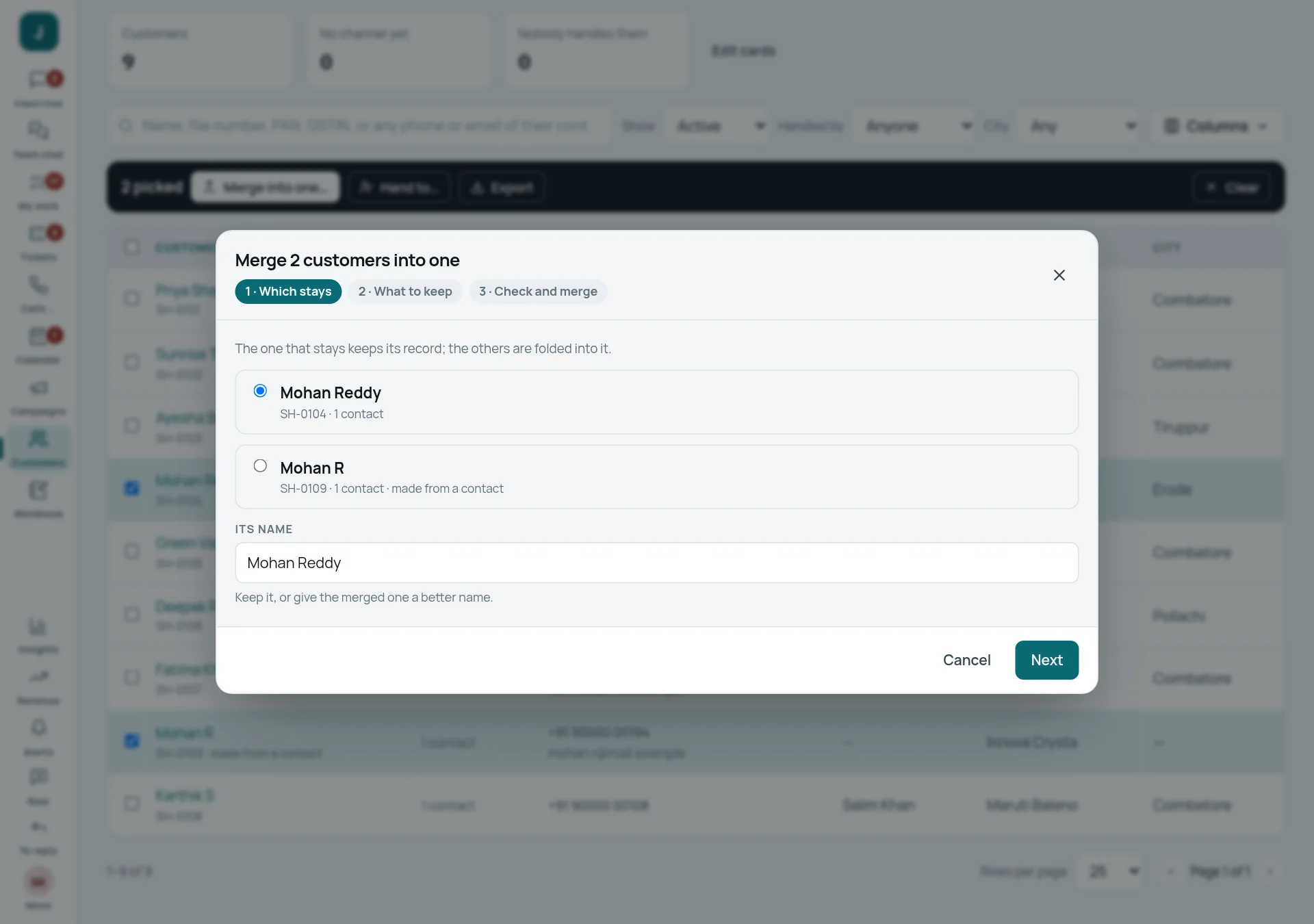
Two records for one customer? Merge them
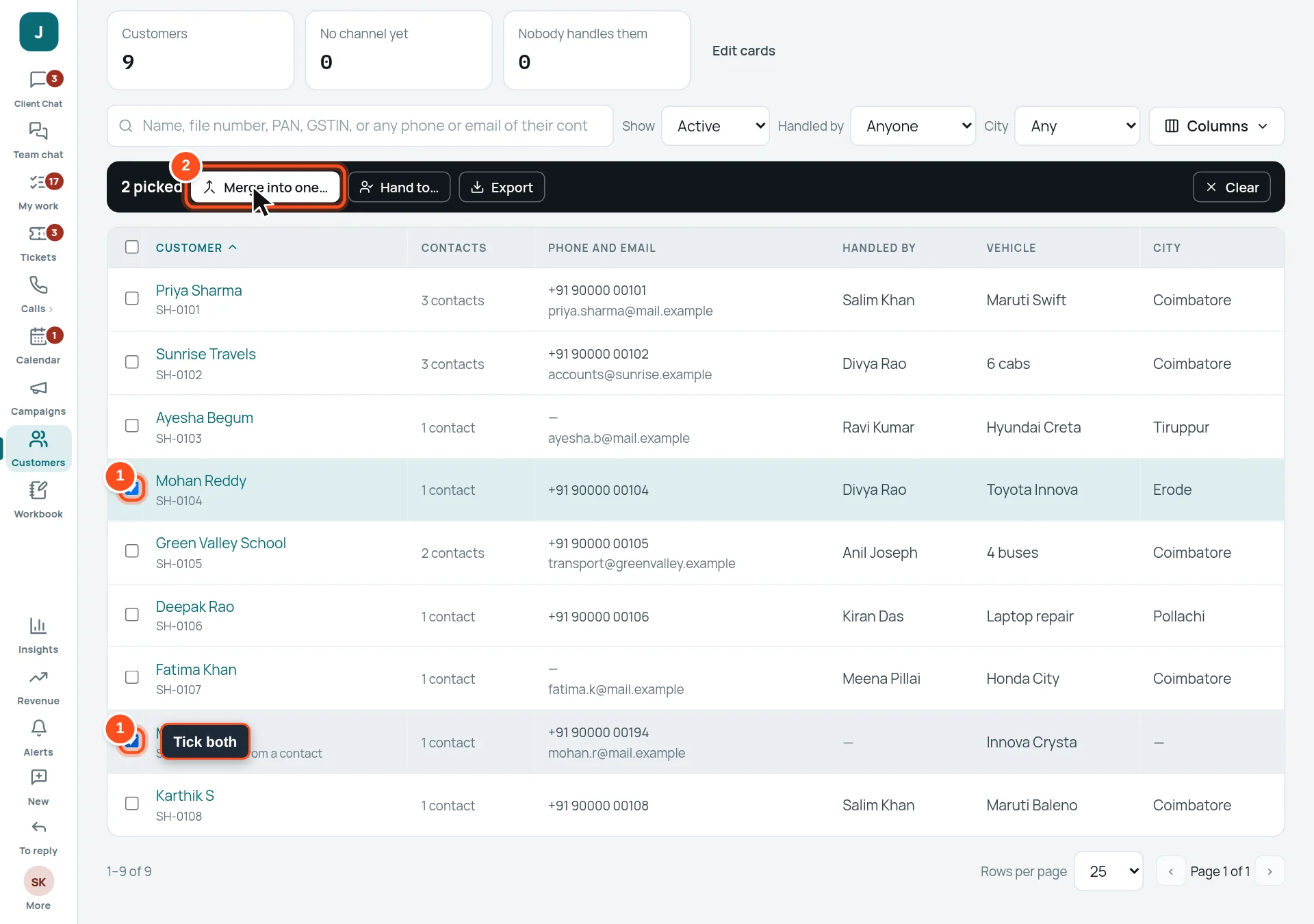
- 1Tick both rows.
- 2Press Merge into one….
Contacts: add a new number or email
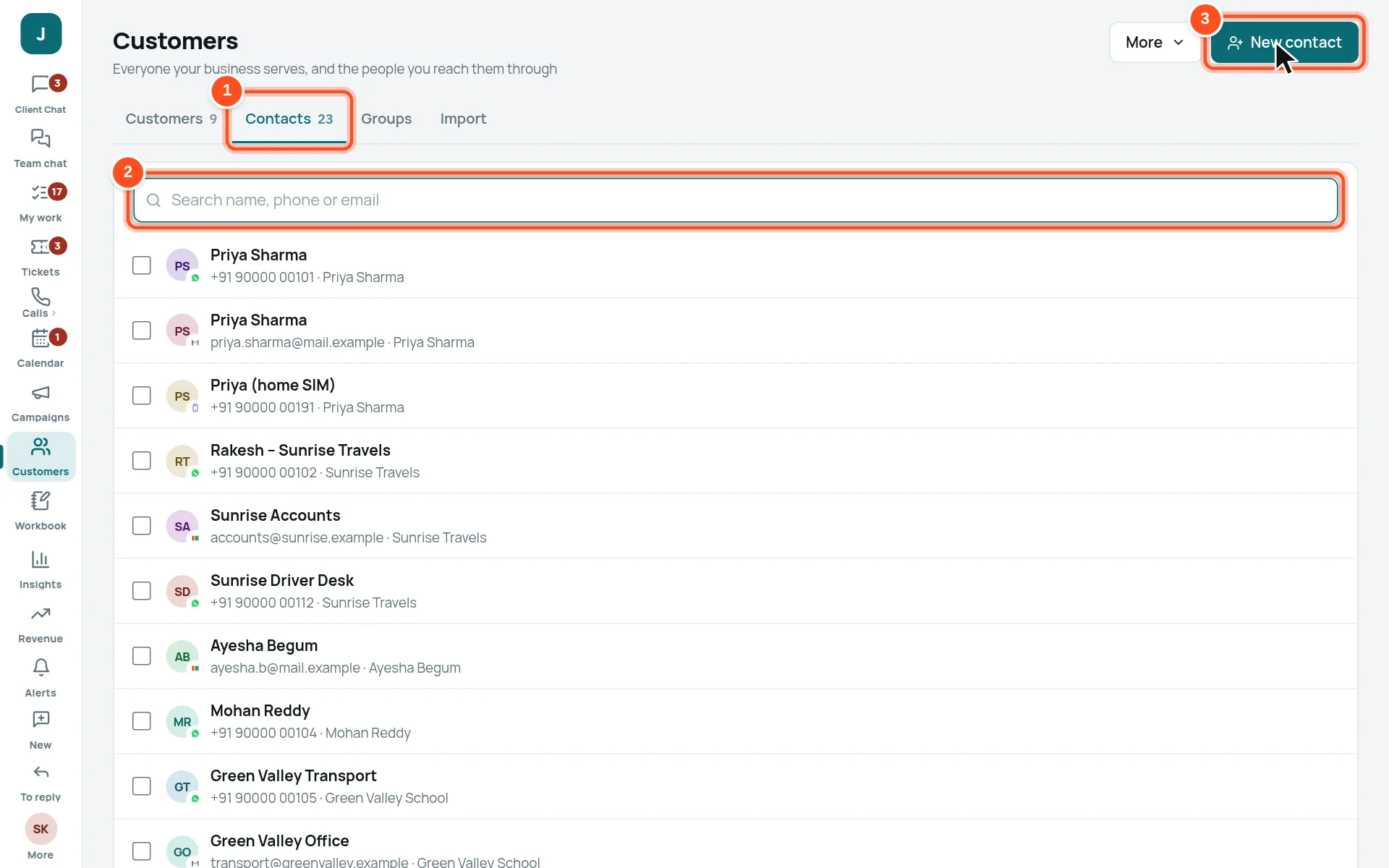
- 1The Contacts tab.
- 2Search by name, phone or email.
- 3New contact.
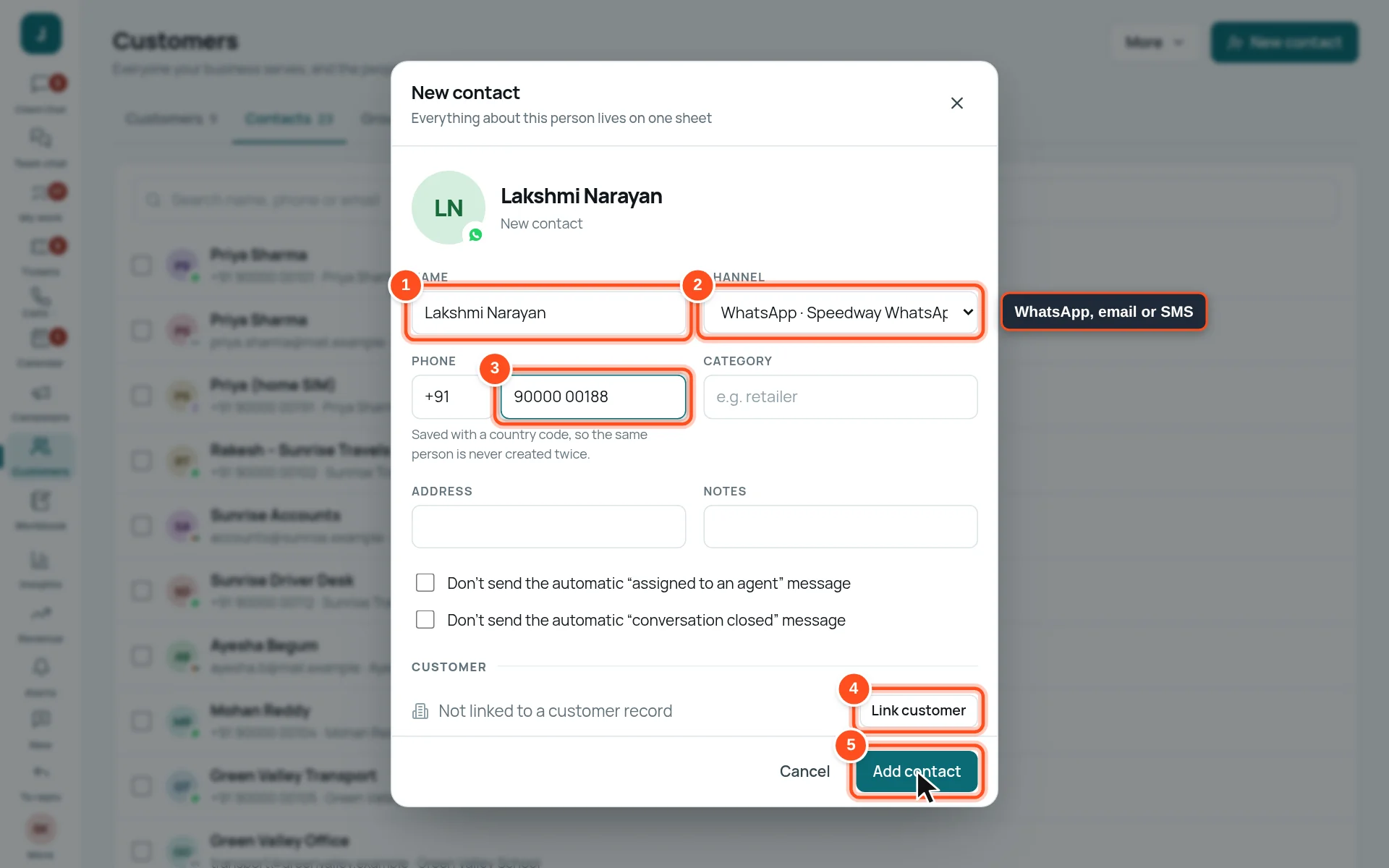
- 1Their name.
- 2Channel: which of your WhatsApp numbers, mailboxes or SMS numbers it belongs to.
- 3Their phone with country code (or email for an email channel). The same person is never created twice.
- 4Link customer — put it under a customer now.
- 5Press Add contact.
Campaigns: one message to many customers
Reminders, offers and updates sent to a group, once or on a schedule (every month, every year…).
Who can do this Staff whose role allows campaigns. If you do not see Campaigns on the rail, your role does not include it.
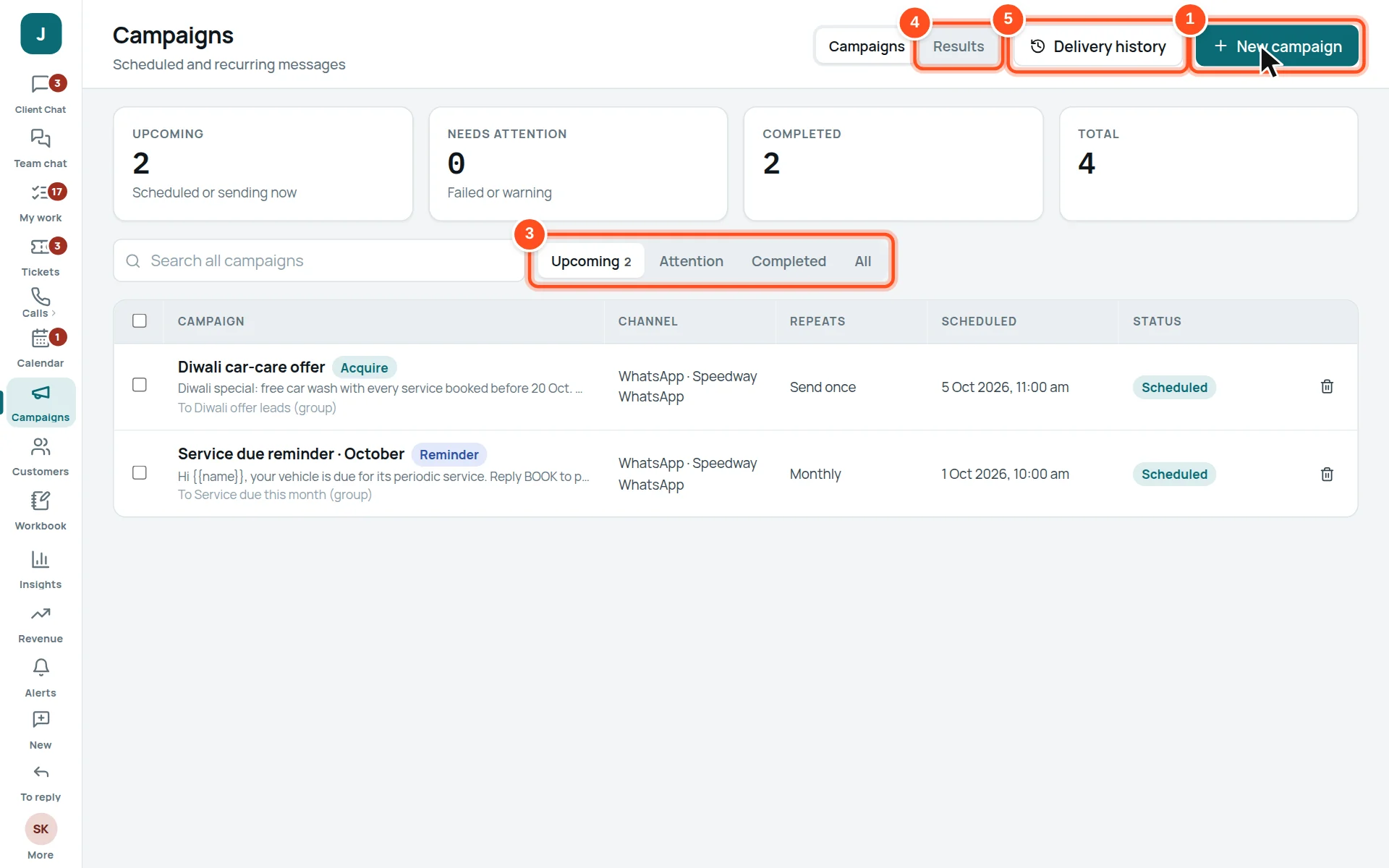
- 1New campaign.
- 2Cards: upcoming, needs attention (failed or warning), completed, total.
- 3Lists: Upcoming, Attention, Completed, All.
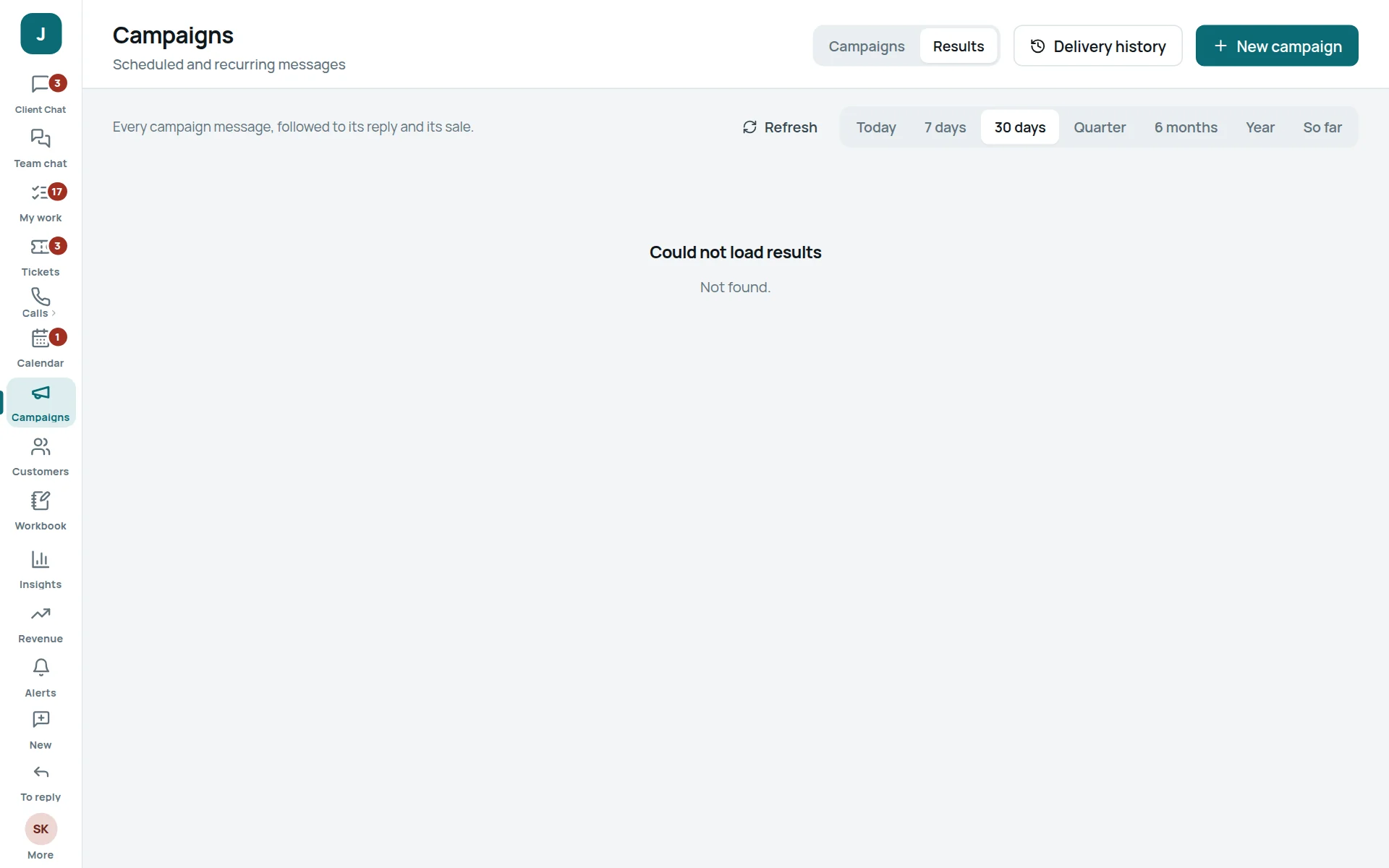
- 4Results — what each campaign brought back (replies, leads).
- 5Delivery history — every message sent, and whether it was delivered.
Make a campaign
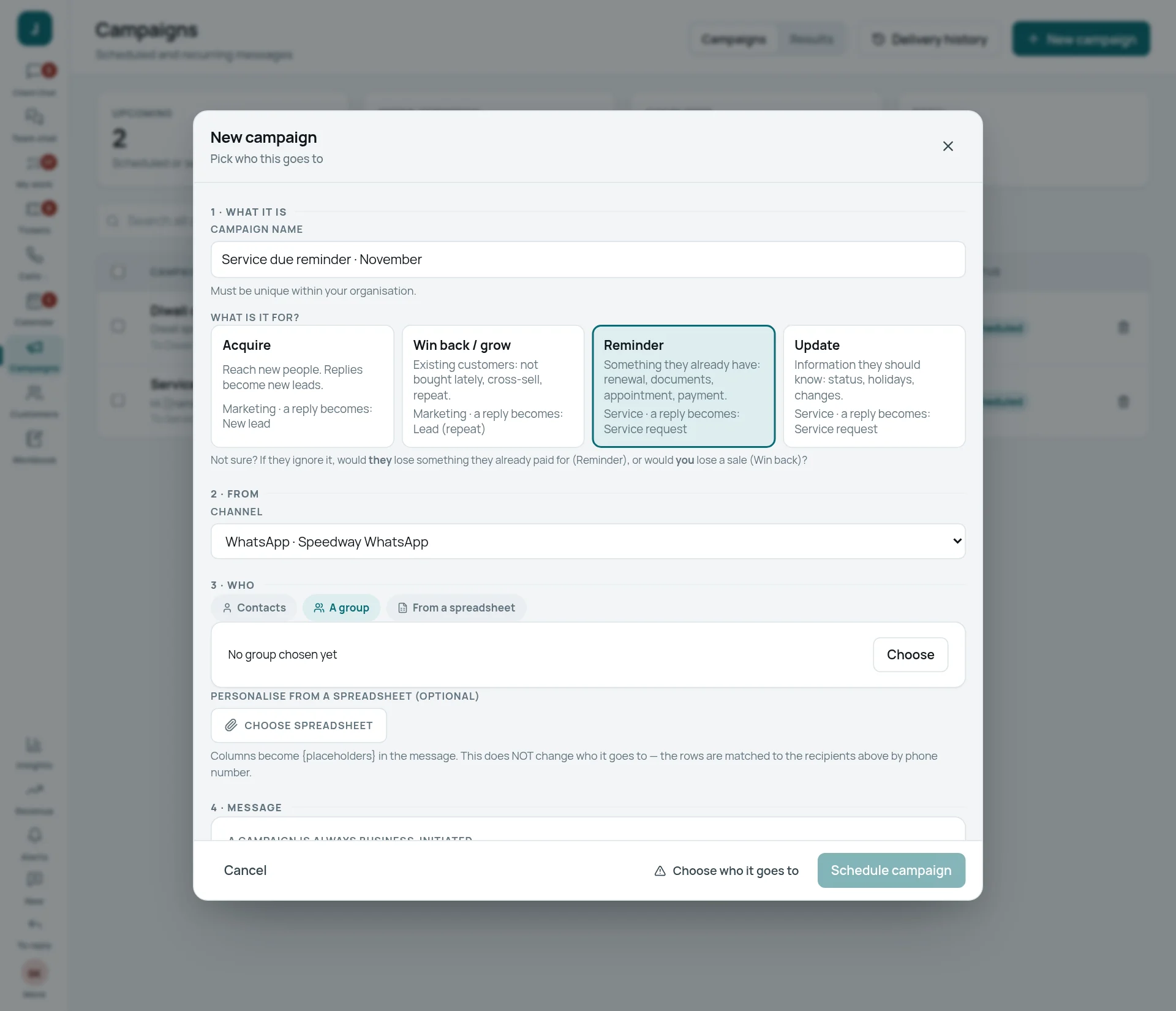
- 1 · What it is — a name, and what it is for: Acquire (new people), Win back / grow, Reminder or Update. A reply to the campaign becomes a lead or a service request by itself.
- 2 · From — the channel to send from (for example your WhatsApp number).
- 3 · Who — chosen contacts, a group, or a spreadsheet.
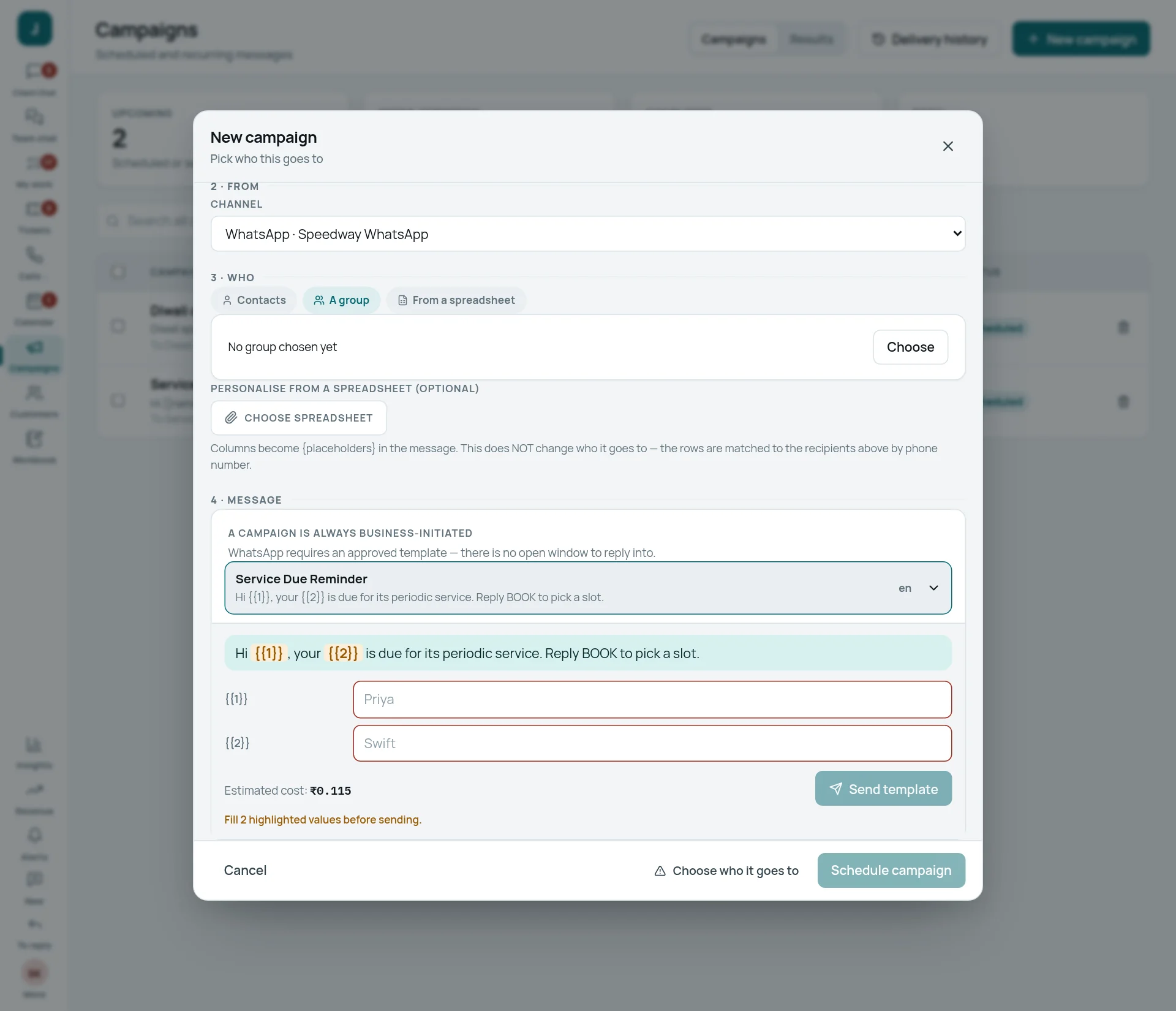
- 4 · Message — on WhatsApp, pick an approved template and fill its blanks; on email, write the subject and text (or a designed email).
- 5 · When — the date and time, and whether it repeats: Send once, Daily, Weekly, Monthly, Quarterly, Half-yearly, Yearly.
- Press Schedule campaign. Until you do, a note at the bottom says what is still missing.
Team chat: talking to colleagues
Like WhatsApp groups, but only for your company. Customers never see Team chat.
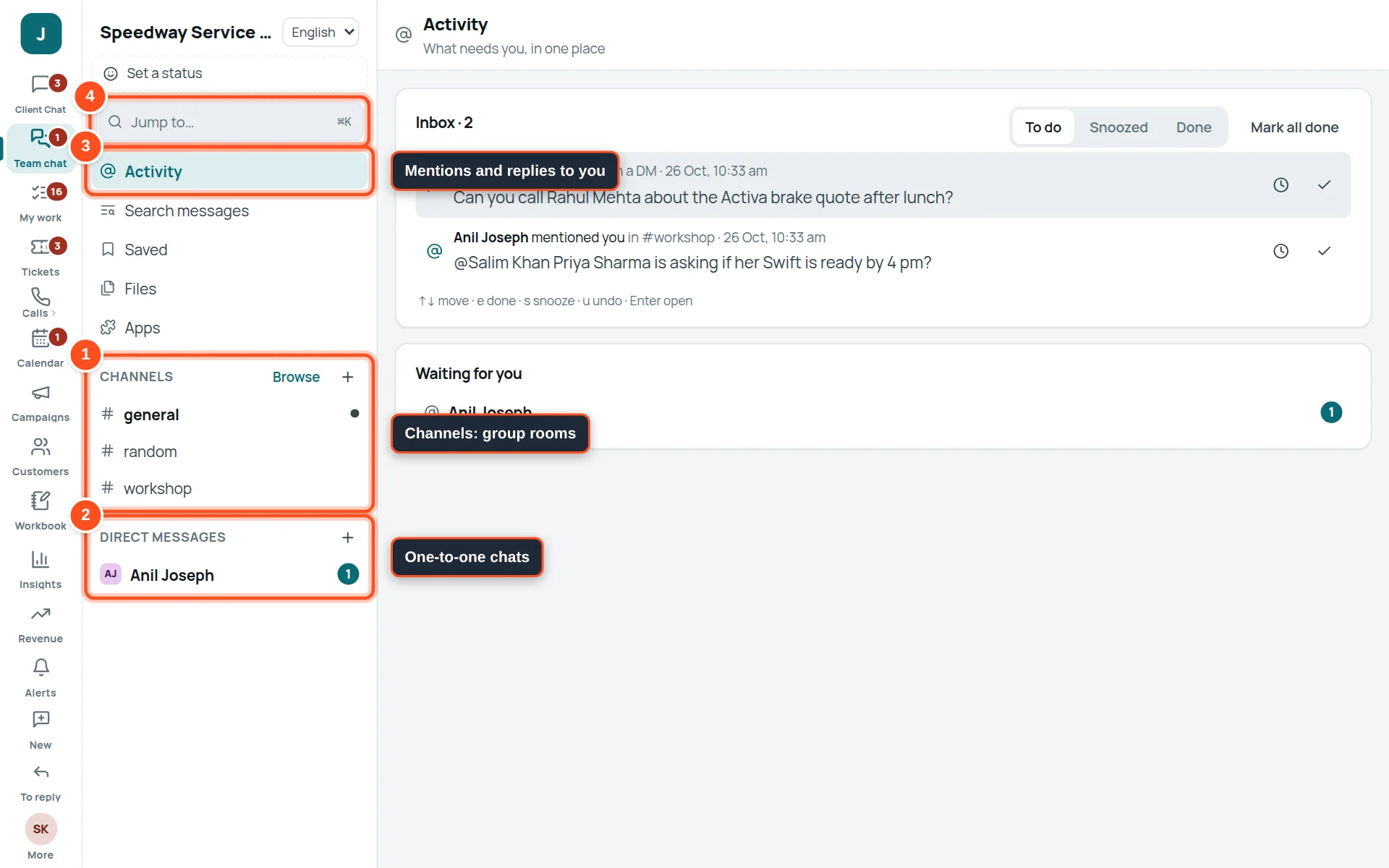
- 1Channels — group rooms, such as #general (everyone) or #workshop.
- 2Direct messages — one-to-one chats with a colleague.
- 3Activity — mentions of you, replies to your threads and direct messages, in one place.
- 4Jump to… — find any channel or person quickly (also Ctrl + K).
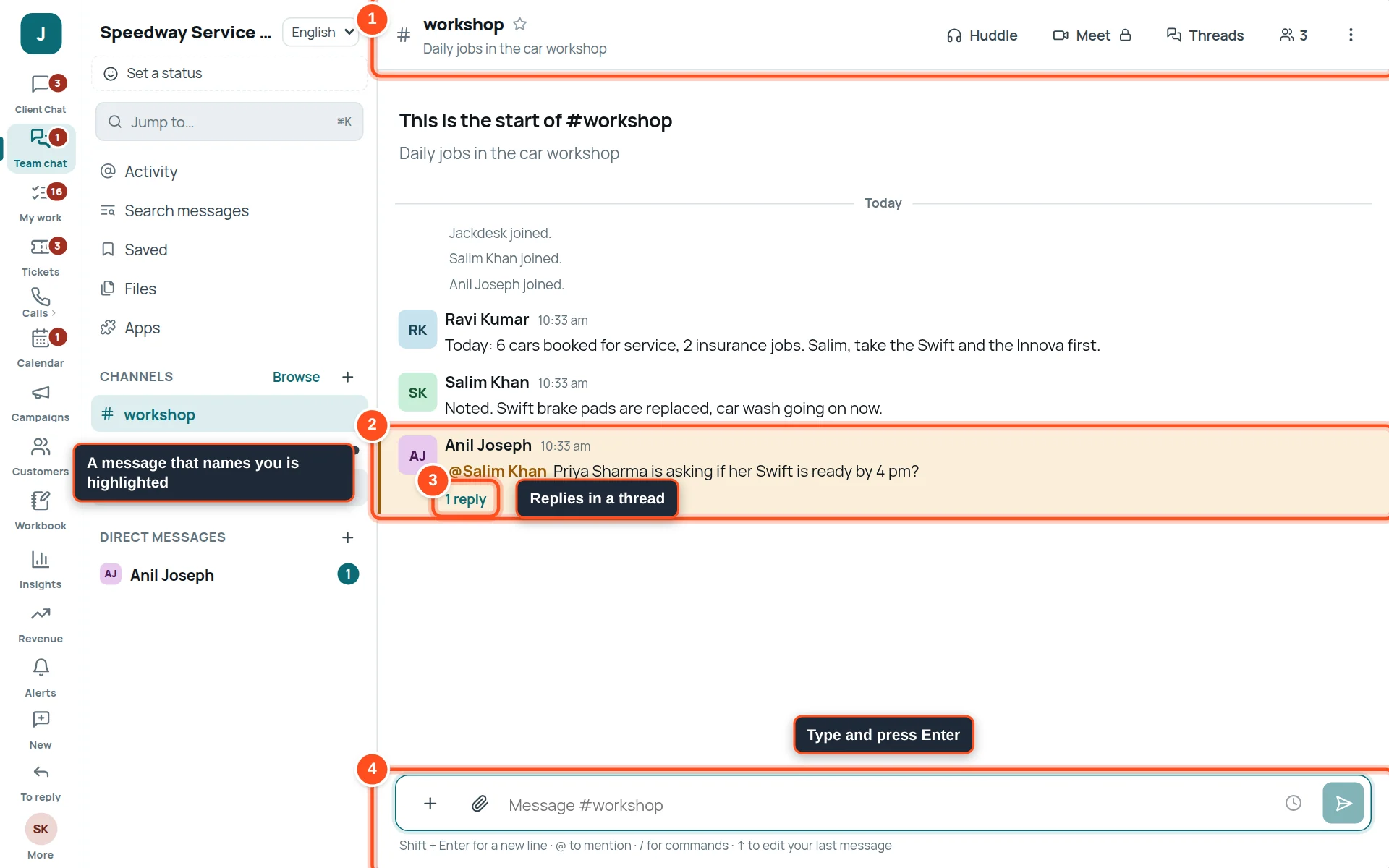
- 1The channel name and what it is for. Huddle (voice), Meet (video), Threads and members are on the right.
- 2A message that mentions you is highlighted.
- 31 reply — the conversation continues in a thread. Click to open it.
- 4Type here and press Enter. Shift + Enter for a new line. Use the clip for files.
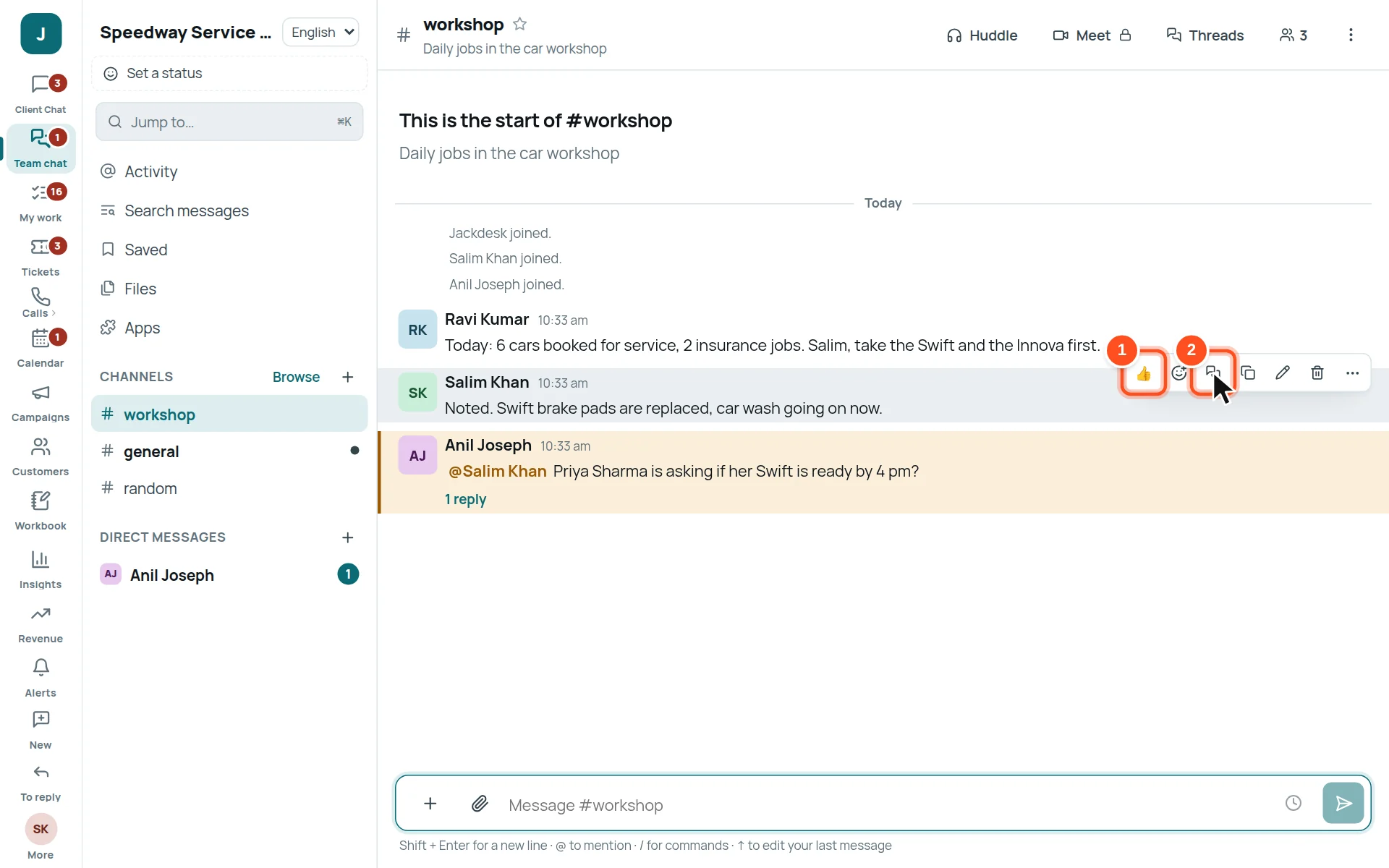
- 1React 👍.
- 2Reply in thread — answer without filling the channel.
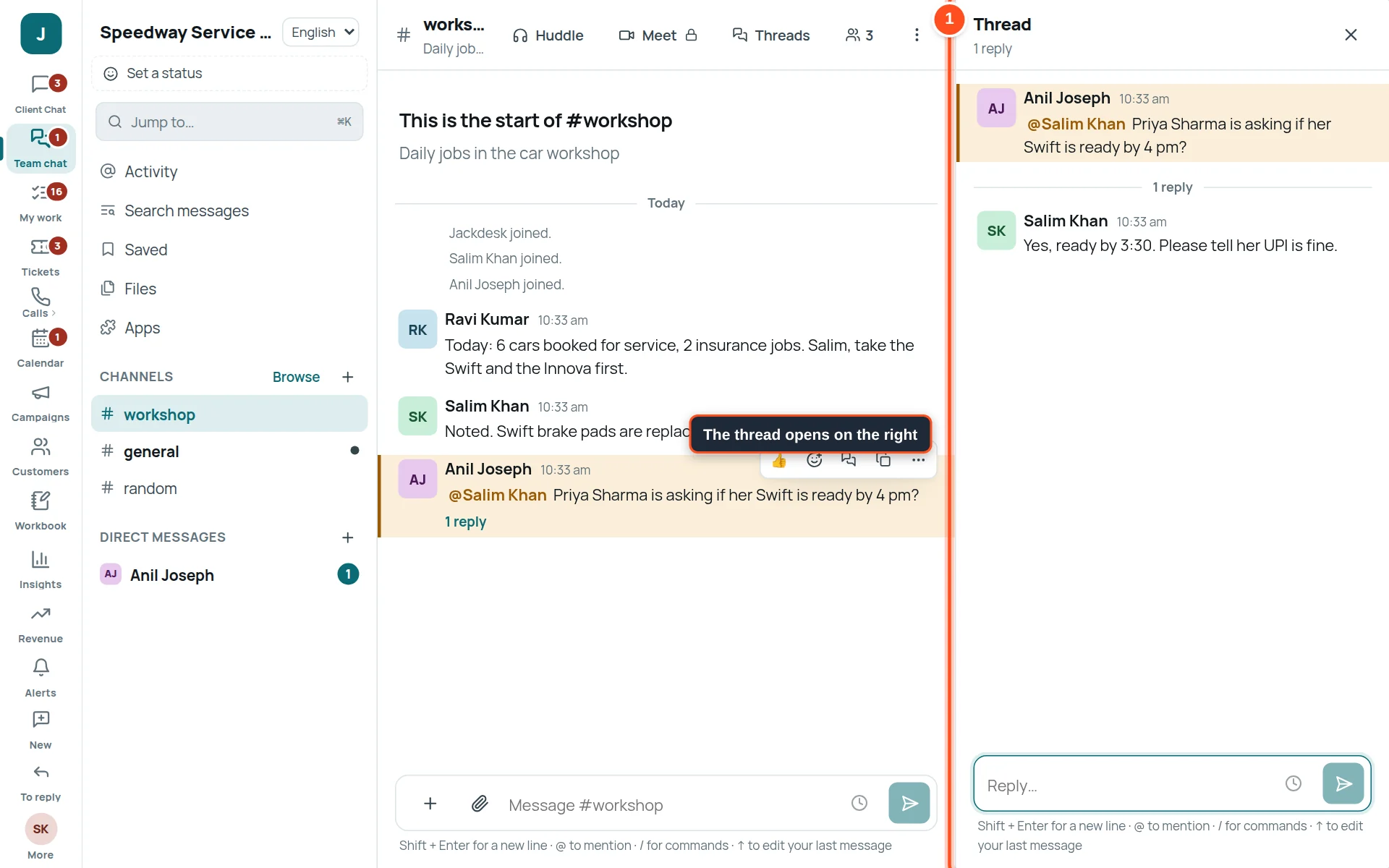
- 1Replies stay together, under the message they answer.
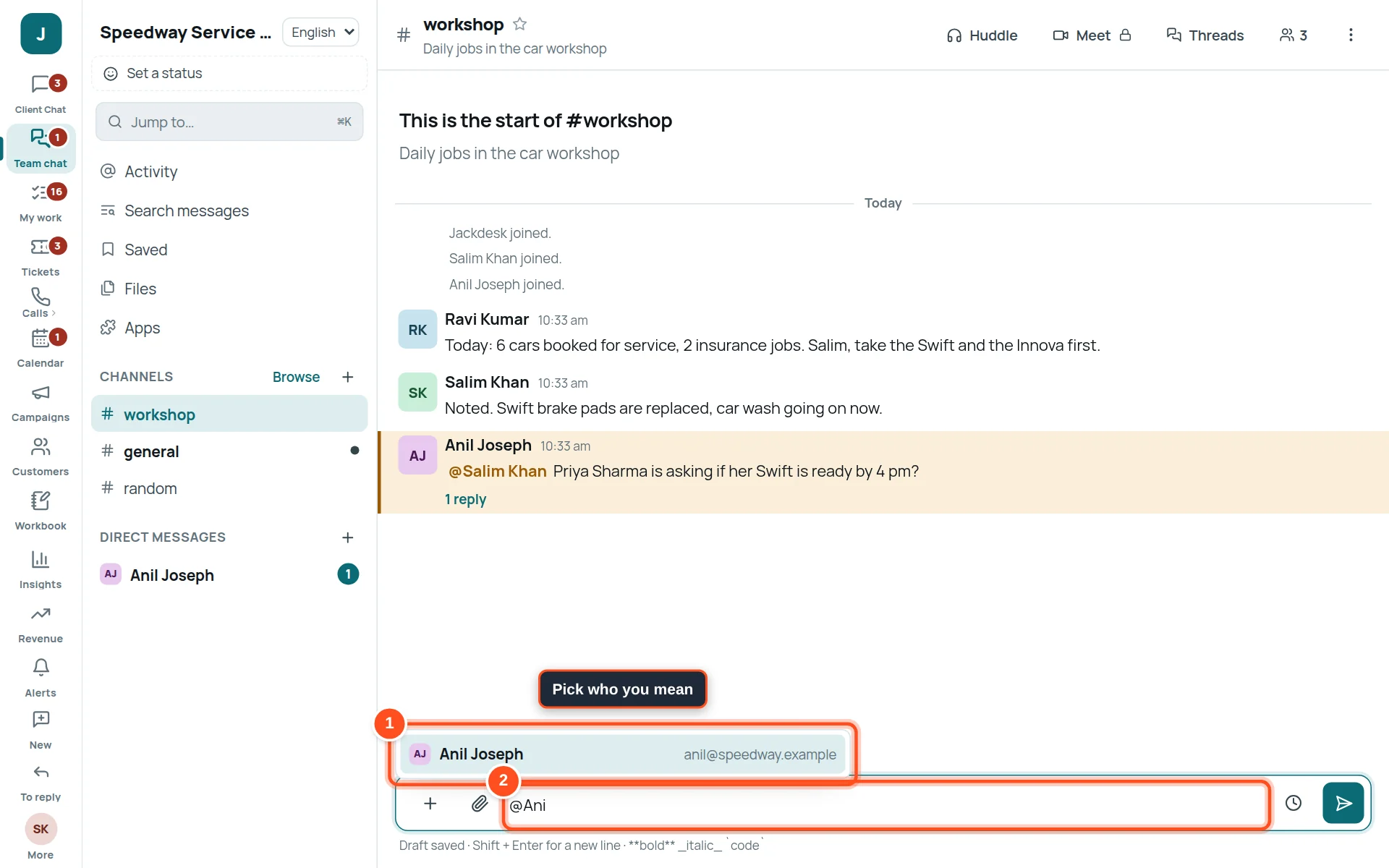
- 1Type @ and the start of a name, then pick the person.
- 2They get a notification.
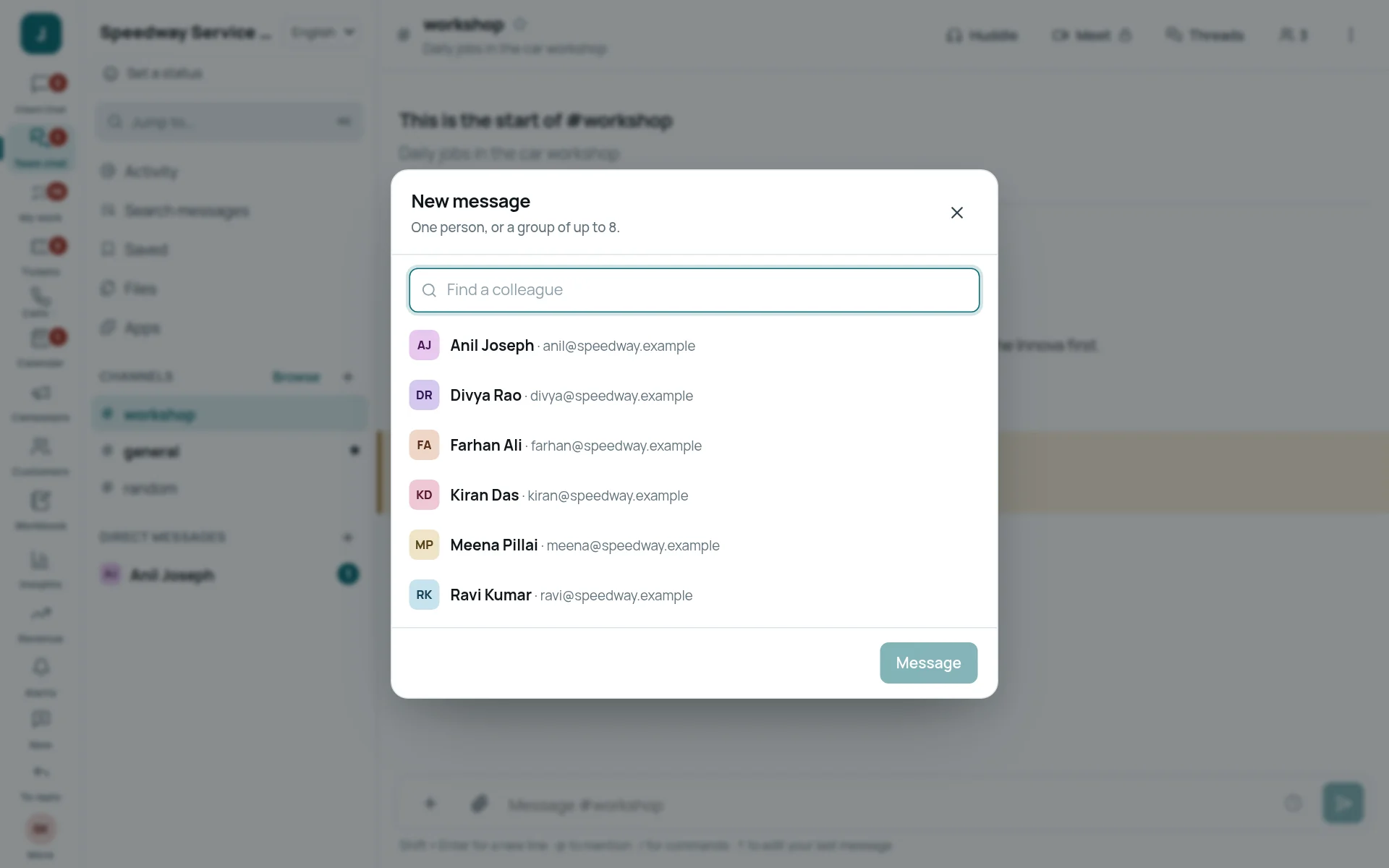
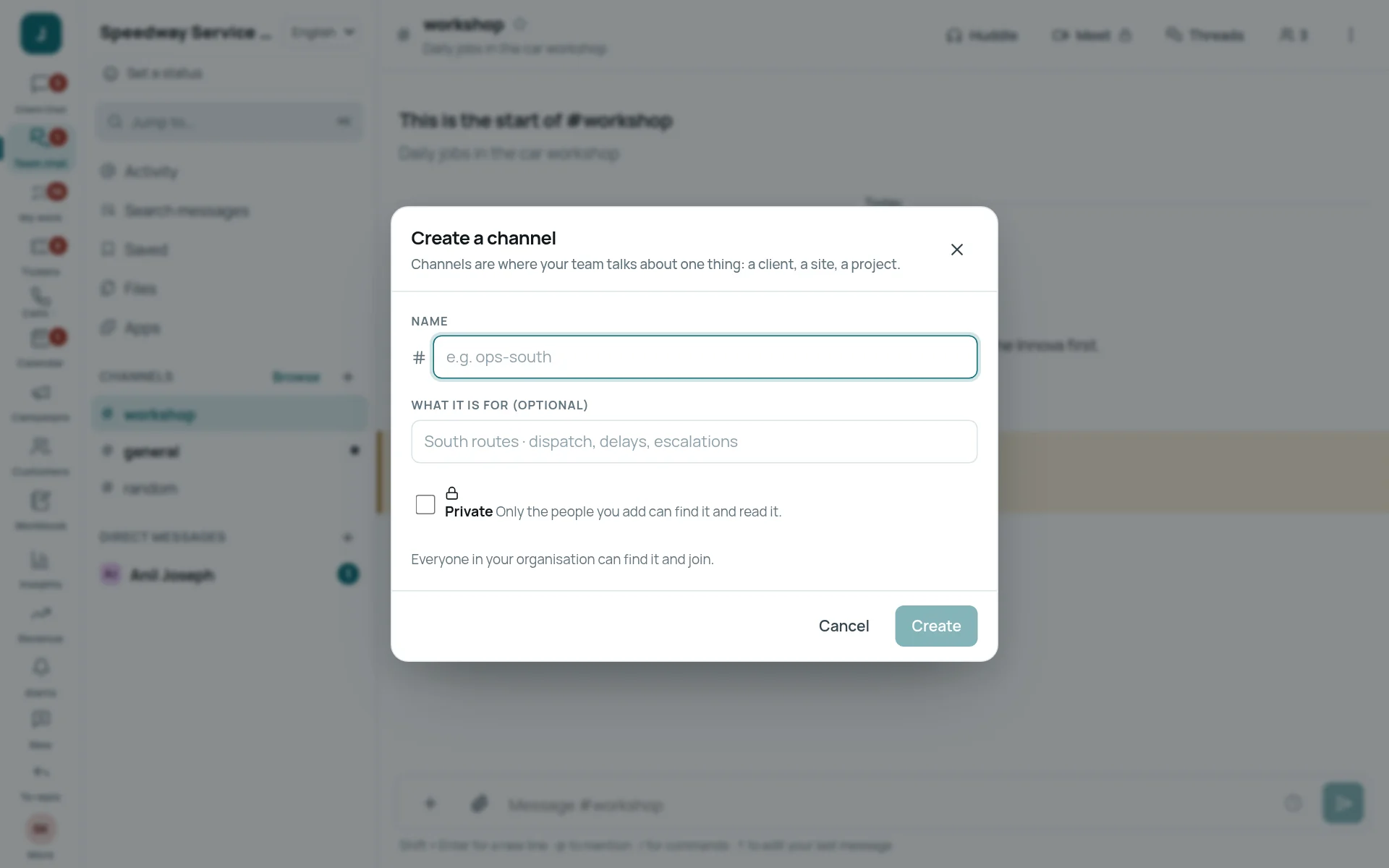
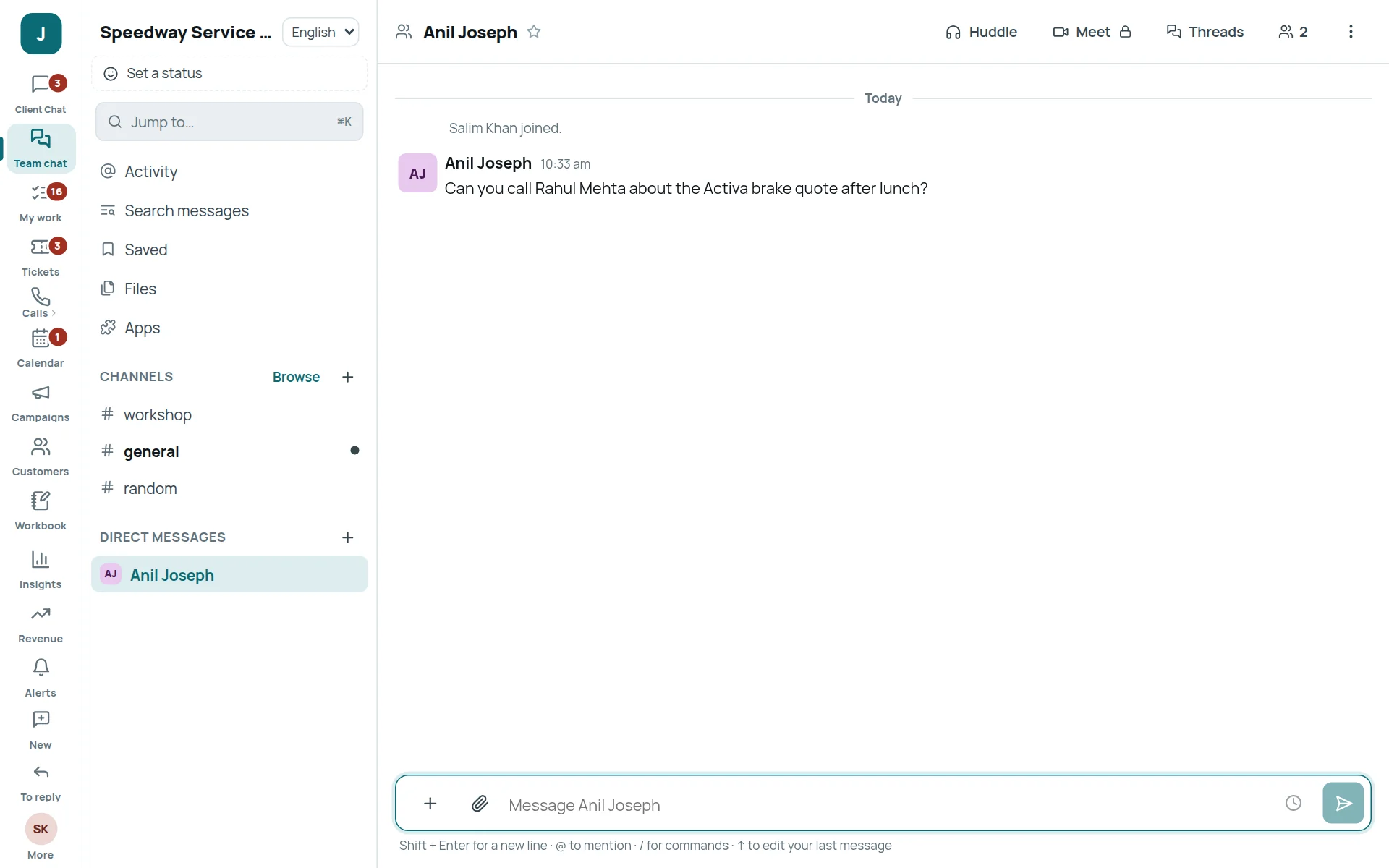
Calls, Alerts, New and To reply
WhatsApp calls, and three buttons at the bottom of the rail that answer three different questions.
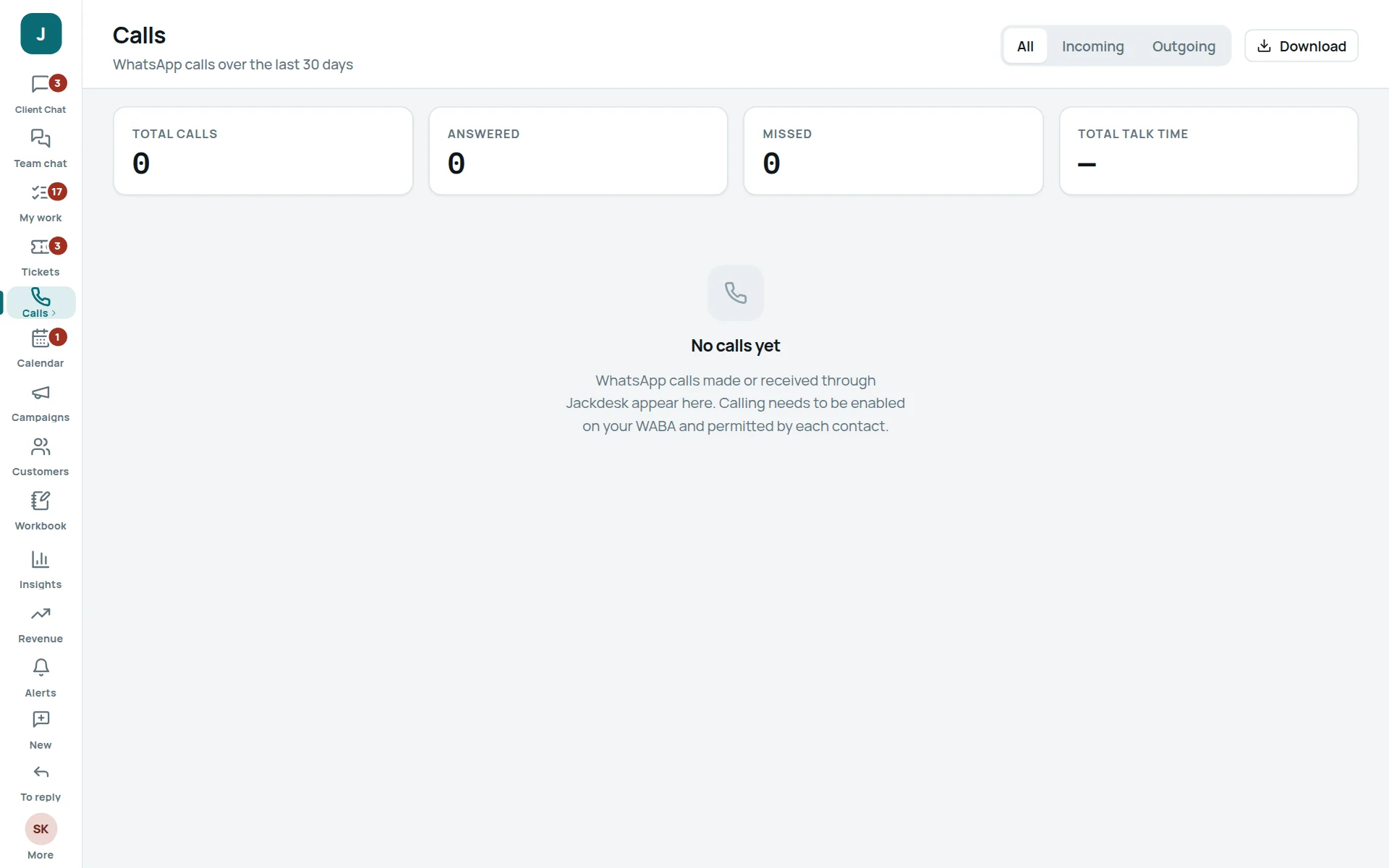
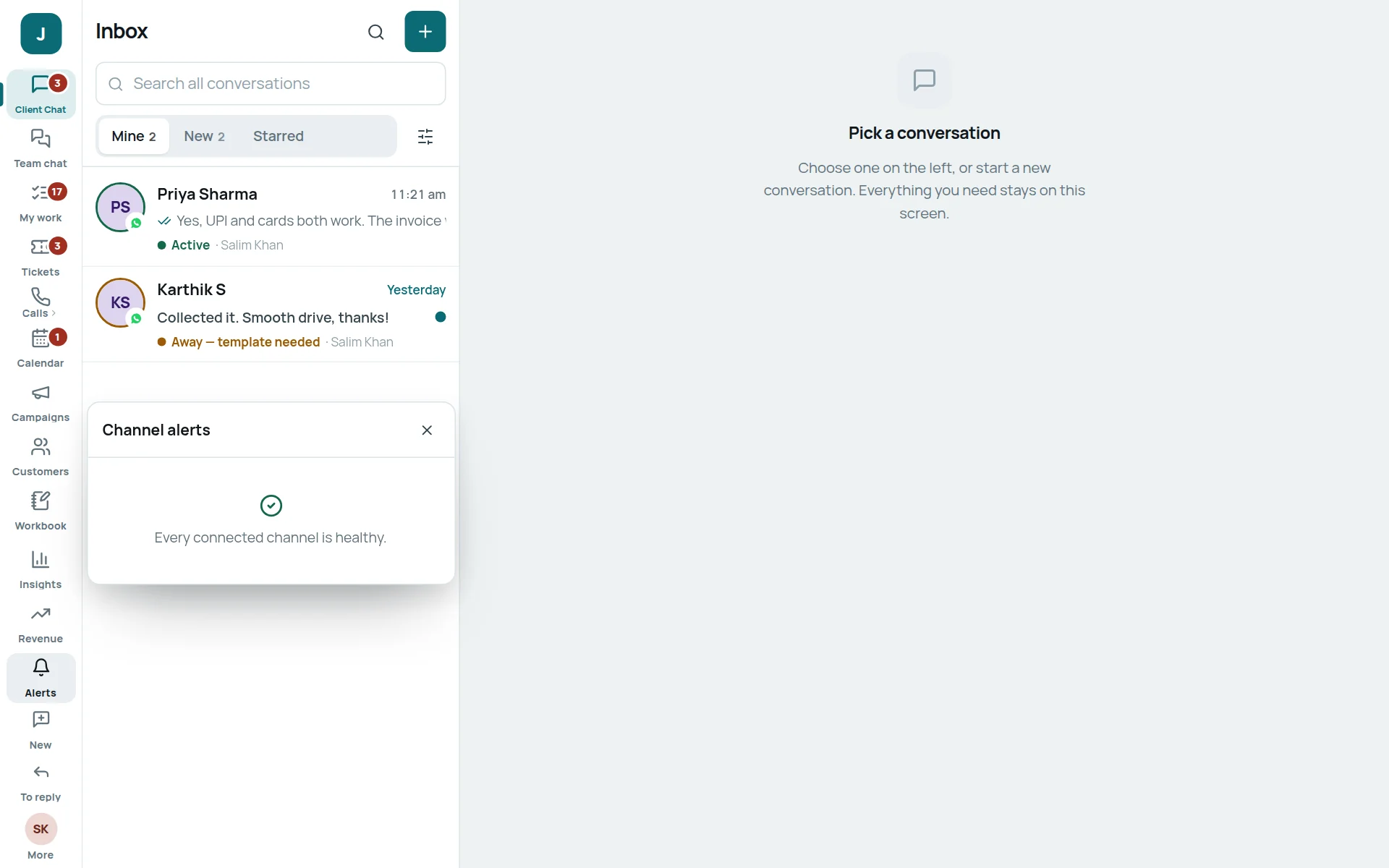
| Button | Answers | What to do |
|---|---|---|
| Alerts | Is something broken? (for example a mailbox stopped bringing mail) | Tell your admin. They fix it in the Store. |
| New | What came in while I was on another screen? | Click a line to open that chat. |
| To reply | Which customers are waiting for me? | Answer them first. |
When something goes wrong
The reply box says “Assigned to someone else”
Only the assigned person can reply. Press Assign to me (they are told), or write an internal note to them.
The reply box says “Unassigned. Assign it to yourself to reply.”
Nobody has taken this chat yet. Press Assign to me, then reply.
It says “Template needed” or “Outside WhatsApp’s 24-hour window”
The customer last wrote more than 24 hours ago. Send an approved template (see the 24-hour rule). When they reply, you can write freely again.
It says “This conversation is closed”
Start a new conversation from the same chat; the old messages stay above.
It says “This SMS Relay number is receive-only”
This office SIM only receives messages (for example bank OTPs). Replies are switched off on purpose.
It says “Your role cannot reply to messages”
Your role is view-only. Ask your admin if you should be able to reply.
My message shows a red mark (failed)
Open the message menu and press Try sending again. If it fails again on WhatsApp, the 24 hours may have passed: send a template.
I cannot find a customer
Search with only part of the name, or with the phone number. In Customers, the search also looks at every linked contact’s phone and email.
A customer’s email and WhatsApp show as two people
Link both contacts to one customer: Link a contact.
I don’t see Campaigns, Insights or another icon
Your role or your company’s plan does not include it. Ask your admin.
The screen looks old or a button is missing
Refresh the page with Ctrl + Shift + R.
Sign-in code did not come
Check spam or promotions. Wait one minute, then press send again. Make sure you typed the email or number your admin added.